

Passthrough is available on Meta Quest only. The checkbox does not appear on other devices.
How Passthrough Works
Inside a training, Passthrough requires two things to be true at the same time:- The scene must allow it — the creator sets the scene’s Display Mode to Passthrough when building the training.
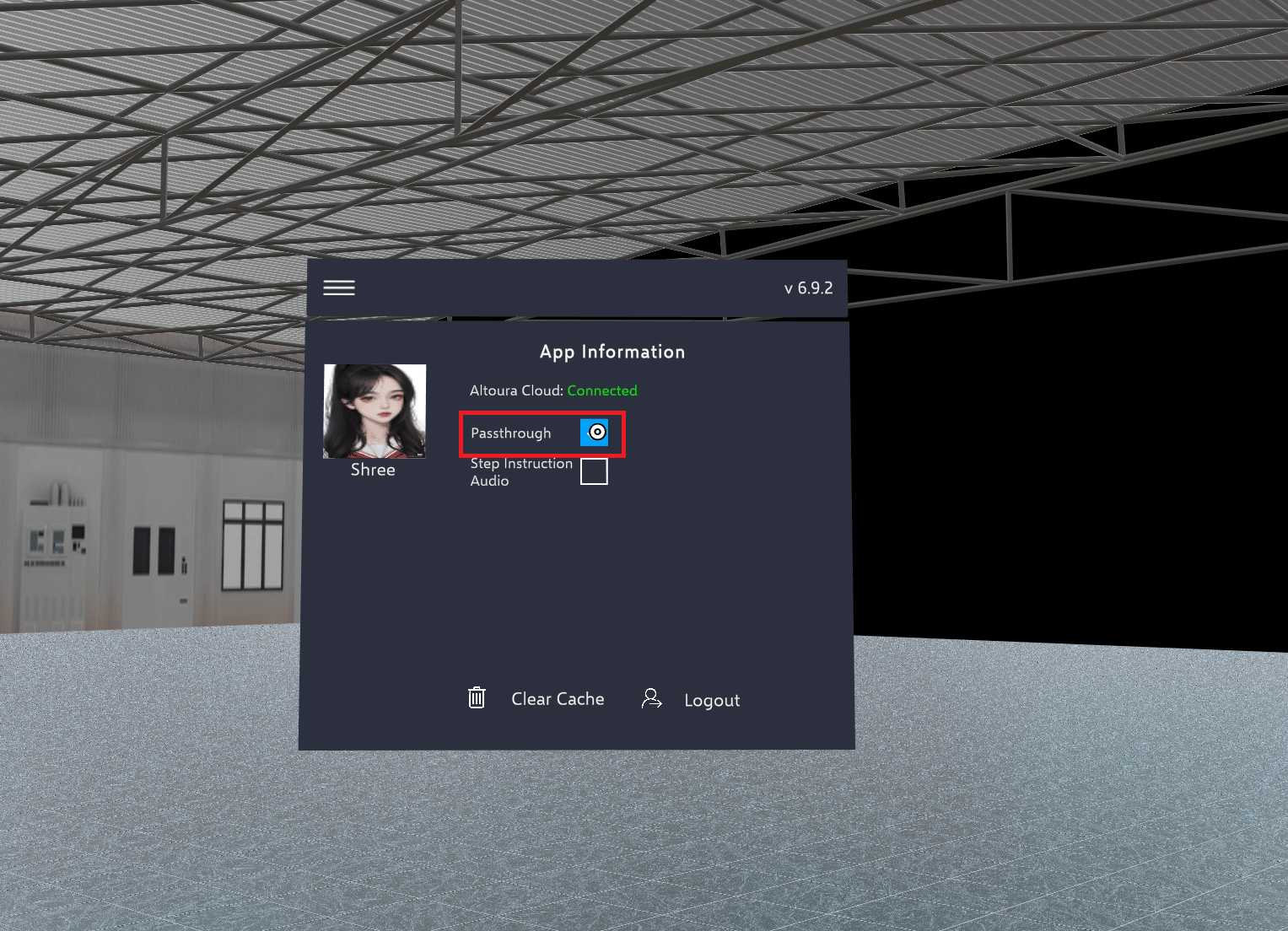
- You must enable it — check the Passthrough box in the App Information panel inside the Toolbelt menu.
For Trainees — Toggling Passthrough
1
Open the Toolbelt menu
Touch the tips of both index fingers together to form an “A” and hold briefly, or press and hold the left controller’s menu button for 2 seconds.
2
Open App Information
Select the user profile button at the top-left of the Toolbelt to open the App Information panel.
3
Toggle Passthrough
Check or uncheck the Passthrough box to turn it on or off.
While you adjust the anchor, Passthrough turns on as a partly see-through overlay, whatever your setting, so you can line the scene up with your room. It goes back to your setting when you tap Finish.
For Creators — Enabling Passthrough on a Scene
Set the Display Mode in the Load Scene Action
In the Creator App, open your training and select the state that loads the scene. In its On Entry actions, open (or add) the Load Scene action. Set the Display Mode parameter to Passthrough.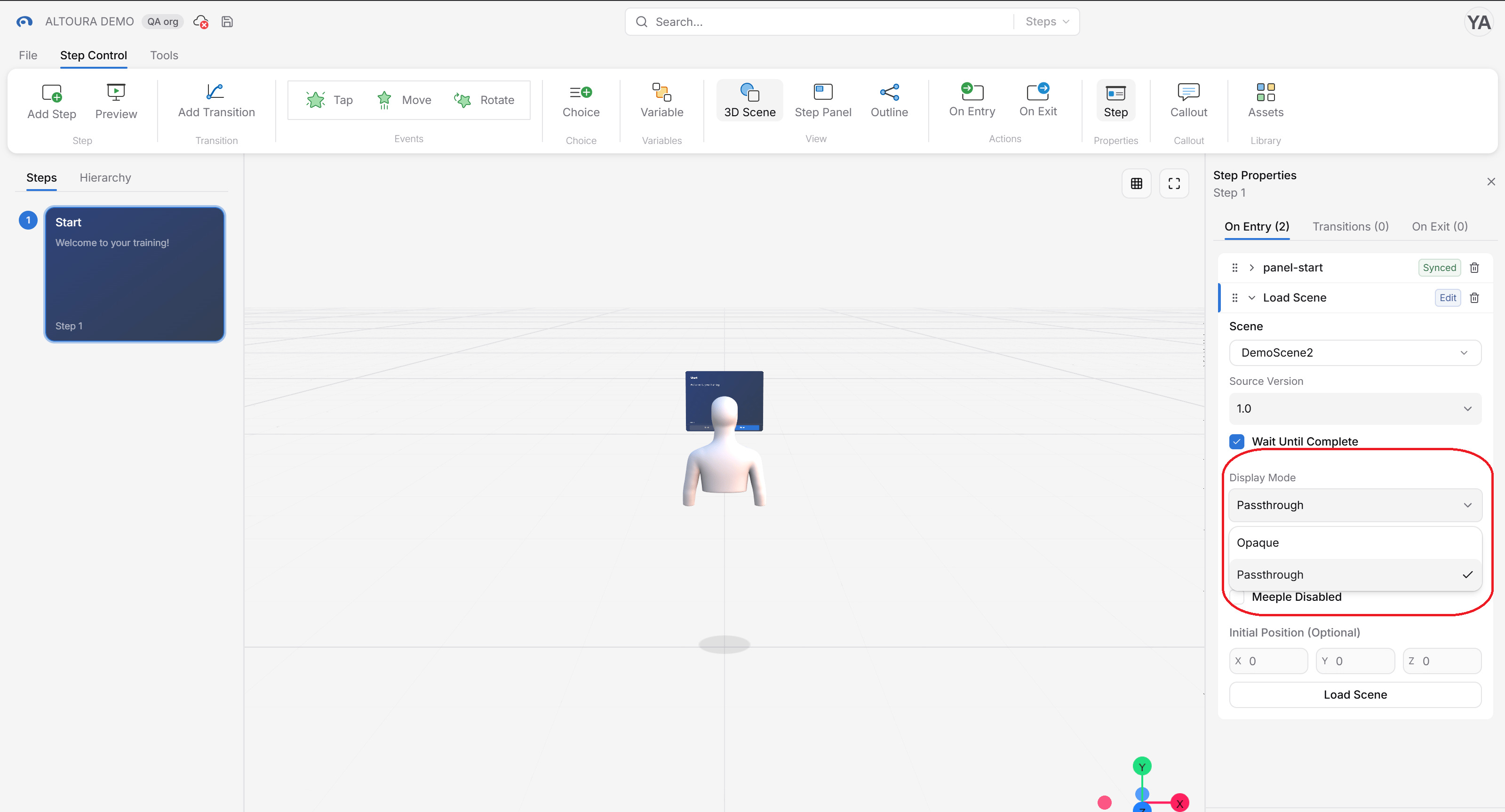
Environment Objects
The Scene Manager has an Environment object checkbox in the Settings section of the ribbon bar.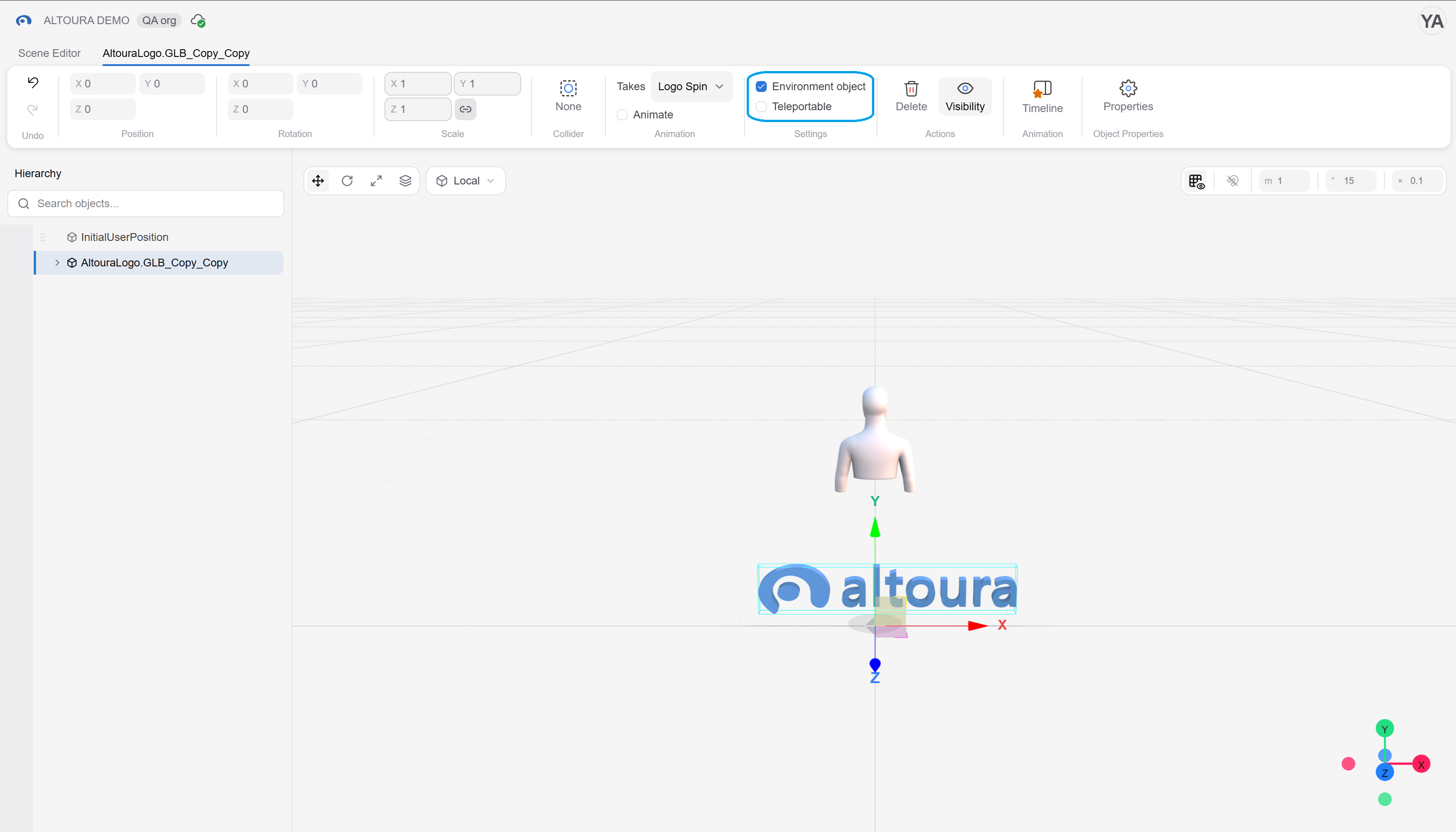
Related
- Load Scene Action — the action where Display Mode is configured
- Object Properties — Scene Manager reference for the Environment object toggle
- Toolbelt — other Toolbelt menu options