

The Timer
The timer shows the time left in minutes and seconds (for example, 00:45) and counts down to 00:00. It floats just above and to the right of the center of your view, and follows your head so it’s always visible.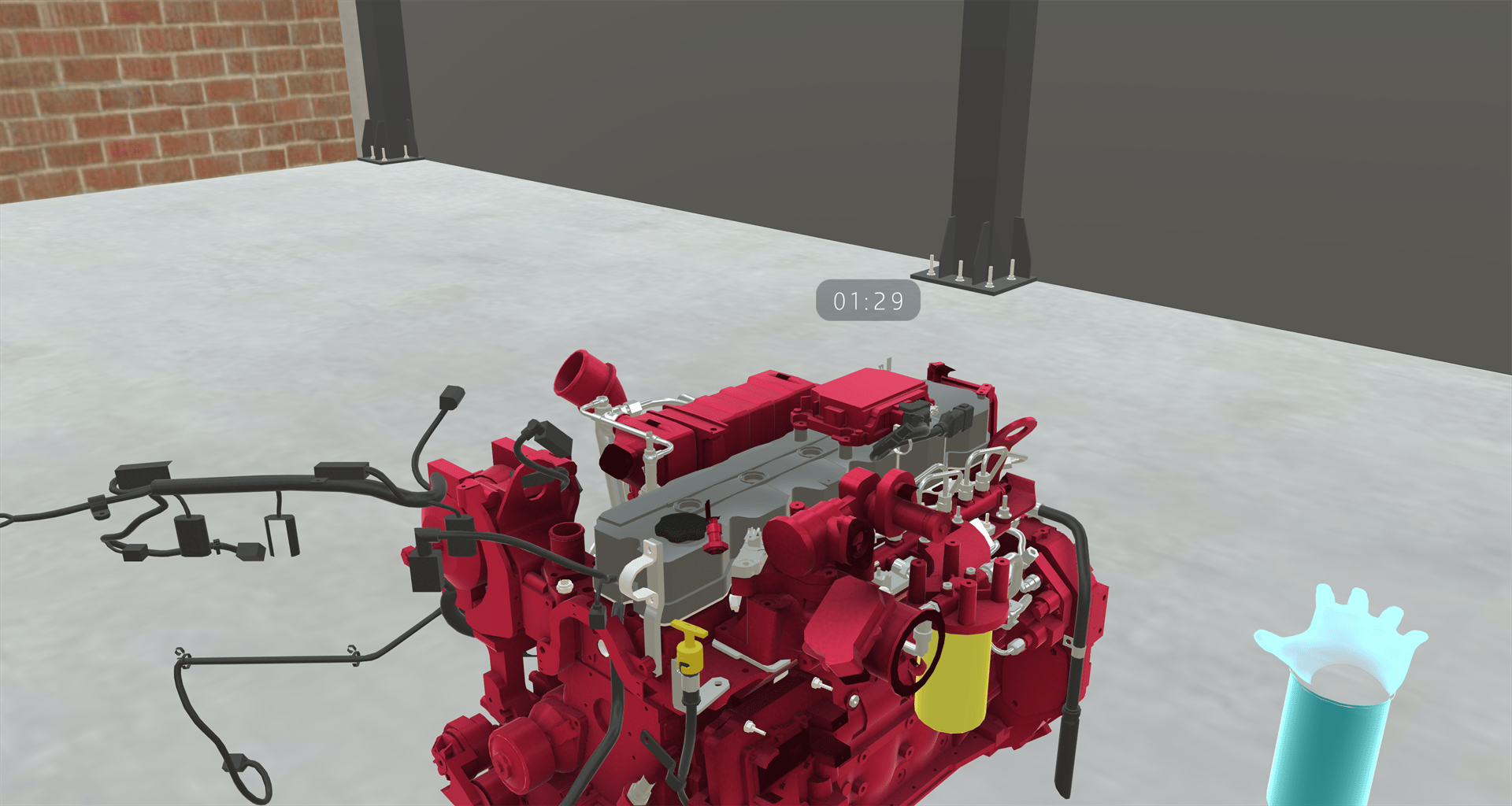
When Time Runs Out
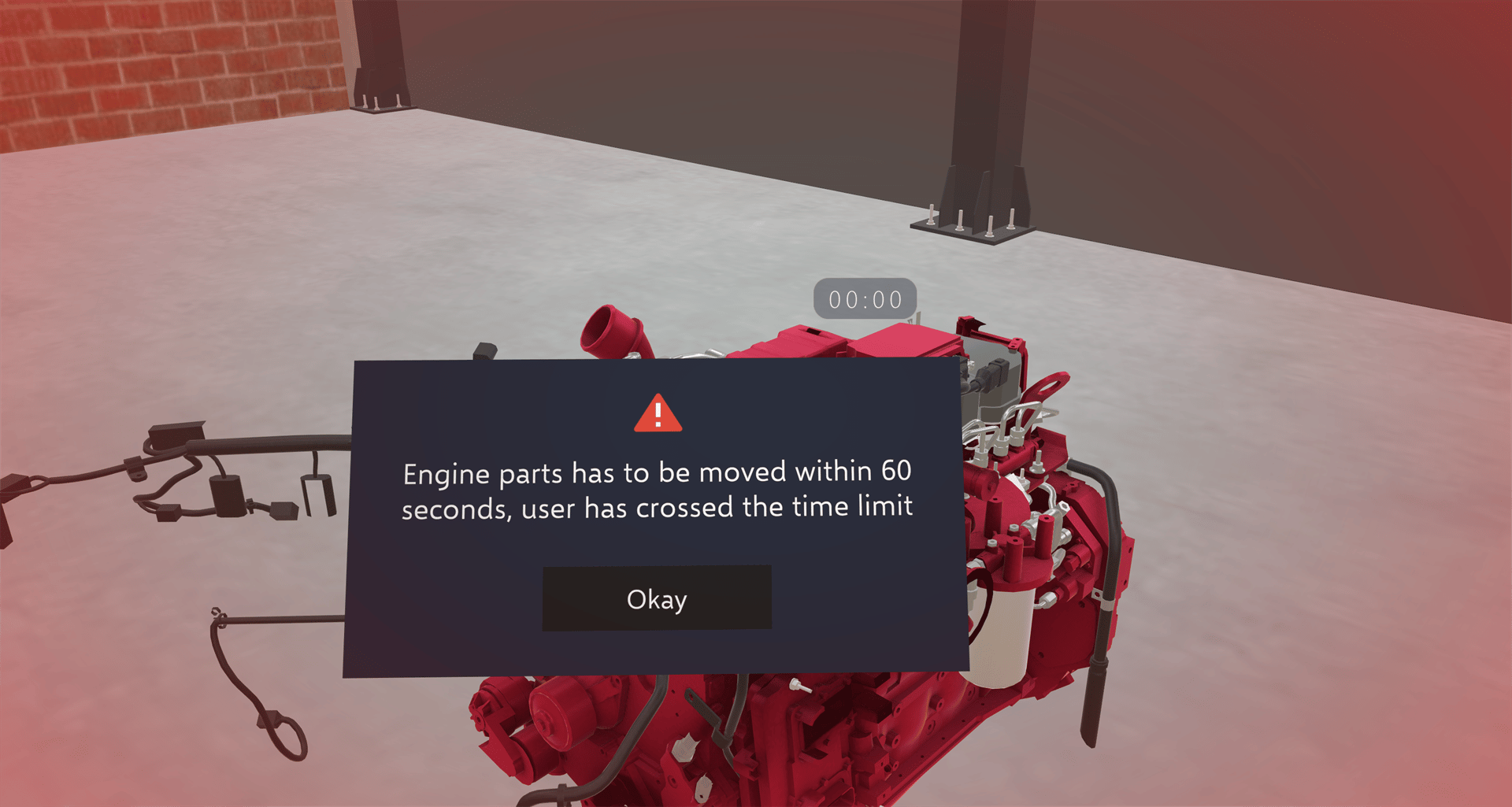
When the timer reaches 00:00:- The Training pauses.
- A red tint appears around the edges of your view, and an error sound plays.
- An alert shows a message from the Training, with an Okay button.
- Next is hidden and Back can’t be pressed. You can’t interact with training objects, and any step video pauses.
Resetting and Going Back
- Reset Step keeps the time left when the step uses the same timer. It does not give you more time on that timer.
- Going Back a step also keeps the time left on the same timer. Going back before that timer started removes it until you reach its starting step again.
- Restart Training starts the Training over. Each timer starts at its full time when you reach the step that starts it.
- Resuming a saved Training restores the timer’s saved remaining time.
For Creators
To add a time limit to a Training, see Set Time Limit & Remove Time Limit.Related
- Speed Tracking: uses the same alert and outcomes