

Overview
A Callout is an interactive tag attached to a point on a scene object. It shows a text label in 3D space, optionally connected to the object with a leader line, and can open text, an image, or a video when the learner taps it. Use callouts to label parts of a machine, flag inspection points, highlight hazards, or add “tap to learn more” hotspots. Place them directly in the 3D scene using Callout Mode.Adding a Callout (Callout Mode)
Create callouts using Callout Mode on the Step tab of the ribbon.1
Select a step
Choose the step where the callout should appear and open its 3D scene view.
2
Turn on Callout Mode
On the Step tab, click Callout. The viewer cursor becomes a crosshair and a colored border appears around the 3D viewport to indicate Callout Mode is active.
3
Click a surface in the 3D scene
Click directly on the part of the model you want to annotate. The clicked point becomes the leader line’s anchor, and the label is placed a short distance away from the surface.
4
Edit the callout
The Callout Editor opens in the sidebar. Enter label text, choose a content type (None, Text, Image, or Video), and adjust the style.
5
Turn Callout Mode off
Click Callout again when you are done placing callouts.
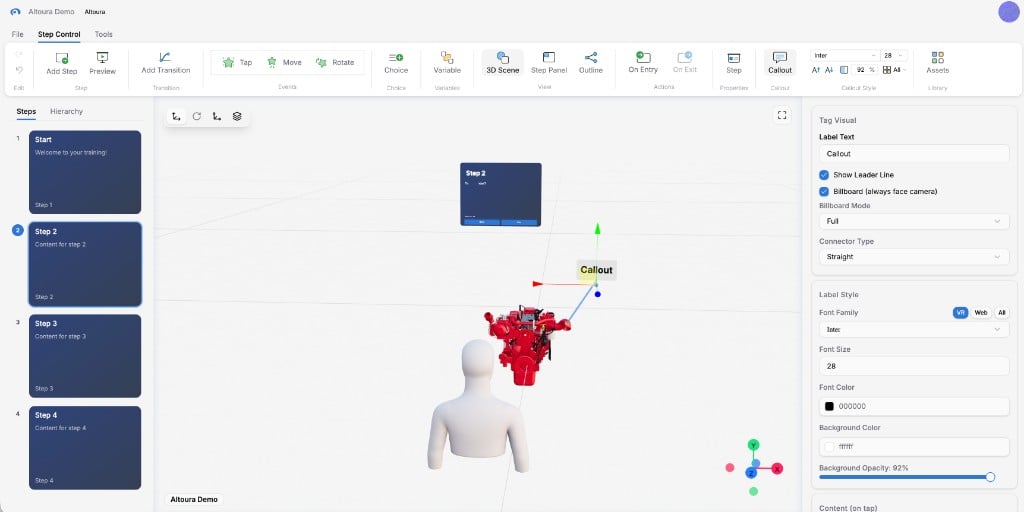
Callout Mode active — the ribbon button is highlighted, a placed 'Callout' tag sits on the model, and the Callout Editor is open on the right
Callout Mode sets up the selected step automatically:
- An Add Callout action in On Entry places the tag.
- A cleanup action named Remove Callout: [label] in On Exit removes the tag when the step exits.
- A tap transition runs the content action (Show Text, Show Image, or Play Video) while keeping the learner in the current step.
Callout Editor
Select a callout tag in the step where it was created to open the Callout Editor. Use this panel to edit its label, connector, style, and tap content. To change the reference object or enter numeric values for the tag’s position, rotation, and scale, open the generated On Entry action described below.Tag Visual
Connector Type
When Elbow is selected, choose Connect From Edge (top, bottom, left, or right) to set which side of the label the line exits. You can also click the small edge dots on the label in the viewport or drag the orange handles to reshape the elbow.
Label Style
With a callout selected, the ribbon’s callout controls let you change its font family, font size, and background opacity. Use Font Color and Background Color in the Callout Editor to change colors.
Content (on tap)
Choose what happens when the learner taps the callout. The generated tap transition runs its content action without moving to another step.Positioning Tap Content
When Text, Image, or Video is selected, the Callout Editor also shows:
Click Position content in 3D scene to adjust a placeholder for the content using the viewport transform controls. Click Done positioning content to return to editing the label. These controls position the tap content separately from the callout tag.
Deleting a Callout
Select the callout and click Delete Callout at the bottom of the Callout Editor. This removes its On Entry tag action, associated On Exit cleanup action, and tap transition from the step.Editing the Generated On Entry Action
After placing a callout, open its generated action, named Callout Tag: [label], in the step’s On Entry actions. Its parameters include:
Use the Callout Editor to configure Content (on tap) and connector type. Create additional callouts through Callout Mode.
Changing Reference Object resets the anchor point, label position, and label rotation. Select the reference first, then adjust the placement.
Example: Label a Machine Part
A learner is inspecting an engine. You want to label the oil filler cap so the learner can see its name and tap it for a short description.1
Place the callout
Select the Inspect Engine step. Turn on Callout Mode and click the oil filler cap in the 3D scene.
2
Configure the label
In the Callout Editor, set Label Text to
Oil Filler Cap. Leave Show Leader Line on, Billboard on, Billboard Mode Full.3
Add tap content
Under Content (on tap), choose Text. Set Title to
Oil Filler Cap and Text to This cap covers the engine oil fill opening.Example: Inspection Checklist with Image Callouts
Tag each inspection point with a numbered callout. Tapping a callout shows a reference image of the correct condition.1
Enter Callout Mode and place the first point
Click the first inspection point. Label it
1. Wear Plate.2
Set the content to Image
Under Content (on tap), choose Image. Pick the reference photo. Fill in Alt Text.
3
Repeat for each point
Place
2, 3, 4 on the other inspection points, each with its own reference image.4
Turn Callout Mode off
Return to normal editing when all points are placed.
Best Practices
1
Choose the content type before filling it in
Select Text, Image, or Video before entering content. Changing the type later replaces the existing tap-content settings.
2
Keep labels short
Labels are most readable at 1 – 3 words. Put detail in the tap content, not on the tag itself.
3
Leave Billboard on for most cases
Billboard labels stay readable regardless of how the learner moves around the scene.
4
Use elbow connectors when the label needs to sit off to the side
An elbow routes cleanly around the model instead of cutting through it.
5
Stick with VR fonts for VR trainings
The VR font filter shows fonts that render correctly in headset mode.
6
Clean up on exit
Keep the generated On Exit cleanup action when the tag should appear only in its original step. It removes the tag when that step exits.
Related
- Show Panel — A richer, modal info panel (versus a lightweight callout tag)
- Highlight Object — Visually emphasise an object without attaching a tag
- Show Text / Show Image / Play Video — The content actions triggered when a callout is tapped