

When the Ray Is Off
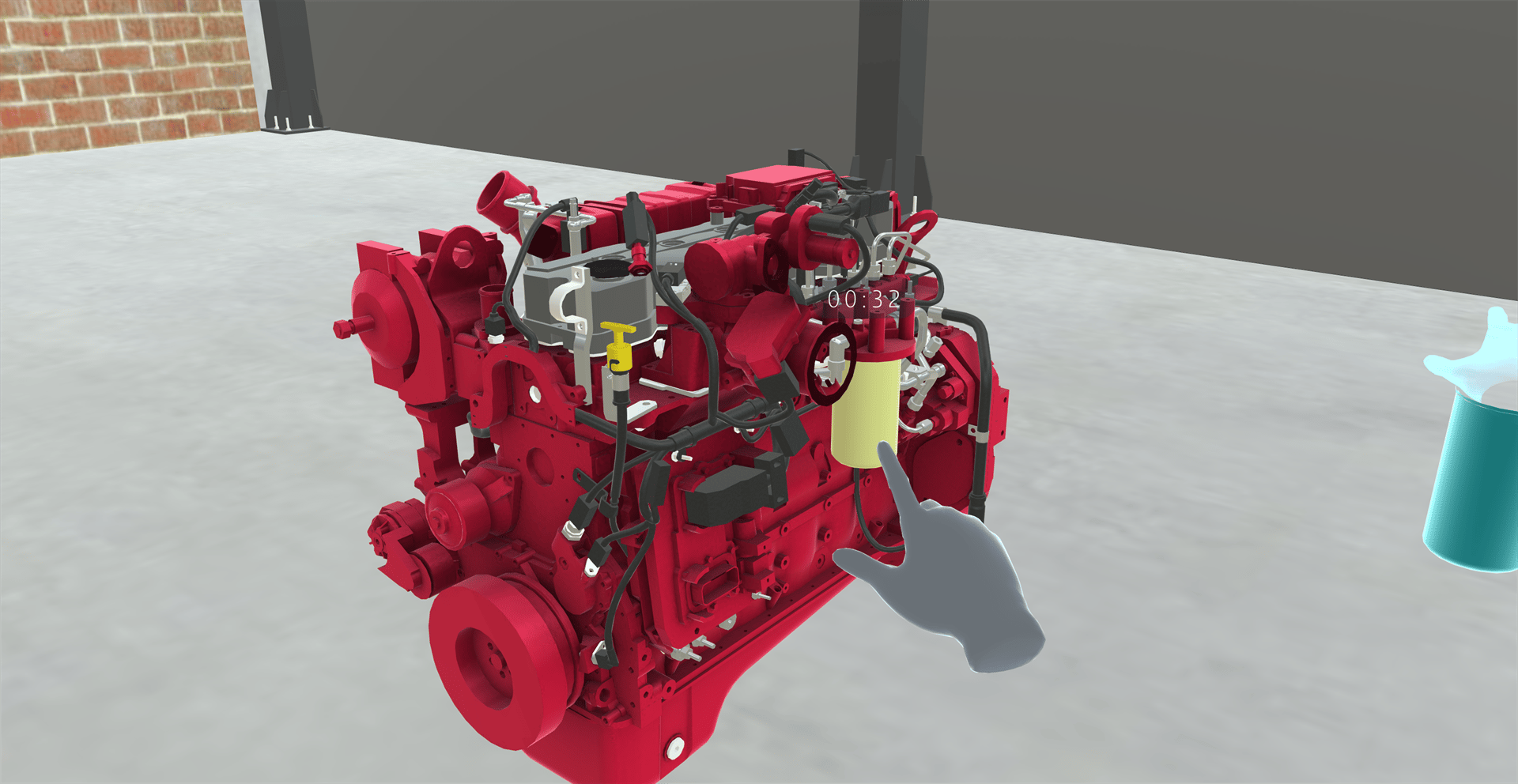
- When you point at a training object, the ray and its cursor disappear. You can’t tap it or grab it from a distance. The same happens when you point at a pause collider or, in Assessment mode, at a wrong object.
- Walk up to the object and touch it with your hand or controller to tap it, or grab it to move it.
- The ray still works for panels, menus and buttons, so you can still press Next, Back and the Toolbelt buttons.
- On rotate steps the ray stays on, and you can still rotate the object from a distance.
- Interactable objects aren’t affected. You can still point at them and pick them up from a distance.
For Creators
To turn the ray off or on in a Training, see Enable Ray Cast.Related
- Interactable Objects: objects you can pick up freely
- Tools: when you interact using a tool