

- Forceps
- Big Forceps
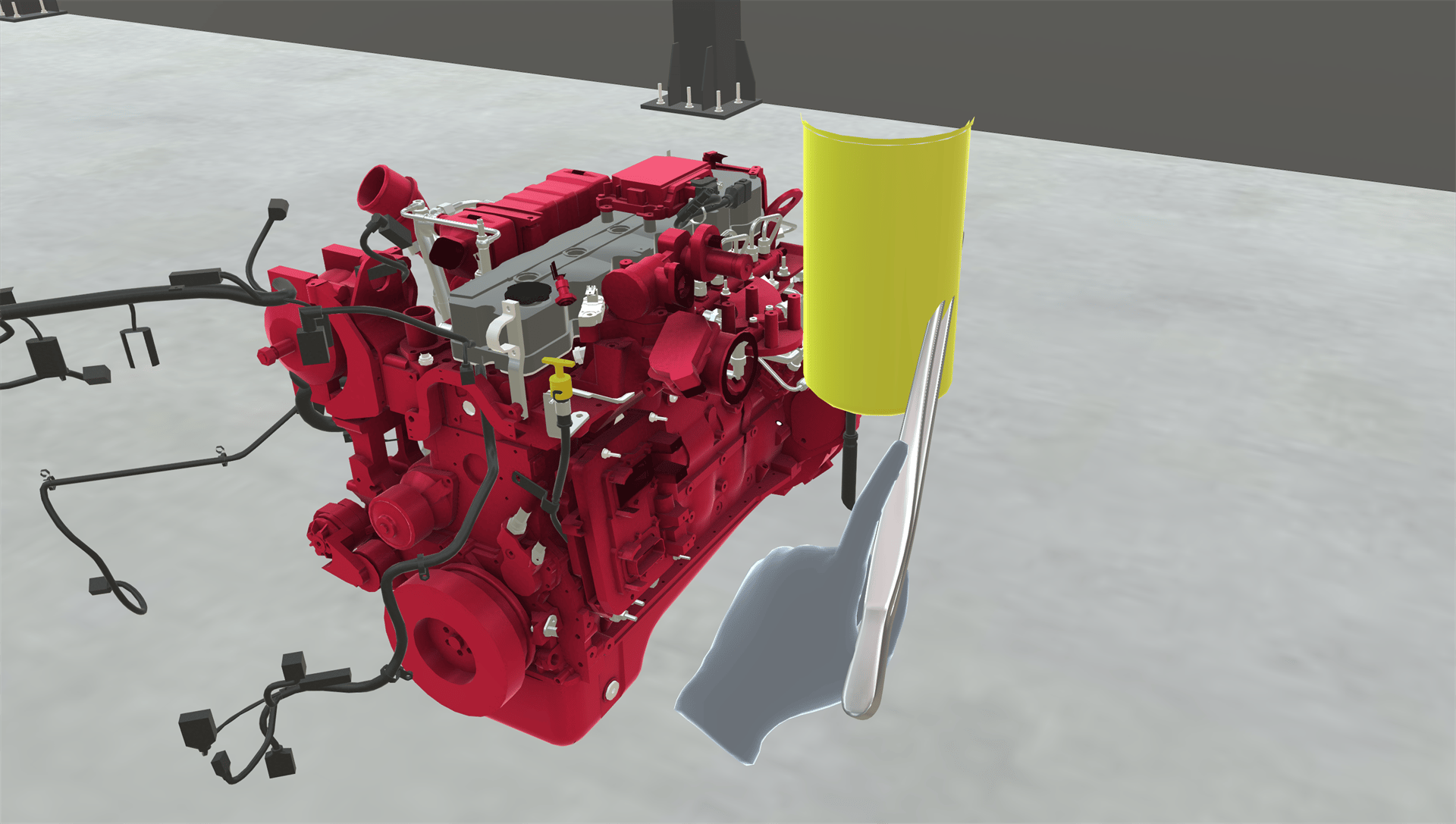
Using a Tool
While you’re holding a tool, you can only interact with training objects using the tool. Your hand can’t grab them directly, and the ray doesn’t point at them.- Tap: touch the tip of the tool to the object.
- Move: touch the tip of the tool to the object, then hold select. The object follows the tool as you move and turn it. Release select to let go.
- Meta Quest
- HTC Vive
To hold select, pinch (hands) or hold the trigger (controllers). Pinching or pulling the trigger also closes the forceps. With hand tracking, your fingers hold a fixed grip on the tool and don’t follow your real fingers while you hold it.
When the Tool Is Removed
The Training removes the tool when you no longer need it. Any gloves you’re wearing stay on. See Hand Representation. If you use Reset Step or Restart Training, the tool is given back to you if that point of the Training uses one.For Creators
To give the trainee a tool in a Training, see Attach Tool & Remove Tool.Related
- Hand Representation: gloved hands
- Disabling the Ray: when you must touch objects directly