

Types of Events
Events come in two groups depending on how they are created in Creator.Directly addable from the event picker
When you add an event to a transition, the picker offers exactly three types:Tap
Learner clicks or taps a specific 3D object.
Move
Learner completes an interaction that moves an object to its configured destination.
Rotate
Learner rotates an object around an axis.
Connected through Show Panel
Configure Choice and Next through the Show Panel action’s routing controls. They are not offered in the Tap/Move/Rotate event picker. Adding a choice or displaying Next does not, by itself, establish a complete route.Choice
Emitted when the learner selects a panel choice. Connect each choice to the transition that should handle it.
Next
Emitted when the learner clicks the panel’s Next button. Check its linked transition and destination.
Event Details
Tap Event
The learner clicks or taps a specific 3D object in the scene.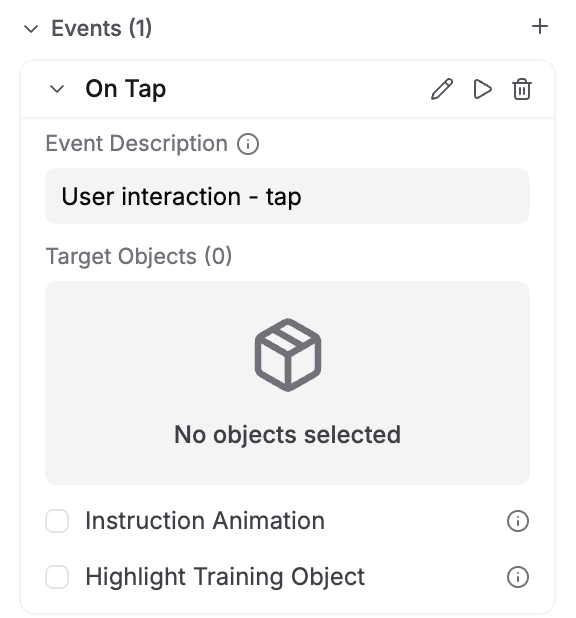
Tap event configuration — set target objects, instruction animation, and highlight
Example: State “Wait for Valve Tap” has a Tap event on the valve object with instruction animation and highlight enabled.
Move Event
Configure the object and where it should end up. The learner’s interaction depends on the trainee device; see Browser and HMD Interaction.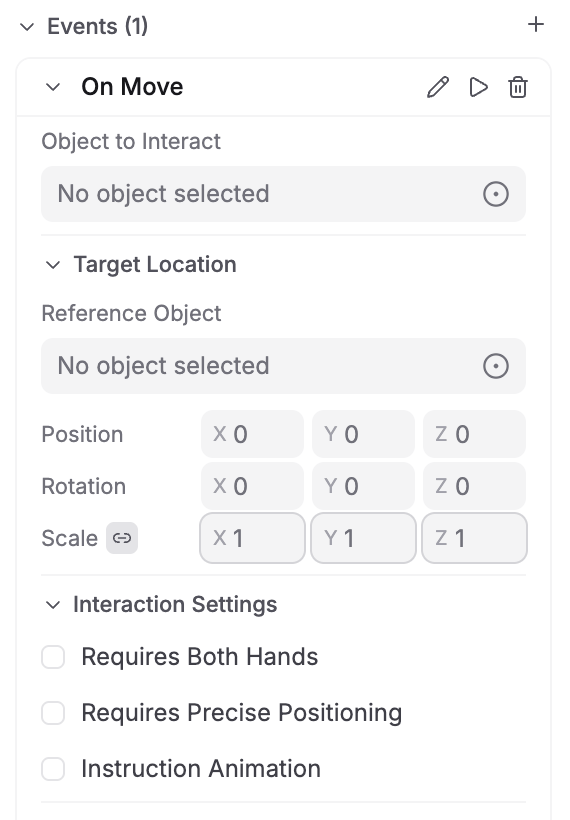
Move event configuration — set object, target location, position, and interaction settings
If the event already has a spline path, Use Spline Path at Runtime controls whether that path is used. The waypoint list shows the stored path. Turning the option off preserves the path while using direct movement to the destination.
Example: Step “Place the Pump” has a Move event for the pump, with the mounting location selected as its Reference Object. Set the destination offset, show guidance if needed, and connect the transition to the next step.
Rotate Event
The learner rotates an object around an axis.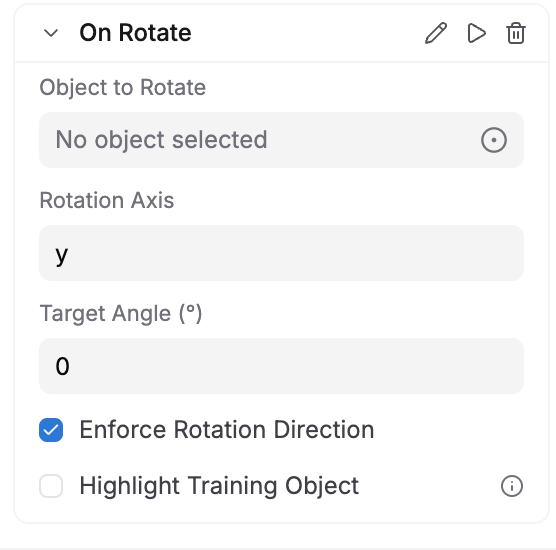
Rotate event configuration — set object, axis, target angle, and direction enforcement
Example: State “Open the Valve” has a Rotate event where the learner must turn the valve 90 degrees on the Y axis.
Browser and HMD Interaction
On an HMD, Move and Rotate describe object manipulation. Test settings such as Requires Both Hands, Requires Precise Positioning, and Enforce Rotation Direction on the intended HMD. In the browser trainee app, a standard Move or Rotate interaction starts an animation when the learner clicks or taps the target. Move then places the object at the configured destination; Rotate turns it by the configured signed angle about its local axis. These browser interactions do not validate physical two-hand use or the learner’s hand rotation direction.Choice Event
Each panel choice has an event that you connect to a transition. The transition determines the condition, actions, and optional destination for that choice. How to set it up:- Select the step’s Show Panel action, or add one to On Entry.
- Add the choices the learner will see.
- For each choice, use its routing control to select one of the options below.
- Review the resulting transition in Transitions, including its Destination Step, condition, and Actions list.
Example: In step “Tool Selection”, add choices for “Torque wrench” and “Screwdriver”. Use Navigate to another step to route the wrench choice to “Set the Torque” and the screwdriver choice to “Review the Tool”.
Next Event
The Next checkbox controls whether the panel displays a Next button. The button also needs a linked transition to define what happens when the learner clicks it. Adding steps normally creates sequential Next routes. Check the existing binding before creating another transition. How to set it up:- Select the step’s Show Panel action.
- Under Navigation Buttons, enable Next and set its label if needed.
- Check the linked transition. If none is linked, use Select existing transition, or choose Create new transition and click its creation button.
- Open the transition in Transitions and check its Destination Step, condition, and actions.
How Events Trigger Transitions
During trainee playback:- An interaction emits its event.
- Higher-priority transitions are checked first. Transitions with the same priority are checked in list order.
- A transition qualifies when its event matches and its optional condition is true. A false condition skips that transition and all its actions.
- The first qualifying transition is selected. Only one transition is taken for that event.
- With a destination, the current step’s On Exit actions run, followed by the transition’s Actions and the destination step’s On Entry actions. Without a destination, only the transition’s Actions run and the step stays active.
Leaving Destination Step unset keeps the current step active without repeating its entry or exit actions. To move to another step, select it under Destination Step; the current step is excluded from the list.
Connecting Events to Transitions
In Creator: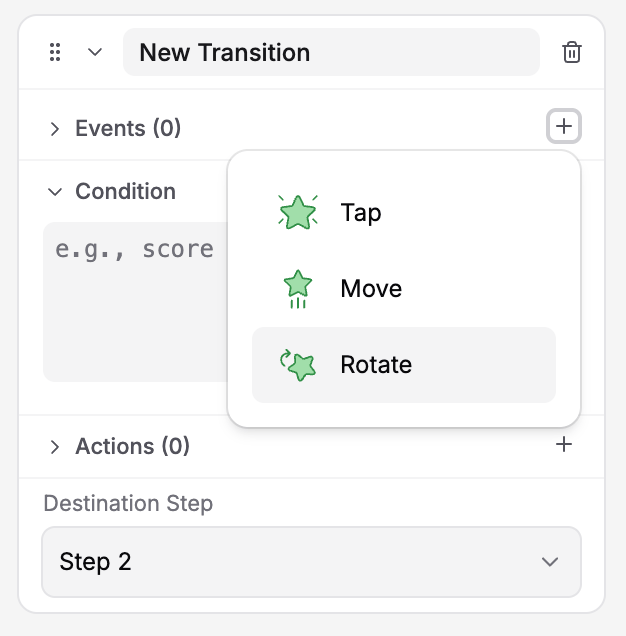
The Transitions tab with event picker — click + to add a Tap, Move, or Rotate event
1
Select your current step
Click a step on the canvas.
2
In the Properties panel, go to the Transitions tab
Open Step Properties from the ribbon, select Transitions, and add or select the transition you want to configure.
3
Click the + button next to Events to add an event type
The picker offers Tap, Move, or Rotate. The event is added to the transition.
4
Configure the event
Set the target object and options in the event configuration panel.
5
Configure the transition's response
Add any condition and actions. Select a Destination Step to advance or branch, or leave it unset to run actions while staying on the current step.
For Choice and Next, use the Show Panel routing controls described above, then review the linked transition in the Transitions tab.
Best Practices for Events
Make interaction targets clear
Make interaction targets clear
Avoid ambiguous events. If the learner must tap a specific object, make it obvious (use a highlight or instruction animation).
Use precise positioning for Move events when needed
Use precise positioning for Move events when needed
For HMD tasks that require placement inside the reference object’s boundary, enable Requires Precise Positioning and verify the result on the device.
Pair Show Panel choices with descriptive transitions
Pair Show Panel choices with descriptive transitions
Give each linked transition and destination step a clear name. Confirm that every choice is attached to the intended transition.
Test all event paths
Test all event paths
Save the training and test each object, choice, and Next route in the trainee app. Check both passing and failing conditions, feedback that stays on the current step, and interactions on the intended device.
Next Steps
Learn how to:- Add Conditions to Transitions — Make events trigger different states based on learner choices or variables
- Use Variables in Conditions — Store data and use it to control event behavior