

Saving Your Training
Where to Find Save
You can save in three ways:- File tab on the ribbon — Click the Save button (the first button in the File tab)
- Header bar — Click the small Save icon next to the training name (its tooltip reads “Save”)
- Keyboard shortcut — Press Ctrl+S on Windows or Linux, or Command+S on macOS
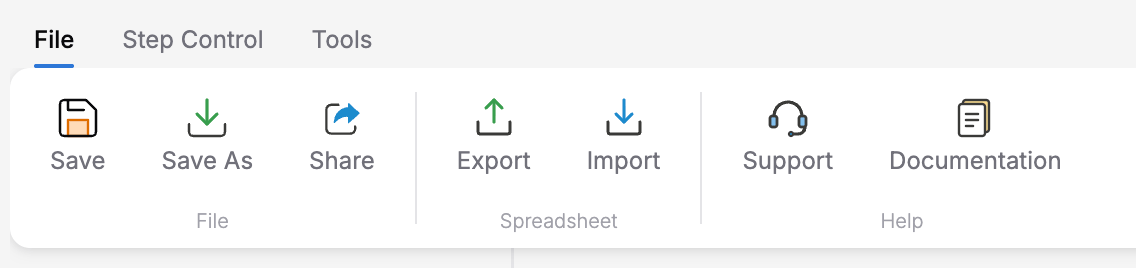
File tab on the ribbon — Save, Save As, and Share buttons next to the Spreadsheet group
What Save Does
Save updates the current training with your latest steps, transitions, actions, and variables. When saving succeeds, Creator displays a confirmation and marks your changes as saved.Save Feedback
Creator shows real-time feedback during save:
Check the header bar for the current saved/unsaved status. The earlier Last Saved footer is no longer shown.
Renaming Your Training
The training name (shown in the header bar) is saved separately from the training content. To rename:- Double-click the training name in the header — it becomes an editable text field
- Edit the text
- Press Enter or click away — the name is saved immediately
Save As
Save As creates a completely new training that is a copy of your current work. This is useful when you want to create a variation of an existing training without modifying the original.How to Use Save As
1
Open the File tab on the ribbon
Click the File tab to see Save, Save As, and Share buttons.
2
Click Save As
The Save As New Training dialog opens.
3
Enter a name in the Training Name field
The default value is your current training name with
-copy appended. The field has a 50-character limit and a live counter underneath (e.g., 17/50 characters).4
Click Save
The button label changes to Saving… and a Creating training… status appears underneath as the new training is created.
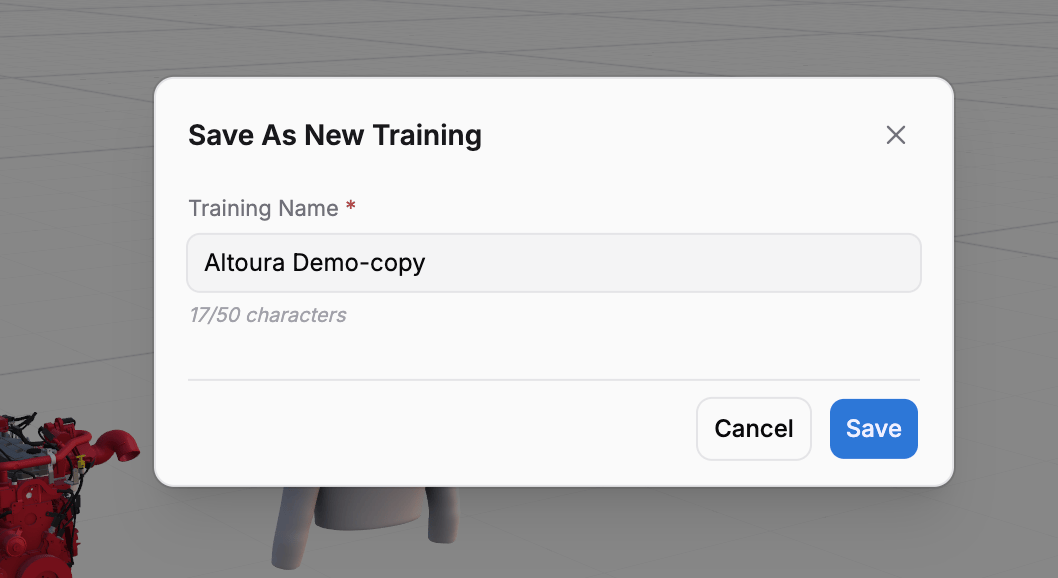
Save As New Training dialog showing the default -copy name and the 50-character limit
What Happens During Save As
The dialog shows Creating training… while it creates the new training with your chosen name and current content. When complete, the new training opens in a new browser tab. Your original training remains unchanged in the current tab.Save As Validation
The dialog validates your input:- Empty name — Shows the error
Training name is required - Too long — Shows
Training name must be 50 characters or less - Duplicate name — Shows
A training with this name already exists. Please choose a different name.
Save vs Save As
Best Practices
Save before making major changes
Save before making major changes
Before restructuring your training flow or deleting states, save your current progress. If something goes wrong, you have a recent save point.
Use Save As for variations
Use Save As for variations
If you need a safety training for both beginners and advanced users, build the base training, then Save As to create the advanced variant.
Watch the header for save status
Watch the header for save status
Check the saved/unsaved indicator. If you have unsaved edits, use Save before closing the browser; a local recovery draft does not replace a cloud save.
Name copies meaningfully
Name copies meaningfully
When using Save As, choose descriptive names like “Safety Training - Advanced” rather than “Safety Training-copy”.
Next Steps
- Sharing a Training — Invite collaborators to your training