

When to Use Conditions
Use conditions when your training should respond differently to the same event depending on circumstances. Examples:- Score-based branching: If learner scores >= 80%, show “Congratulations!”. Otherwise, show “Try Again”.
- Attempt limiting: If attempts < 3, let them retry. If attempts >= 3, show failure screen.
- State tracking: If a tracking variable like
safetyTrainingCompleteis true, show advanced content. Otherwise, show basics.
Building a Condition
Conditions use variables and operators to create logical expressions. You write conditions directly in the Condition field of a transition using AXL syntax. Create the variables your condition uses and update their values before the triggering event occurs. Conditions are evaluated before transition actions run, so a Set Variable action on that same transition cannot make its condition pass.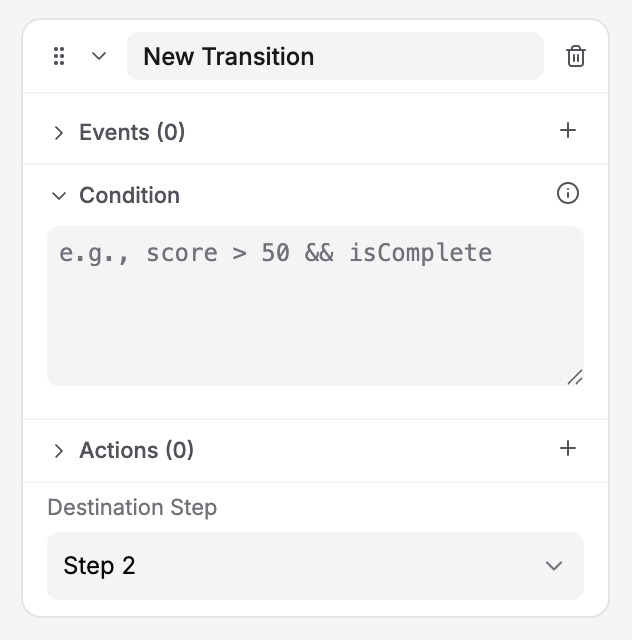
Empty Condition field showing an example placeholder; no condition has been entered
1
Open a transition in the Properties panel
Click on a transition to expand it. You’ll see Events, Condition, and Actions sections.
2
Expand the Condition section
Click Condition to reveal the expression field.
3
Write your condition expression
Enter an AXL expression such as
score > 50 && isComplete, using a Number variable named score and a Boolean variable named isComplete that you have created in the training. Use Insert Variables to reference available variables, and match their names exactly.4
Set the Destination Step
Choose where the learner goes when this condition is true.
Operators
Your condition can use these operators:Logical Operators: &&, ||, !
Combine multiple conditions for complex logic. AXL uses symbol operators only — there are no AND, OR, or NOT keywords.
&&(AND): Both conditions must be true||(OR): Either condition can be true!(NOT): Inverts a condition
Examples
Grouping with Parentheses
For complex logic, use parentheses to control the order:Altoura Expression Language (AXL)
Conditions use Altoura Expression Language (AXL) — a simple expression syntax for building rules. AXL is read-only: you cannot assign values inside an expression. To update a variable with a formula, use the Set Variable action, choose Set Expression, and enter the AXL expression. Choose Set Value to assign a literal value.Arithmetic in Expressions
Arithmetic can be used in a condition or with Set Expression in a Set Variable action:score, choose Set Expression, and enter score + 10.
Comparisons
Logical Operations
Ternary Operator (if-then-else)
Built-in Functions
AXL provides useful functions:Example Expressions
finalScore in Set Variable, choose Set Expression, and enter clamp(rawScore, 0, 100).
Using Events and Conditions Together
Configure the interaction and target object in the transition’s Events section. Use Condition for additional checks against training variables—for example,score >= 80 or hasCompletedInspection == true.
The transition runs only when the event matches and the condition evaluates to true. Leave Condition empty when the matching event alone should trigger the transition.
Transition Priority and Multiple Conditions
When an event occurs, the training checks matching transitions in priority order. The first transition whose condition is true—or whose condition is empty—is selected, and its actions run. Other transitions are not taken for that event. Arrange transitions in Creator with the highest-priority path first. Reordering them sets their evaluation priority. For imported SCJSON with explicit priorities, lower numbers are evaluated first; equal priorities follow document order.Example: Score-Based Paths
Create a Number variable namedscore and record the trainee’s score before they reach the results step. Configure all three transitions with Tap on the same results button object, in this order:
When the trainee taps the results button, a score of 95 selects Excellent, 75 selects Good, and 60 selects Needs Improvement. For a score of 95, both numeric conditions would be true, but only the first transition is selected.
Selecting a Show Panel choice does not automatically assign a variable such as
selectedAnswer. For ordinary choice routing, configure each choice’s transition and destination in Show Panel. Add a condition only when that route also depends on data already recorded in the training.Unconditional Fallback Transitions
A transition with no condition still requires a matching event and must be the first eligible transition. To use it as an “else” path, give it the same event configuration as the conditional paths and place it after them. In the score example, Needs Improvement is selected only when the results button is tapped and neither earlier condition passes. An unrelated event does not trigger that fallback. If no transition qualifies, the trainee stays in the current step and no transition actions run for that event. Add a fallback when an alternative path is needed; omit it when the trainee should remain in the step until a requirement is satisfied.Testing Your Conditions
Before launching your training:Test each branch path
Test each branch path
Make sure every condition-based path leads somewhere and works as expected.
Check edge cases
Check edge cases
Test boundary values (e.g., exactly 80 when the condition is >= 80).
Verify fallbacks
Verify fallbacks
Trigger the configured event with values that fail the earlier conditions and verify the fallback. Also check that an unrelated event does not trigger it.
Test combinations
Test combinations
If you use
&&/|| logic, test all combinations.Next Steps
Learn how to:- Create and Use Variables — Store the data your conditions need
- Variable Types — Understand which type to use (string, number, boolean, etc.)
- Conditional Transitions — Combine events, conditions, and actions into complete flows