

How to Share
1
Open the File tab on the ribbon
Click the File tab to see Save, Save As, and Share buttons.
2
Save your latest changes
Finish any active scene edit, then click Save. You can also press Ctrl+S on Windows or Linux, or Command+S on macOS. Wait for the save confirmation before sharing. Share does not save pending changes.
3
Click Share
The Share Training dialog opens. The Training field displays the training name and is read-only.
4
Enter email addresses
Type one or more email addresses in the Email field (placeholder:
Enter email addresses). You can add multiple recipients by:- Pressing Enter after each email
- Typing a comma after an email
- Clicking outside the field after typing an email
- Pasting a list of emails separated by commas or semicolons
5
Click Share
Creator submits an invitation request for the listed recipients. The button label changes to Sharing… while the request is being processed.
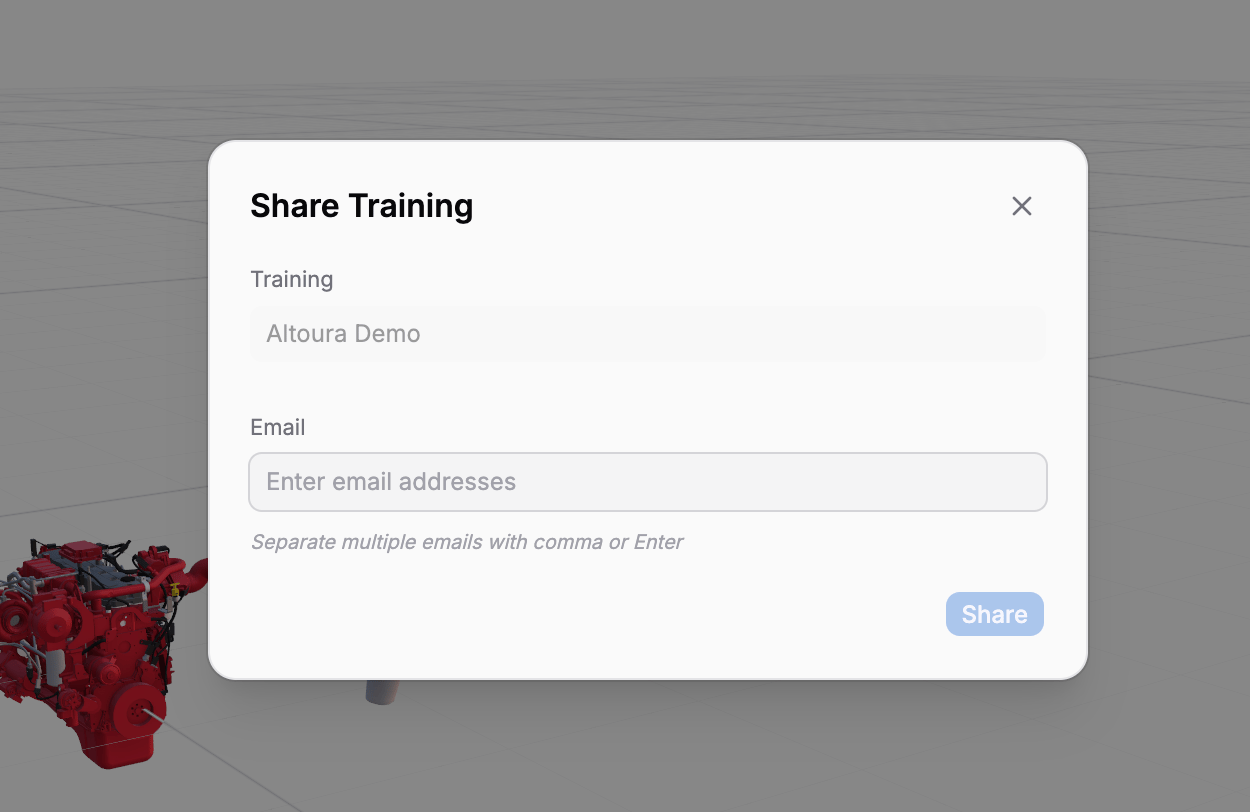
Share Training dialog with the email field and helper text
Share Dialog Details
The Share Training dialog contains these fields and controls:Managing Email Recipients
- Add: Type an email and press Enter, type a comma, or click outside the field. Pressing Space does not add a recipient
- Remove: Click the × on any email chip, or press Backspace when the input is empty to remove the last chip
- Paste multiple: Paste a comma- or semicolon-separated list to add recipient chips
- Validation: Invalid email formats and duplicate addresses are filtered out. Addresses are trimmed and converted to lowercase
After Sharing
When the invitation request succeeds, the dialog displays Sharing is Successful. If the request fails, the dialog shows an error message and stays open so you can review the recipients and retry.The success message does not confirm that every recipient was invited. Individual recipient failures are not currently shown in the dialog.
Prerequisites for Sharing
Before you can share:- Open a training that has already been saved to Altoura
- Save your latest changes before sharing; Share does not include pending edits
- You cannot open the Share dialog while an in-scene edit is active (for example, while editing a panel or another interactive object). If you click Share during one of these edits, a toast titled Edit in Progress appears with the message: “Please finish or cancel the current edit before performing this action.”
Best Practices
Save and test before sharing
Save and test before sharing
Preview your training thoroughly and save before inviting others. Recipients should see a polished, working experience.
Use valid email addresses
Use valid email addresses
Make sure recipients have active email accounts associated with your organization’s Altoura platform.
Next Steps
- Saving & Save As — Make sure your training is saved before sharing