

What Happens in a State
When a state is entered, its On Entry actions prepare the step. Depending on the training, the learner may see:- A loaded 3D scene, which can remain in use across several steps
- Instructional content, such as panels, highlights, and instruction animations
- Objects they can interact with through Tap, Move, or Rotate events
Creating a State
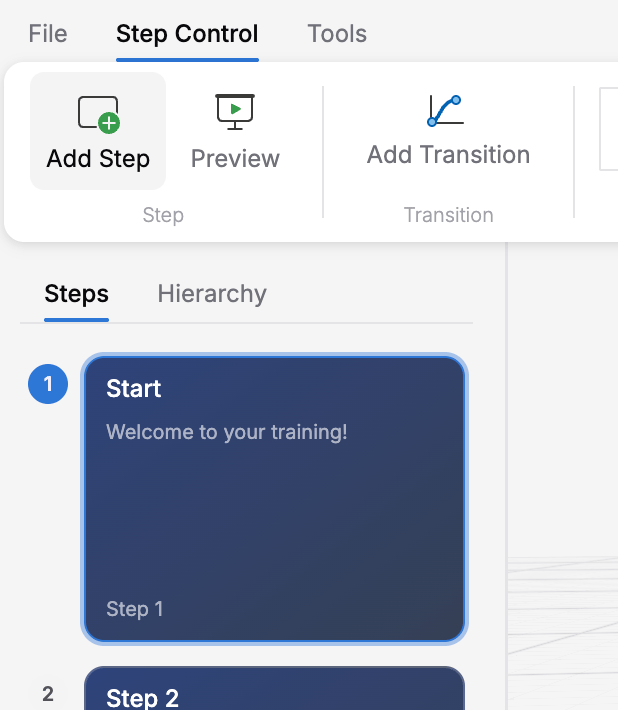
Use the Add Step button in the ribbon to create a new state
1
Open the Creator canvas
You’ll see a workspace with your existing states (if any).
2
Click 'Add Step' in the ribbon
A new step appears in both the Steps list on the left and on the outline canvas. It is automatically selected.
3
Edit the step's panel content (optional)
The center area shows the step’s panel. Click the title and body text to edit them inline — the placeholders are Enter panel title… and Enter panel body text…
4
Open Step Properties for advanced settings (optional)
Click Step Properties on the ribbon to open the Properties panel on the right. From there you can configure on-entry actions, transitions, on-exit actions, and other step modules. See the Entry & Exit Actions section for details.
Step Properties
Open the Properties panel by clicking Step Properties on the ribbon. For a step, the Properties panel shows three tabs: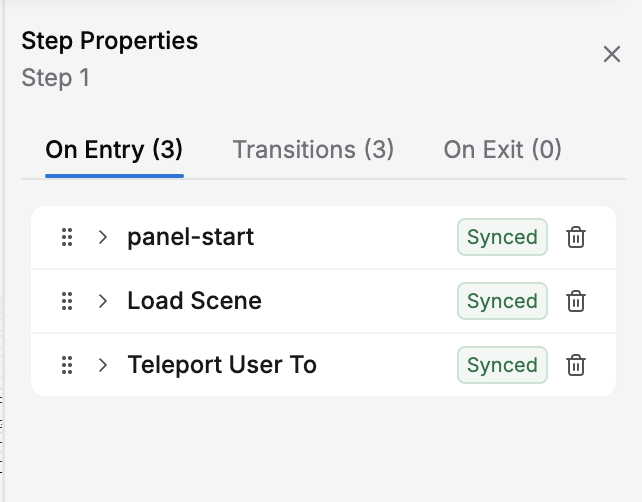
The Properties panel showing On Entry actions, Transitions, and On Exit tabs
The step’s panel title and body text can be edited inline in Step Panel view or in the Show Panel action’s properties.
Start Node and End Steps
- Start node: The first step in the Steps list is the entry step and can contain training content. Moving a step to the top changes the starting step. There is no separate per-step entry checkbox.
- End steps: A step with no transition leading to another step is treated as an end step. This includes steps with no transitions and those whose transitions all have no destination. There is no separate Final checkbox in Creator. An end step can still display content and respond to interactions that stay within it.
onEntry and onExit Actions
Each state has two special action lists:- onEntry: Actions that run automatically when the state is entered
- onExit: Actions that run when a selected transition leaves the state for another step
- Load a 3D scene
- Play narration or audio
- Show a text panel with instructions
- Highlight an object to guide learner attention
- Initialize a variable (for example, set an attempt counter to
0at the beginning of training)
- Stop audio or narration
- Hide panels or highlights
- Update a variable to record progress during the training
- Use Transform Object to restore an object to a known position
For a transition to another step, the sequence is onExit of current state → transition actions → onEntry of destination state. A transition without a destination runs only its transition actions and keeps the current step active without repeating its exit or entry actions. The current step cannot be selected as its own destination in Creator.
The Visual Canvas: Working with State Nodes
Selecting a State
Click any state node on the canvas to select it. If the Properties panel is open (toggle it from Step Properties on the ribbon), it updates to show that step’s tabs and actions.Moving a State
Click and drag a node in Outline to adjust its position temporarily. This does not change the step order or transition logic. Switching views or clicking Re-arrange resets these manual positions to the automatic layout; they are not saved as the training’s layout.Deleting a State
Right-click a step in the Steps list to open Duplicate, Move Up, Move Down, and Delete. You can also drag to reorder the list. Adding, deleting, or reordering steps updates sequential Next destinations; review explicit choice and conditional routes afterward. This differs from visually positioning nodes in Outline.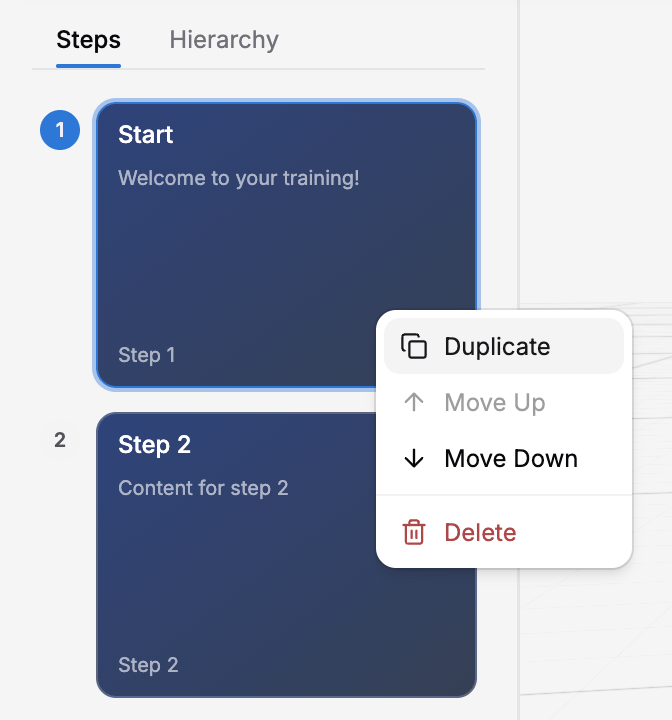
Right-click a state to access Duplicate, Move, and Delete options
Naming States: Best Practices
Give your states meaningful, descriptive names — not generic names like “State 1” or “Screen 2”. Good names make your logic easier to understand and debug. Good state names:- “Show Safety Warning”
- “Wait for Valve Tap”
- “Demonstrate Valve Opening”
- “Show Completion Screen”
- “Incorrect Choice Feedback”
- “State 1”, “State 2”
- “Next”, “Previous”
- Single-word vague names like “Interaction”
State Canvas Tips
Organize states on the canvas
Organize states on the canvas
Use Outline’s automatic layout to inspect the training flow. Temporarily drag overlapping nodes apart while reviewing a branch; use the Steps list to change the actual step order.
Use the zoom controls
Use the zoom controls
Zoom in to see details, zoom out to see the overall structure of your training.
Next Steps
Now that you understand states, learn how to:- Connect states with Events and Transitions — Define what triggers movement between states
- Add Entry & Exit Actions — Make things happen automatically
- Build Conditional Transitions — Create branching flows based on learner choices or variables