

When the Completion Step Appears
The Completion Step confirms you have reached the end of a procedure path. You’ll see it when you:- Reach the final step of a linear procedure
- Reach the end of a branch you selected through a choice step — in branching procedures each path can end with its own completion step, and you see the one for the path you took
- Jump directly to a completion step from the step list
What You See
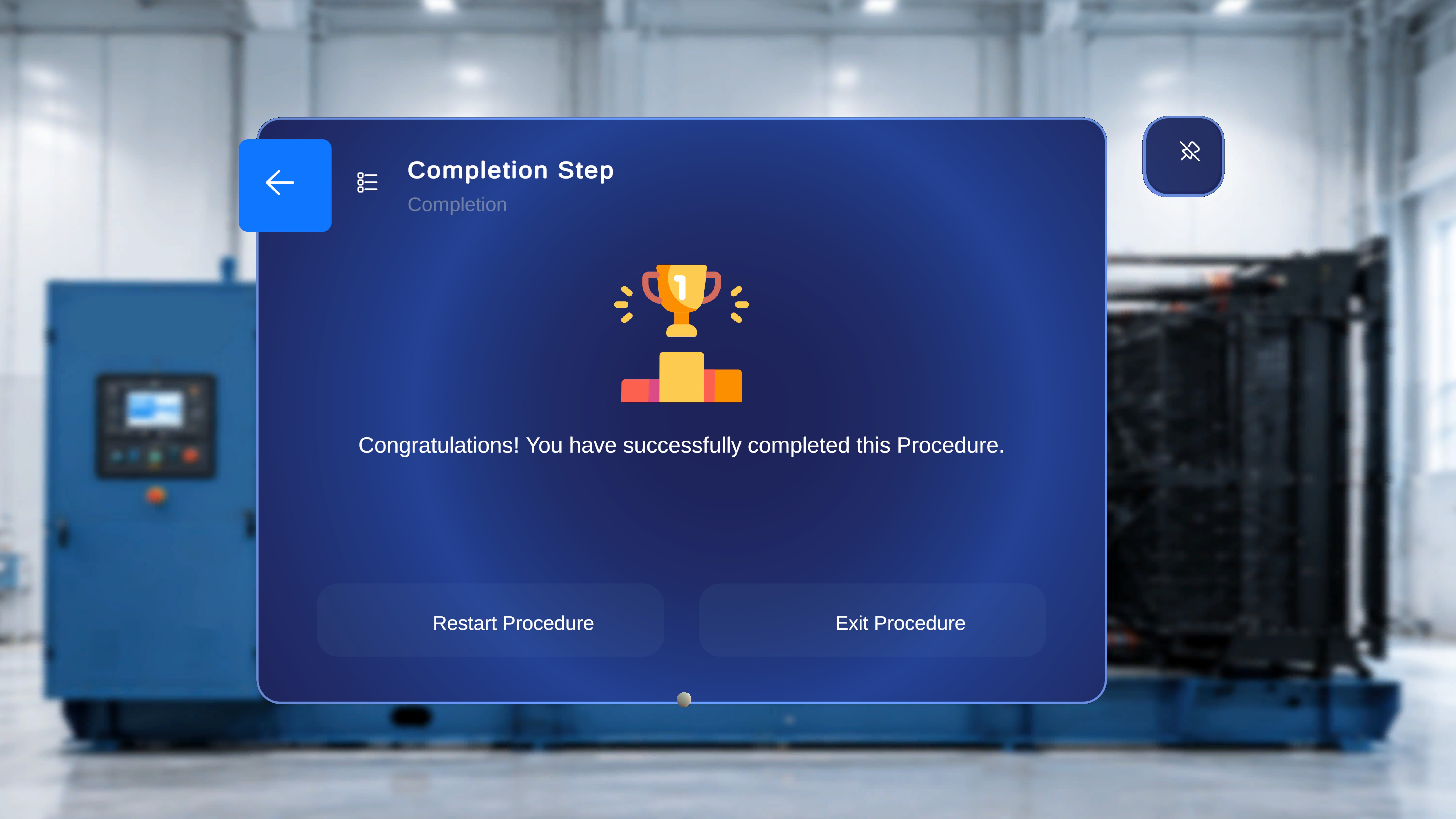
- The step title Completion Step and the task name
- The confirmation message: “Congratulations! You have successfully completed this Procedure.”
- Two action buttons: Restart Procedure and Exit Procedure
- A back arrow in the top-left corner
Choose What Happens Next
1
Double-check your work (optional)
Select the back arrow to return to the previous step of the path you took — useful for a final visual check. You can navigate forward again when ready. You can also say the voice commands covered in Voice Commands.
2
Restart, or exit
- Select Restart Procedure to begin again from the first step. Your in-session progress is cleared, and models and step states return to their original configuration.
- Select Exit Procedure to close the procedure. You return to the Home environment, ready to open the next procedure.
Leaving Before You’re Done
You don’t have to reach the Completion Step to exit. At any step, raise a hand with your palm facing you to open the side menu, then select the Exit button (bottom icon).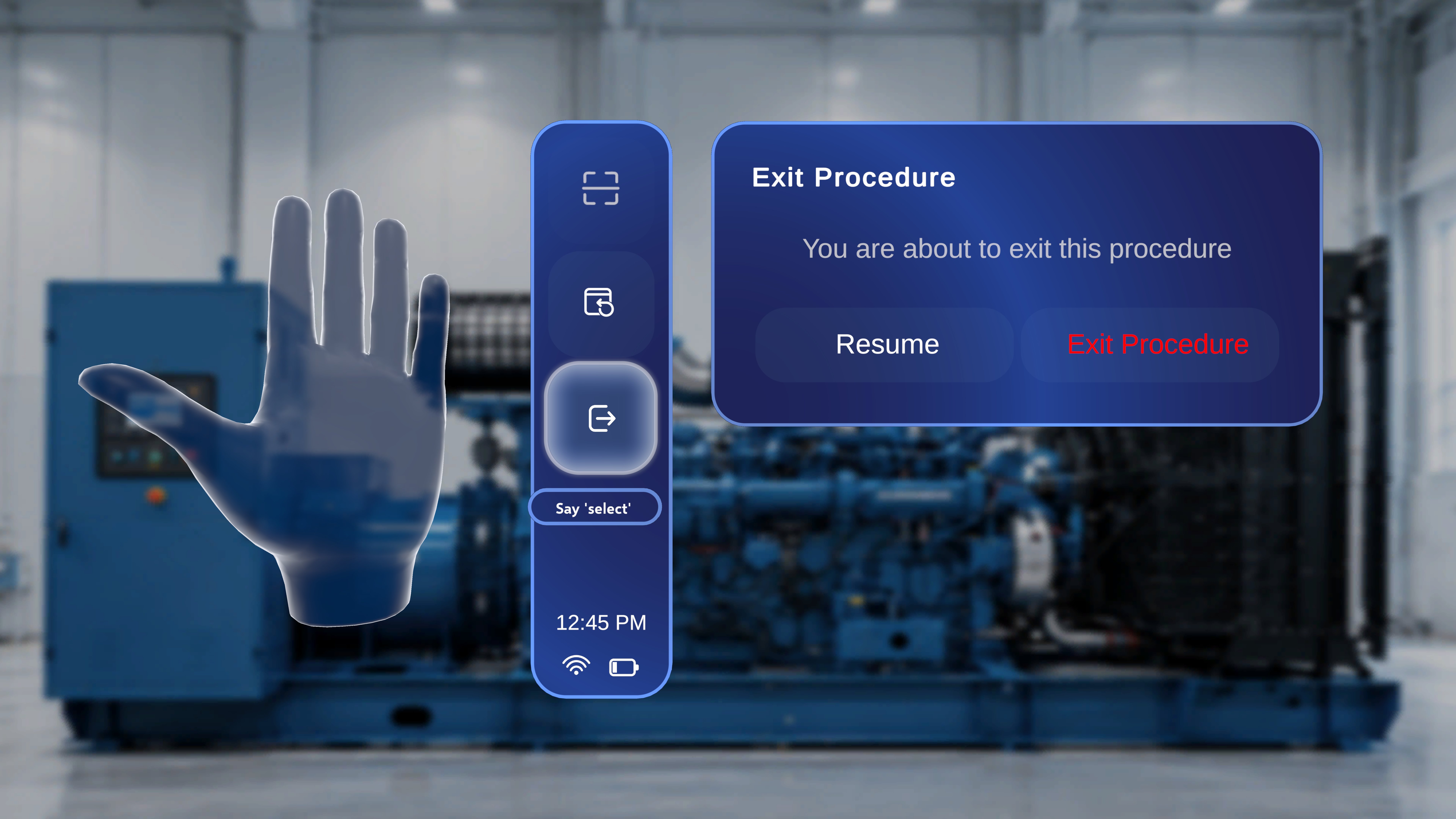
- Resume — closes the confirmation and continues from your current step.
- Exit Procedure — leaves the procedure and returns you to the Procedures page.
Next: Need help mid-procedure? Call an expert with Remote Expert