A lookup reference for operators and authors on every panel and menu in Altoura Frontline on the HoloLens 2.

At a Glance


Global (Static) Side Menu
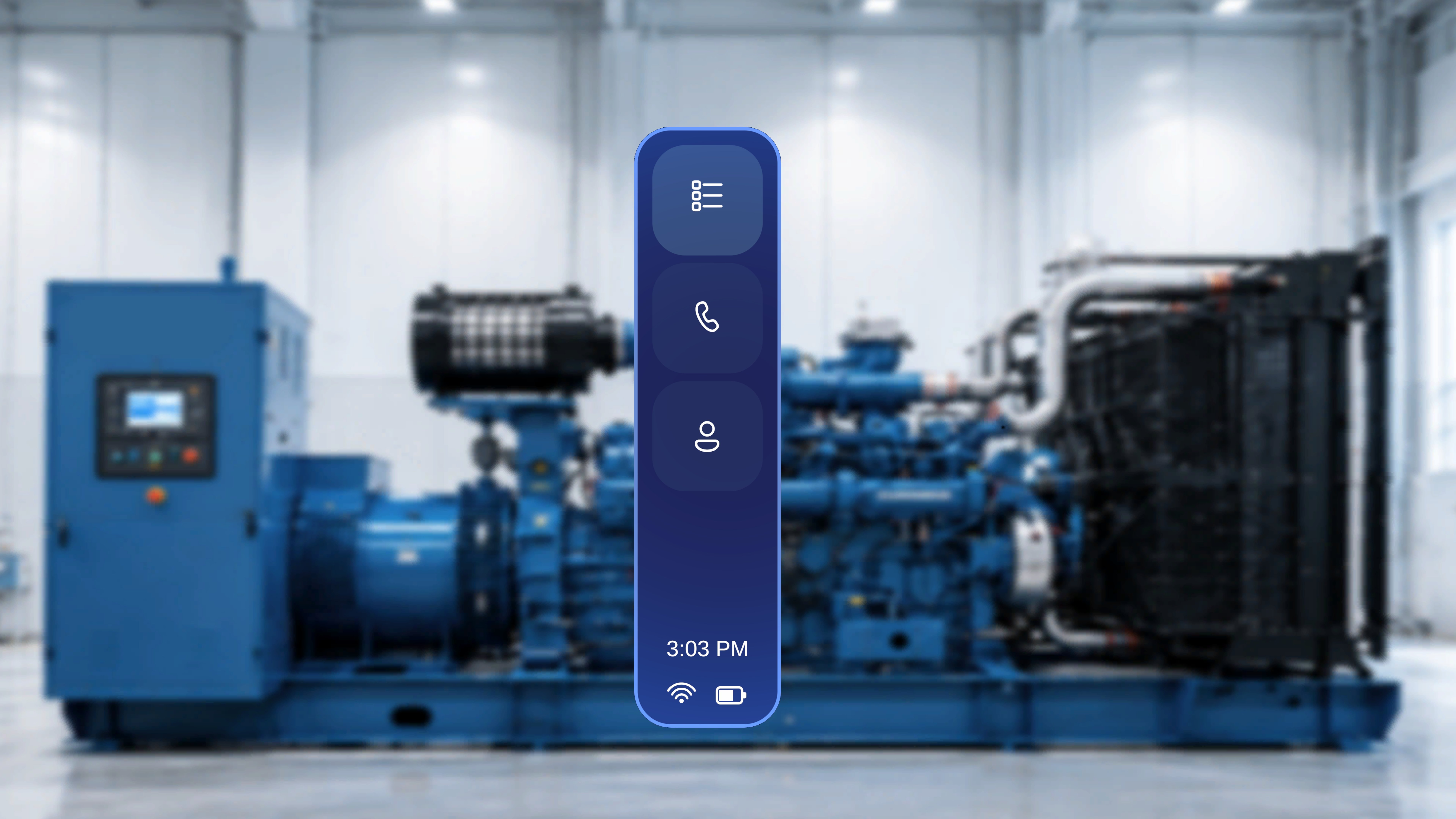
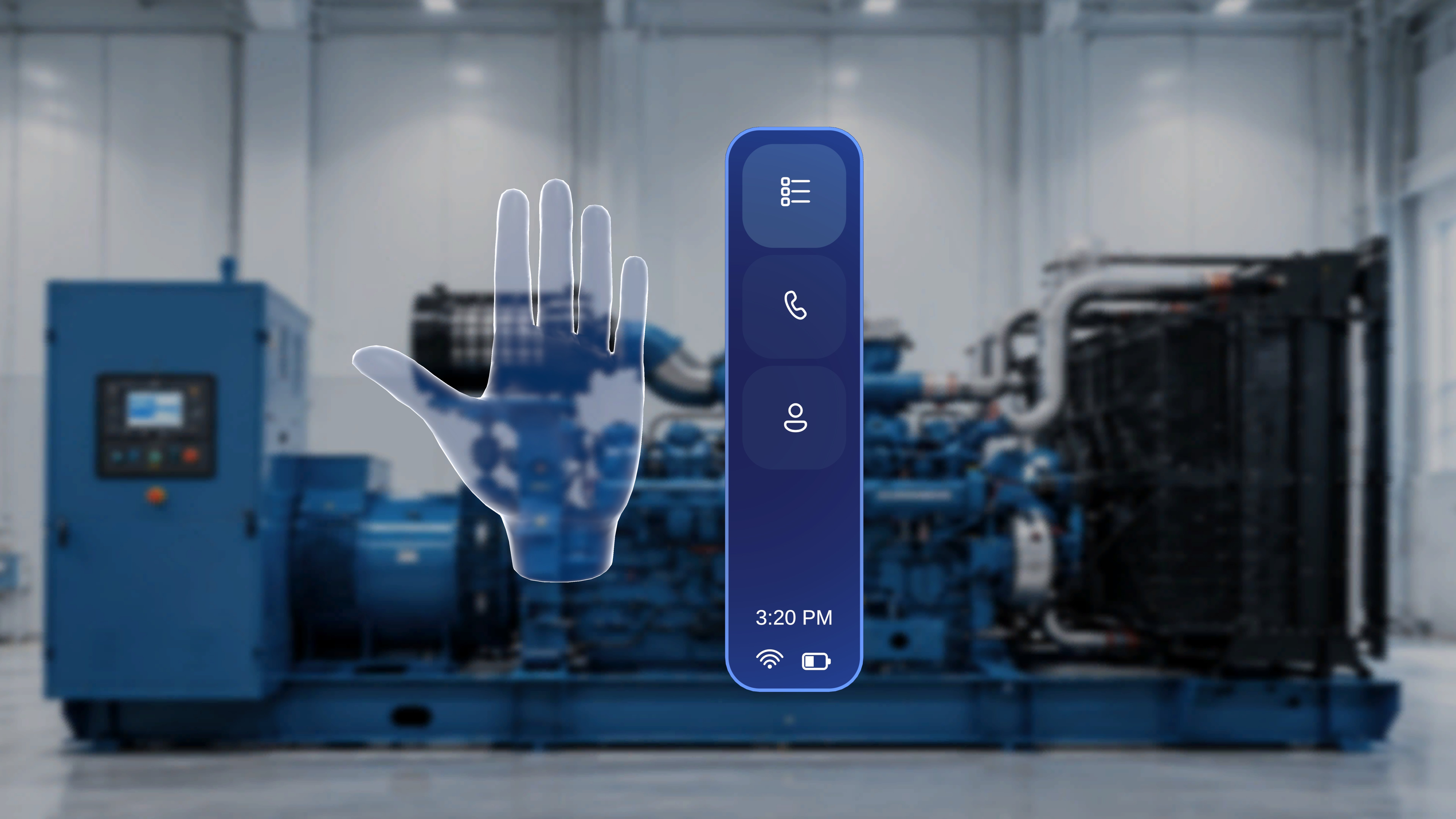
Altoura Frontline global side menu with Procedures, Remote Expert, and Profile buttons
The primary navigation menu, fixed beside the Procedure landing panel on the Home screen. It has three buttons — Procedures, Remote Expert, and Profile (account details, app version, and Sign Out) — and is visible only when you are not inside a procedure and not in a Remote Expert session. Task page: First Launch and Navigation

Floating Side Menu (Palm)

Floating side menu anchored to a raised palm, showing the same Procedures, Remote Expert, and Profile options as the global side menu
The same three options as the Static Side Menu — Procedures, Remote Expert, Profile — anchored to your palm instead of a fixed position. Raise either hand with the palm facing toward you and the menu appears, letting you navigate without looking toward a fixed panel. All options behave identically to their static counterparts. Task page: First Launch and Navigation

Procedure Side Menu (In-Procedure)

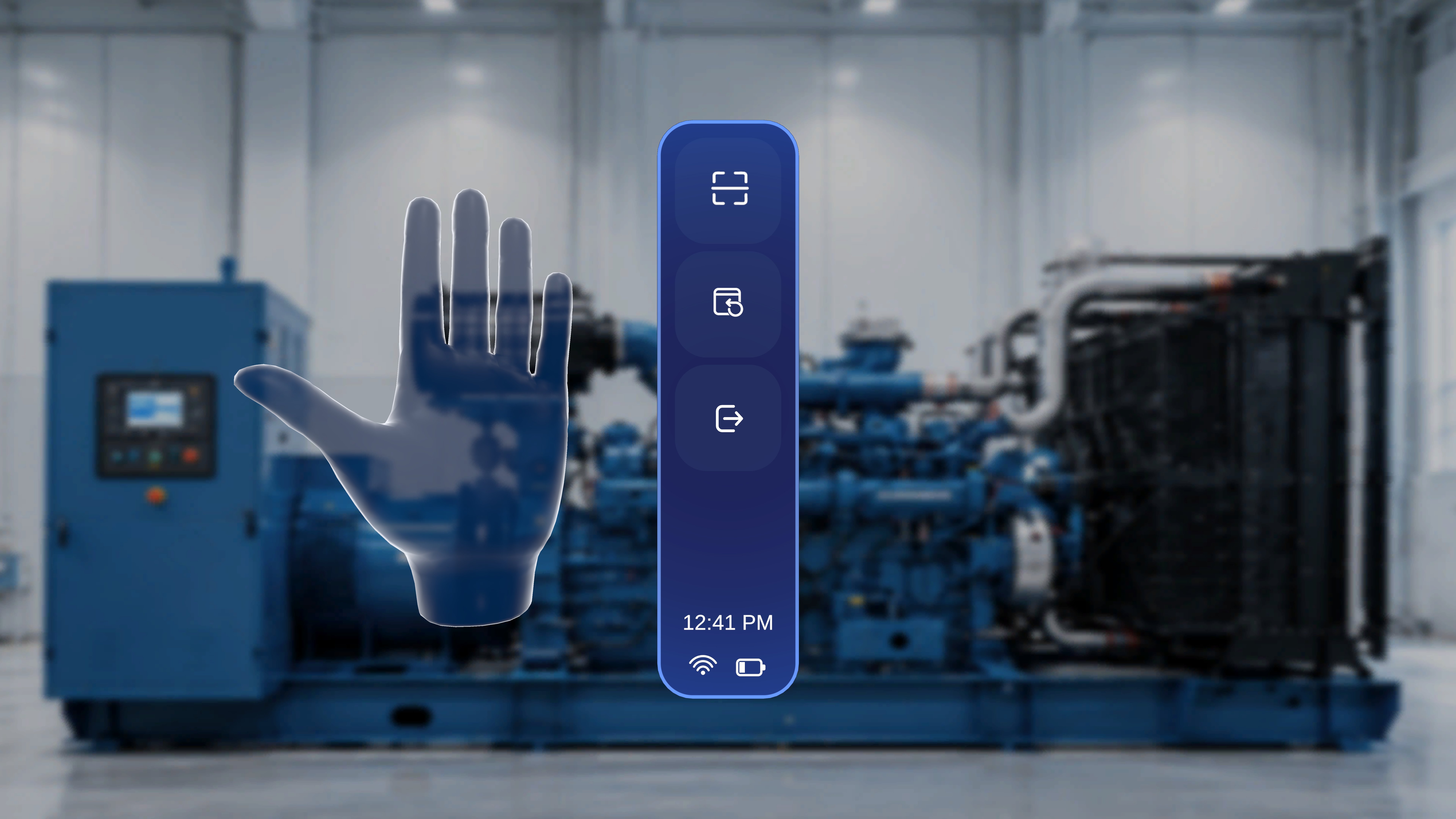
Contextual procedure side menu shown on the palm with Rescan, Reposition, and Exit buttons
Available only while inside a procedure, in both Operator and Author mode, and identical in both. Raise either hand with the palm facing you to show three vertically arranged buttons: Rescan (redo the QR anchor alignment), Reposition Panels (bring the step, media, and 3D Model panels back in front of you), and Exit Procedure (leave after a confirmation dialog with Resume / Exit Procedure options). The current time and system status indicators are shown at the bottom. Task pages: Anchor with a QR Code · Follow the Steps · Detailed screen pages: Operator Side Menu · Author Side Menu

Step Main Panel

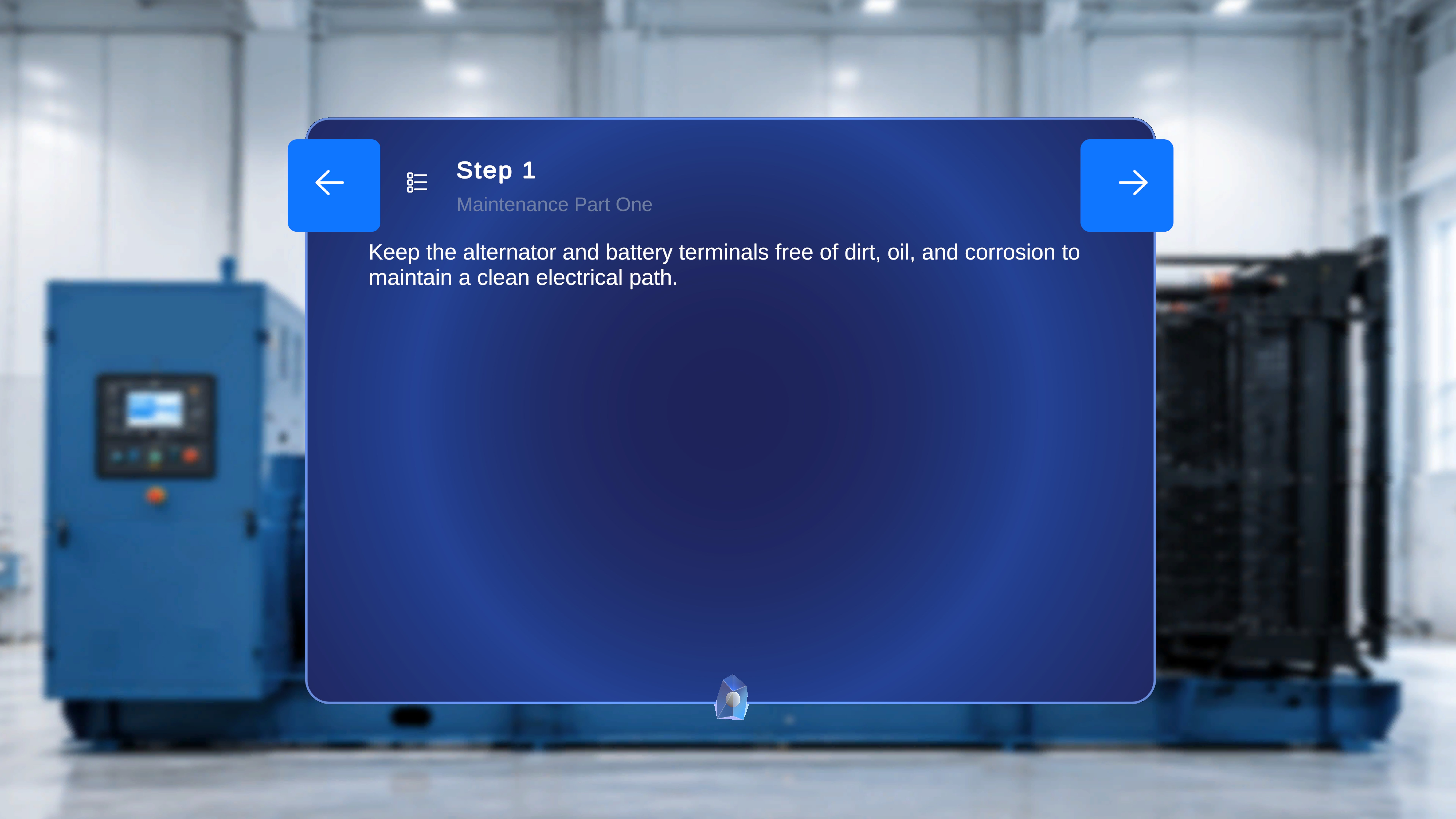
Step panel showing the step number, task title, description text, and Back and Next navigation arrows
The centre panel, always visible inside a procedure. It shows the step number, task title, step description, Back / Next navigation arrows, a Step List icon for direct step navigation, and a thread anchor indicator when a gem anchor was placed for that step. It handles sequential navigation, branching on Choice Steps, and completion confirmation on a Completion Step. Content for each step is loaded exactly as configured in the web editor. Task pages: Follow the Steps · Build Tasks and Steps · Detailed screen pages: Operator Panel View · Author Panel View · Step Navigation

Media Panel

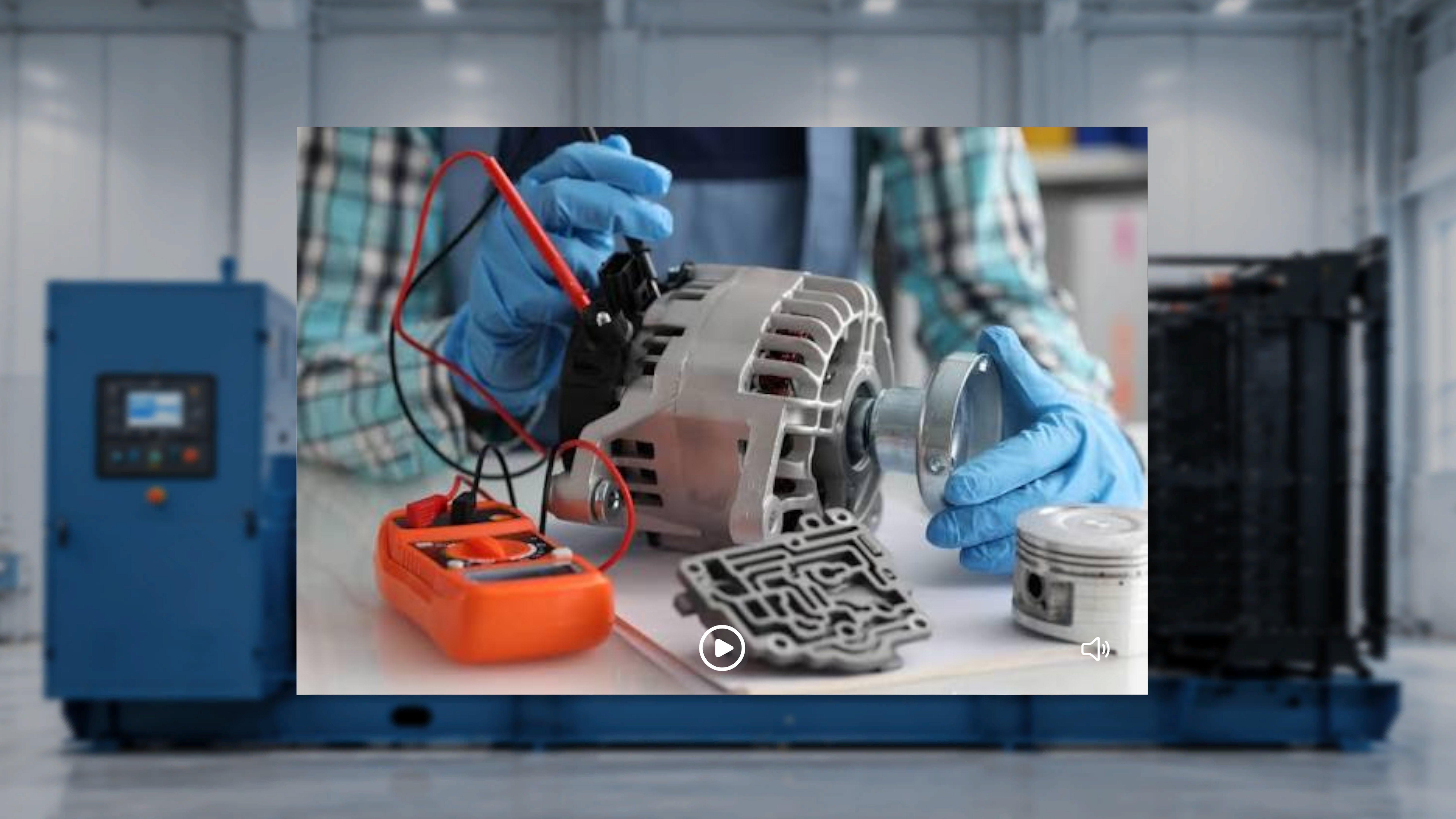
Media panel displaying an attached video for the current step with a play button
A conditional panel on the left that appears only if an image or video was attached to the current step in the web editor; with no media attached, it does not appear. Images are displayed directly. Videos auto-play in a loop when the step is entered, and the operator can pause, resume, mute, or unmute playback. Each step may have different media content. Task pages: Work with 3D Models and Media · Add 3D Models and Media · Detailed screen pages: Operator Panel View · Author Panel View

3D Model Panel

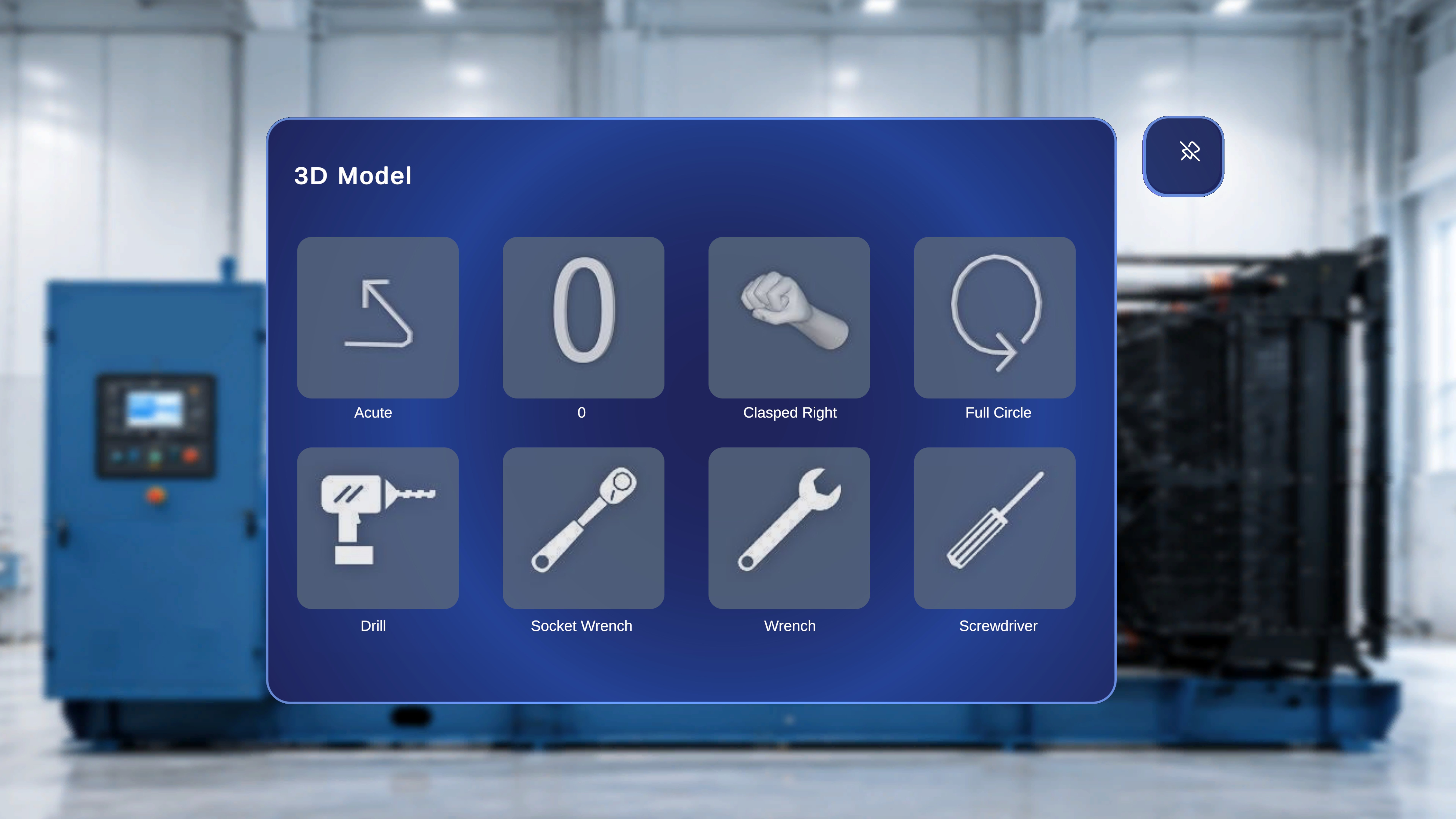
3D Model panel showing a grid of selectable model tiles attached to the current step
The right-side panel, shown only in Author mode. It displays selectable tiles for the 3D (GLB) models attached to the current step in the web editor; only models attached to the current step appear. In Operator mode the panel is hidden — models placed during authoring still appear in the scene at their saved positions, with interaction governed by the author’s Interactable, Ghost, and Animation settings. Task pages: Add 3D Models and Media · Work with 3D Models and Media · Detailed screen pages: Author Panel View · 3D Model Authoring · 3D Model Behavior in Operator Mode

Operator vs Author Differences

Remote Expert has its own hand menu and in-call panels — see the Remote Expert Hand Menu and Remote Expert Overview.