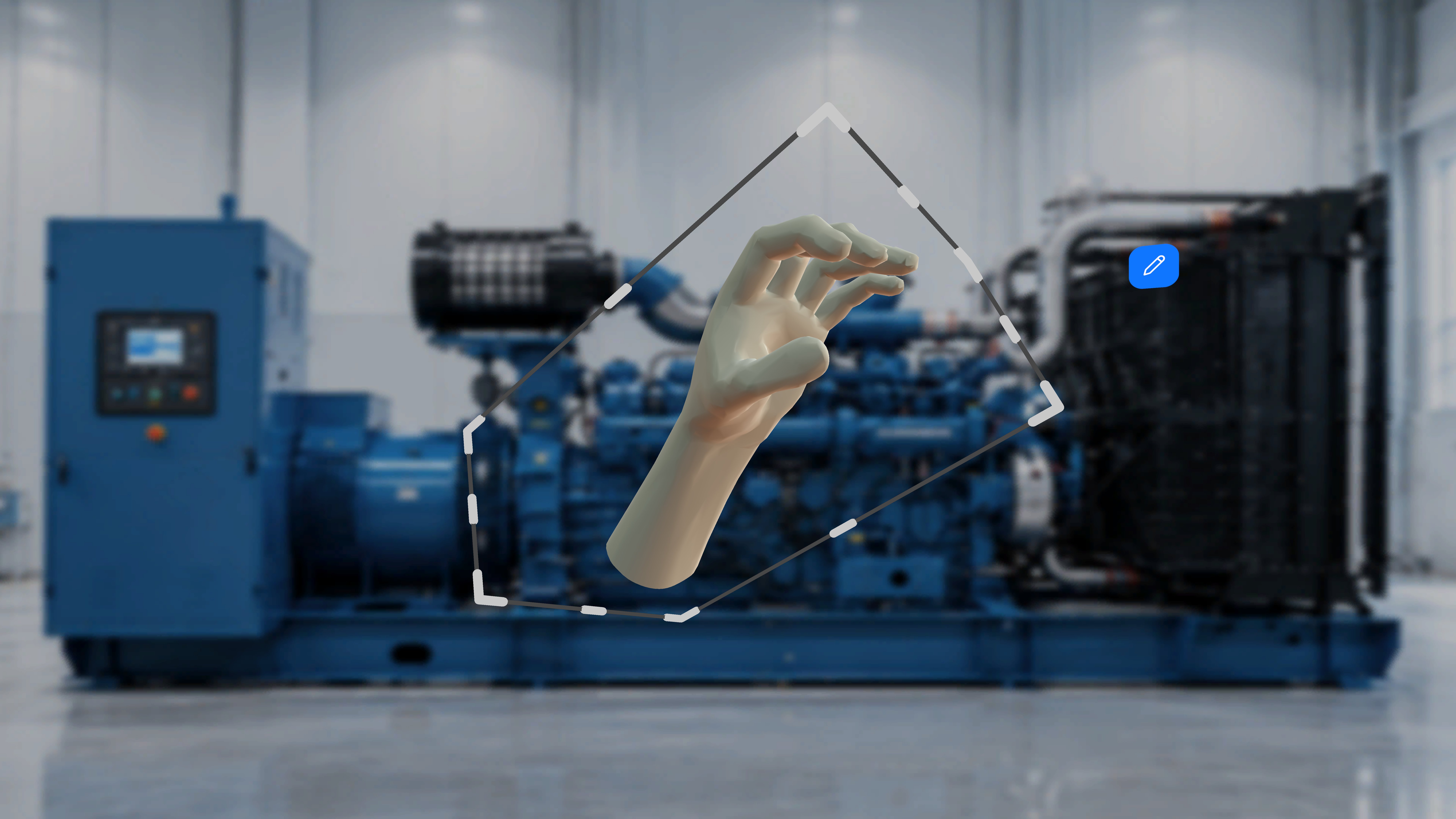
Pointing and Selecting
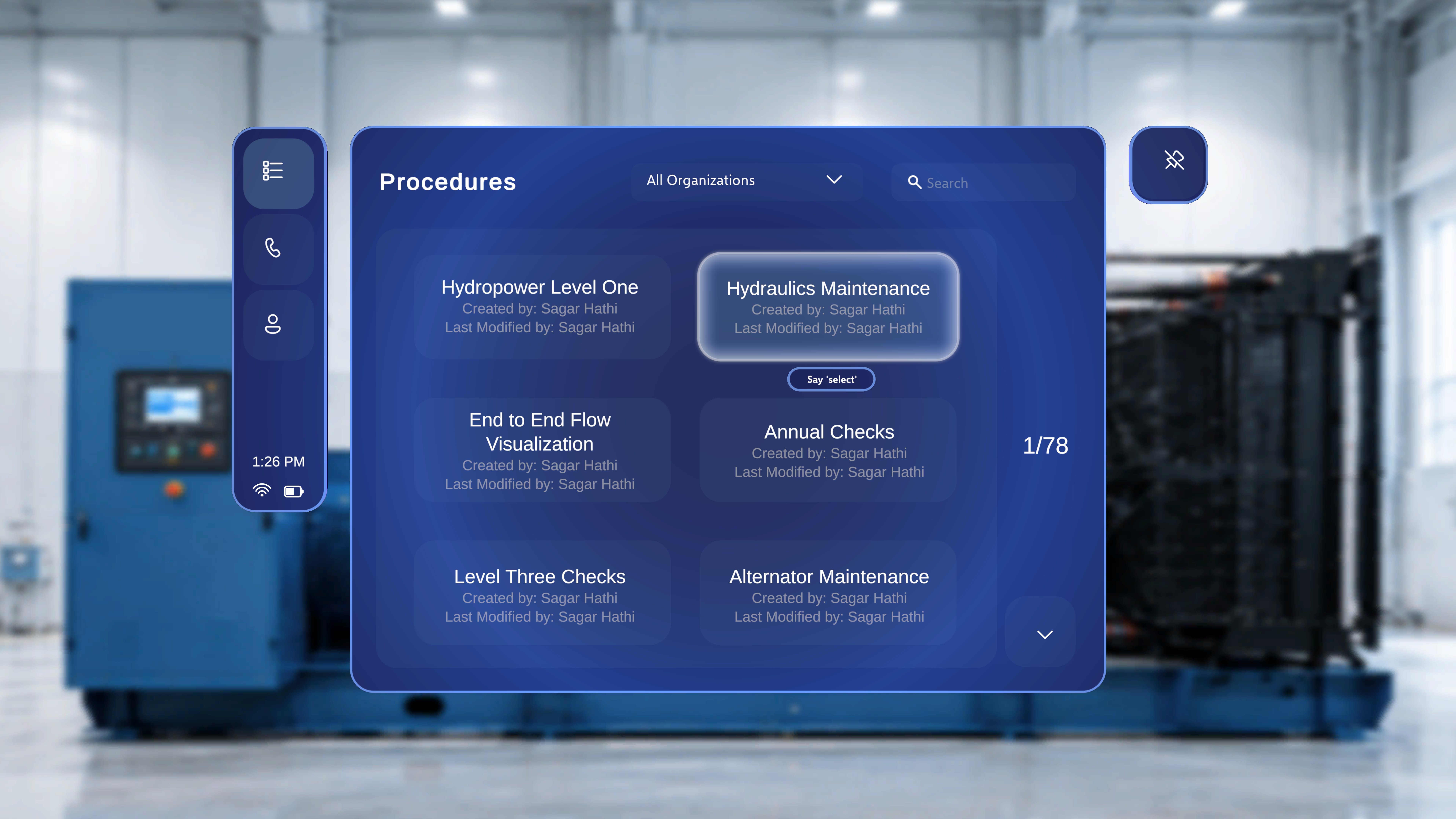
Palm-Up Hand Menus
Raising either hand with your palm facing toward you opens a hand-anchored menu. Which menu appears depends on where you are: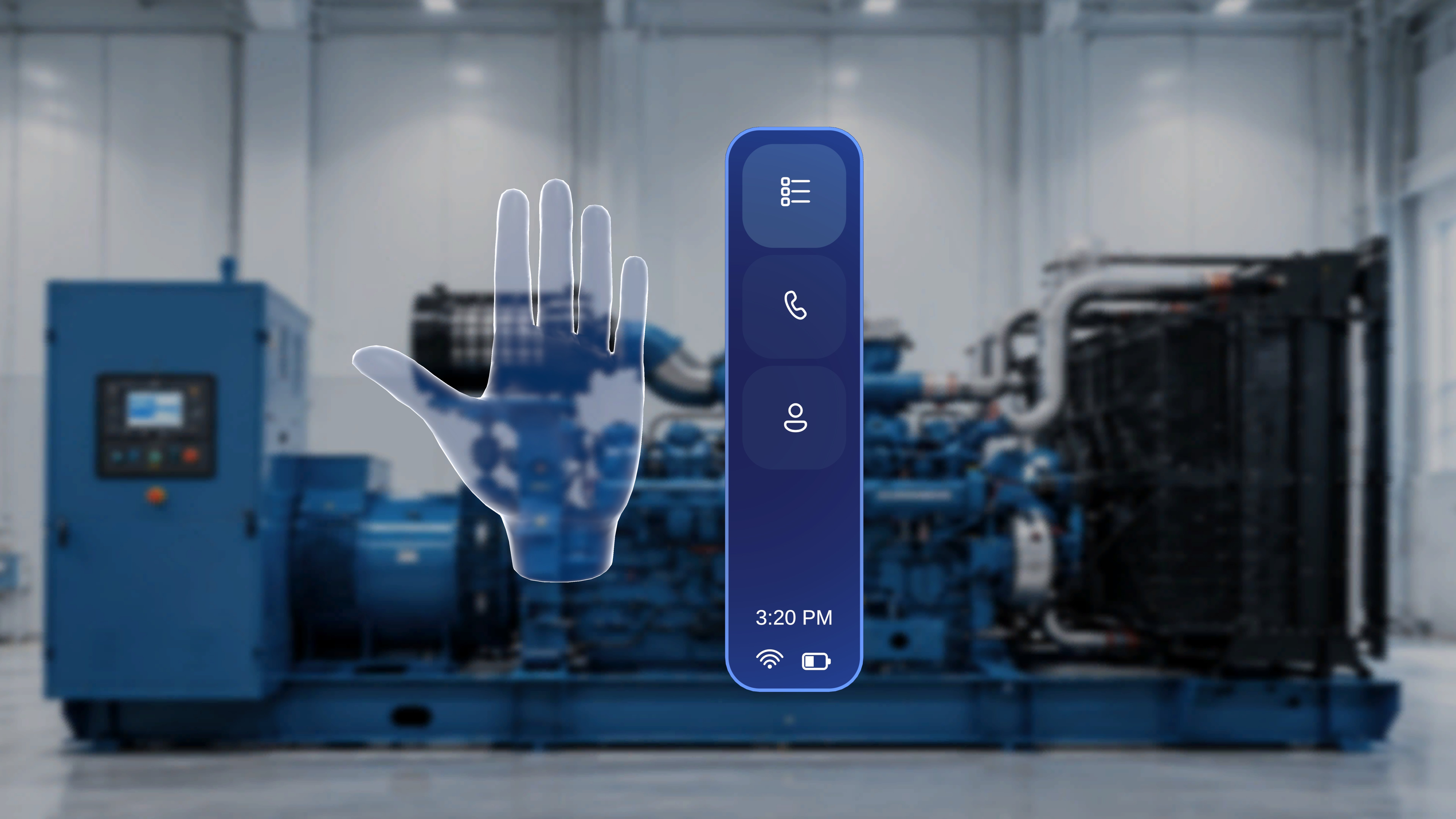
Moving Panels and Follow Me
- Panels can be manually moved in space; manually moving a panel automatically turns off Follow Me for it.
- Say “Follow me” / “Unfollow me” to have a supported panel reposition itself in front of you as you move, or stay fixed.
- Use Reposition Panels on the in-procedure side menu to bring the step, media, and 3D Model panels back directly in front of your current view.
Working with 3D Models
In Operator Mode
Model behaviour is set by the author; operators cannot change model settings or spawn new models. See Work with 3D Models and Media.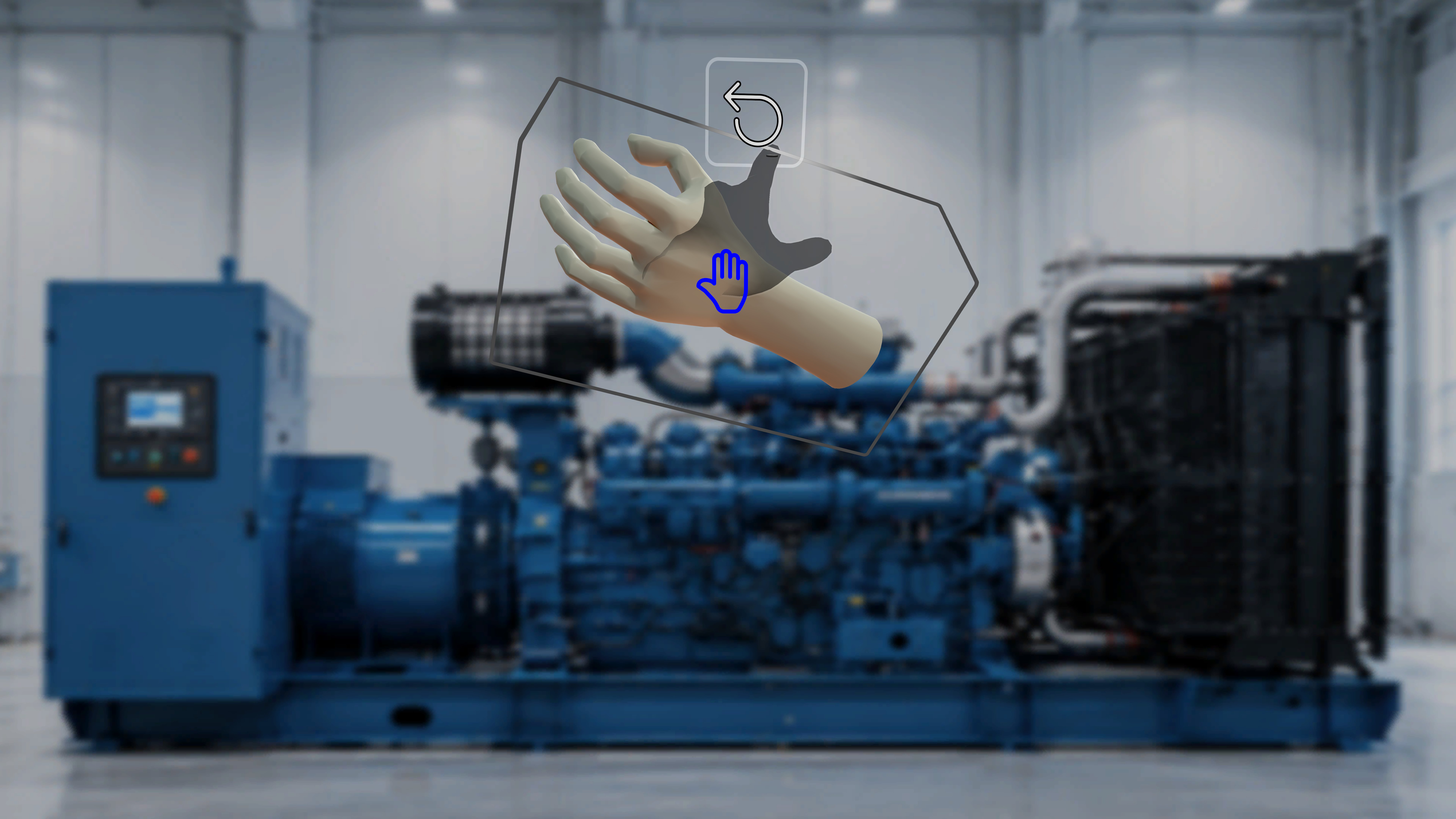
In Author Mode
Authors place and manipulate models directly in the space. See Add 3D Models and Media.