

The structure itself — tasks, steps, titles, descriptions, media attachments, and branching — is created and edited in the web Procedures Portal, not on the device. See Authoring in the Procedures Portal. On the HoloLens, you walk that structure step by step and author what appears in the physical space for each step. New to how procedures are organized? See Procedures, Tasks & Steps.
Get Oriented: The Author-Mode Panel Layout
After you confirm the QR anchor, the procedure opens with up to three panels: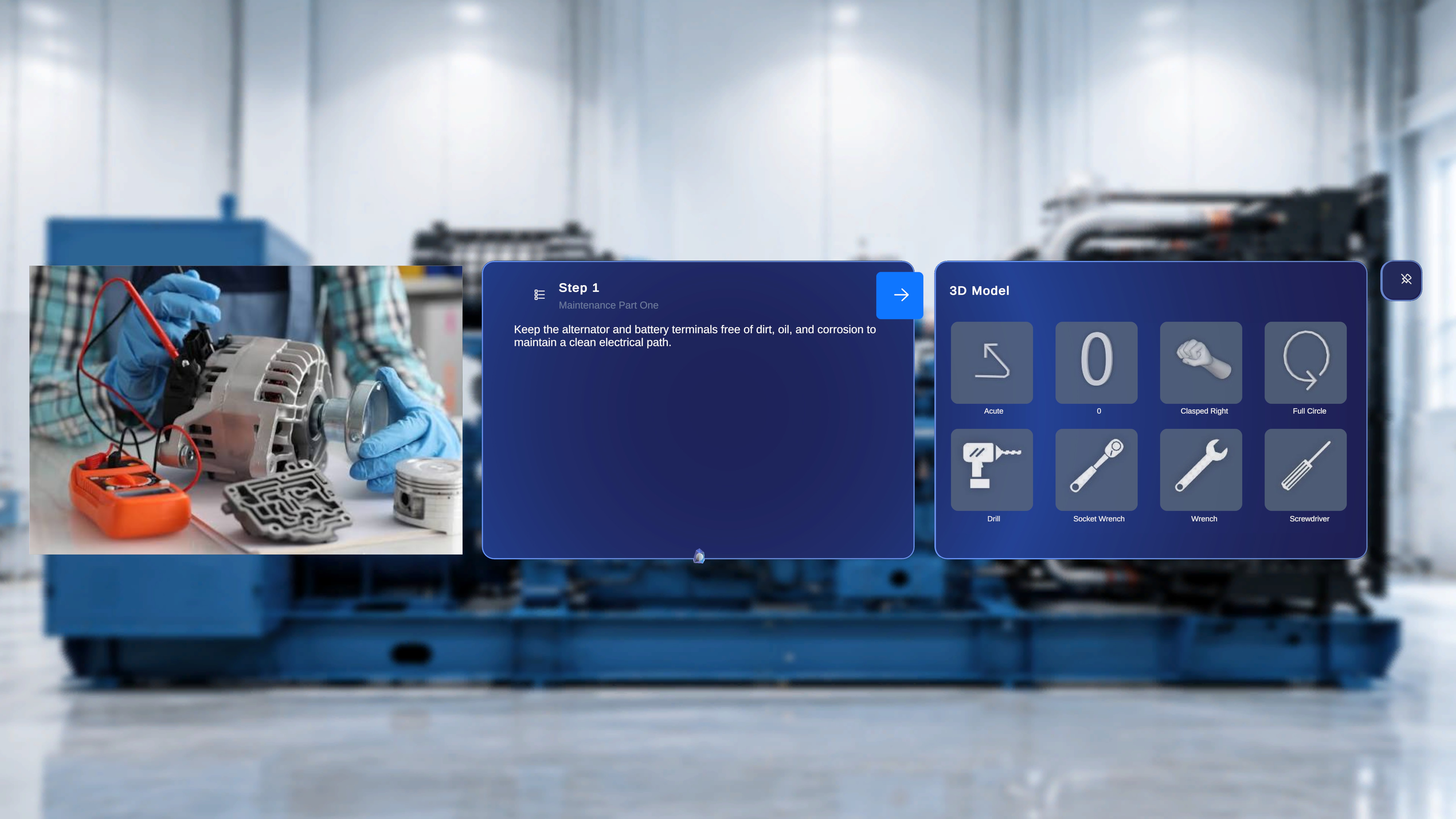
The content of every panel is step-specific: it reflects exactly what was attached to that step during procedure creation in the Portal. If nothing was attached, the corresponding area is hidden or empty. See How Content Flows for how Portal content reaches the device.
Move Between Steps
1
Go forward
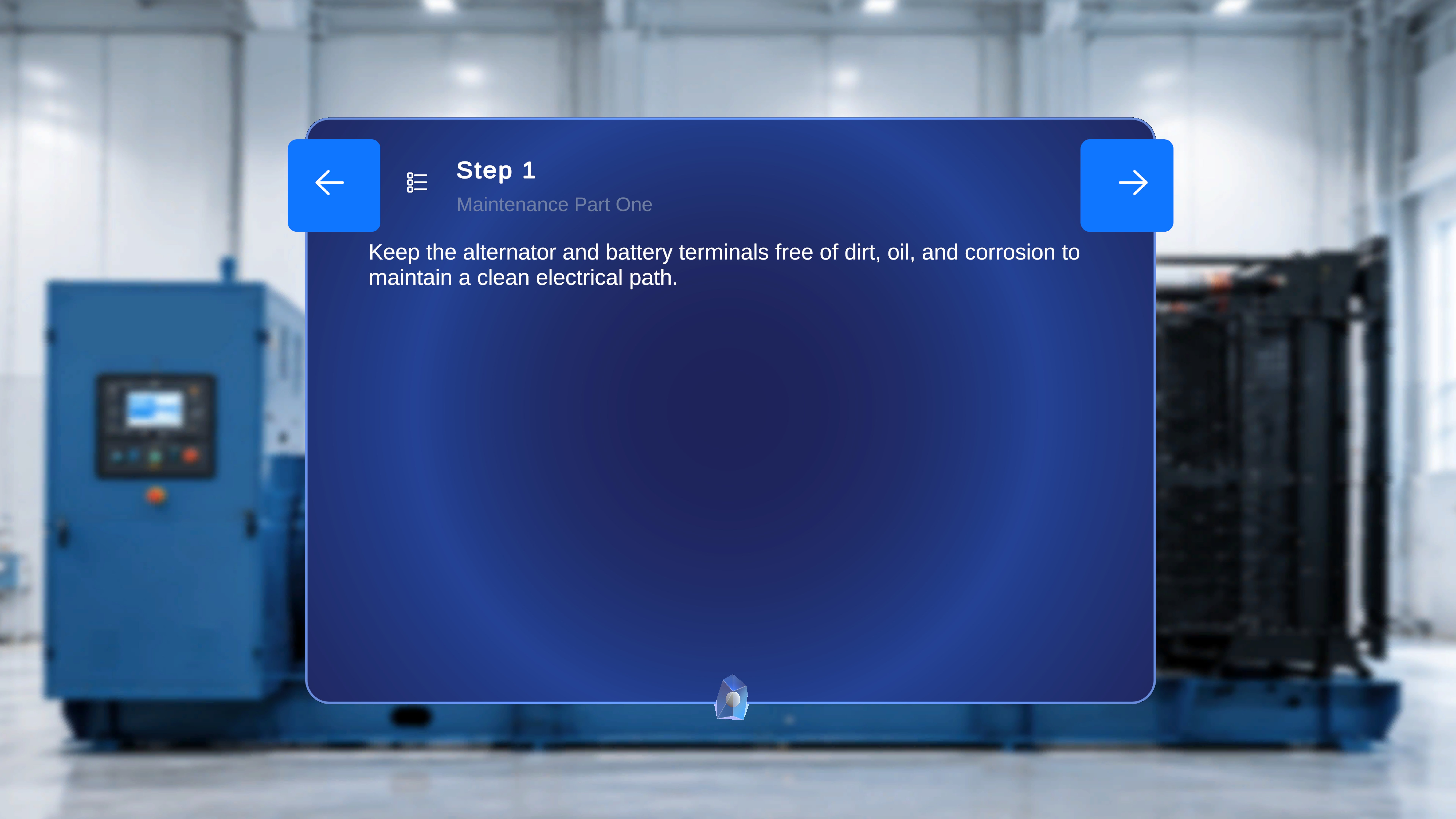
Select the right arrow on the step panel — or say “Next”. The panel updates with the new step number and task title, and the Media and 3D Model panels refresh to that step’s content.
2
Go back
Select the left arrow — or say “Previous”. The system returns to the previous step and all panels refresh accordingly.
Jump Anywhere with the Step List
You do not have to author sequentially. A list icon in the top-left of the step panel (before the Back button) opens the Step List Panel — a full navigator of the procedure.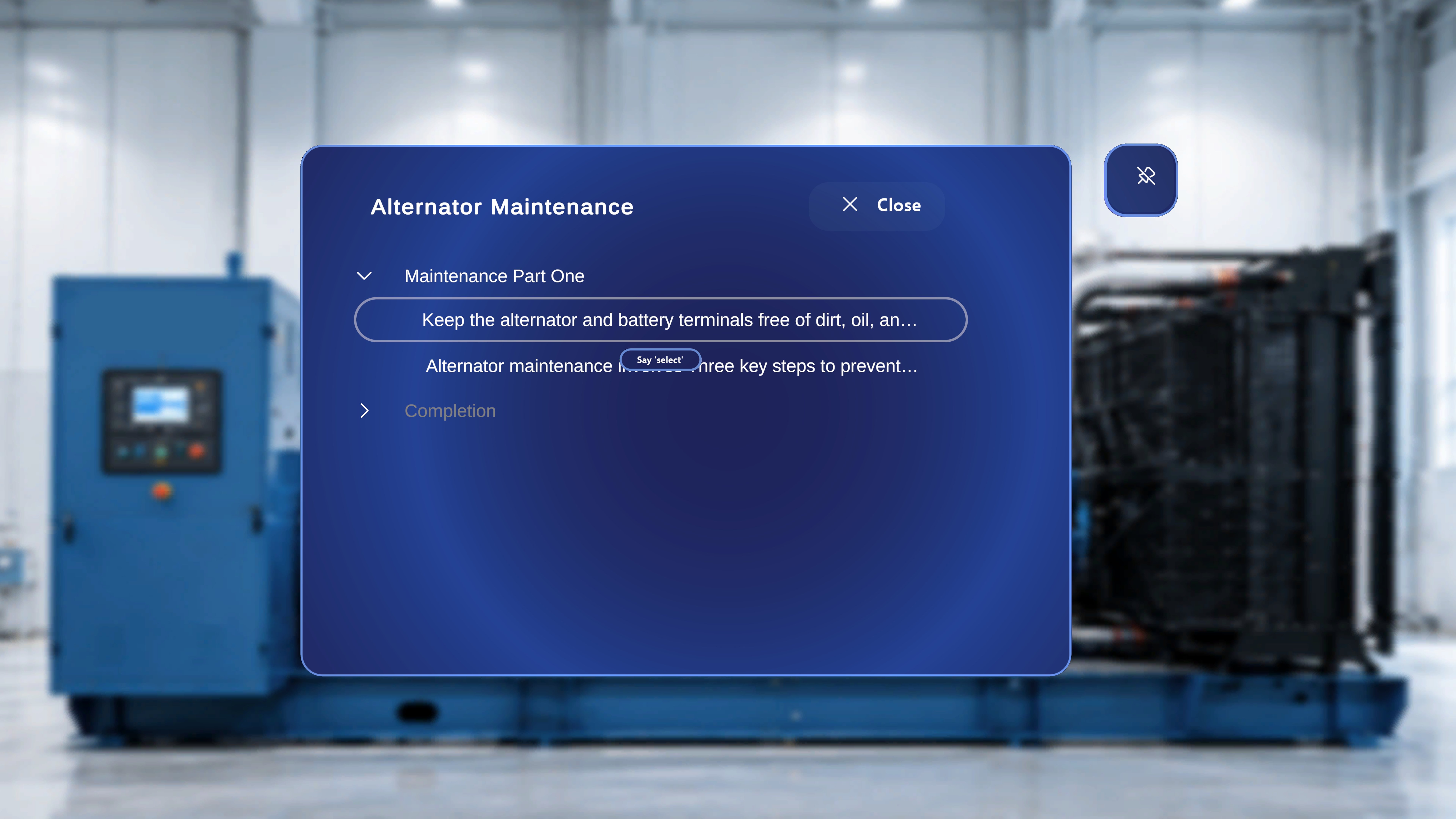
1
Open the step list
Select the list icon in the top-left of the step panel.
2
Jump to any task or step
Focus an entry and air-tap it, or say “Select” when the voice hint appears. You can skip forward or move backward freely — there is no requirement to follow the Next/Back sequence.
3
Close when done
Select the Close (X) button to return to the currently active step without changing the procedure state.
If you jump to a Choice Step, there is no forward button — you must select one of the choice options to proceed. See Choice Steps and Completion Rules.
Keep Panels with You: Follow Me
While authoring you move around the workspace constantly. Follow Me keeps a supported panel floating in front of you as you walk or turn, instead of staying parked where you left it. The toggle is the pin-shaped button in the top-right corner of each panel that supports it — pin with a slash = OFF (default, panel stays put); pin without a slash = ON (panel follows you).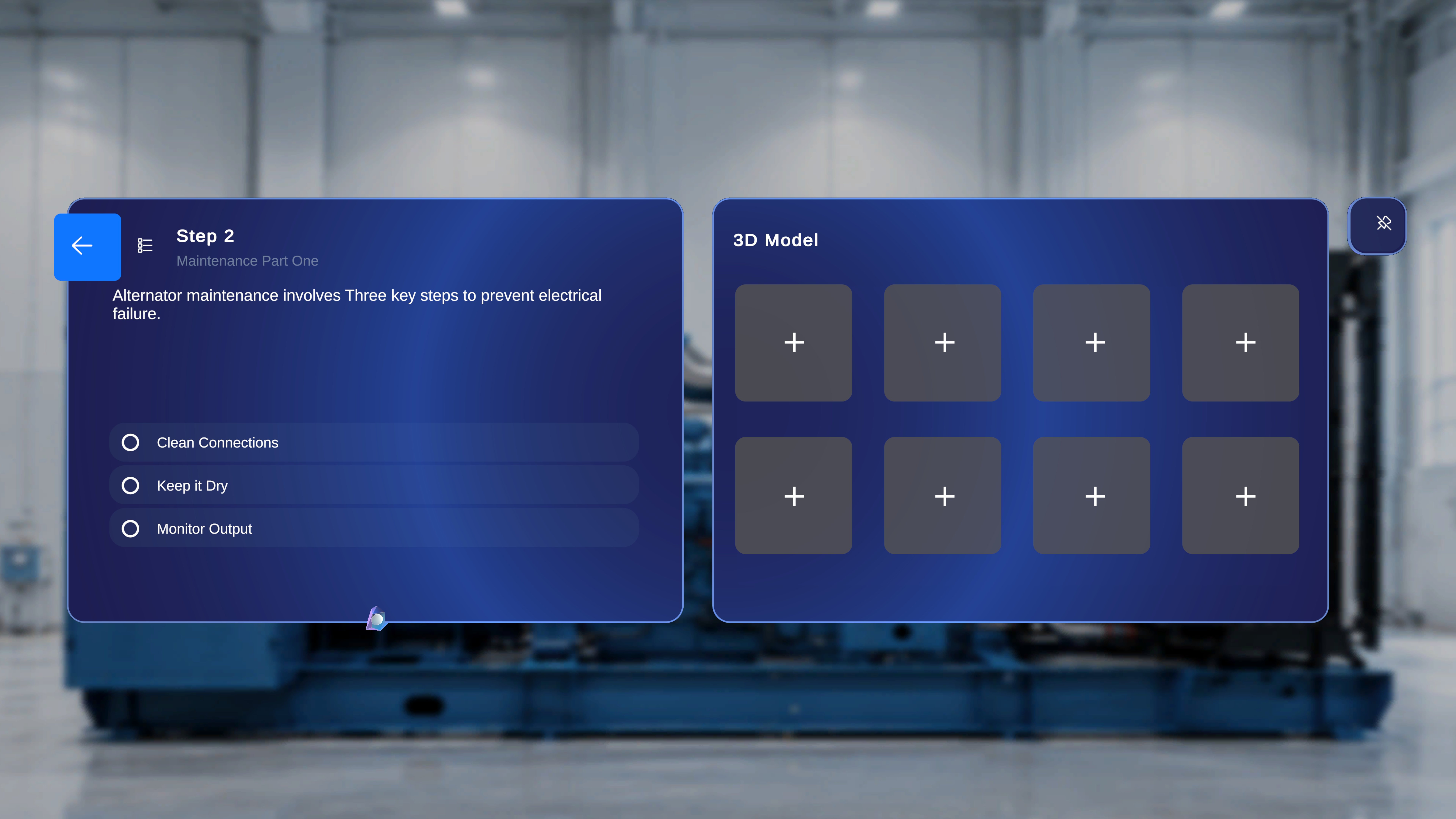
1
Turn Follow Me on
Air-tap the pin button on the panel — or simply say “Follow me” from anywhere, no need to look at the panel. The pin icon loses its slash and the panel begins repositioning itself in front of you as you move.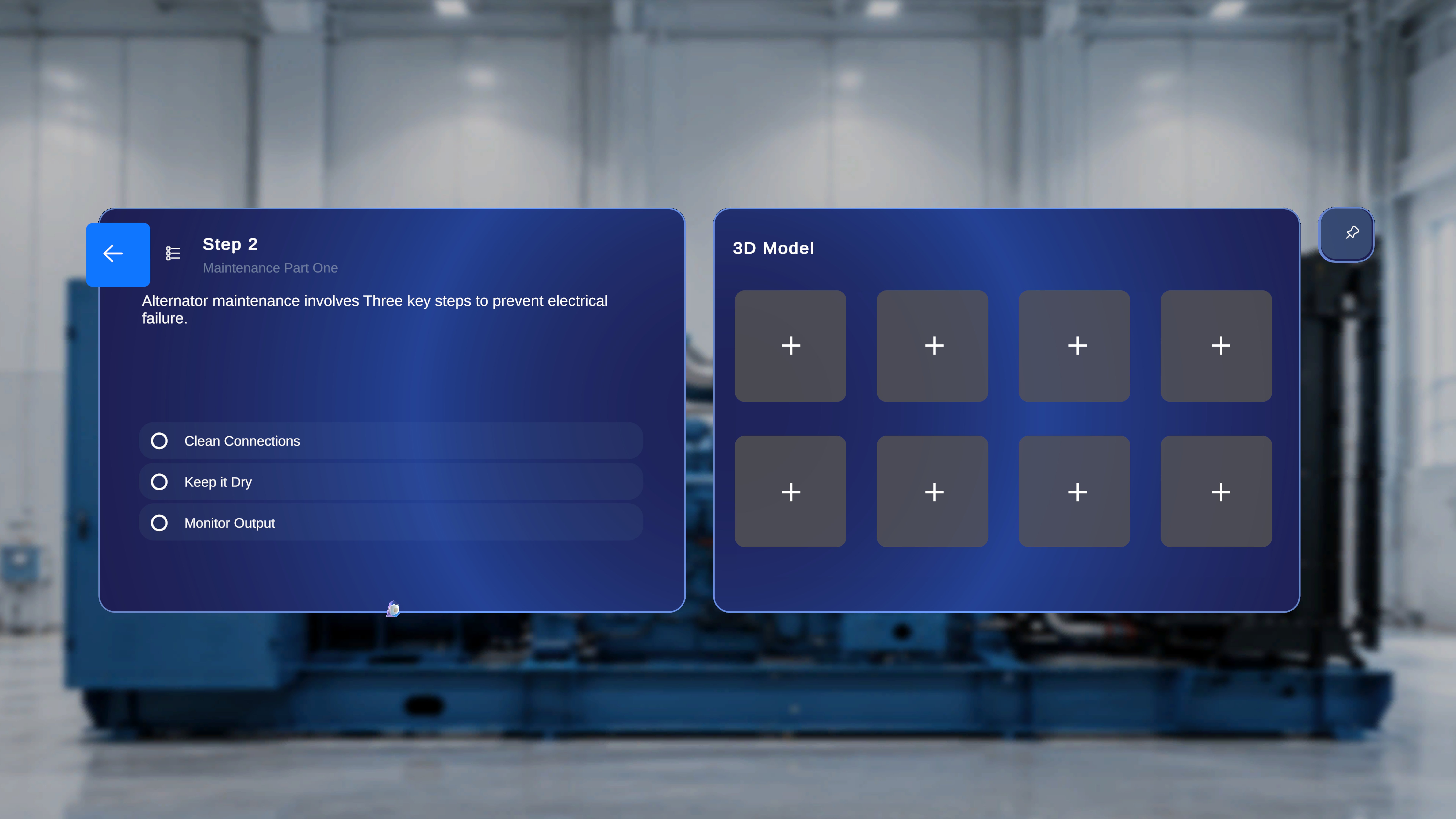
2
Turn Follow Me off
Air-tap the pin again, say “Unfollow me”, or just grab the panel and move it — manually repositioning a panel automatically switches Follow Me off, letting you “park” it in place.
Next: Add 3D Models and Media