

Overview
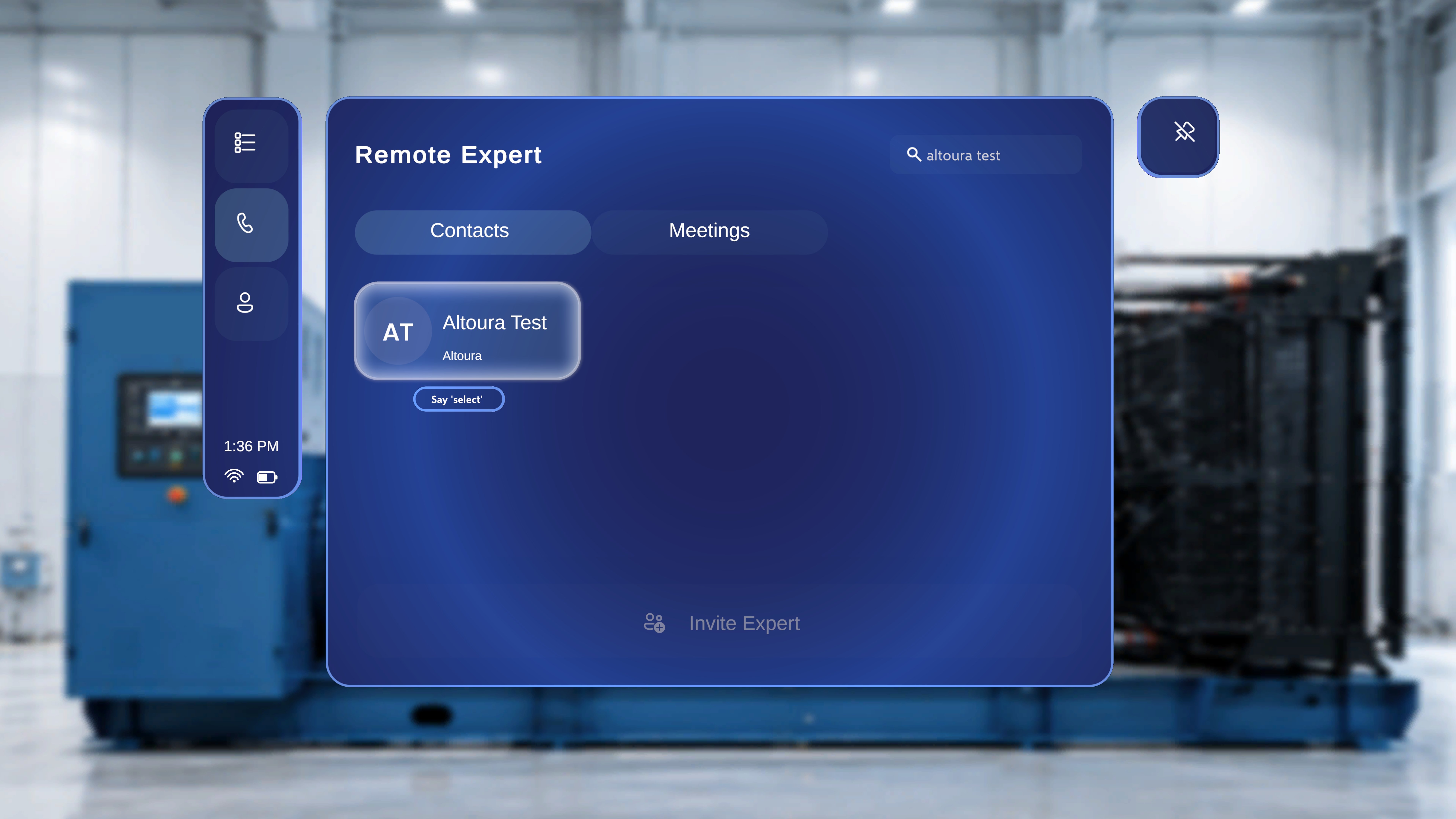
Altoura Frontline on the HoloLens supports hands-free voice interaction across the app, including inside the Remote Expert experience. When your hands are busy with tools or the work at hand, you can control every Remote Expert panel — Contacts, Meetings, in-call actions, and the hand menu — by voice. There are two types of voice interactions in Remote Expert:- Universal voice selection — hover a button with the ray or head-gaze cursor, then say “Select” to click it. This works on every interactive control.
- Global voice commands — a small set of dedicated phrases that trigger an action without any hover required.
Global voice commands in Remote Expert are still limited compared to Procedures — today, only the spatial mesh toggle has global commands. See Voice Commands in Author Mode or Voice Commands in Operator Mode for the fuller Procedures global-command set.
Universal Voice Selection: “Select”
Step-by-Step Instructions
- Point the ray or move your head-gaze cursor onto the button, tab, contact, or icon you want to activate.
- Wait for the “Say ‘select’” tooltip to appear beneath the control.
- Say “Select”.
What Happens Next
- The focused control activates just as it would with an air-tap.
- The tooltip disappears; the associated action runs.
Where “Select” Works
The same hover + “Select” pattern applies everywhere in Remote Expert. Common examples include:- Contacts tab — focus a contact card and say “Select” to open its details or start a call.
- Meetings tab — focus a scheduled meeting and say “Select” to join.
- Invite Expert — focus the Invite Expert button and say “Select”.
- In-call actions — focus Mute, End Call, Share, or any annotation control and say “Select”.
- Hand menu — focus a hand-menu button and say “Select”.
- Notifications and dialogs — focus Accept, Decline, or any dialog button and say “Select”.
“Select” also works everywhere else in Altoura Frontline — including the Procedures, Remote Expert, and Profile panels of the global side menu — with only one exception, the Next and Previous arrows on the main step panel in Procedures. That exception does not apply inside a Remote Expert session.
Global Voice Commands (Remote Expert)
Global voice commands are hands-free phrases that trigger their action without needing to hover the button first. In Remote Expert, they currently apply to the spatial mesh toggle in the hand menu.Show / Hide Mesh
You do not need to raise your palm or look at the button. Just say the command while in an active Remote Expert session.
See Remote Expert Hand Menu → Mesh for the full behaviour and when to use it.
Quick Reference
Tips
- Watch for the tooltip. If the “Say ‘select’” hint does not appear, the ray or head-gaze isn’t fully on the control. Adjust slightly until the tooltip becomes visible.
- Speak clearly. In noisy environments, speak the word “Select” at a slightly slower pace.
- Fall back to air-tap. If a voice command isn’t picked up, you can always tap the control with a normal air-tap or by moving close and touching it directly.