

How Voice Targeting Works
There are two types of voice interaction on the HoloLens: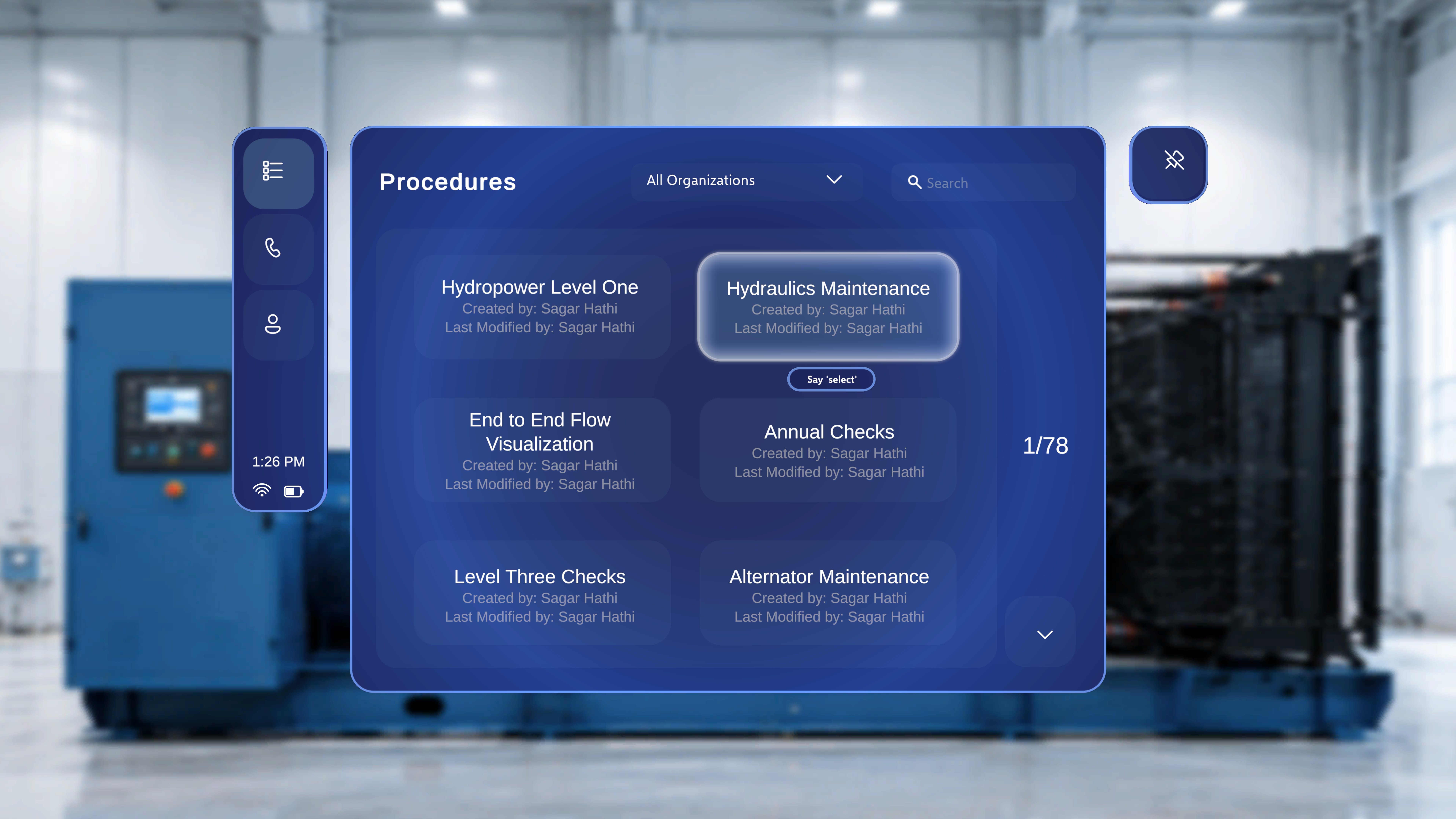
Voice commands are always available alongside standard input. Any button you can activate by voice can also be activated by air-tap or by moving close and touching the control directly. See Gestures and Interactions.
Global and Navigation Commands
These work anywhere in Procedures, in both Operator and Author mode. No hover is required.In-Procedure Commands
Author Mode
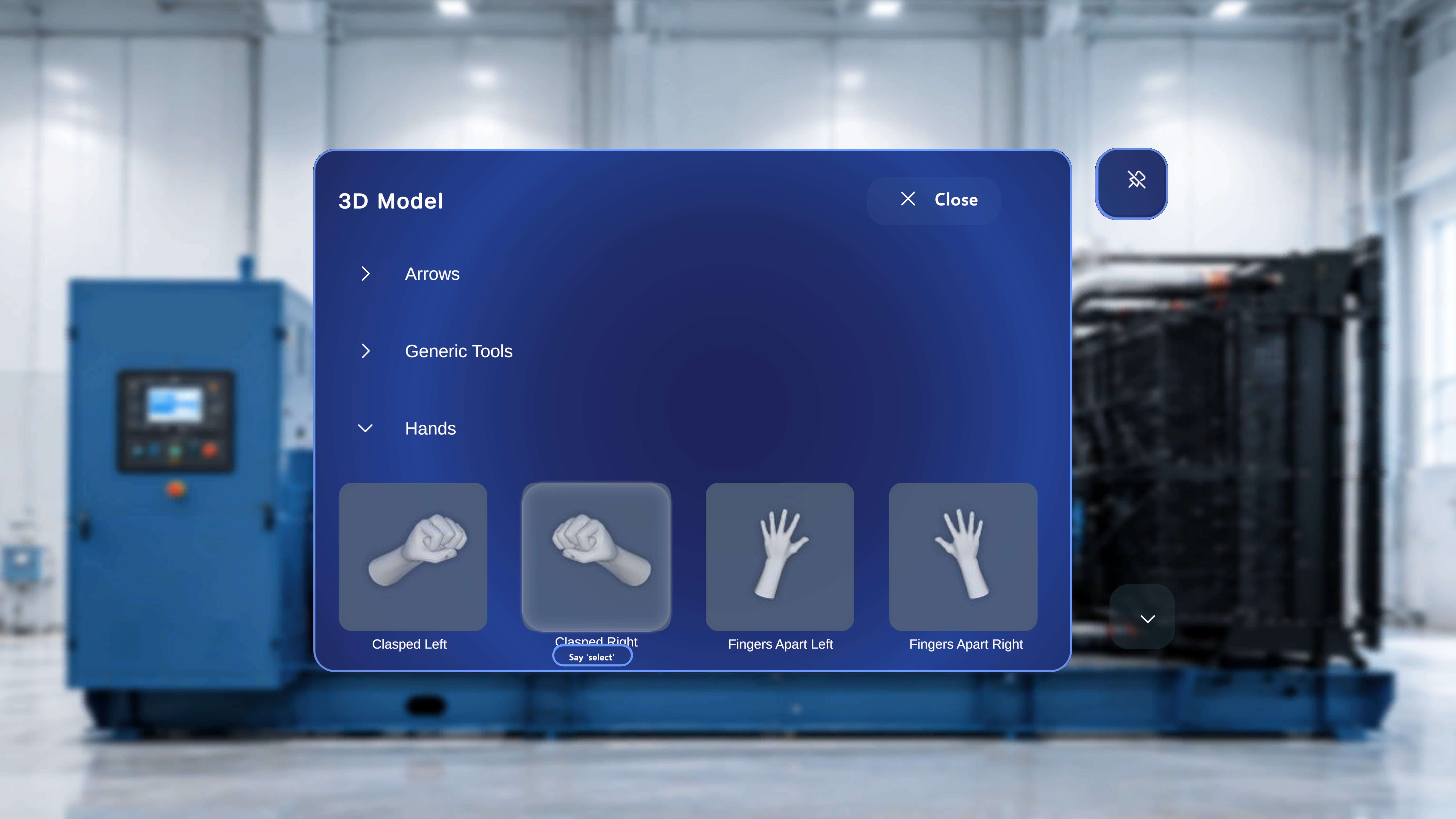
Author mode uses the same command set as Operator mode — there are no additional author-only phrases. Two author-specific notes:- “Select” also works on 3D Model panel tiles. The 3D Model panel is only shown in Author mode; hover a model tile and say “Select” to spawn it. See Add 3D Models and Media.
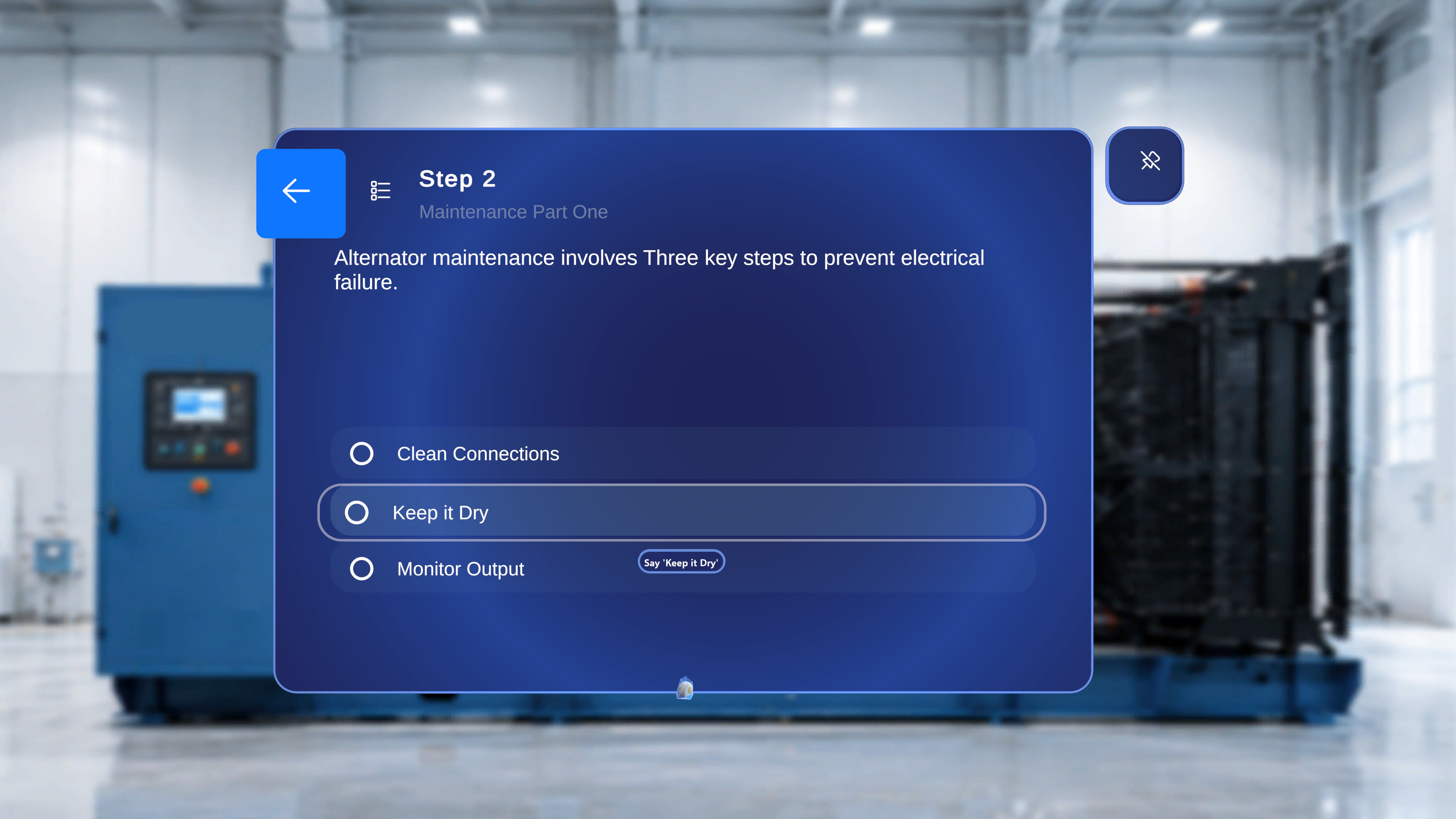
- Write choice labels for voice. Choice labels are treated as literal voice phrases, so keep them short, distinct, and unambiguous when authoring — this makes hands-free selection much more reliable for operators. See Choice Steps and Completion Rules.
Remote Expert Session Commands
During a Remote Expert session, hover + “Select” works on every control, and two global commands toggle the spatial mesh:
See Voice Commands in Remote Expert and the Remote Expert Hand Menu for the full behaviour.
Quick Reference
Tips
- Combine with Follow Me. Say “Follow me” for the main step panel, then use “Next” / “Previous” hands-free while working — instructions come to you and advance on command.
- Watch for the tooltip. If the “Say ‘select’” hint does not appear, the ray or head-gaze is not fully on the control. Adjust slightly until it shows.
- Speak clearly. In noisy environments, speak at a slightly slower pace and use the full command phrase.
- Fall back to air-tap. If a command is not recognised, use hover + “Select” or an air-tap instead.