

Overview
Altoura Frontline on the HoloLens is fully voice-enabled. While executing a procedure in Operator mode, you can navigate steps, respond to choice steps, and toggle Follow Me — all without touching a control. This lets operators keep both hands on tools, parts, or the machine they are servicing. There are two types of voice interactions in Operator mode:- Universal voice selection — hover a button with the ray or head-gaze cursor, then say “Select” to click it. This works on every interactive control in Procedures, Remote Expert, and Profile.
- Global voice commands — a small set of dedicated phrases that trigger actions without any hover required. These are specific to Procedures.
Voice commands are always available alongside standard input. Any button you can activate with voice can also be activated by air-tap or by getting close and touching the control directly.
Universal Voice Selection: “Select”
Every interactive control on the HoloLens exposes a “Say ‘select’” hint when it is in focus.Step-by-Step Instructions
- Point the ray or move your head-gaze cursor onto the button or icon you want to activate.
- Wait for the “Say ‘select’” tooltip to appear beneath the control.
- Say “Select”.
What Happens Next
- The focused control activates just as it would with an air-tap.
- The tooltip disappears; the associated action runs.
Examples
On the Procedures landing page, focus a procedure card and the tooltip appears beneath it — say “Select” to open that procedure: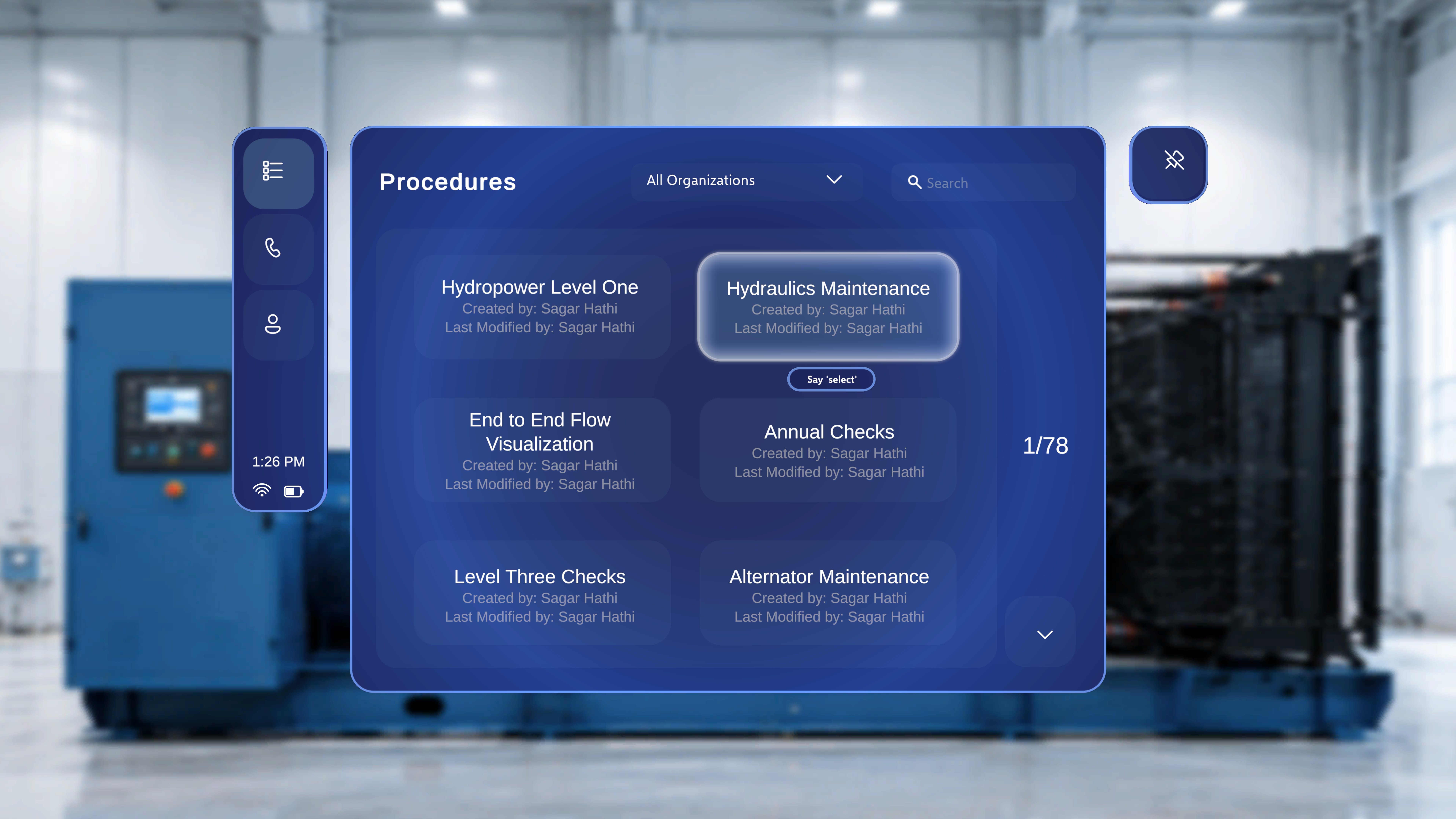
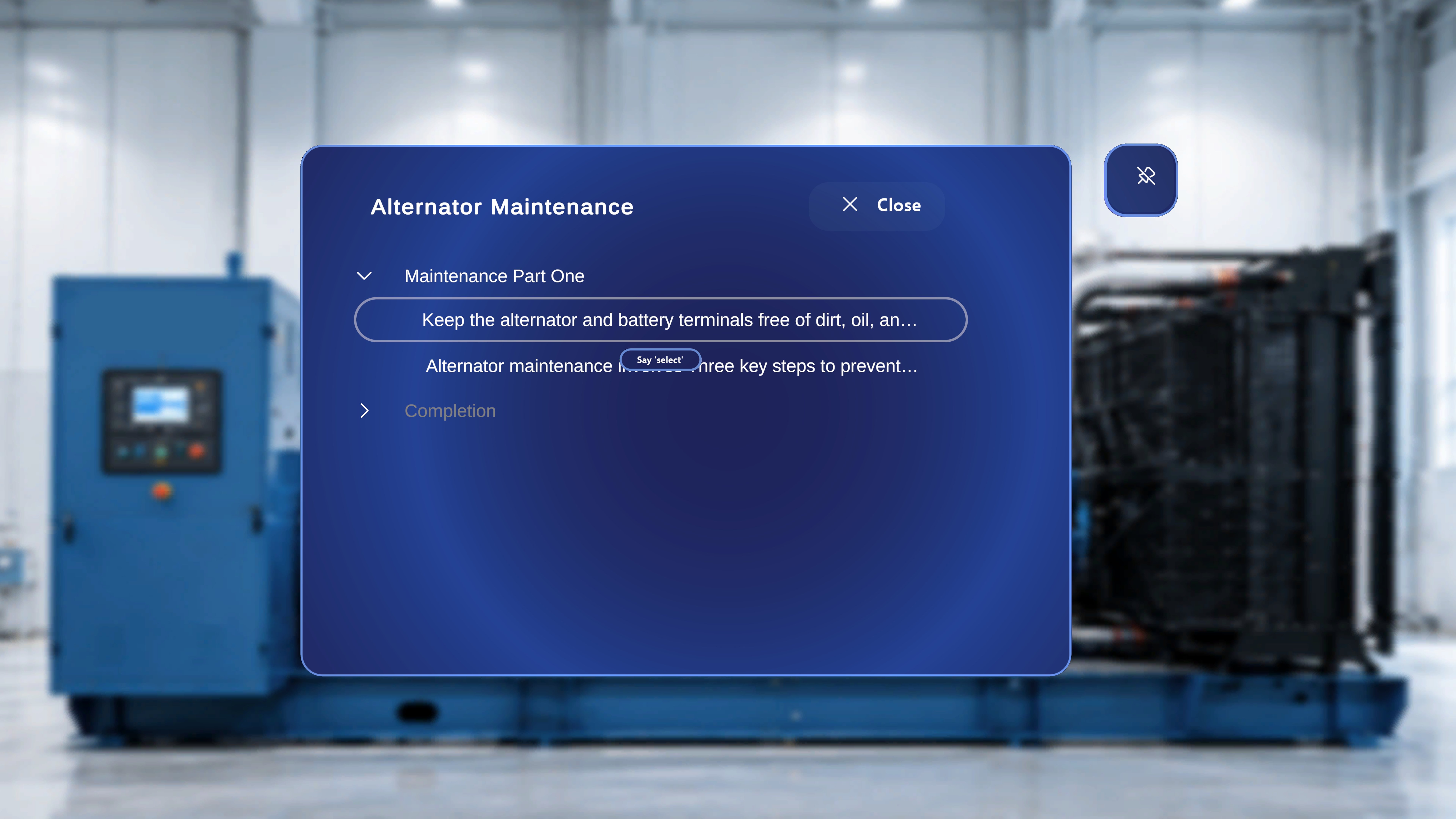
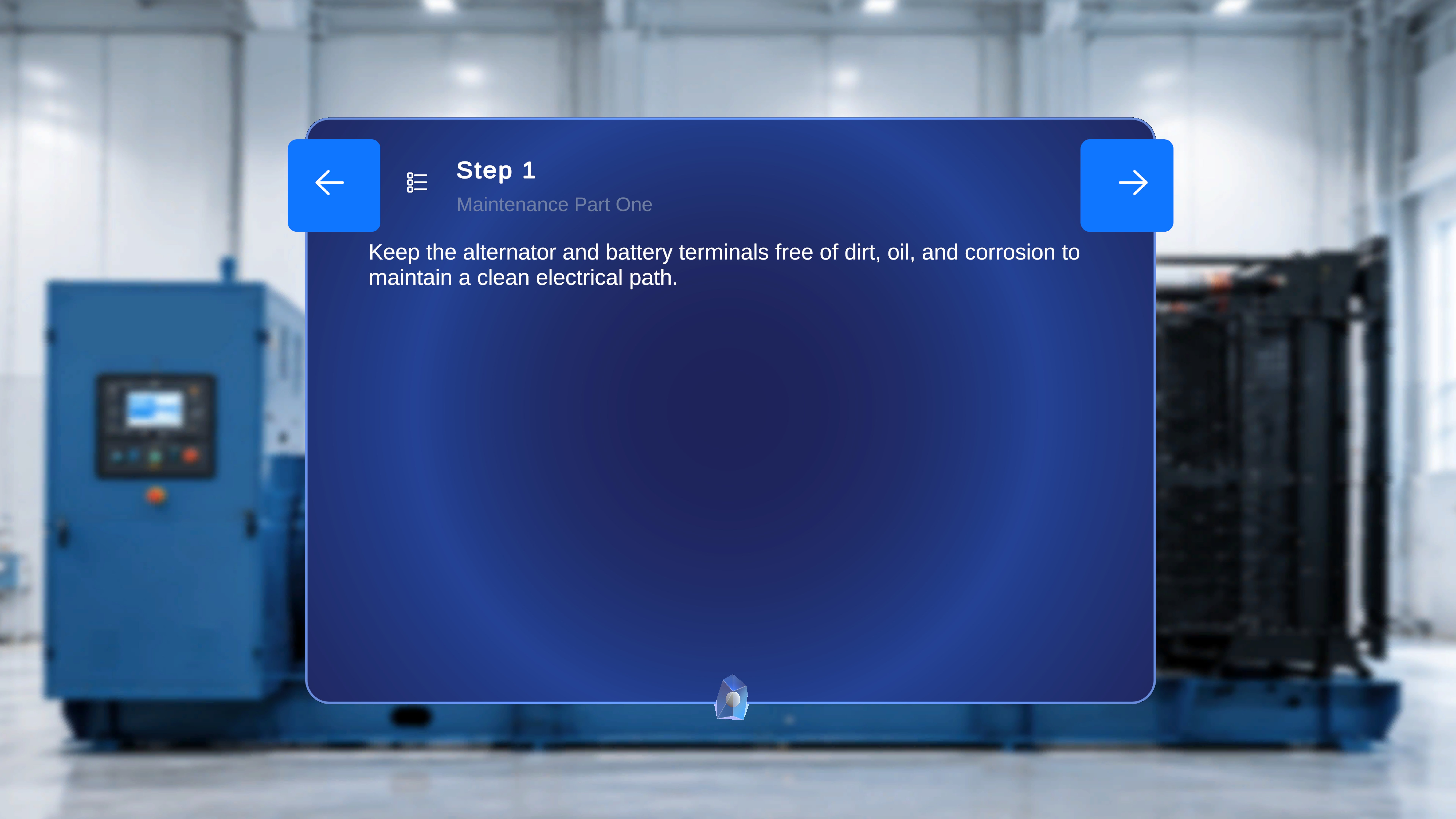
“Select” works on every interactive control across the app — including the Task/Step List, dialog buttons, the QR scan flow, and controls in Remote Expert and Profile panels — with one exception: the Next and Previous buttons on the main step panel. See below.
Global Voice Commands (Procedures)
Global voice commands are hands-free phrases that trigger their action without needing to hover the button first. They are specific to Procedures.Follow Me / Unfollow Me
You do not need to look at the panel. See Follow Me in Operator Mode for the full behaviour, including auto-disable when a panel is manually moved.
Next / Previous (Step Navigation)
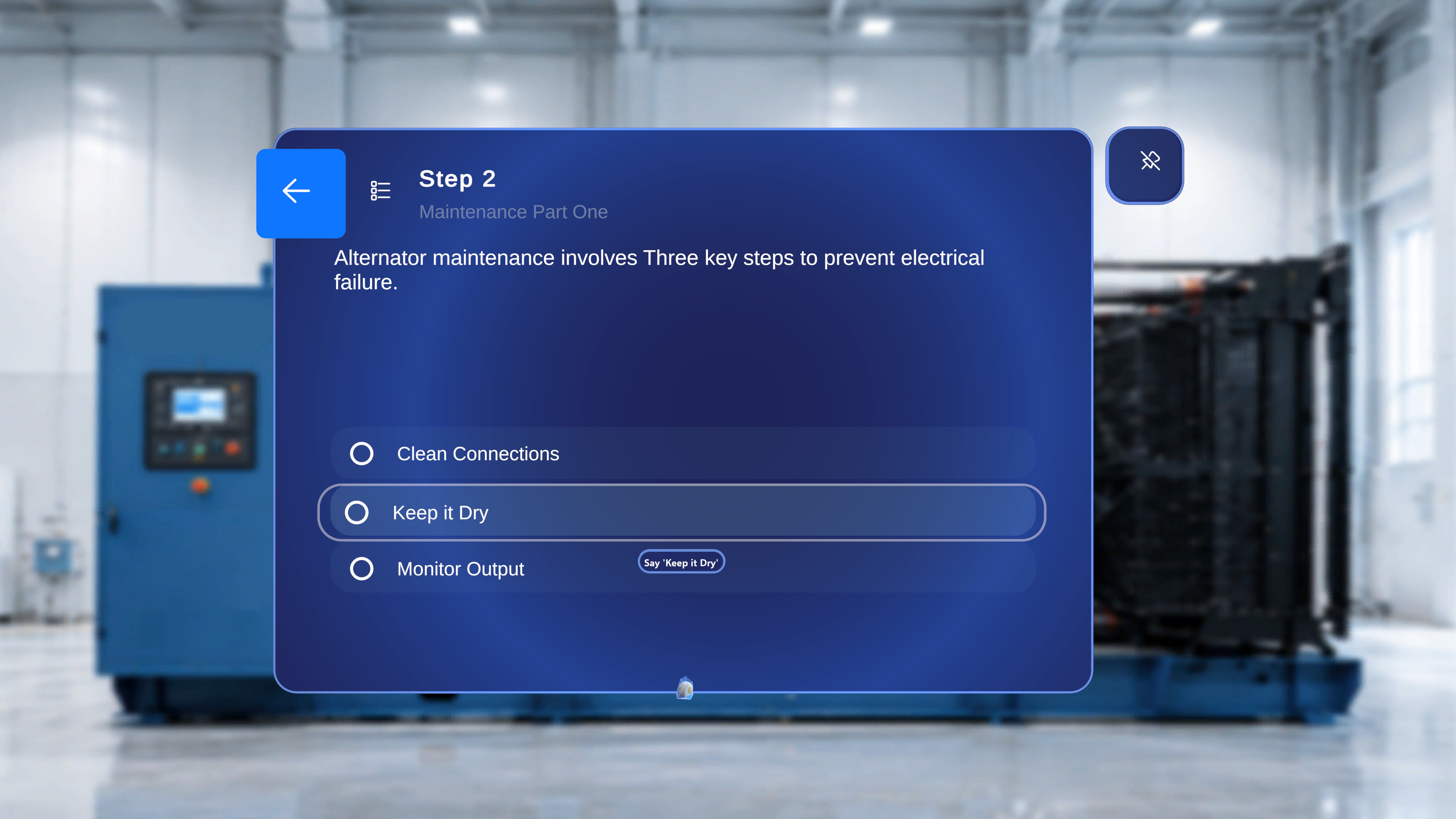
Choice Option Labels
Step-by-Step Instructions
- Position yourself within a comfortable speaking distance of the Choice Step panel.
- Read the label of the option you want.
- Say the label exactly as written.
What Happens Next
- The matching choice option is selected.
- The procedure branches down that path, just as if you had air-tapped the option.
If a choice label is long or awkward to speak, you can always fall back to hover + “Select” or an air-tap on the option.
Quick Reference
Tips
- Combine with Follow Me. Enable Follow Me on the main step panel by voice, then use “Next” / “Previous” hands-free while working — instructions come to you and advance on command.
- Speak clearly. In noisy work environments, speak at a slightly slower pace and use the full command phrase.
- Fall back to “Select”. If a global command isn’t recognised (for example, an ambiguous choice label), you can always fall back to hover + “Select” or an air-tap.