

Overview
A global transition lets the trainee use an interaction across several steps. For example, a help object can display instructions whenever it is tapped, without adding the same transition to every step.
Use Add Global Transition to make the interaction available when that action runs. Use Remove Global Transition when it should stop responding. Moving to another step does not automatically remove it.
Where to Add It
In On Entry, On Exit, or a transition's Actions, open the action menu and find Variables & Logic. Choose Add Global Transition or Remove Global Transition. You can also search for the action by name.
Choose the action location according to when the interaction should become available:
| Location | When Add or Remove takes effect |
|---|---|
| On Entry | When the trainee enters that step. Put Add here in the first step for an interaction available from the beginning. |
| On Exit | When a transition leaves that step for another step. |
| A transition's Actions | When its event matches and its condition, if any, passes. |
Adding the action in Creator defines the behavior. It becomes active during playback only after the trainee reaches and executes that action.
Add Global Transition
Add the action
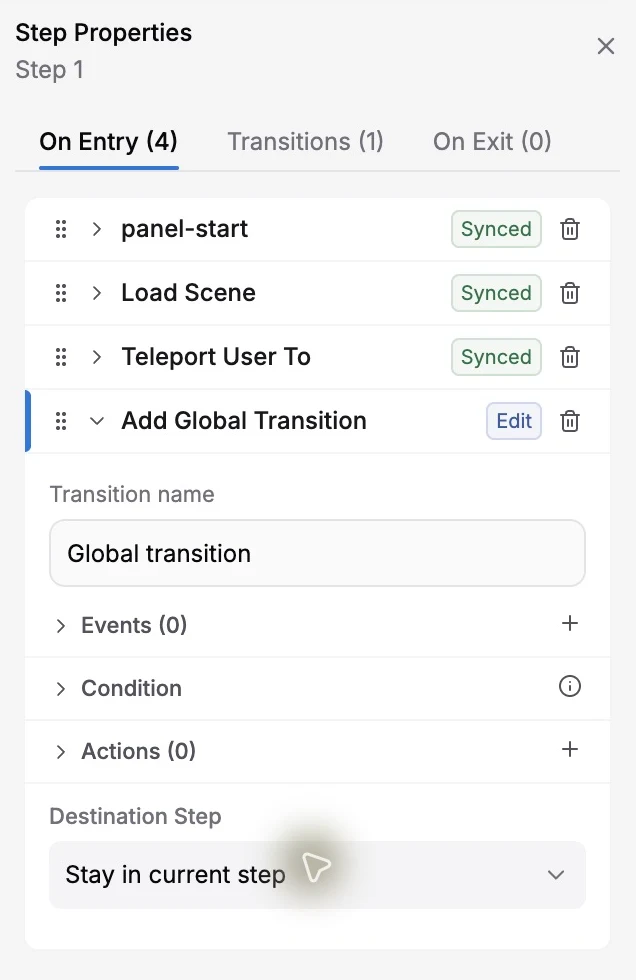
Open the intended action list and choose Add Global Transition.
Name the transition
Enter a descriptive Transition name, such as Equipment help. This name also identifies it when choosing a transition to remove.
Configure Events
Click + beside Events and add Tap, Move, or Rotate. Select the target object and configure the interaction. Use Edit in Scene where available.
Add a condition if needed
Expand Condition to restrict the interaction using training variables. Leave it empty when a matching event should be sufficient.
Configure the response
Add the response under Actions, such as Show Text, Play Audio, or Update Callout. Choose a Destination Step, or keep Stay in current step.
Save and test across steps
Start Preview before the Add action executes. Trigger the interaction, move to another step, and trigger it again.
| Setting | Behavior |
|---|---|
| Events | At least one event is required. With several events, any matching event can trigger the transition. |
| Condition | Evaluated when the event occurs, using the current training values. A false condition prevents the response. |
| Actions | The response to the interaction. These run when the transition fires, not when Add Global Transition is first executed. |
| Destination Step | Choose another step to navigate there, or Stay in current step to run the response without navigating. |
The global event picker supports Tap, Move, and Rotate. Author Next and Choice navigation through the normal step's Show Panel controls; these routes cannot be created inside a global transition.
How Global Transitions Behave
- Step transitions take precedence. The training checks qualifying transitions on the current step before registered global transitions. Only one transition is selected for an event.
- Conditions use current values. A variable can enable or disable an already active interaction through its condition.
- Stay in current step runs only the transition's actions. The current step's On Exit and On Entry actions do not run again.
- A different destination runs the current step's On Exit, the selected transition's Actions, and the destination's On Entry, in that order.
- A destination that is already active behaves like staying in that step for a global transition. It does not restart the step or add another Back-navigation entry.
- Reaching the same Add action again refreshes that global transition. It does not create another independent copy of it.
The target object must be available for the trainee to interact with it. Keep its scene and visibility in mind when the global transition spans multiple steps.
Remove Global Transition
- Add Remove Global Transition where the interaction should stop being available.
- In Global transition, select the named transition created by an Add action.
- Save and test that the interaction works before this action and no longer responds afterward.
Removal affects future events. It does not stop audio already playing or hide content already shown; add Stop Audio, Hide Text, or the appropriate cleanup action when needed.
Example: Help Available Across Several Steps
Use an object that stays visible throughout an equipment-inspection sequence.
- In the first inspection step's On Entry, add Add Global Transition and name it
Equipment help. - Add a Tap event targeting the help object.
- Add Show Text to its Actions with the text
Inspect each marked component before continuing. - Leave Destination Step as Stay in current step.
- At the end of the inspection sequence, add Remove Global Transition and select
Equipment help. Add Hide Text if the help message should also close.
The trainee can request help from any step reached after Add and before Remove, while remaining in their current step.
Callout Interactions
Callout appearance and interaction have separate lifetimes. To make a callout respond to a tap, target it with a global Tap event and add the desired response to that transition.
Remove Callout removes the visual tag and connector. Remove Global Transition stops the associated interaction. Use both when both should end. See Callouts for the complete setup.
Troubleshooting
| Problem | Check |
|---|---|
| The interaction never responds | Confirm the Add action is enabled and has executed, its event has a target, and its condition passes. |
| It responds on one step but not another | Check for a qualifying step transition taking precedence, a Remove action, or a target object that is no longer available. |
| It remains active longer than intended | Add Remove Global Transition at the end of the intended sequence. Step exit alone does not remove it. |
| Remove shows a missing transition | Check that the referenced Add action still exists and select the intended transition again. |
| Training issues reports an incomplete transition | Add the missing event, target, or other setting identified by the issue. |