

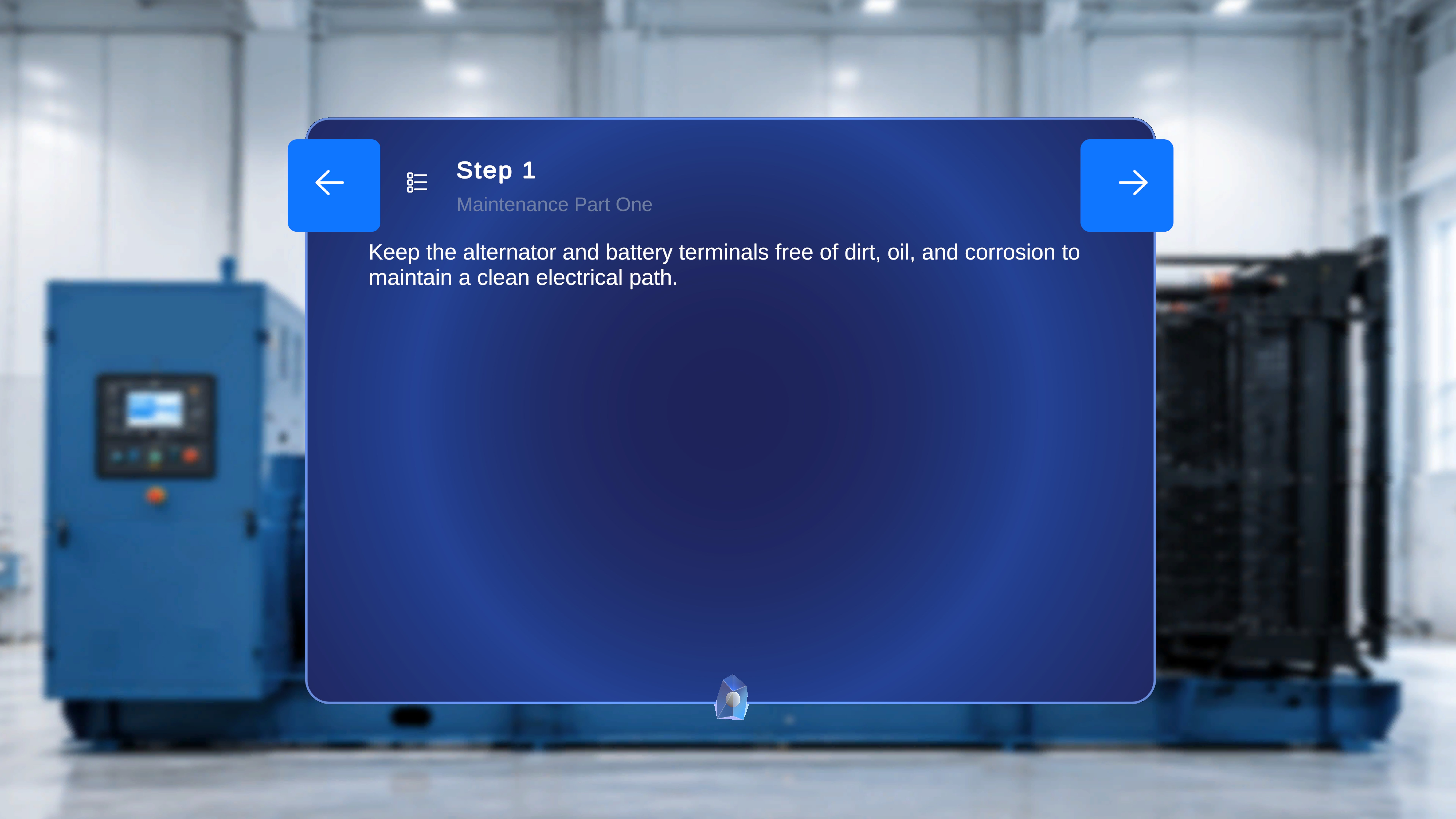
Overview
Each procedure is divided into steps. The main panel displays the active step and allows you to move backward or forward through the procedure. For every step, the system loads only the content that was attached to that specific step during procedure creation in the web editor. This includes:- Task title , Step Numbering and Step description
- Attached media (image or video)
- Attached 3D (GLB) models
Navigate Between Steps
The main panel displays navigation buttons on both sides:- Left arrow – Go to the previous step
- Right arrow – Go to the next step
- Step 2
- Air Filter Assembly
- Step instruction (for example, Locate the Filter)
Go to the Next Step
- Select the right arrow button.
What Happens Next
The system advances to the next step. The main panel updates with:- The new step number
- The new Task title(If there exists multiple Tasks which user can navigate to)
Go to the Previous Step
- Select the left arrow button.
What Happens Next
The system returns to the previous step. The main panel updates accordingly. The media and 3D Model panels refresh to display only the content associated with that step.Media Panel (Step-Based)
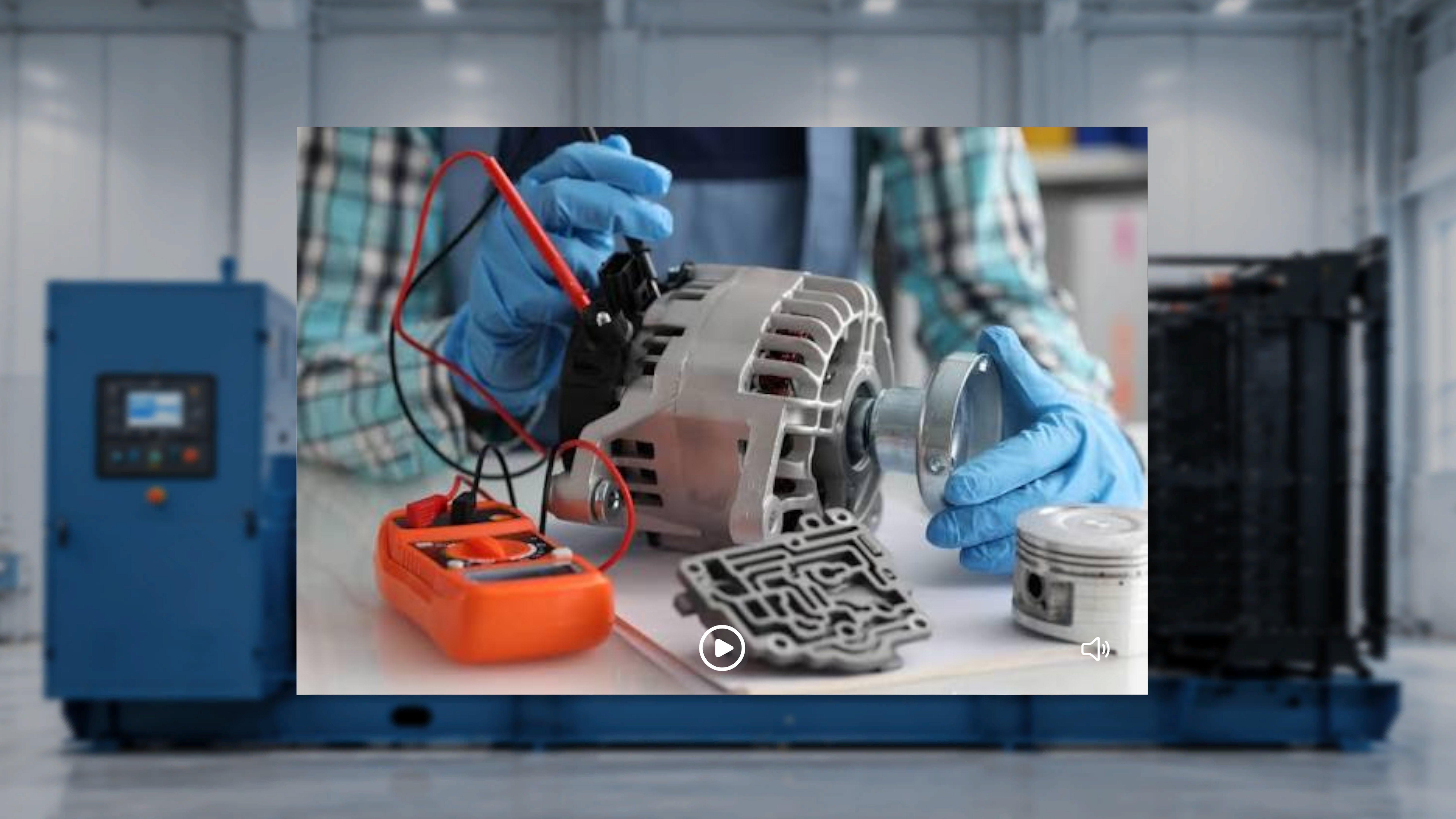
- If an image or video was attached, it appears in the media panel.
- If no media was attached, the media panel does not appear.
3D Model Panel (Step-Based)
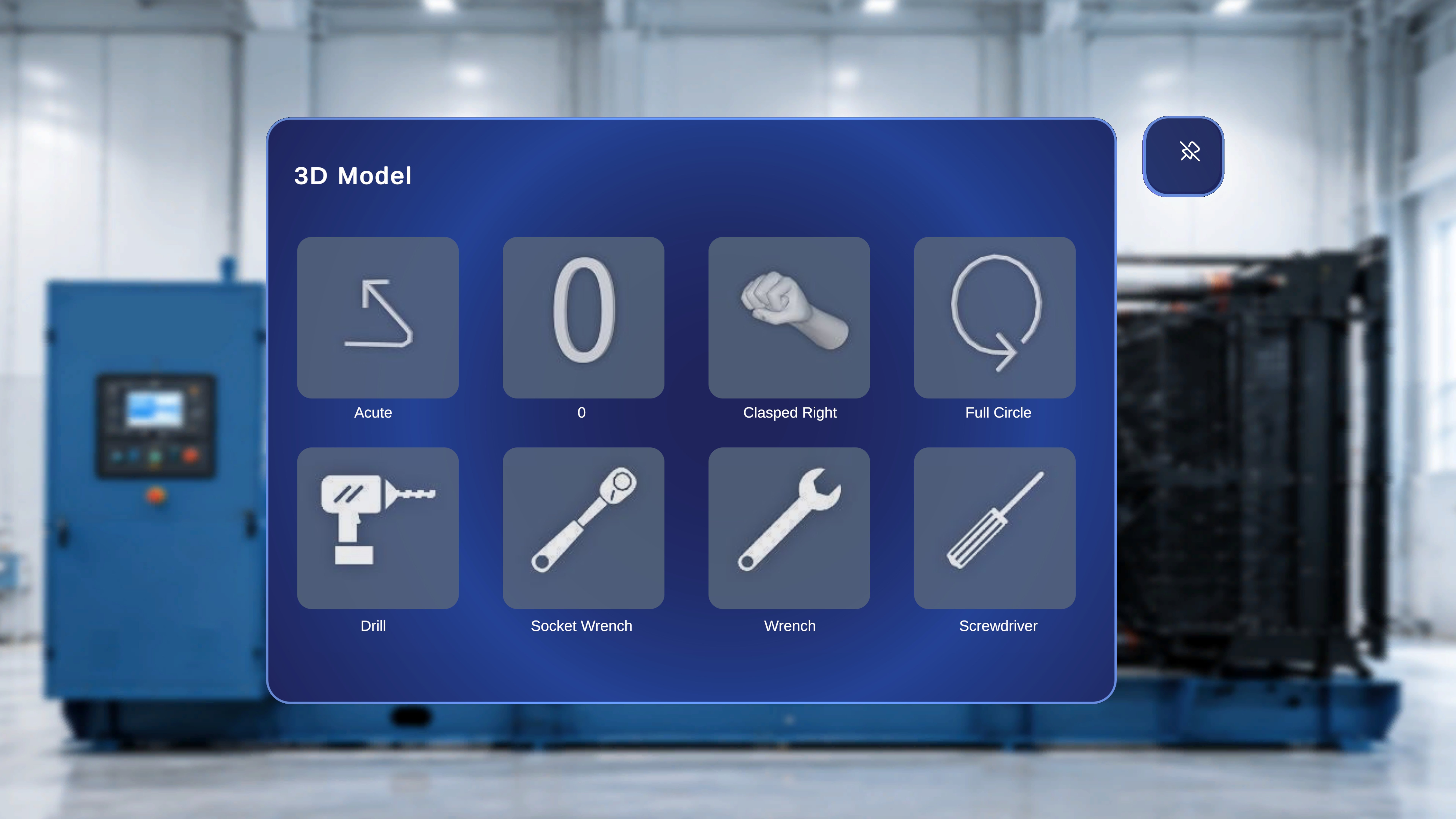
- Only models linked to the active step are shown.
- If multiple models were attached, multiple tiles appear.
- If no models were attached, the panel may display empty tiles.
Content Behavior Across Steps
When you navigate between steps:- Step number and instructions update.
- Media updates based on step configuration.
- 3D model tiles update based on attached GLB files.