

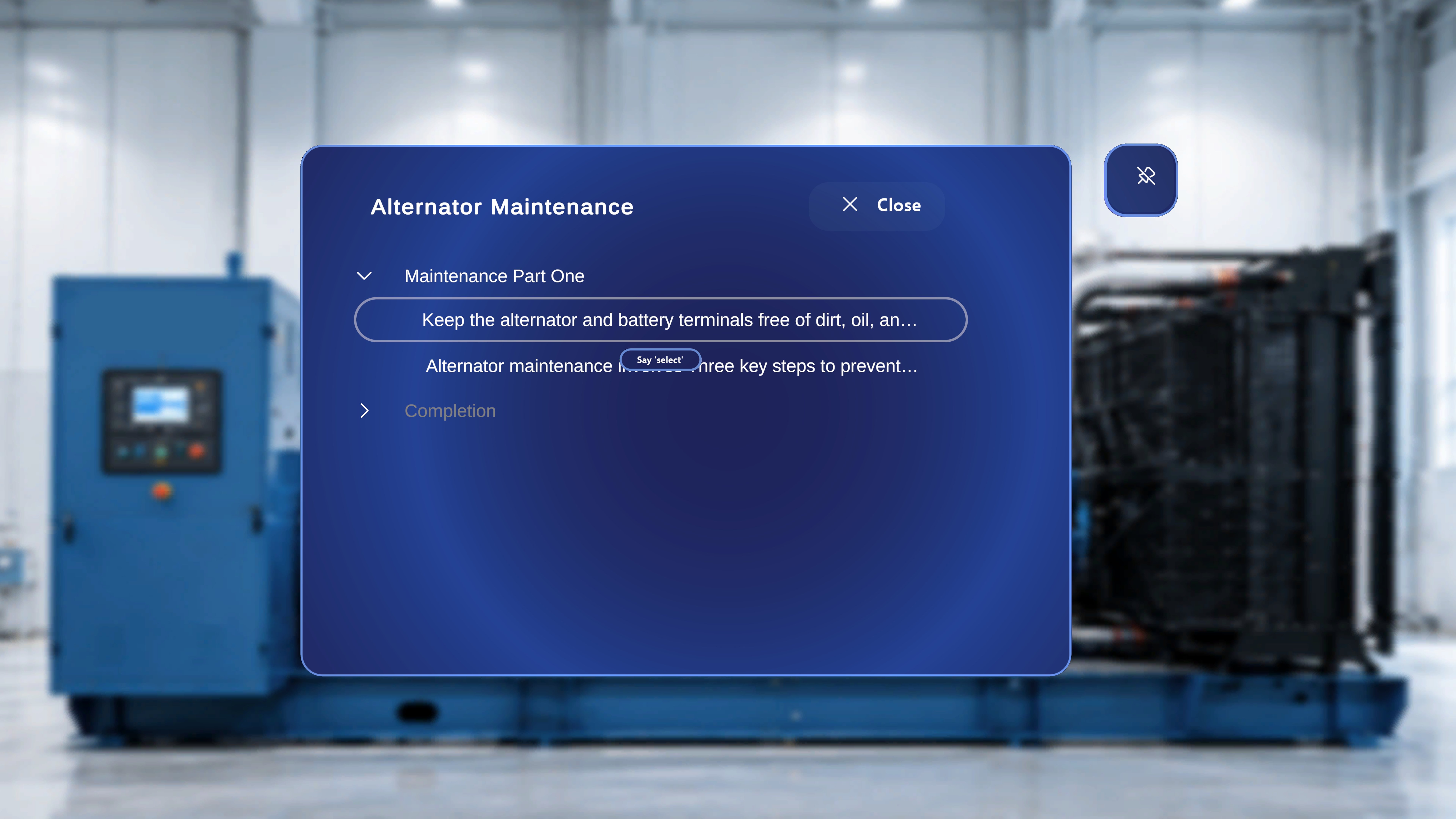
Step List Panel (Task & Step Navigator)
Overview
In both Author Mode and Operator Mode, a List Icon appears in the Step Main Panel.Location
- Top-left of the Step Panel
- Positioned before the Back button
- Represented by a list-style icon
What Happens When Selected
Selecting the List Icon opens a panel that displays:- The Procedure Name (for example, Air Filter Replacement)
- All Tasks
- All Steps under each Task
- All Completion Steps, including:
- Completion steps manually added within tasks
- The system-generated default Completion Task and Step
Navigation Capabilities
From the Step List Panel, the user can:- Jump to any Task
- Jump to any Step within any Task
- Jump to any manually added Completion Step
- Jump to the default system-generated Completion Task and Step
- Skip forward without sequential navigation
- Move backward without using the Back button
Behavior After Jumping to a Step
After selecting a step from the list:- The selected step becomes active immediately.
- The Step Panel updates.
- Media and 3D content load according to that step’s configuration.
- All step-level behaviors remain consistent with normal navigation.
Behavior in Author Mode
When jumping to a step in Author Mode:- The Step Panel loads.
- The Media Panel appears if media is attached.
- The 3D Model Panel is visible.
- Attached GLB models are available in the 3D Model Panel.
- Previously placed models for that step appear in their saved positions.
- Authors can spawn additional models.
- Authors can reposition, edit, or configure models.
- Interactable and Ghost behaviors follow their configuration.
- The Thread/Gem anchor appears if configured for that step.
Behavior in Operator Mode
When jumping to a step in Operator Mode:- The Step Panel loads.
- The Media Panel appears only if media is attached.
- The 3D Model Panel is not displayed.
- Any 3D models placed during authoring appear at their saved positions.
- Interactable behavior follows configuration:
- If disabled, models cannot be manipulated.
- If Ghost is disabled, no original-position shadow is shown.
- The Thread/Gem anchor appears if configured for that step.
Behavior When Jumping to a Choice Step
If the selected step is a Choice Step:- The Choice Step loads normally.
- No forward navigation button is available.
- The user must select a choice option to proceed.
- Branching behavior remains identical to sequential navigation.
Step-Level State
Each step maintains its own saved configuration, including:- Media attachments
- 3D models placed
- Interactable settings
- Animation settings
- Thread/Gem anchor placement