

Some steps have a video in the step panel and spoken narration. Both start by themselves. The creator chooses how they play, with the Sync Audio and Video setting.
How It Works
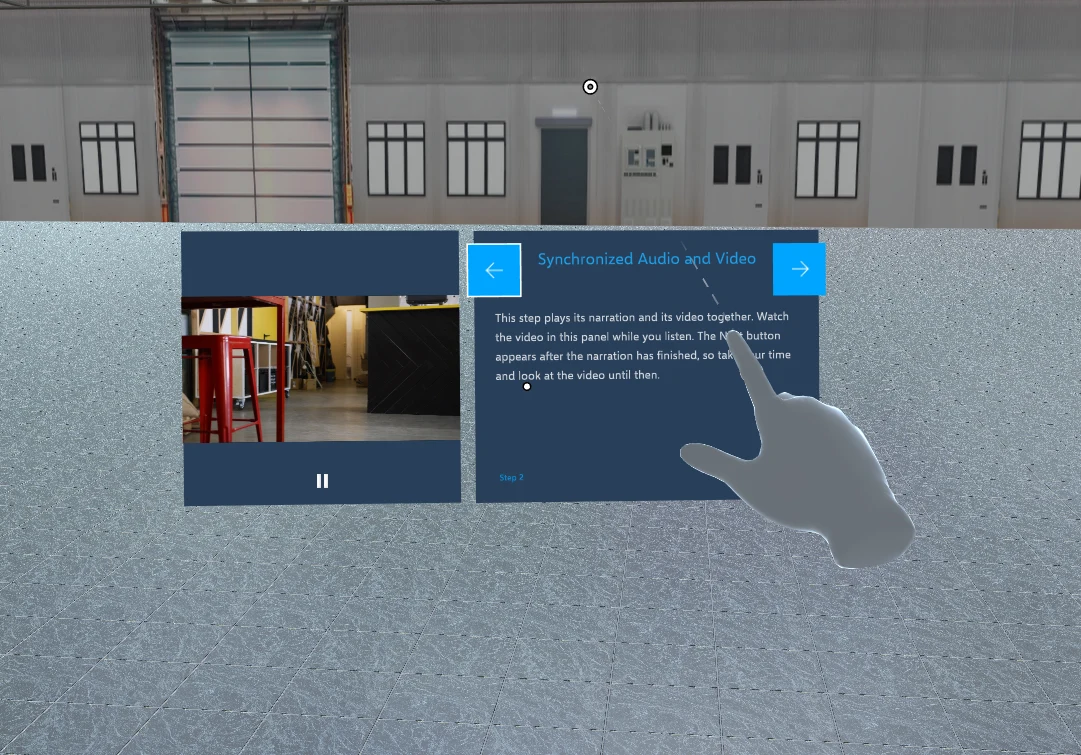
| Sync Audio and Video off (default) | Sync Audio and Video on | |
|---|---|---|
| When the video starts | The narration plays first. The video waits at its beginning and starts by itself when the narration ends. | The video and narration start together once both have loaded. |
| Play/pause button | Can't be used until the narration ends | Can be used as soon as the video starts |
| Sound | Narration first, then the video's sound | Narration and the video's sound at the same time |
With either setting, Next is hidden while the narration is loading or playing. It appears when the narration ends. On the last step, the same applies to Exit.
Good to Know
- When Sync Audio and Video is on, the narration waits for the video to load so the two start together. If the video is slow to load, the step can be quiet for a few seconds. After about 10 seconds, whichever is ready starts on its own.
- The play/pause button controls only the video. Pausing the video doesn't pause the narration.
- If the step has a video but no narration, the video starts as soon as it has loaded.
- If Step Instruction Audio is turned off, the step's narration doesn't play, so the video starts as soon as it has loaded. See Toolbelt Menu.
- If the Training is paused, the narration and the video pause, and they carry on when the Training continues. A video you paused yourself stays paused.
- Leaving the step stops its narration and video.
- In Assessment mode, steps where you tap, move or rotate an object don't show the step panel video or play the narration. Other steps play them as usual.
- To change the volume, use your headset's volume.
For Creators
Sync Audio and Video is in the step's Show Panel action, under Media Panel, when Video is selected. It's off by default.
Set up the step panel media
Choose the panel's video and narration audio, or use Generate Audio.