

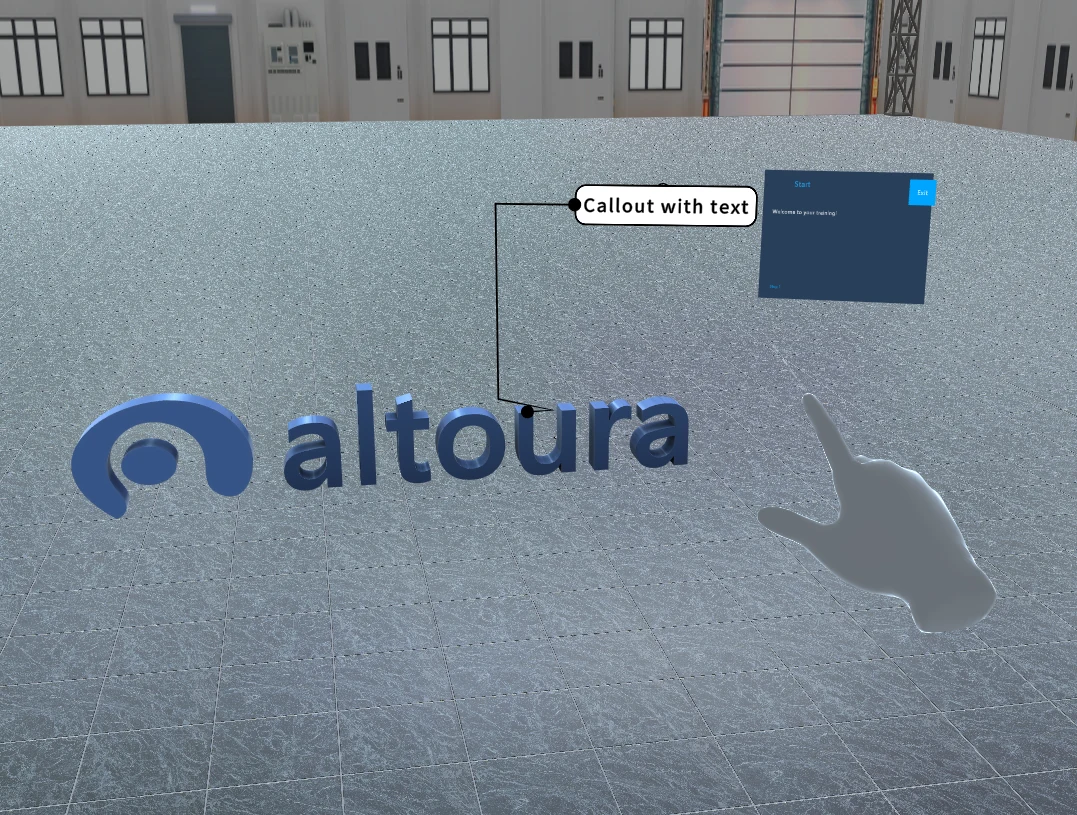
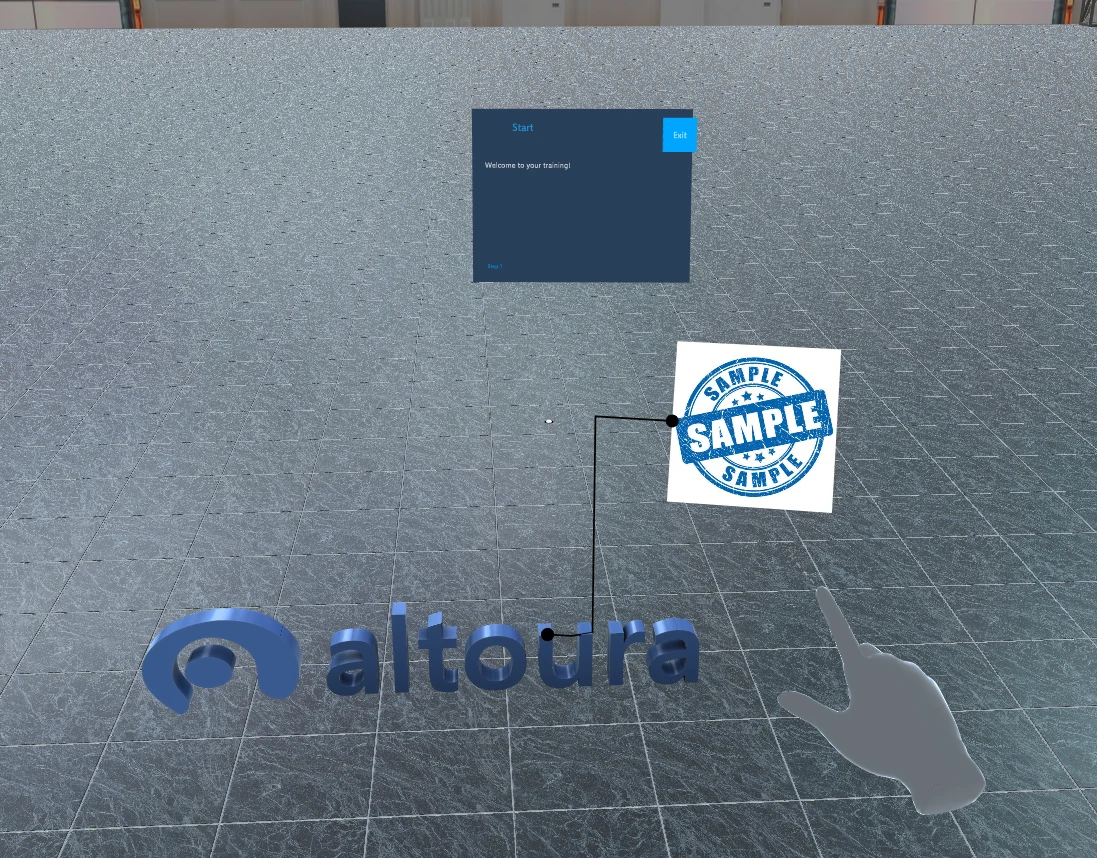
A callout is a tag attached to an object in the scene. The tag is either a text label or an image. It can have a connector line that points to a spot on the object. Trainings use callouts to name parts, mark inspection points or point out hazards.
What a Callout Looks Like
| Part | What you see |
|---|---|
| Tag | A Label with text, or an Image. Labels can have their own font, colors, rounded corners, outline and thickness. |
| Connector | A line from the tag to a spot on the object. It can be Straight, Elbow (bent at an angle) or Curved. Some callouts have no connector. |
| Facing | With Billboard on, the tag turns to face you as you move. In Full mode it turns fully toward you. In Horizontal mode it only turns side to side, and in Vertical mode it only tilts up and down. With Billboard off, the tag keeps a fixed direction. |
How Long a Callout Stays
- It stays across steps. A callout appears when the Training adds it. It stays on the following steps until the Training removes it. Moving to the next step doesn't remove it.
- It can change. The Training can update a callout as you go. For example, a label can change from "Inspect filter" to "Filter checked", or change to an image. The callout keeps its place and connector.
- It follows its object. If the object moves, the callout moves with it. If the object is hidden or removed, the callout goes with it. Loading a new scene removes all callouts.
- It stays where the Training put it. You can't grab, move or resize a callout.
An image callout can appear a moment after the step starts, while its image loads.
Tapping a Callout
Some callouts respond when you tap them. Tap the tag itself, up close or with the ray. The connector doesn't respond to taps. See Interacting with Objects.
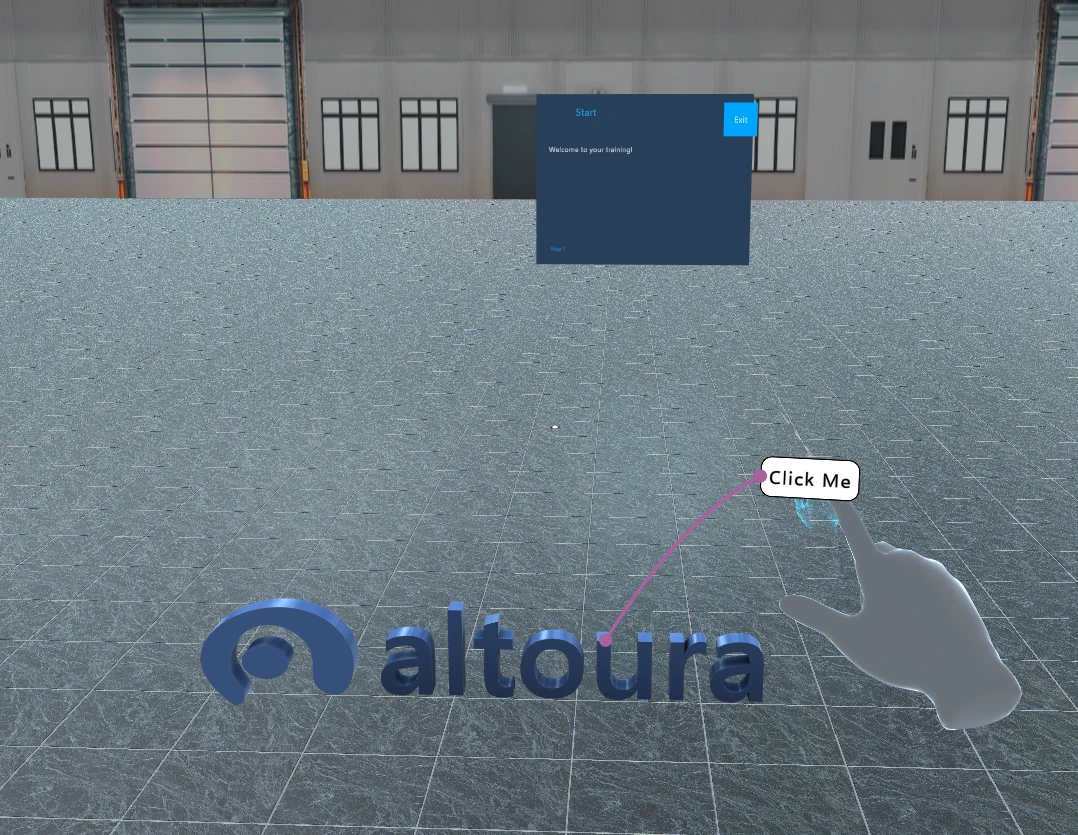
- In Practice mode, a callout you need to tap can pulse, and a guide hand can point to it.
- What happens depends on the Training. A tap can open more information, such as text, an image or a video. It can also run something while you stay on the step, or take you to another step.
- If the tap keeps you on the step, you can tap the callout again.
- Callout taps are often set up as global transitions, so the same tap can work on several steps. See Global Transitions.
Going Back, Resetting and Resuming
After you go back, reset the step or resume, the callouts match the step you're on.
| You... | What happens to callouts |
|---|---|
| Press Back | Callouts are shown as they were on the step you return to, including any updates made before that step. |
| Use Reset Step | Callouts go back to how they were when you reached the step. |
| Resume a Training | Callouts are shown as they were on the step you resume. |
For Creators
Callouts are added with Add Callout, changed during the Training with Update Callout, and removed with Remove Callout.
Place a label or image callout, choose its Connector Type, style the tag and set up tap content.