Overview
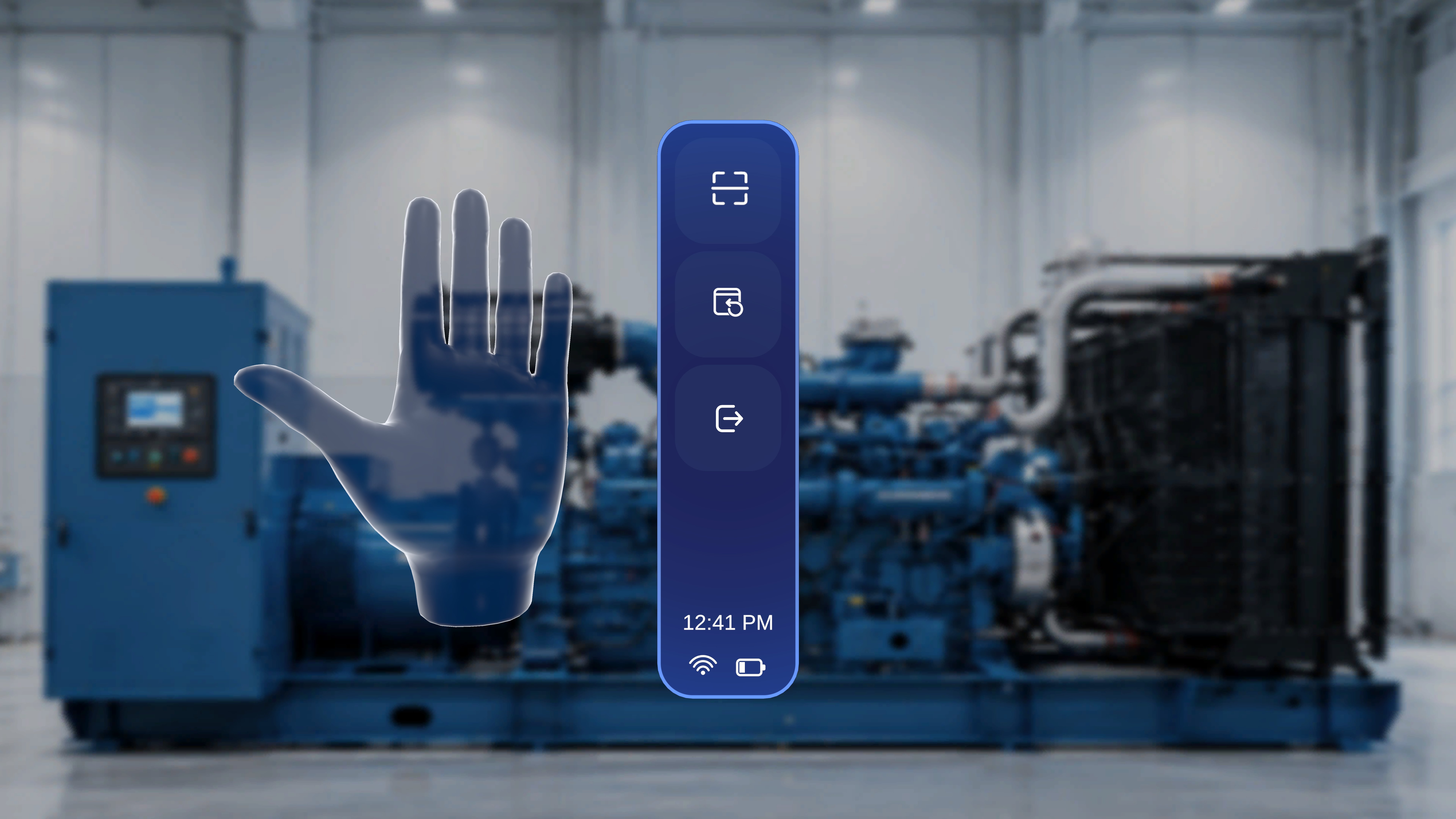
The side menu is available only while you are inside a procedure. It is accessible in both Author mode and Operator mode. To open the menu, raise either hand with your palm facing toward you. The vertical menu appears with three control buttons.When to Use This Feature
Use the side menu to:- Rescan the QR anchor
- Reposition panels in front of you
- Exit the current procedure
Open the Side Menu
Step-by-Step Instructions
- Lift either hand.
- Face your palm toward yourself.
What Happens Next
The side menu appears with three vertically arranged buttons. The current time and system status indicators are displayed at the bottom of the menu.Button 1: Rescan
Step-by-Step Instructions
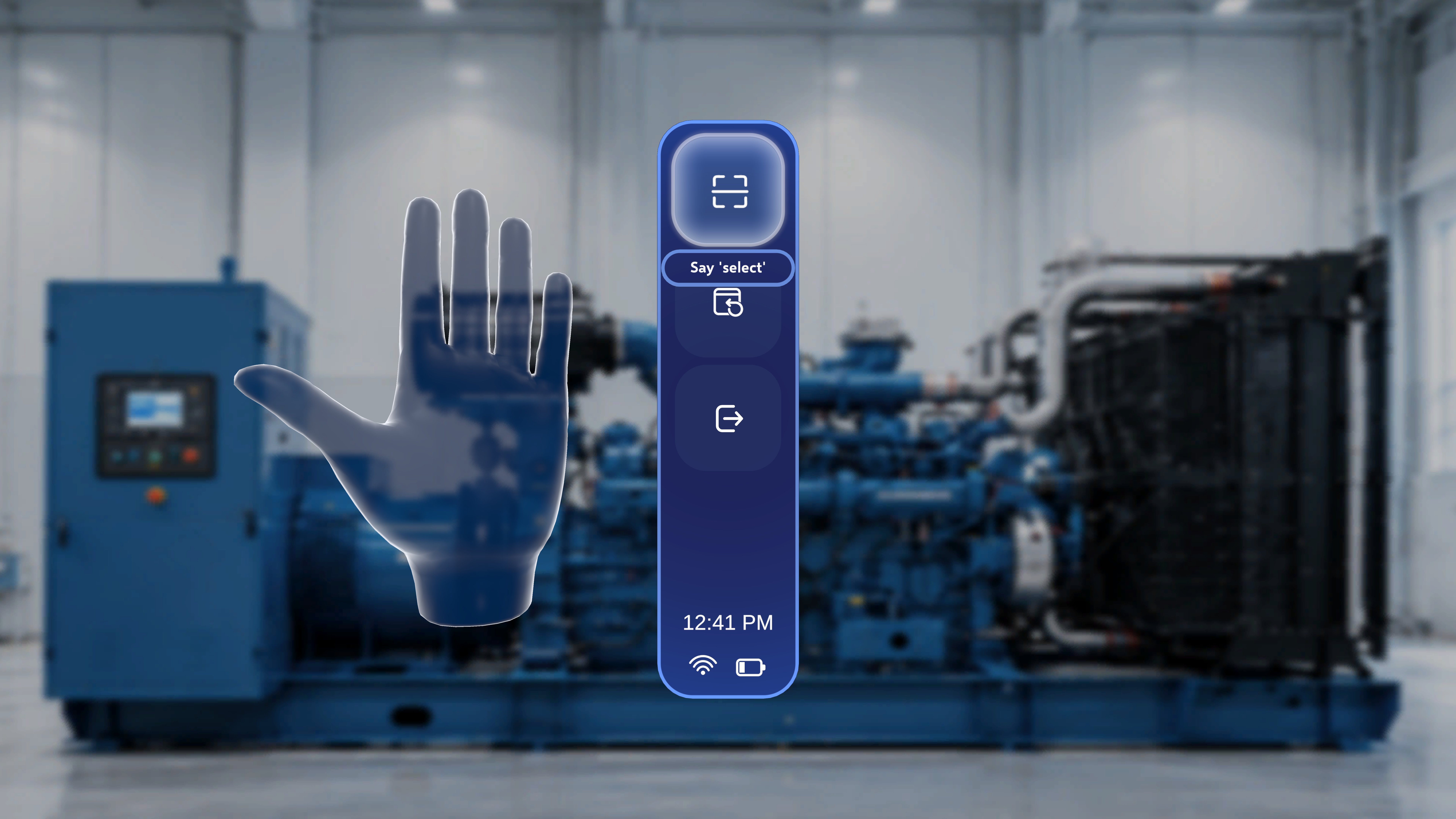
- Open the side menu.
- Select the Rescan button (top icon).
What Happens Next
- The system exits the current anchor alignment.
- The QR scanning interface opens again.
- You can realign and confirm the QR code.
Button 2: Reposition Panels
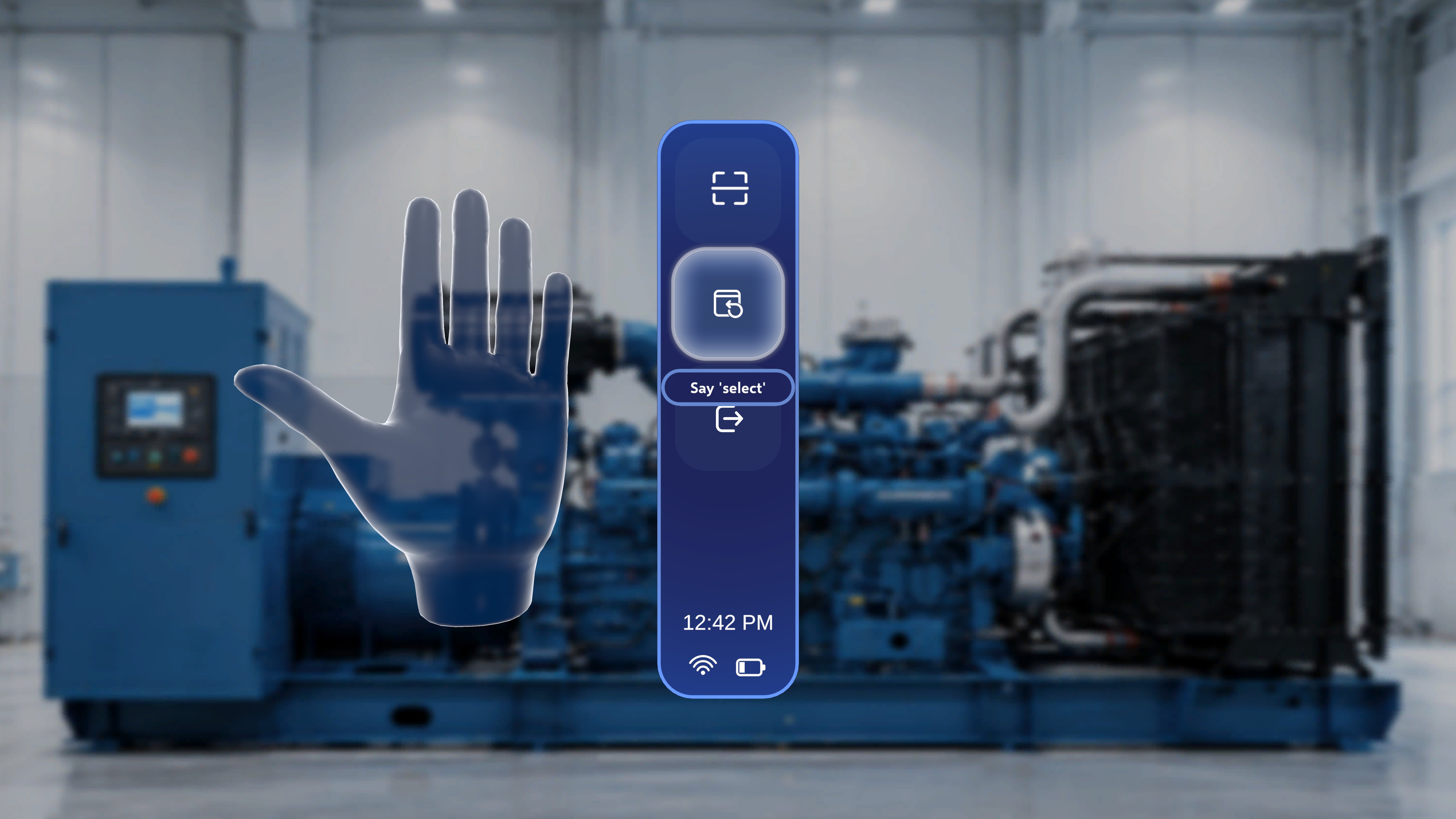
- The main step panel
- The Media panel
- The 3D Model panel
Step-by-Step Instructions
- Open the side menu.
- Select the Reposition button (middle icon).
What Happens Next
All active panels reposition directly in front of your current view. This works the same in Author mode and Operator mode.Button 3: Exit Procedure
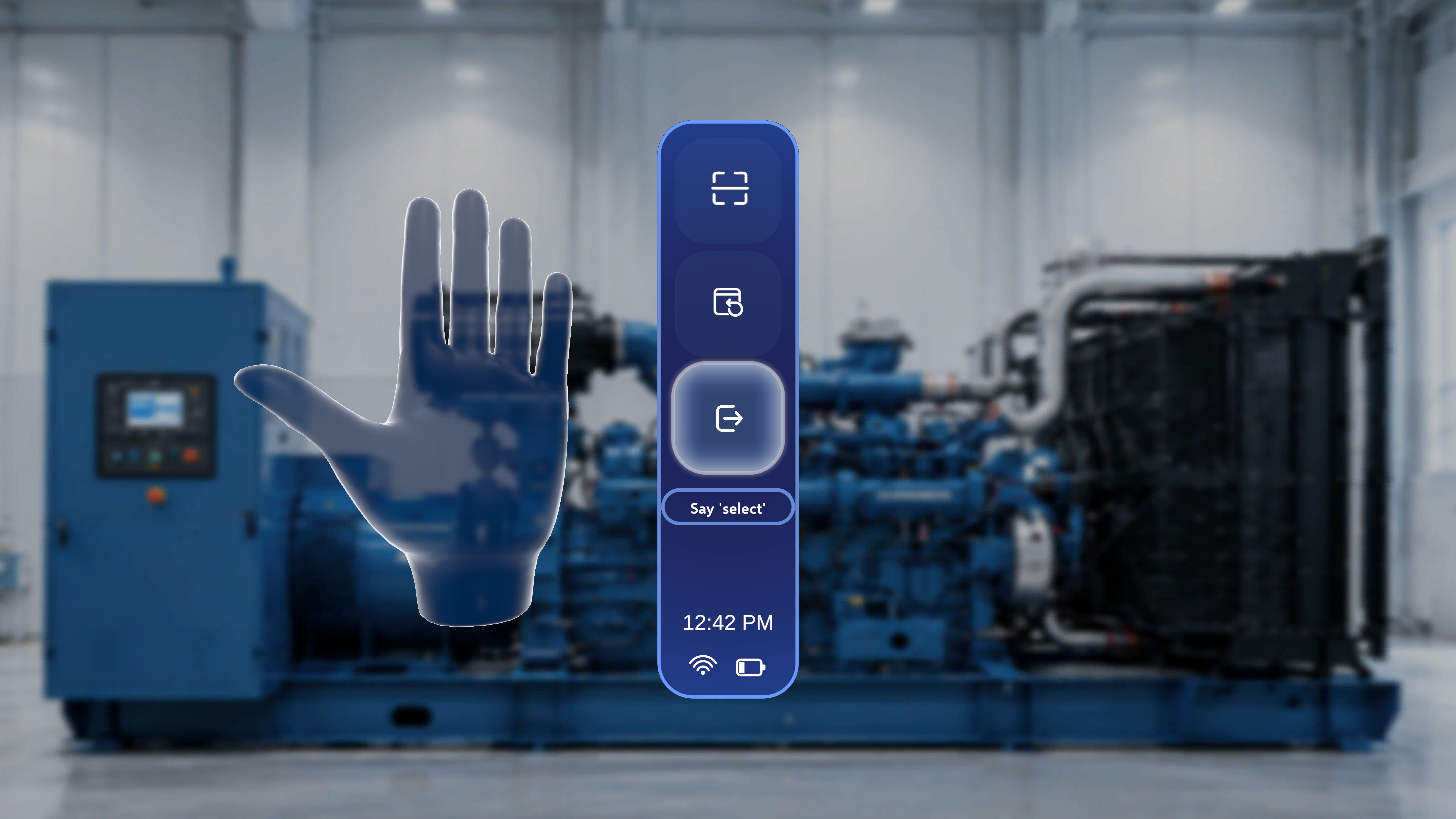
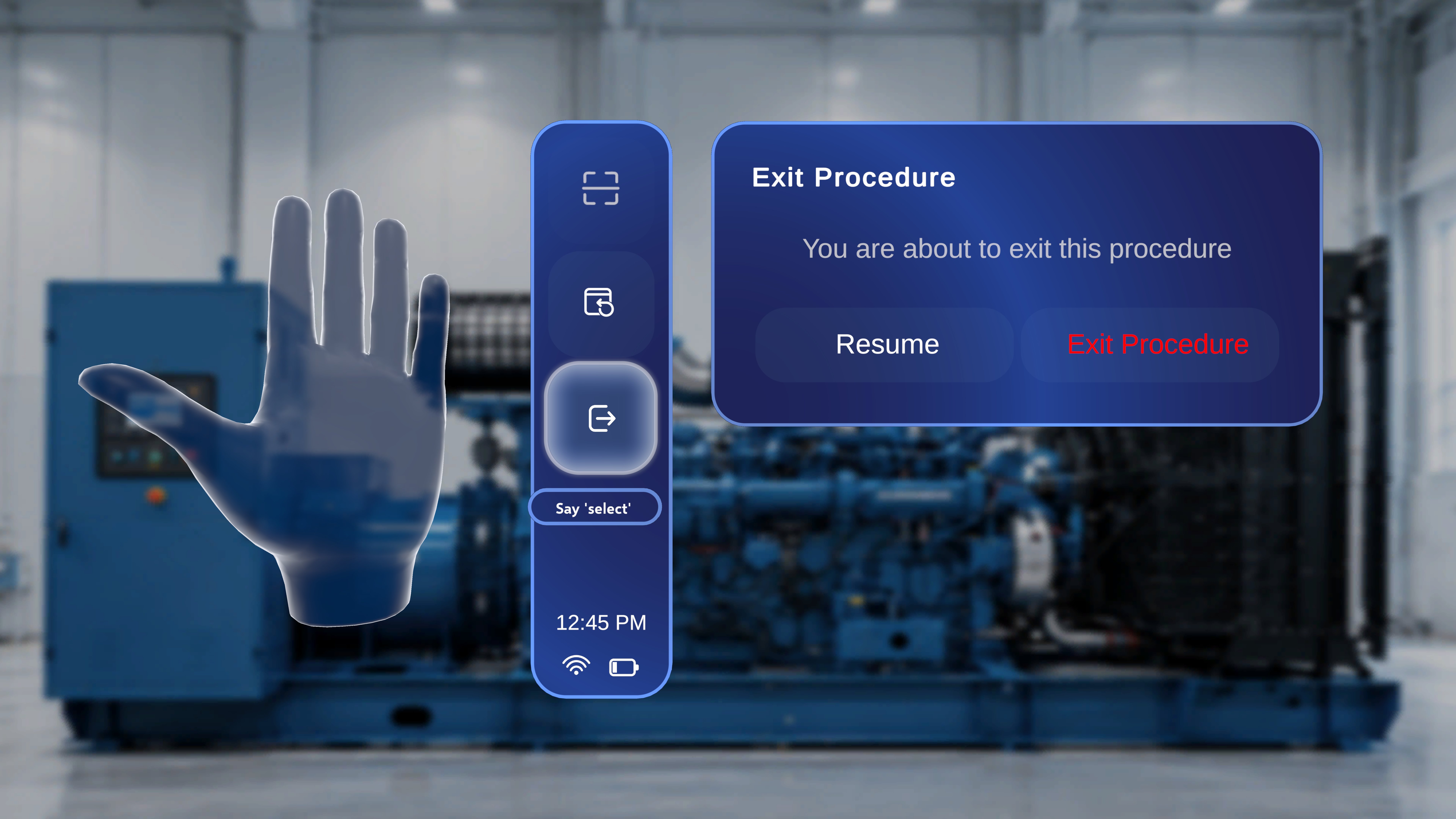
Step-by-Step Instructions
- Open the side menu.
- Select the Exit button (bottom icon).
What Happens Next
An Exit Procedure confirmation panel appears with the message: “You are about to exit this procedure” Two options are displayed:- Resume
- Exit Procedure
Resume
Select Resume to close the confirmation panel and continue the procedure from the current step.Exit Procedure