

Overview
In Author mode, when you place a 3D model into the physical space, you can edit its behavior, animation, and position. Each model can be configured individually. All changes apply only to the selected model instance.Select a Model for Editing
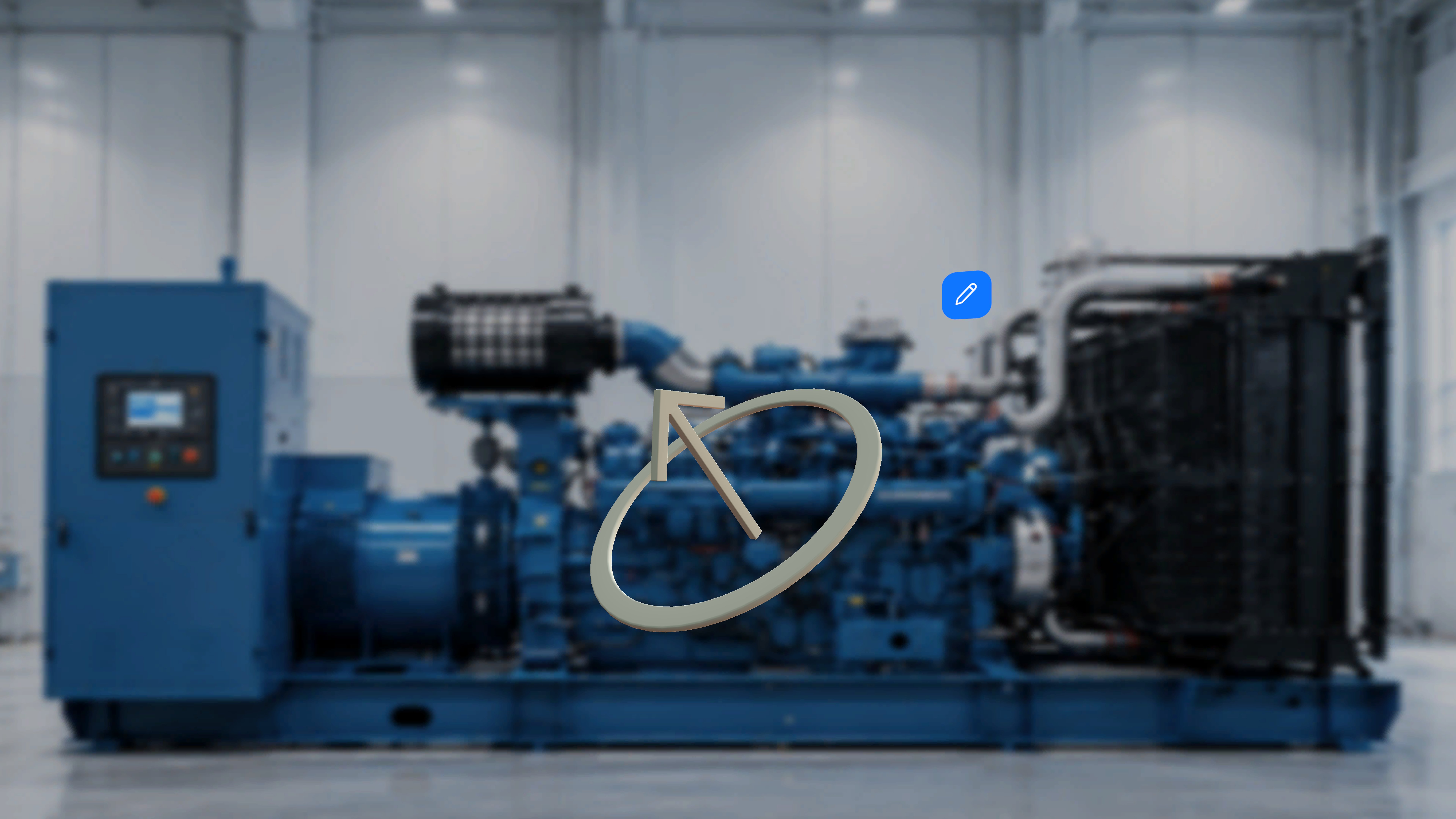
- An Edit button (pencil icon) appears near the model.
- Selecting the model displays a visible bounding box.
Showing the Bounding Box
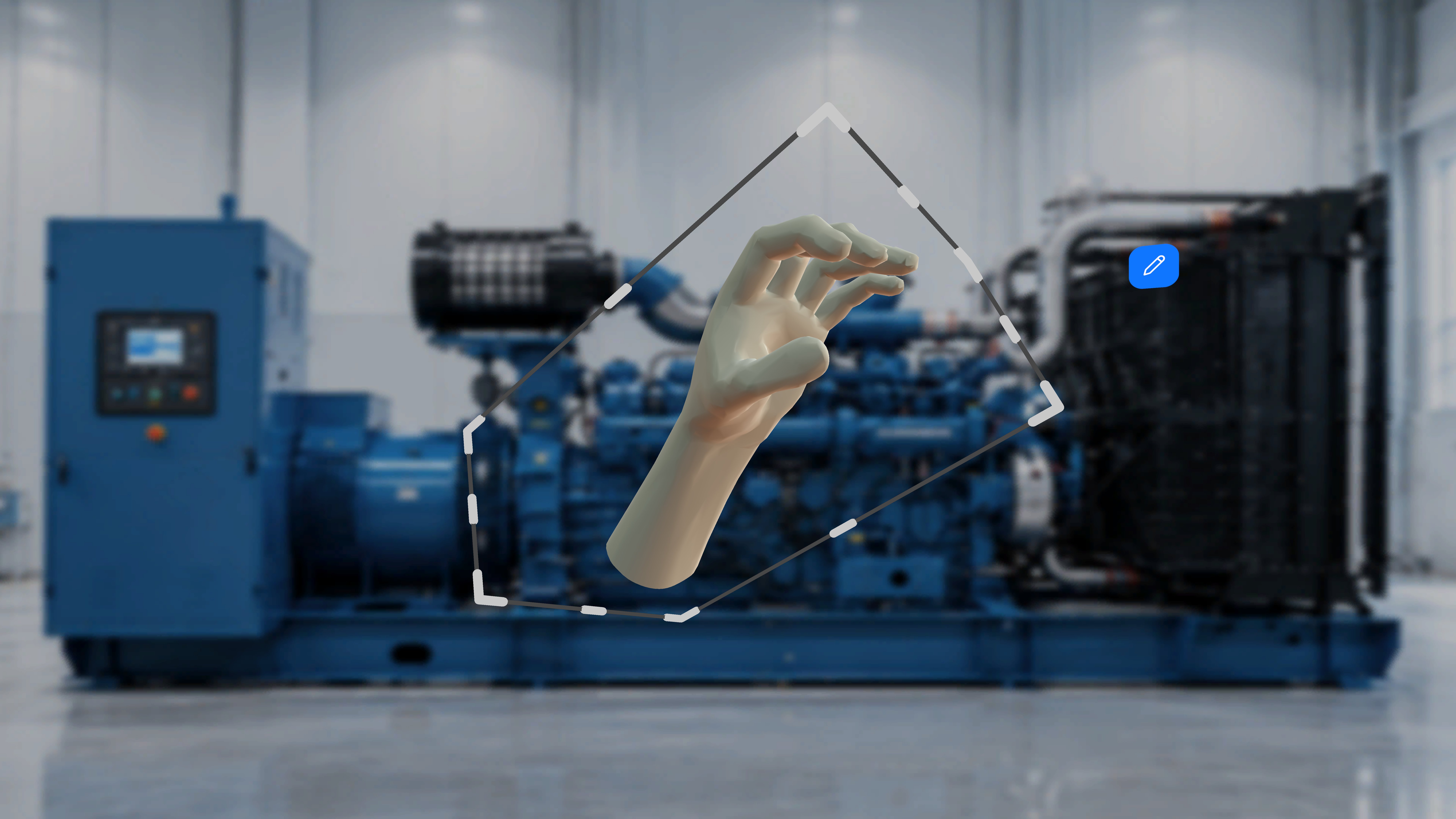
- Click/Tap the 3D model.
What Happens Next
A bounding box appears around the model. You can:- Resize the model
- Rotate the model
- Click the model again.
Open the Edit Menu
Each model has an Edit button (pencil icon).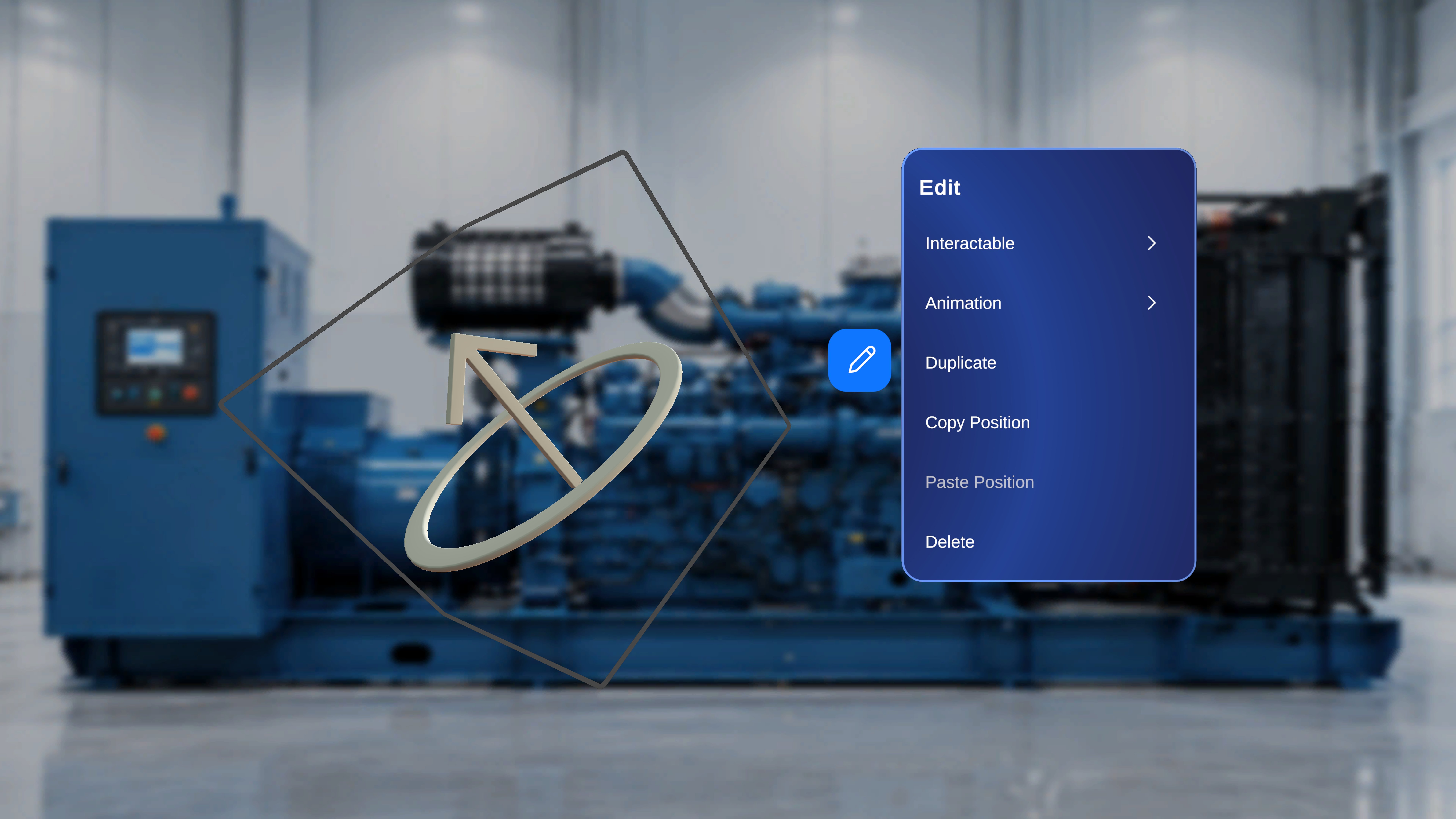
Step-by-Step Instructions
- Click the Edit button.
What Happens Next
An Edit panel opens with the following options:- Interactable
- Animation
- Duplicate
- Copy Position
- Paste Position
- Delete
Interactable Settings
Select Interactable from the Edit menu to configure operator interaction behavior.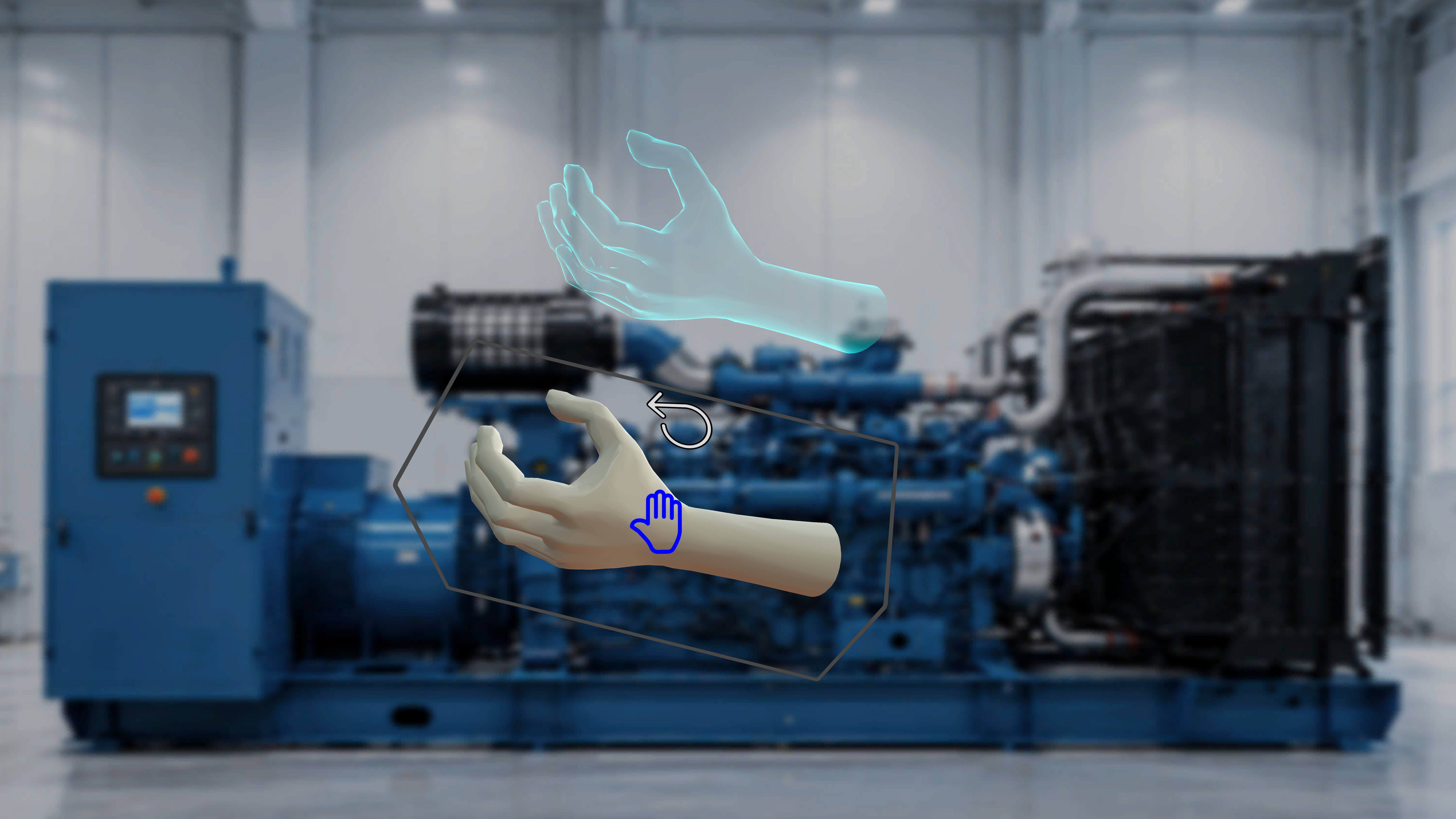
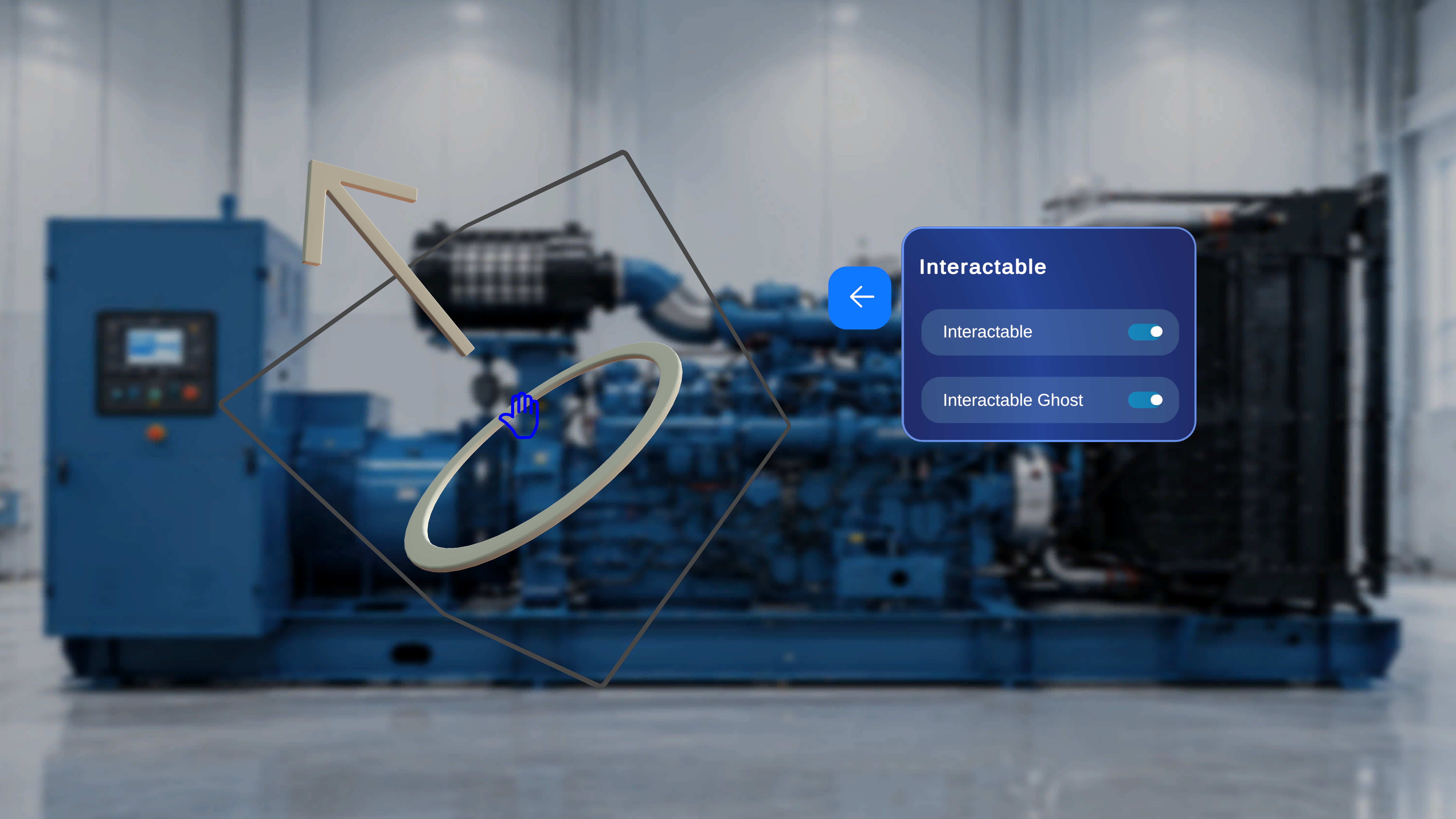
- Interactable (toggle)
- Interactable Ghost (toggle)
Enable Interactable
When Interactable is enabled: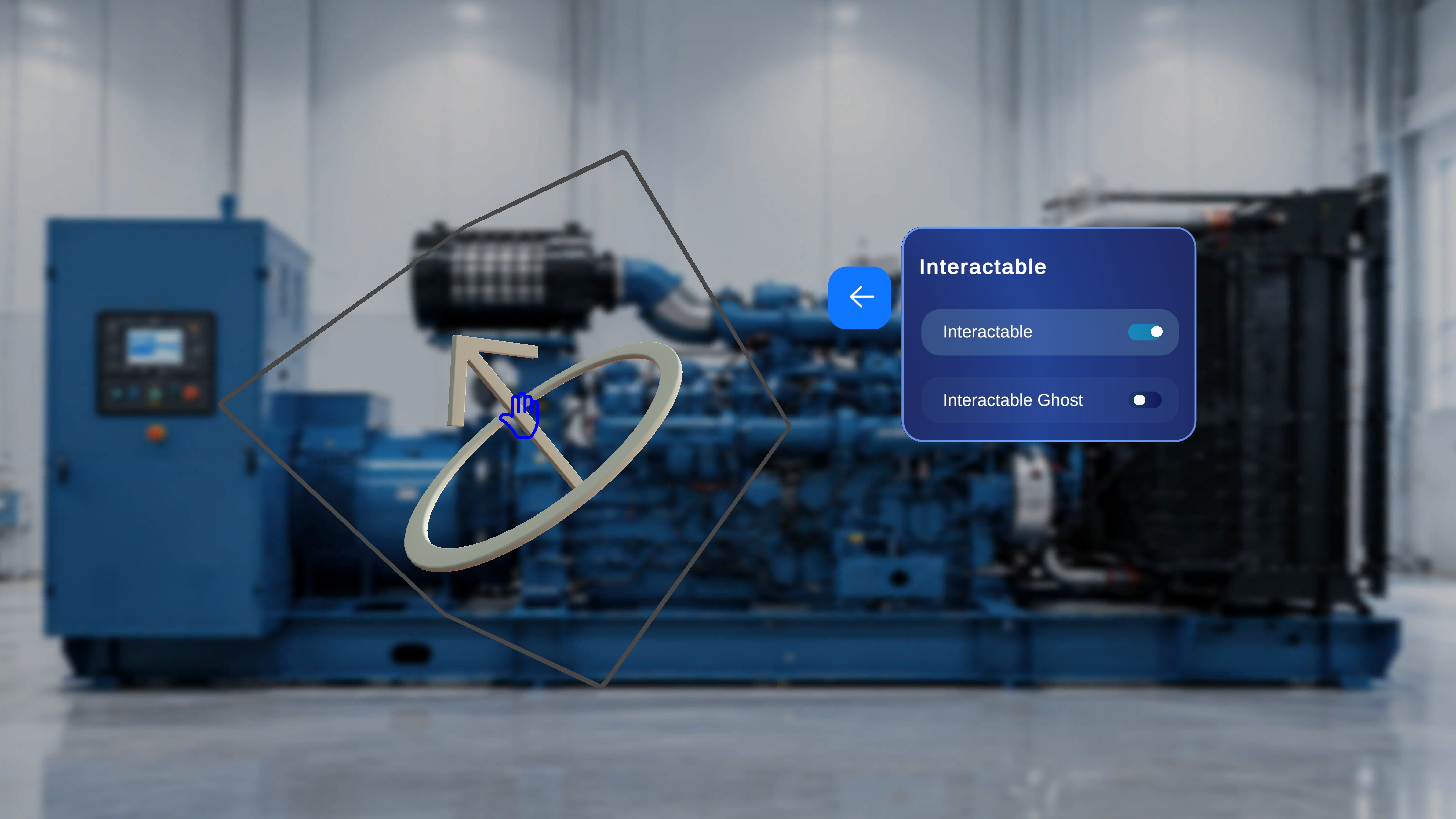
- The model becomes interactive in Operator mode.
- When an operator reaches the same step, they can move or interact with the model.
- The model is not interactive in Operator mode.
- The Interactable Ghost toggle becomes disabled.
Enable Interactable Ghost
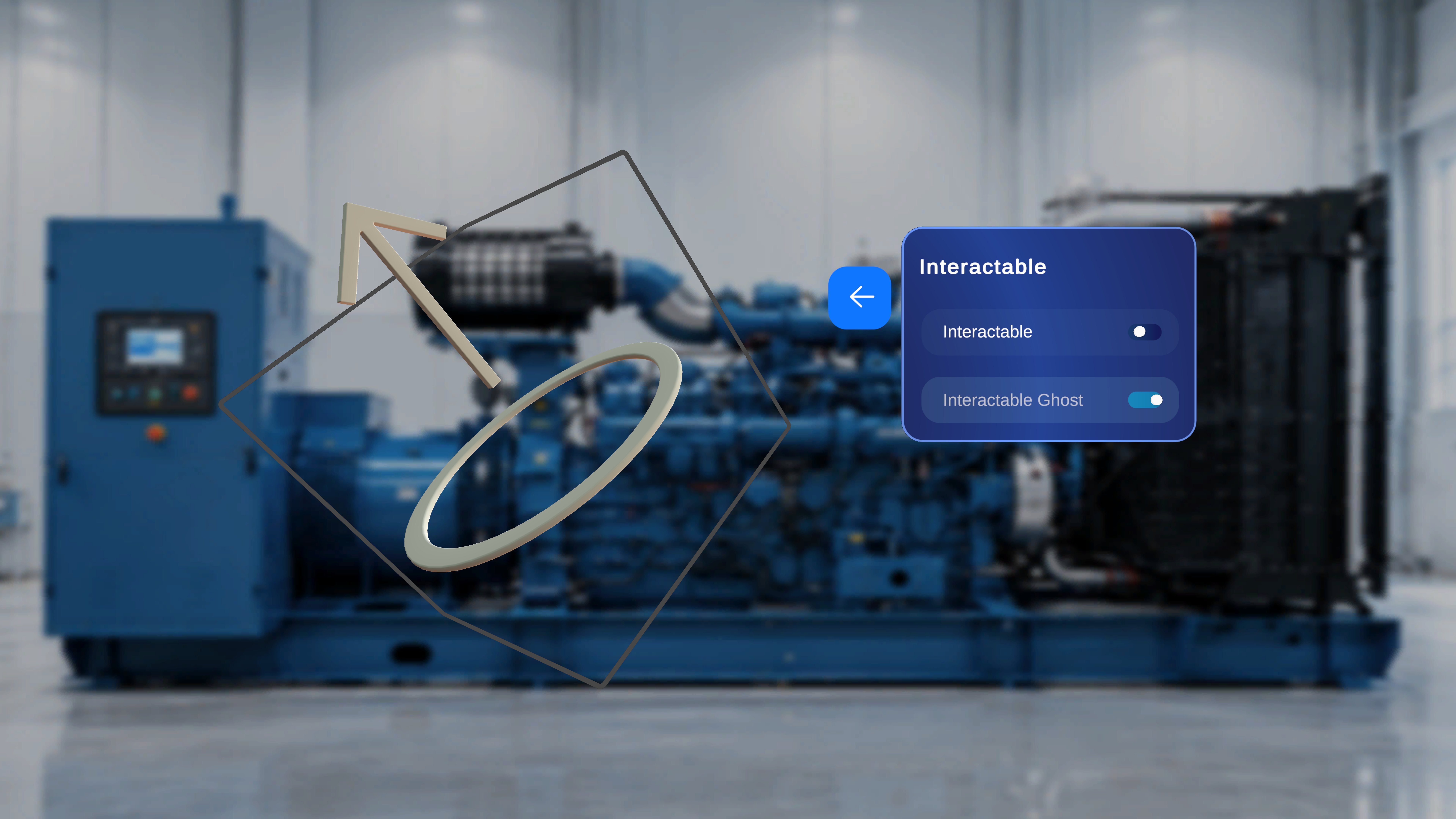
- If the operator moves the model in Operator mode,
- A visual ghost (shadow) remains at the model’s original position.
Animation Settings
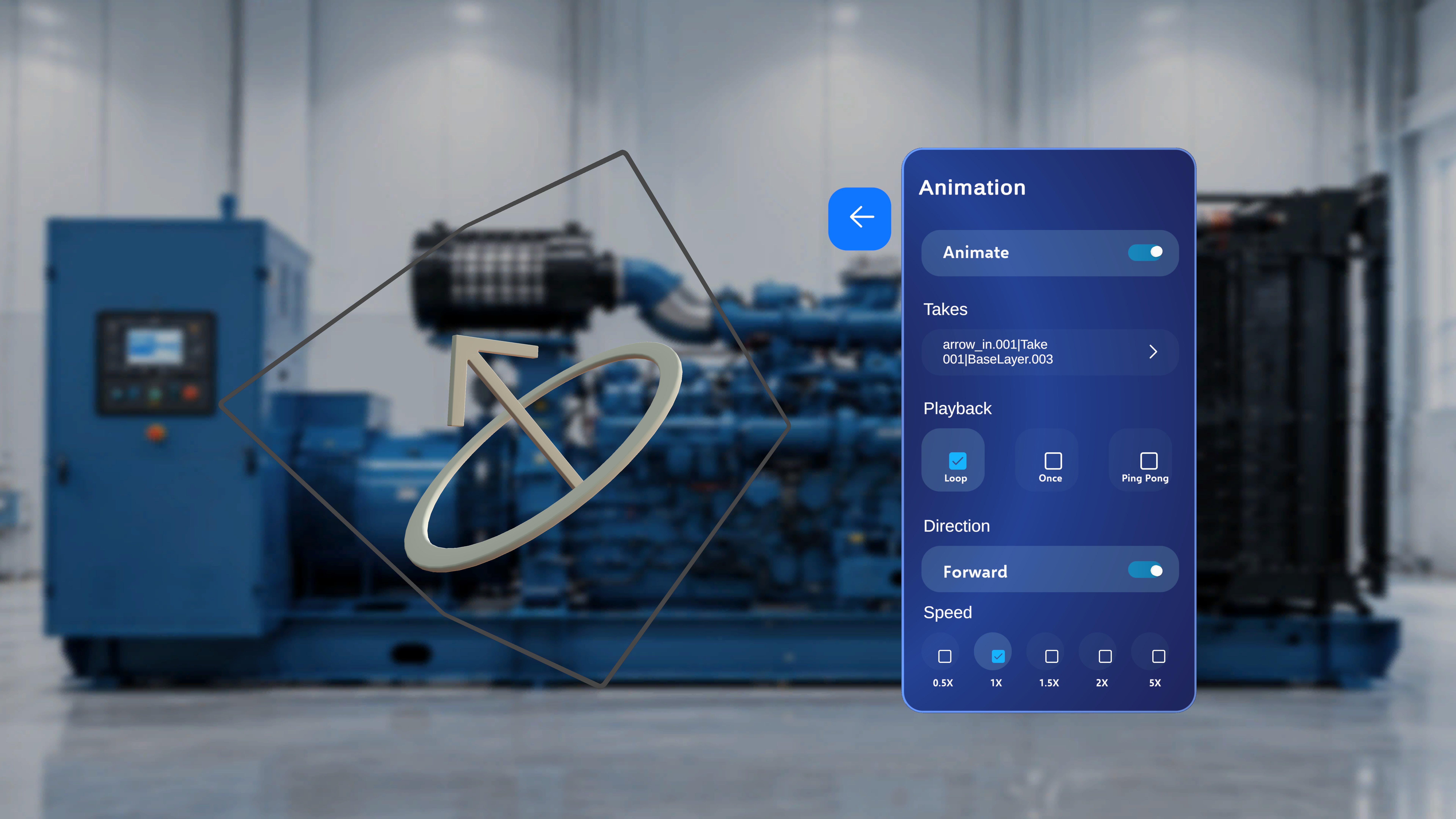
Takes
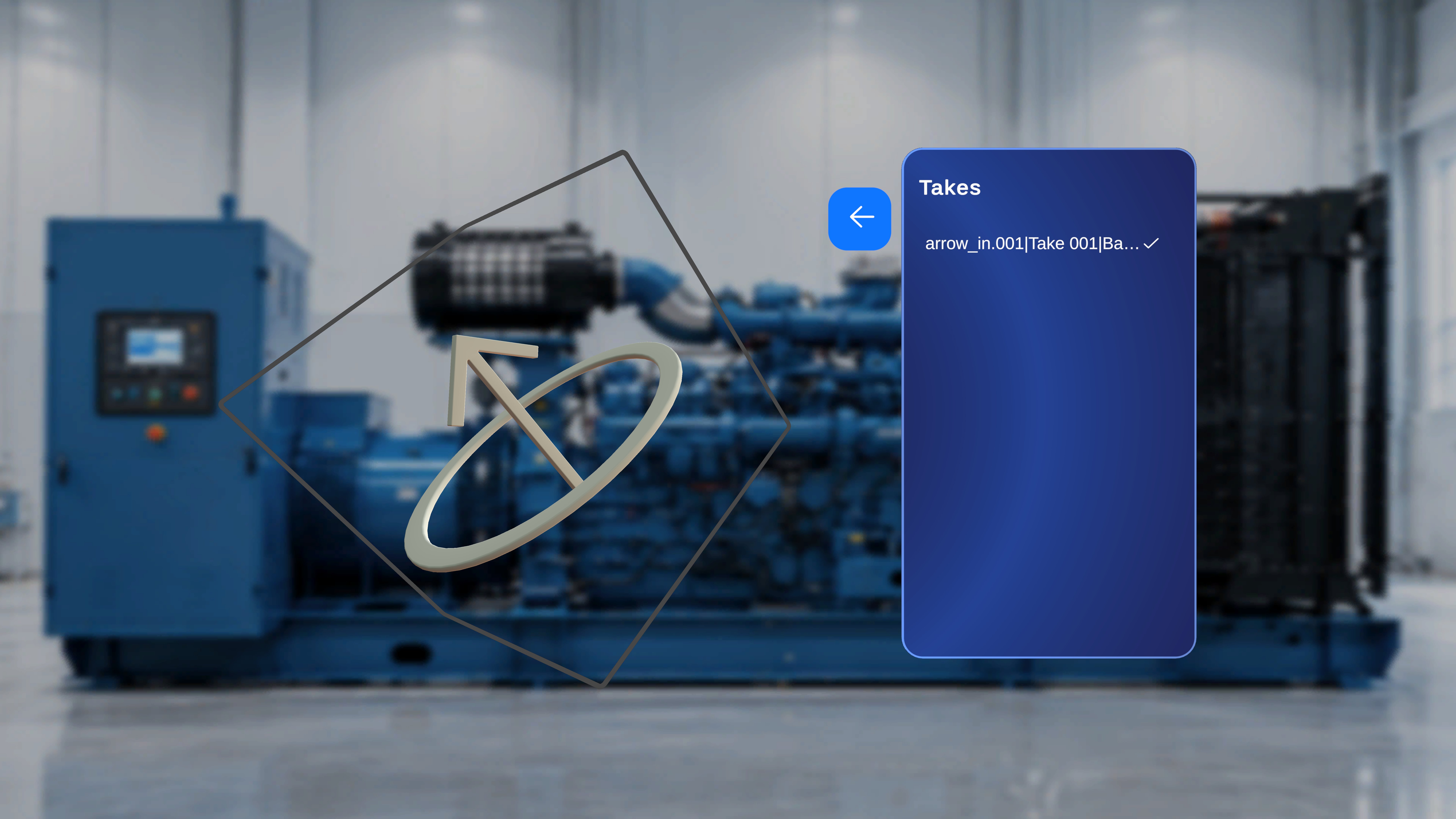
Animate Toggle
- Enable Animate to activate animation.
- Disable Animate to stop animation playback.
Playback Options
You can control how the animation plays:- Loop
- Once
- Ping Pong
Direction
You can control animation direction:- Forward
Speed
Speed options include:- 0.5x
- 1x
- 1.5x
- 2x
- 5x
Duplicate a Model
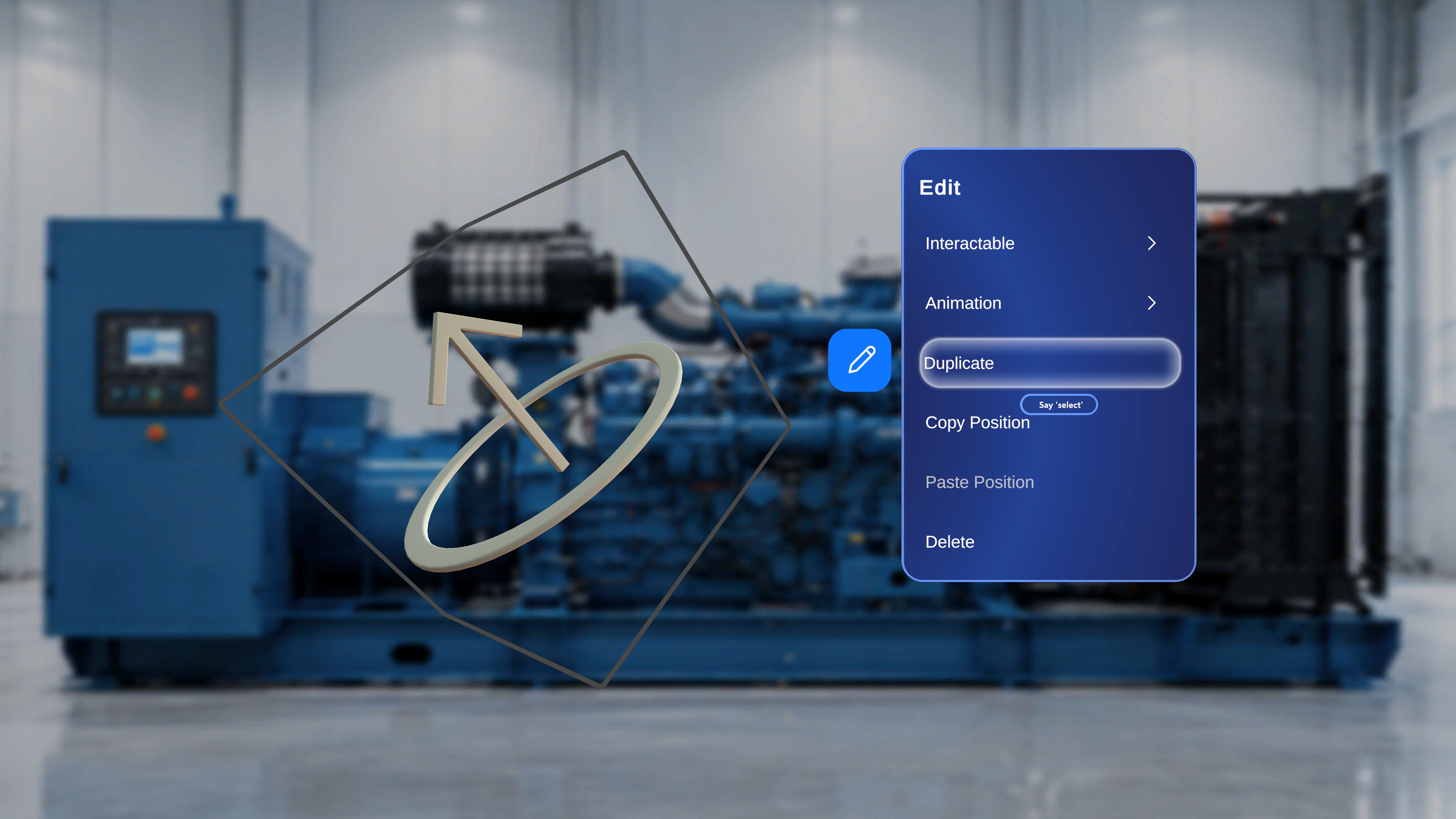
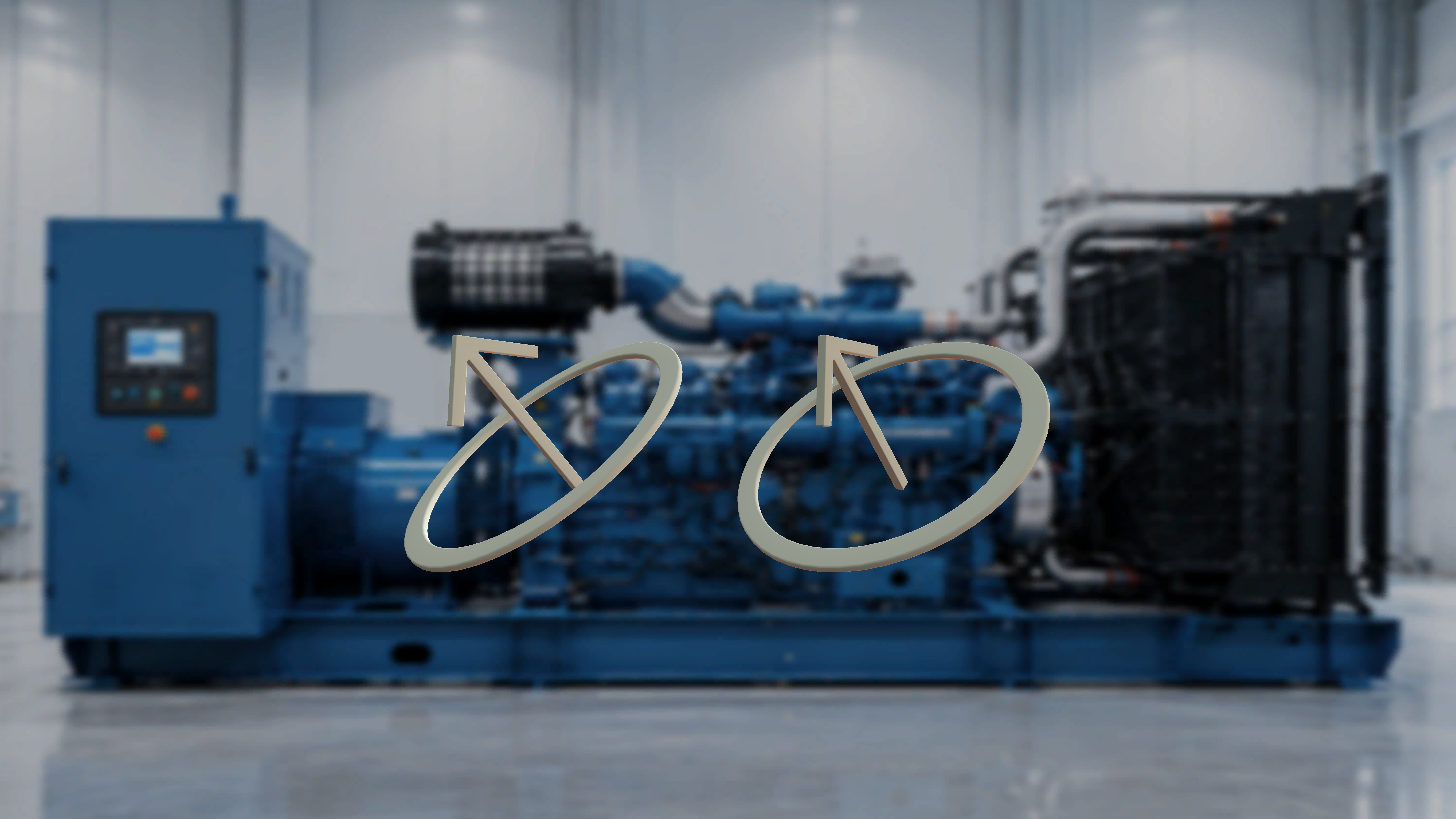
- Open the Edit menu.
- Select Duplicate.
What Happens Next
A copy of the selected model is created in the scene.Copy and Paste Position
Use position controls to match placement between models.Copy Position
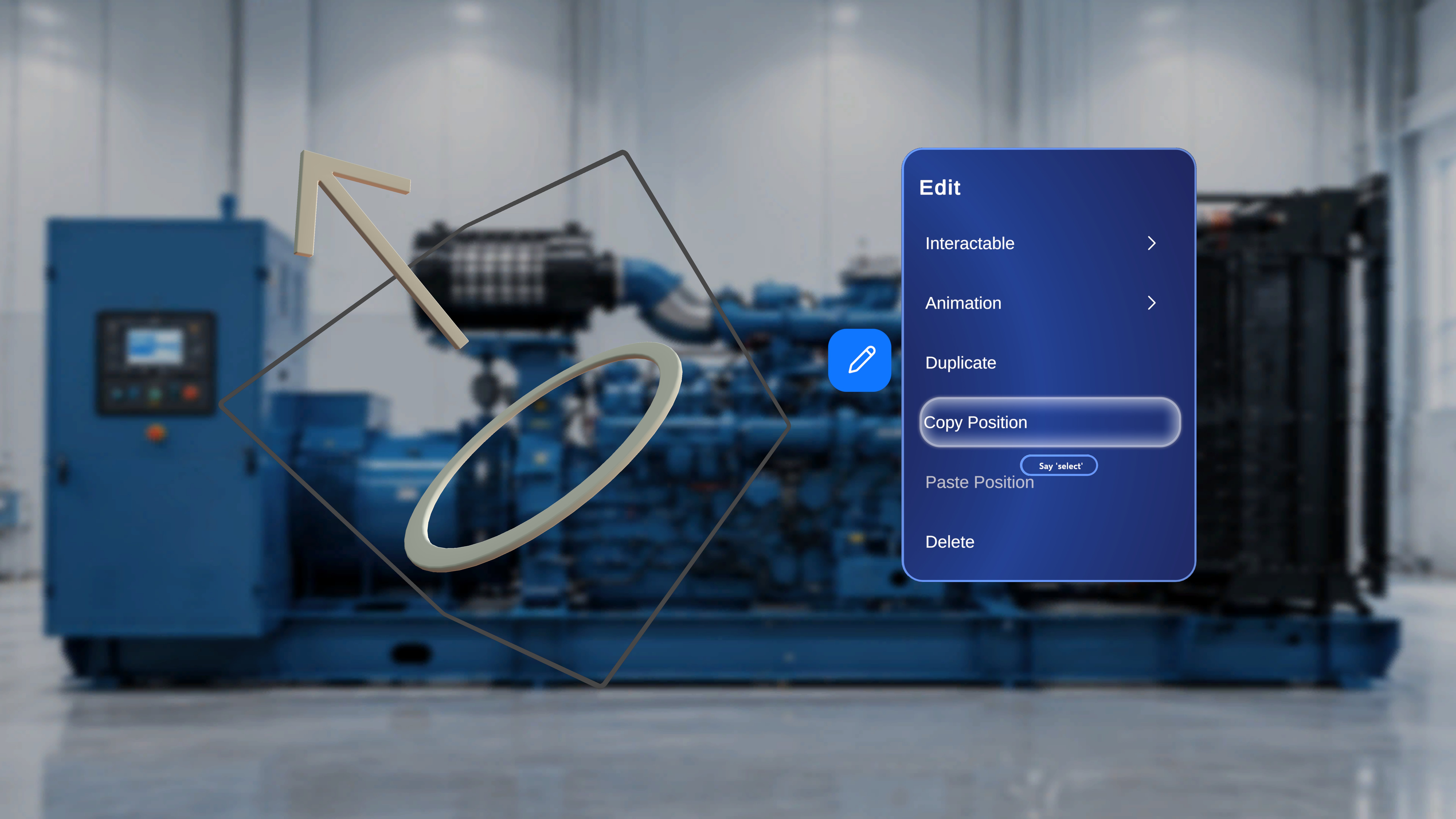
- Open the Edit menu.
- Select Copy Position.
Paste Position
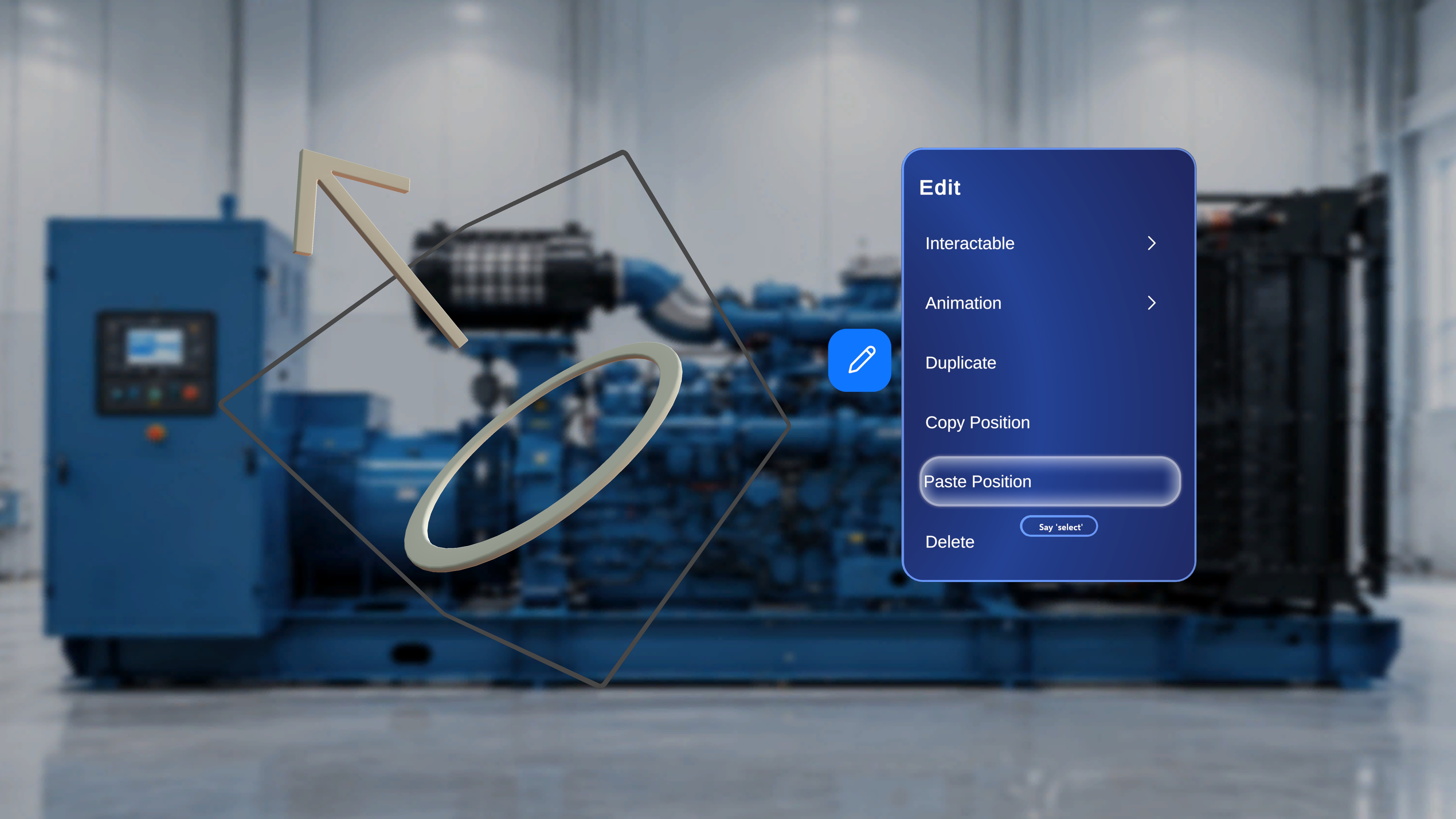
- Select another model.
- Open its Edit menu.
- Select Paste Position.
Delete a Model
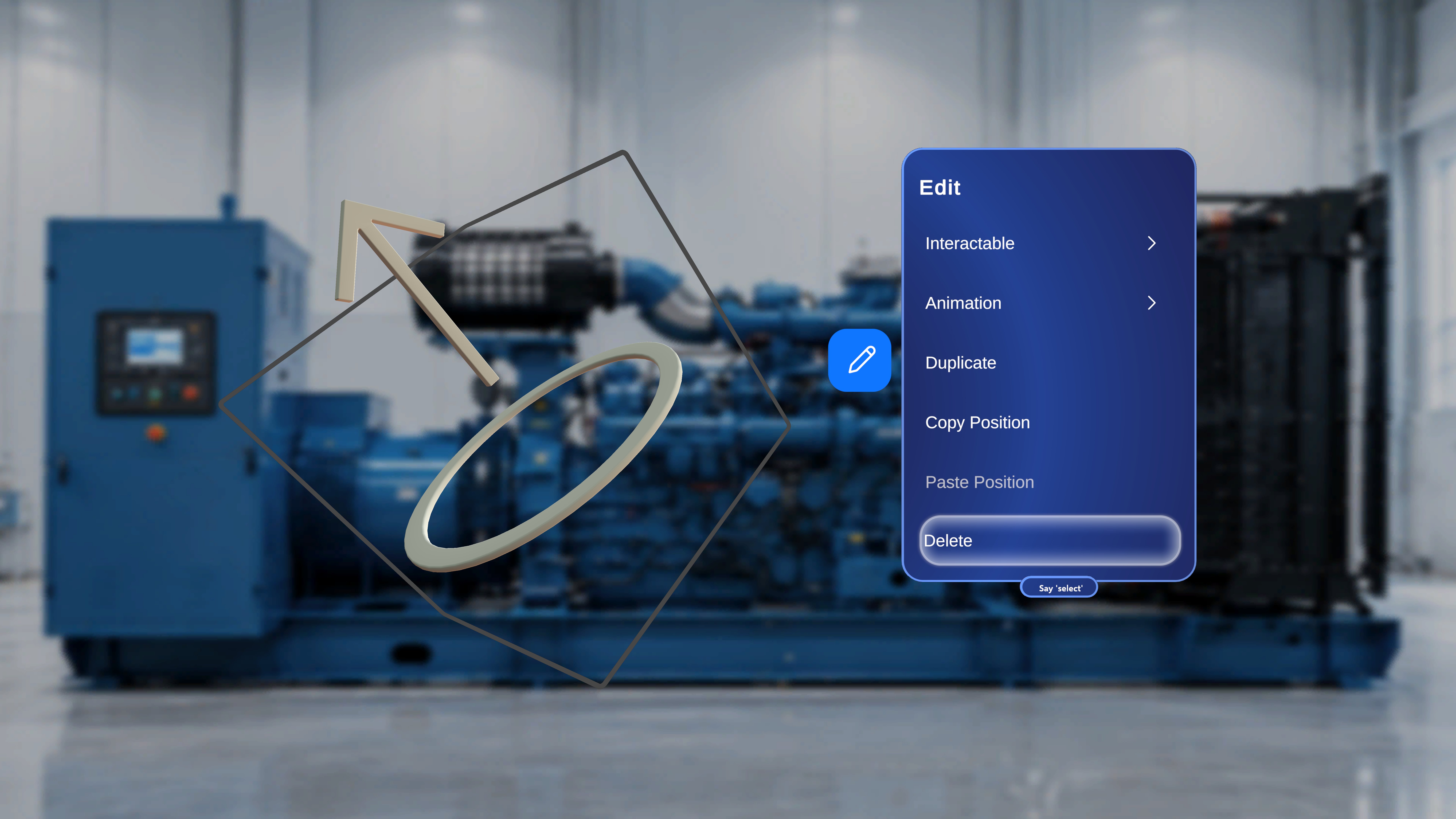
- Open the Edit menu.
- Select Delete.