

Overview
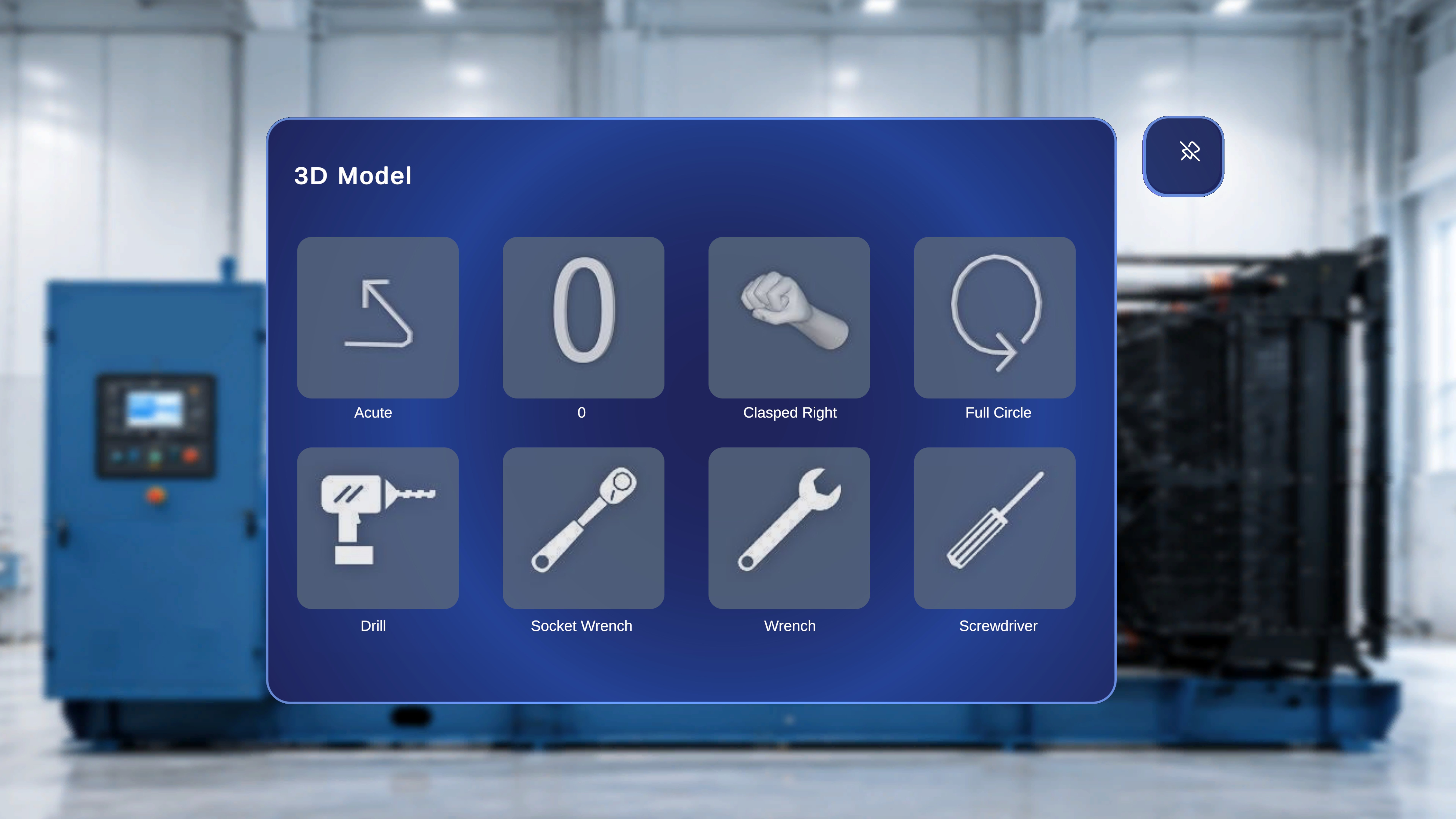
In Author mode, the 3D Model panel allows you to place 3D models into the physical environment while editing a procedure. The models available in this panel are those attached to the current step during procedure creation in the web editor. You can place multiple models into the scene to configure or validate spatial positioning for the step.When to Use This Feature
Use the 3D Model panel in Author mode to:- Position 3D models in the physical environment
- Validate alignment relative to the QR anchor
- Add multiple instances of a model for instructional purposes
- Review how attached models appear in real space
View Available Models
The panel is labeled 3D Model and displays a grid of selectable tiles. Each tile includes:- A model icon
- A model name (for example, Acute, Screwdriver, Wrench, Bolt, Drill, Grab Right, Pointing Right, Quarter Circle)
- The panel may display empty tiles.
Place a 3D Model
Step-by-Step Instructions
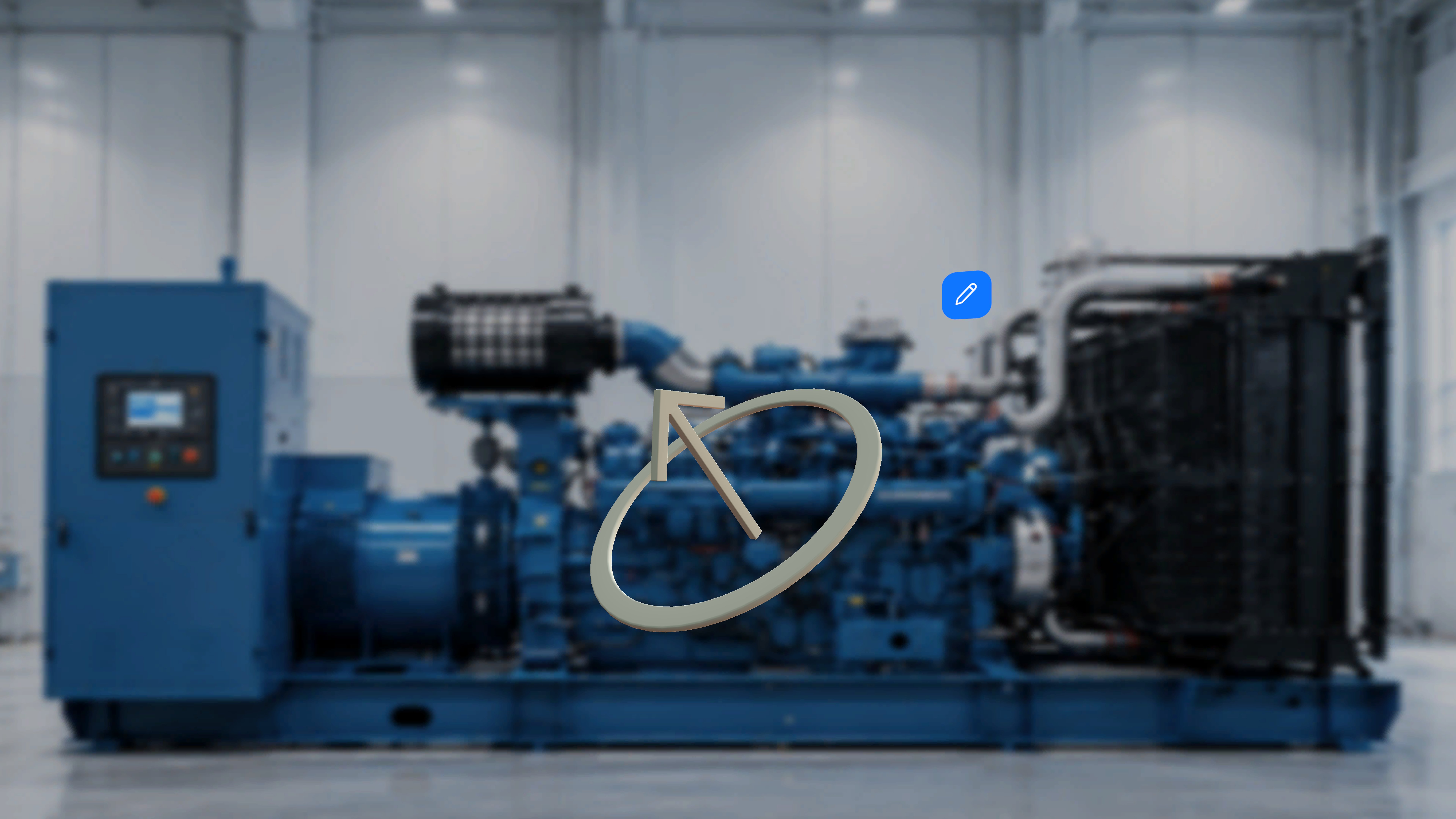
- Select a model tile from the 3D Model panel.
What Happens Next
The selected model is spawned into the physical space relative to the anchored QR position. You can visually inspect its placement in the environment. The exact manipulation controls (for example, repositioning, scaling, or rotating) are not shown and may need confirmation.Place Multiple Models
You can add multiple models during authoring.To place additional models:
- Select the same model tile again to create another instance, or
- Select a different model tile to place a different model.
What Happens Next
Each selection spawns a new instance into the scene. There is no visible limit shown for the number of instances that can be placed and may need confirmation.Step-Based Model Availability
The 3D Model panel updates when you move between steps.- Only models attached to the active step are available.
- Switching steps refreshes the model list based on step configuration in the web editor.