

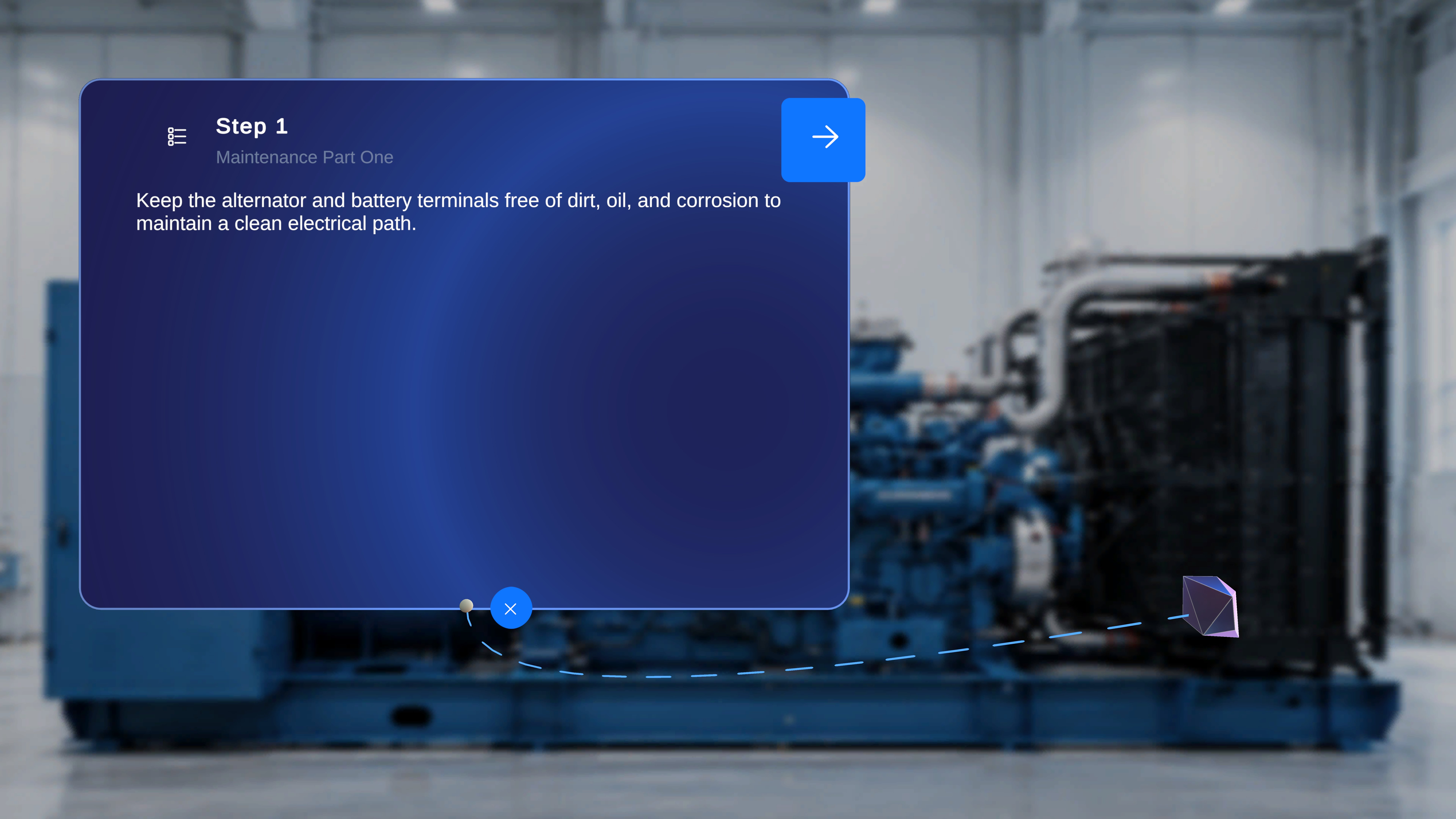
Overview
In Author mode, each step includes a diamond-shaped gem icon at the bottom of the main step panel. This gem allows you to place a step-level anchor into the physical space. When placed, a visible tethered line connects the step panel to the anchor location. This visual link is also shown in Operator mode. The gem placement applies only to the current step.When to Use This Feature
Use the gem placement to:- Visually link a step to a specific physical location
- Guide operators to a precise point in the environment
- Provide spatial context for step instructions
Place the Step Anchor (Author Mode)
Step-by-Step Instructions
- Locate the gem icon at the bottom of the step panel.
- Click the gem icon.
- Move your pointer to the desired location in the physical space.
- Click to place the anchor.
What Happens Next
- The gem is placed at the selected physical location.
- A visible tethered line connects the step panel to the placed anchor.
- The step is now spatially linked to that location.
Tethered Line Behavior
Once placed:- A thread-like line remains visible between the step panel and the anchor.
- This same tethered line is shown when the procedure is accessed in Operator mode.
- The tether helps users visually identify where the step applies in the environment.
Step-Level Behavior
Gem placement is configured per step.- A step may have a placed anchor.
- Another step may not have one.
- When navigating forward or backward, the tether updates based on that step’s configuration.
- No tethered line appears.