

Overview
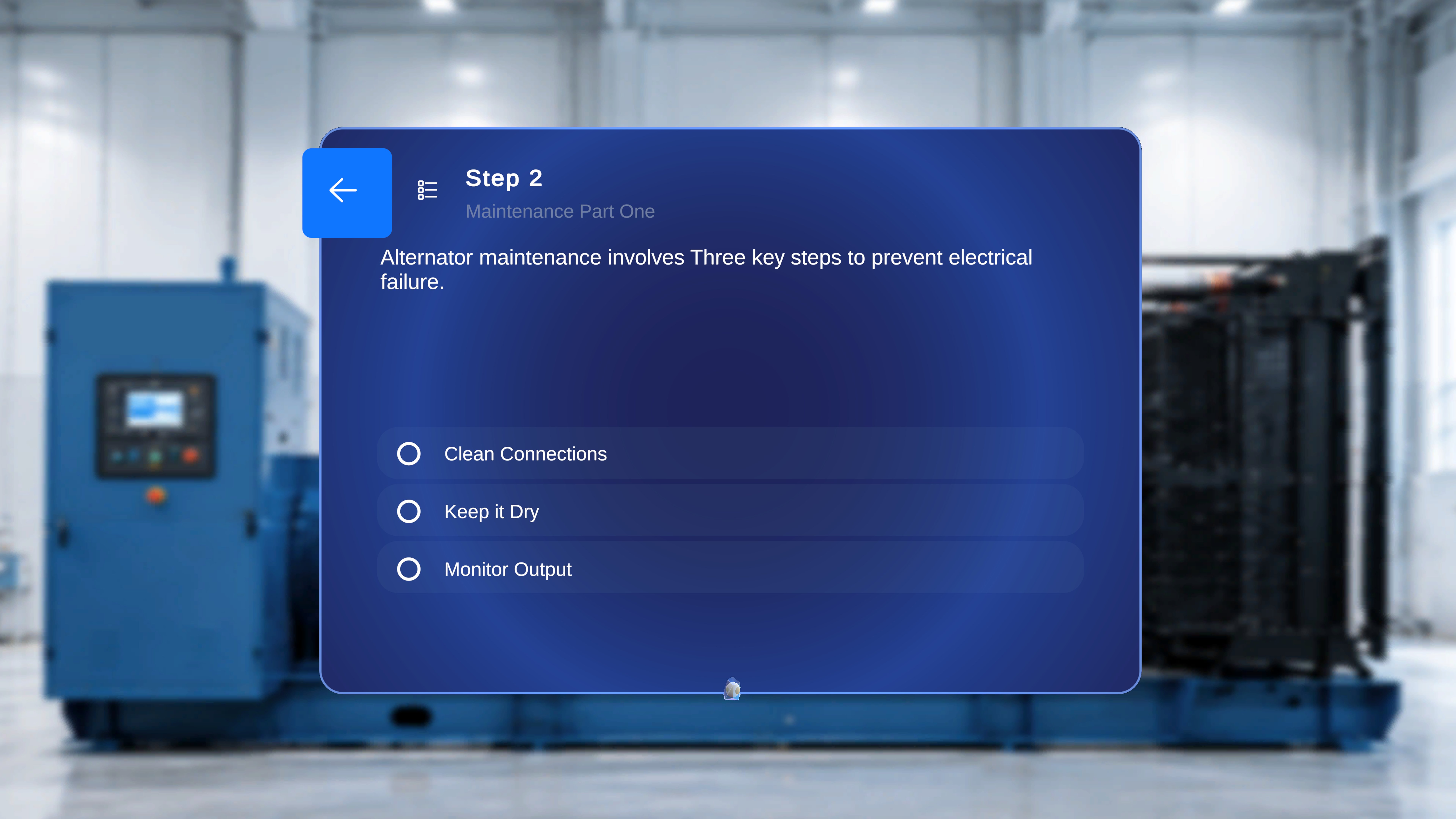
A Choice Step presents one or more selectable options that determine the next step in the procedure. Each option is configured in the web editor with:- A choice label
- A defined destination step
When This Appears
A Choice Step appears when the procedure includes conditional branching. It is used when:- The workflow depends on a decision
- Different outcomes require different next steps
- The procedure must branch into separate paths
Screen Elements
- Task title
- Step numbering
- Instruction text (for example, Please select the Required option below)
- One or more selectable options (maximum supported: 3 options)
- A back arrow in the top-left corner
Media Panel Behavior

- If an image is attached to the step, it is displayed.
- If a video is attached:
- The video auto-plays when the step is entered.
- The video plays in a loop.
- The user can manually play or pause.
- The user can mute or unmute.
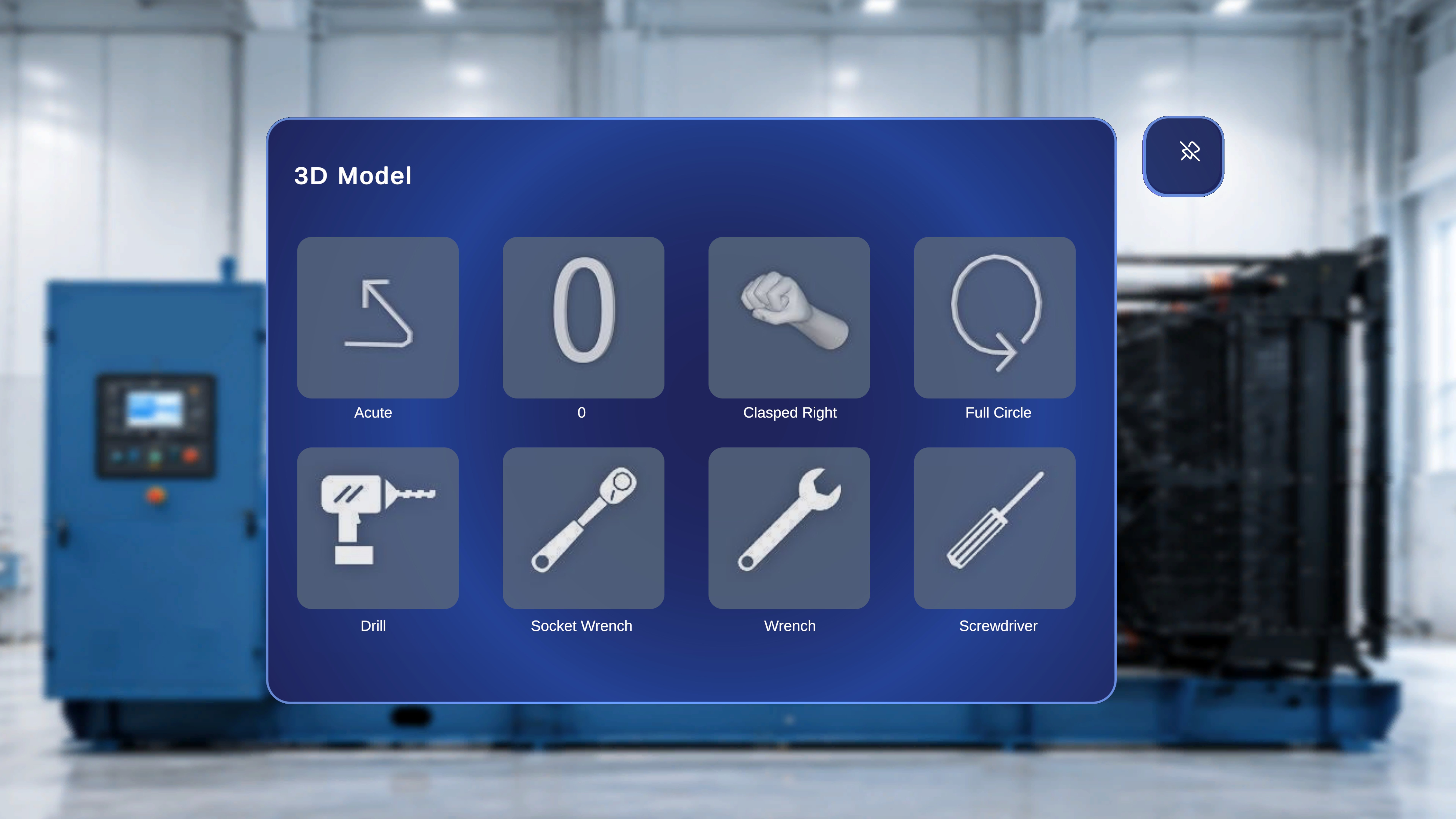
3D Models Behavior
In Operator Mode
- The 3D Model Panel is NOT visible.
- Any GLB models attached to the Choice Step are shown.
- Operator cannot spawn models into physical space.
- Interactable and ghost settings behave according to their configuration in Author Mode.
In Operator Mode
- The 3D Model Panel is not displayed.
- If 3D models were placed during authoring:
- They appear in the scene at their authored positions.
- Interaction depends on configuration:
- If Interactable is disabled, the operator cannot move or manipulate the model.
- If Ghost is disabled, no original-position shadow is shown.
- If both are disabled, the operator can only view the model.
Select a Choice
Step-by-Step Instructions
- Review the available options.
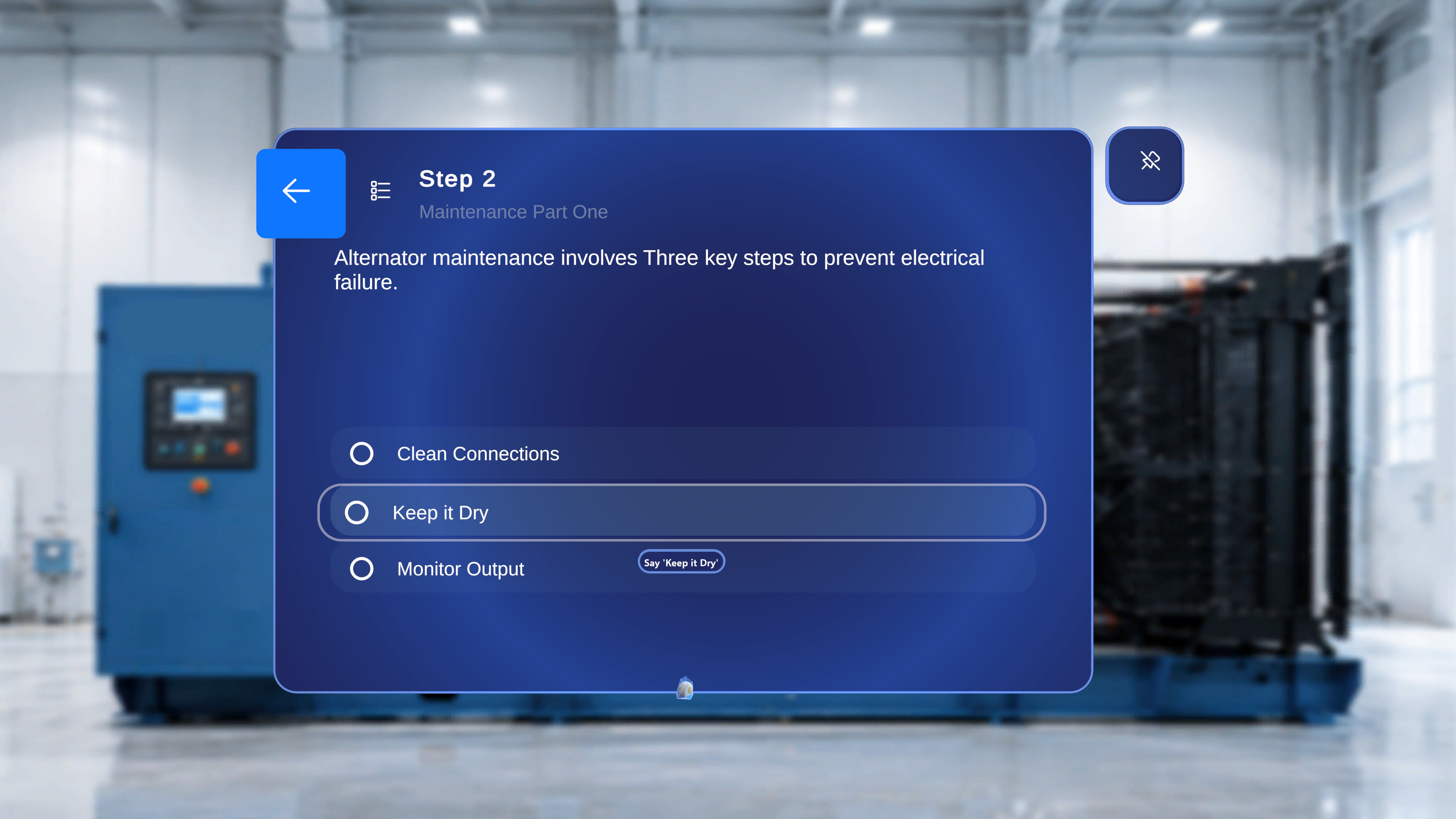
- Focus one of the options with the ray or head-gaze cursor — a loading indicator starts filling around the focused option.
- Hold your focus on the option until the indicator completes. The option is then automatically activated, and the procedure advances to the destination step configured for that choice.
You can also air-tap the option to activate it immediately without waiting for the indicator, or say the option label exactly as it appears (for example, “Start with the alternator”) to activate it by voice. See Voice Commands in Operator Mode for the choice-label voice command.
What Happens Next
- The system immediately navigates to the destination step configured for that choice.
- The procedure continues along the selected branch.
- Navigation follows the defined structure of that branch until another Choice Step or Completion Step is reached.
Navigation Behavior
- You cannot move forward without selecting an option.
- The forward navigation control is not available on a Choice Step.
- You can use the back arrow (if available) to return to the previous step.
- Back navigation returns you to the previous step within the active branch.
Configuration Note
All choice labels and their destination steps are configured in the web editor during procedure creation. Authors must ensure:- Each option has a valid destination.
- Branches either rejoin the main flow or end with an appropriate Completion Step.