

Overview
The Media panel displays visual content attached to the active step during procedure creation. The content shown depends on what was configured for that step:- If an image was attached, the image is displayed.
- If a video was attached, a video player interface is displayed.
When the Step Contains an Image
If an image was attached to the step:- The image is displayed within the Media panel.
- No playback controls are shown.
When the Step Contains a Video
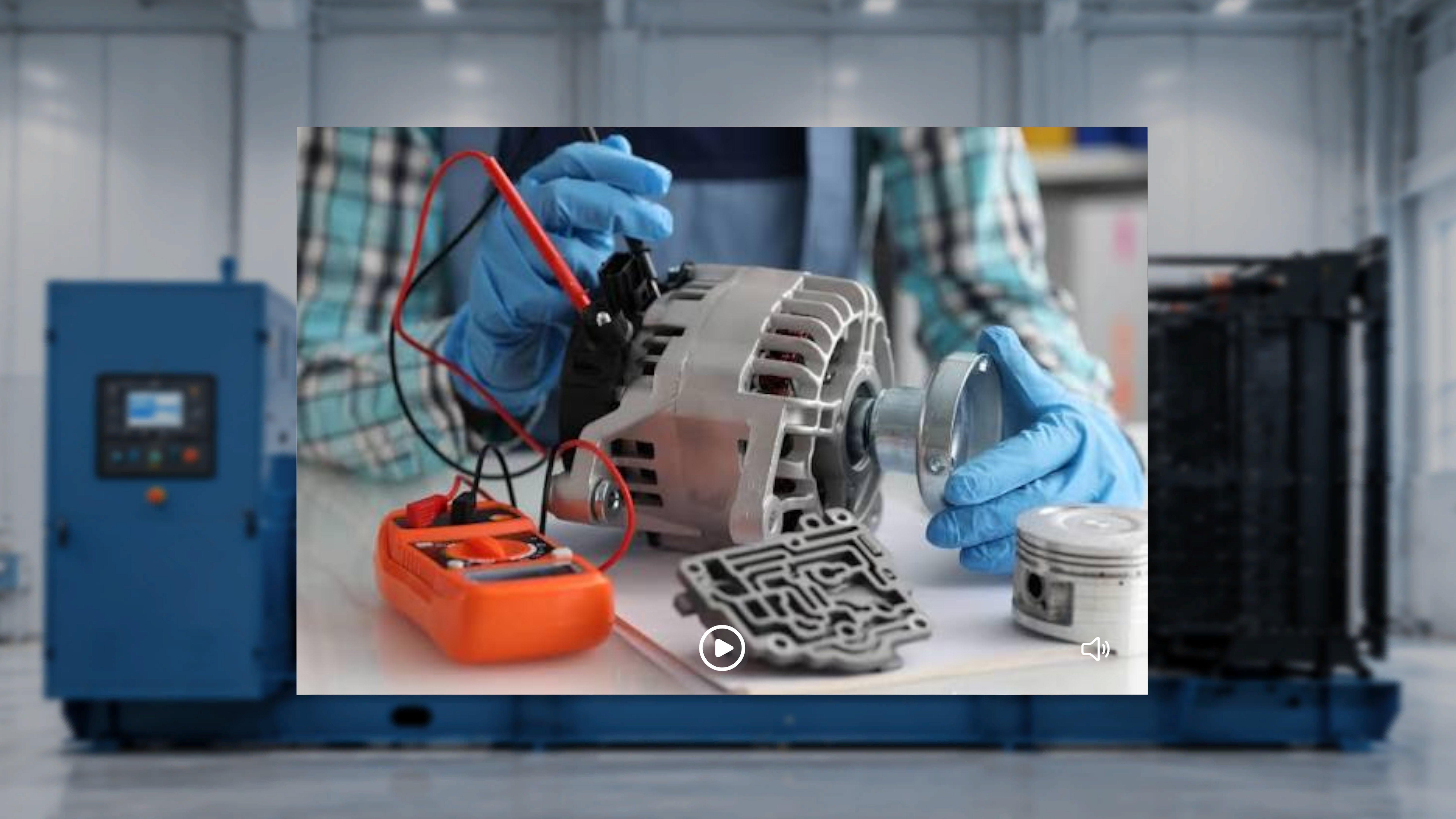
If a video was attached to the step, the Media panel displays a video player interface with:- A Play / Pause control
- A Mute / Unmute control
Automatic Playback
- The video automatically starts playing when you enter the step.
- The video plays in a continuous loop.
- You can manually pause and resume playback at any time.
Control Video Playback
Pause the Video
- Select the Pause control.
What Happens Next
The video stops playing and remains on the current frame.Resume Playback
- Select the Play control.
What Happens Next
The video resumes playback and continues looping.Mute or Unmute Audio
- Select the speaker icon.
What Happens Next
The system toggles audio between muted and unmuted states.Media Updates Across Steps
When you move between steps:- The Media panel refreshes based on the content attached to that step.
- If a video is attached, it automatically begins playing.
- If an image is attached, it is displayed statically.
- If no media was attached, the Media panel does not appear.