

Overview
The Completion Step indicates that the operator has successfully reached the end of a procedure path. In Operator Mode, the Completion Step is execution-only. Operators cannot modify its content or configuration. A Completion Step may appear:- As the default system-generated final step
- As a manually added completion step within a task
- At the end of a branch created using a Choice Step
When This Appears
A Completion Step is displayed when the operator:- Reaches the final step of a linear procedure
- Reaches the end of a branch selected through a Choice Step
- Navigates directly to a Completion Step using the Step List Panel
Screen Elements
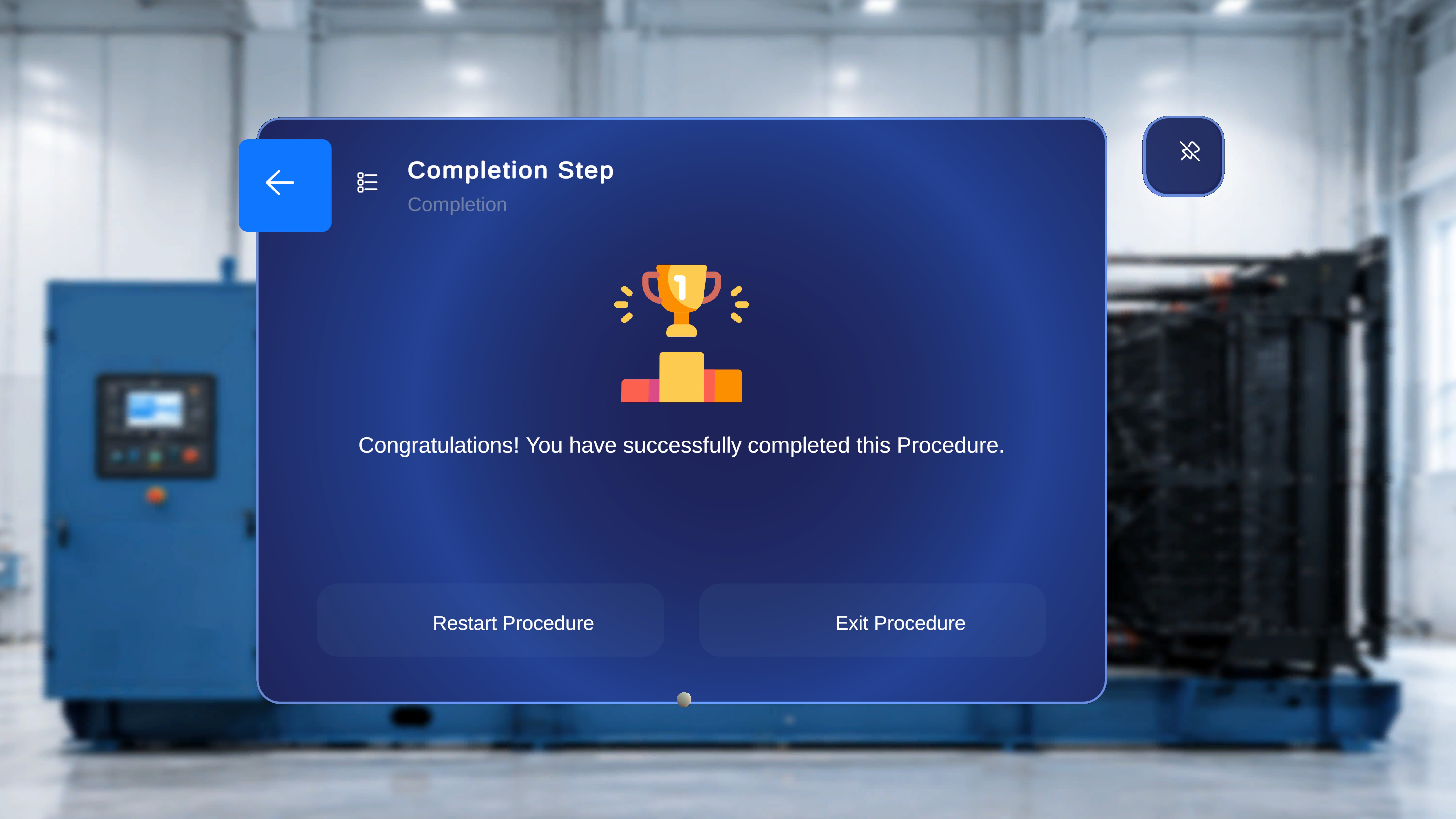
The Completion Step panel includes:- Step Title: Completion Step
- Task name
- Confirmation message: “Congratulations! You have successfully completed this Procedure.”
-
Two action buttons:
- Restart Procedure
- Exit Procedure
- A back arrow in the top-left corner
Restart Procedure
Use this option to begin the procedure again from the start.Step-by-Step Instructions
- Select Restart Procedure.
What Happens Next
- The procedure resets.
- The first step becomes active.
- Any in-session progress is cleared.
- Anchored models and step states return to their authored configuration.
Exit Procedure
Use this option to leave the current procedure session.Step-by-Step Instructions
- Select Exit Procedure.
What Happens Next
- The procedure closes.
- The user returns to the Home environment.
Navigate Back
A back arrow appears in the top-left corner of the panel.Step-by-Step Instructions
- Select the back arrow.
What Happens Next
- The system navigates to the previous step within the active path.
- In branching procedures, the previous step corresponds to the selected branch.
Behavior in Branching Procedures
If the operator reaches a Completion Step through a Choice Step:- The Completion Step reflects the selected branch.
- It does not automatically redirect to the default system-generated Completion Task.
- Each branch-specific Completion Step functions independently.