

Overview
Follow Me is a panel behaviour that keeps a supported panel positioned in front of you as you walk or turn — so instructions stay within easy reach while you execute a procedure hands-free.- By default, Follow Me is OFF. Panels remain fixed where you left them.
- When Follow Me is ON, the panel repositions itself in front of you as you move.
- The toggle is available as a pin-shaped button in the top-right corner of every panel that supports it.
- Not every panel supports Follow Me. Only panels where the behaviour is useful expose the button.
Follow Me is currently supported on selected Procedures panels (both Author and Operator modes) and on the global side-menu panels (Procedures, Remote Expert, Profile). Panels inside a Remote Expert session do not yet support this feature.
Recognise the Follow Me Button
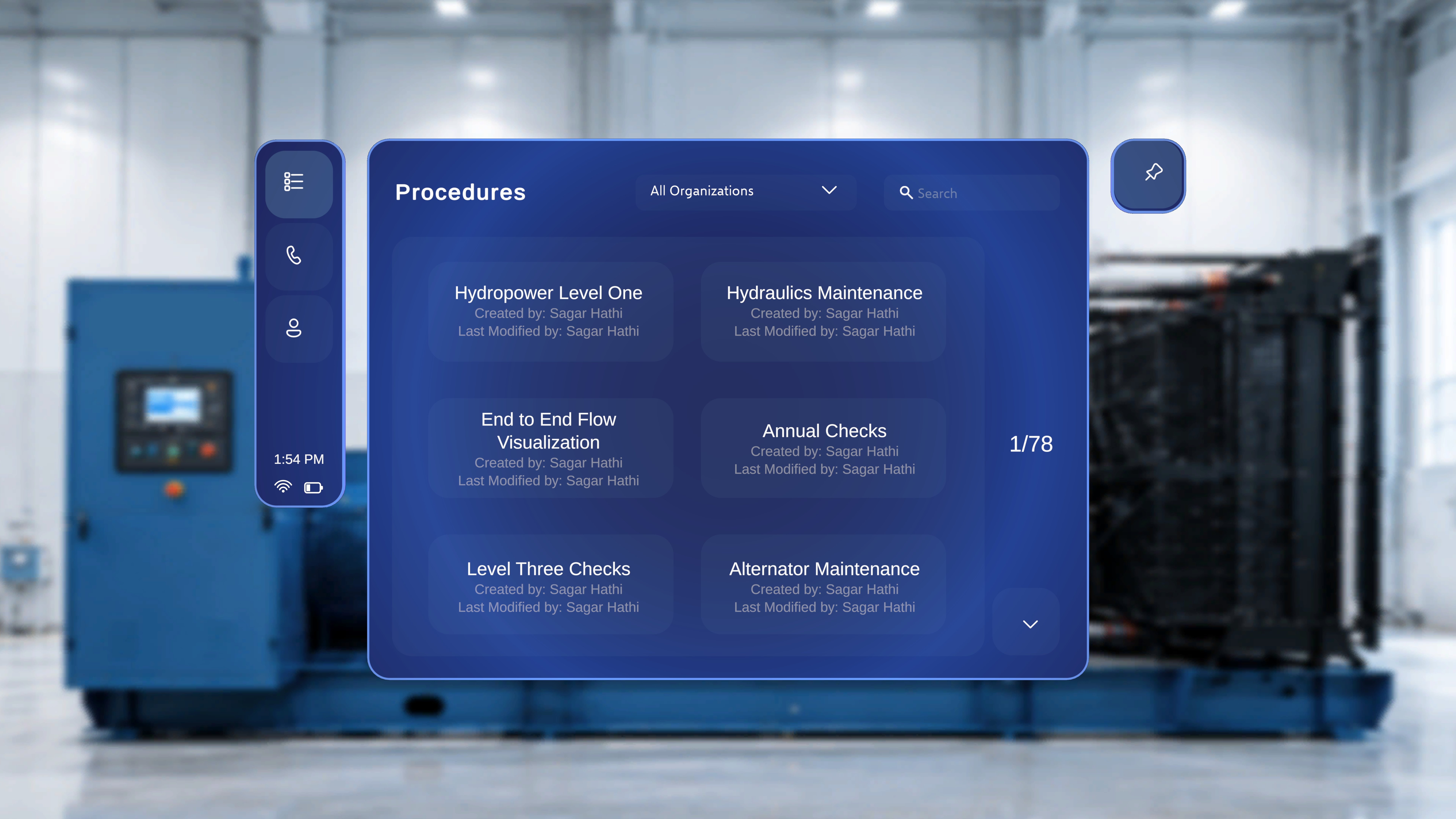
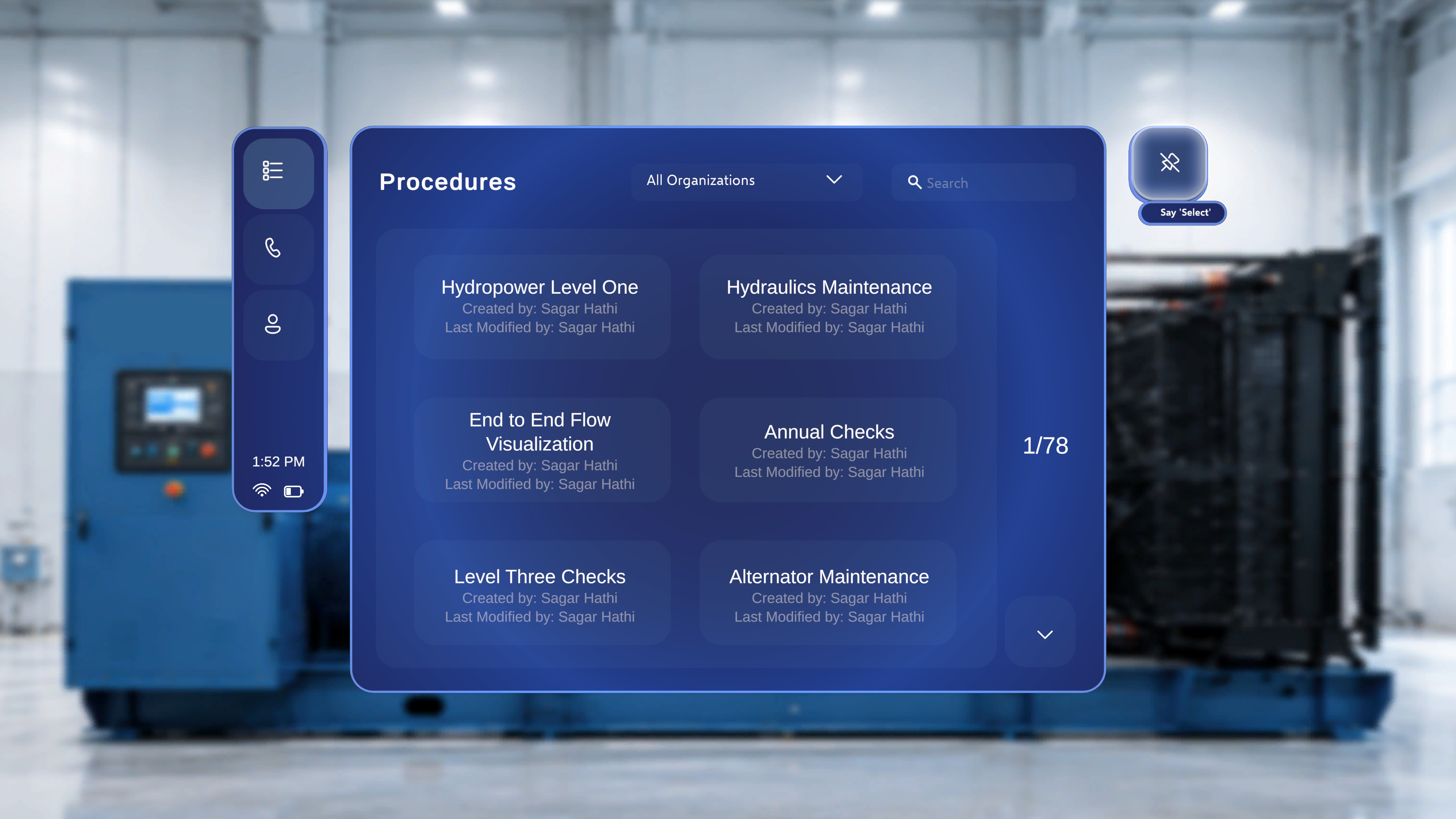
The Follow Me toggle is always the small pin icon at the top-right corner of a panel. Its appearance reflects the current state: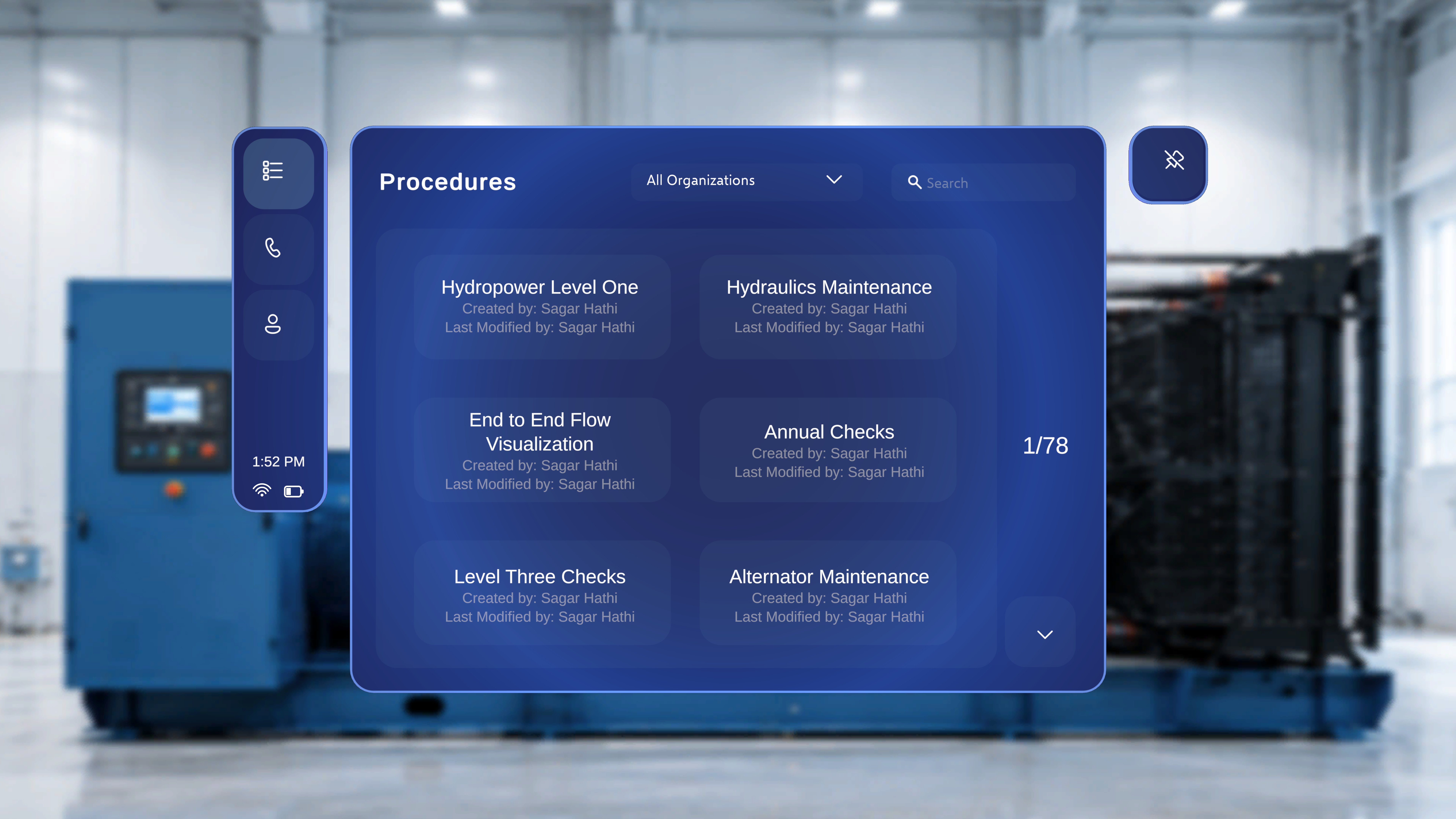
Turn Follow Me On
You can enable Follow Me on any supporting panel using either an air-tap or a voice command.Using the Button
- Look at the pin button in the top-right corner of the panel.
- Air-tap the button.
Using Voice
- Say “Follow me” — you do not need to be looking at the panel. The supported panel will move in front of you automatically.
What Happens Next
- The pin icon updates from crossed-out to solid, confirming the change.
- The panel begins to reposition itself in front of you as you move or turn — ideal when you need both hands free to work while consulting instructions.
Turn Follow Me Off
You can disable Follow Me in three ways.Using the Button
- Air-tap the pin button again.
Using Voice
- Say “Unfollow me” — you do not need to be looking at the panel; the command applies to the supported panel.
By Moving the Panel Manually
- Grab the panel using the standard panel move handle and drag it to a new position.
Manually repositioning a panel automatically disables Follow Me for that panel. This lets you “park” instructions in a specific location — for example, next to the equipment you are working on — without having to remember to toggle the button afterwards.
What Happens Next
- The pin icon returns to the crossed-out state.
- The panel stays fixed wherever it is until you enable Follow Me again.
Where Follow Me Applies in Operator Mode
Inside a procedure being executed, Follow Me is enabled on the panels where a moving reference is most helpful while you carry out the work.Procedures Landing Panel (Global Side Menu)
The top-level Procedures panel — the one you open from the global side menu — supports Follow Me. This is also where the setting is shared with Remote Expert and Profile panels: toggling Follow Me on any one of them affects the others.Main Step / Instruction Panel
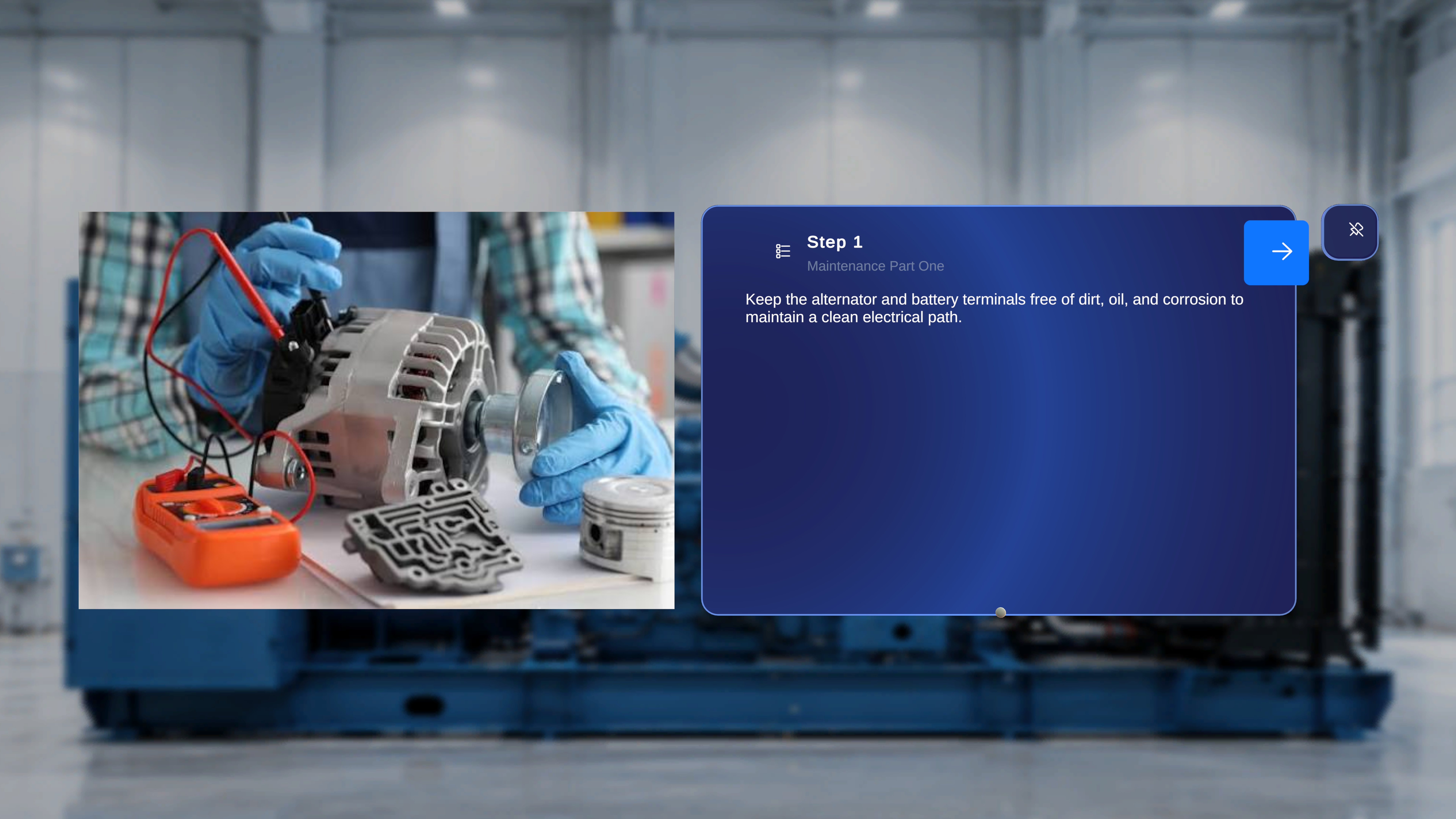
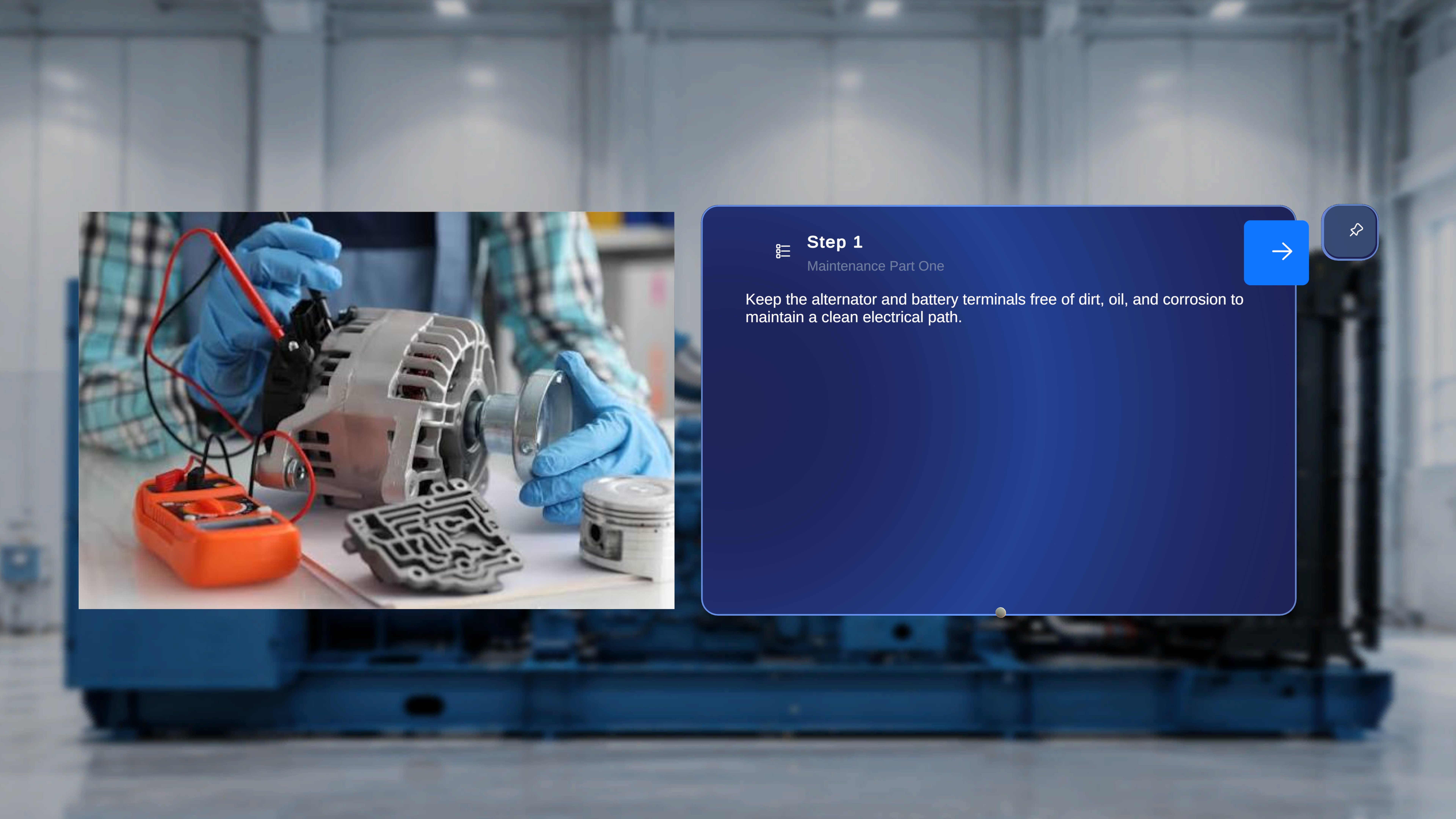
Operator mode does not have a 3D Model panel — that panel exists only in Author mode. In Operator mode, Follow Me is instead available on the main step panel, because that is where operators need instructions to keep up with them as they work.
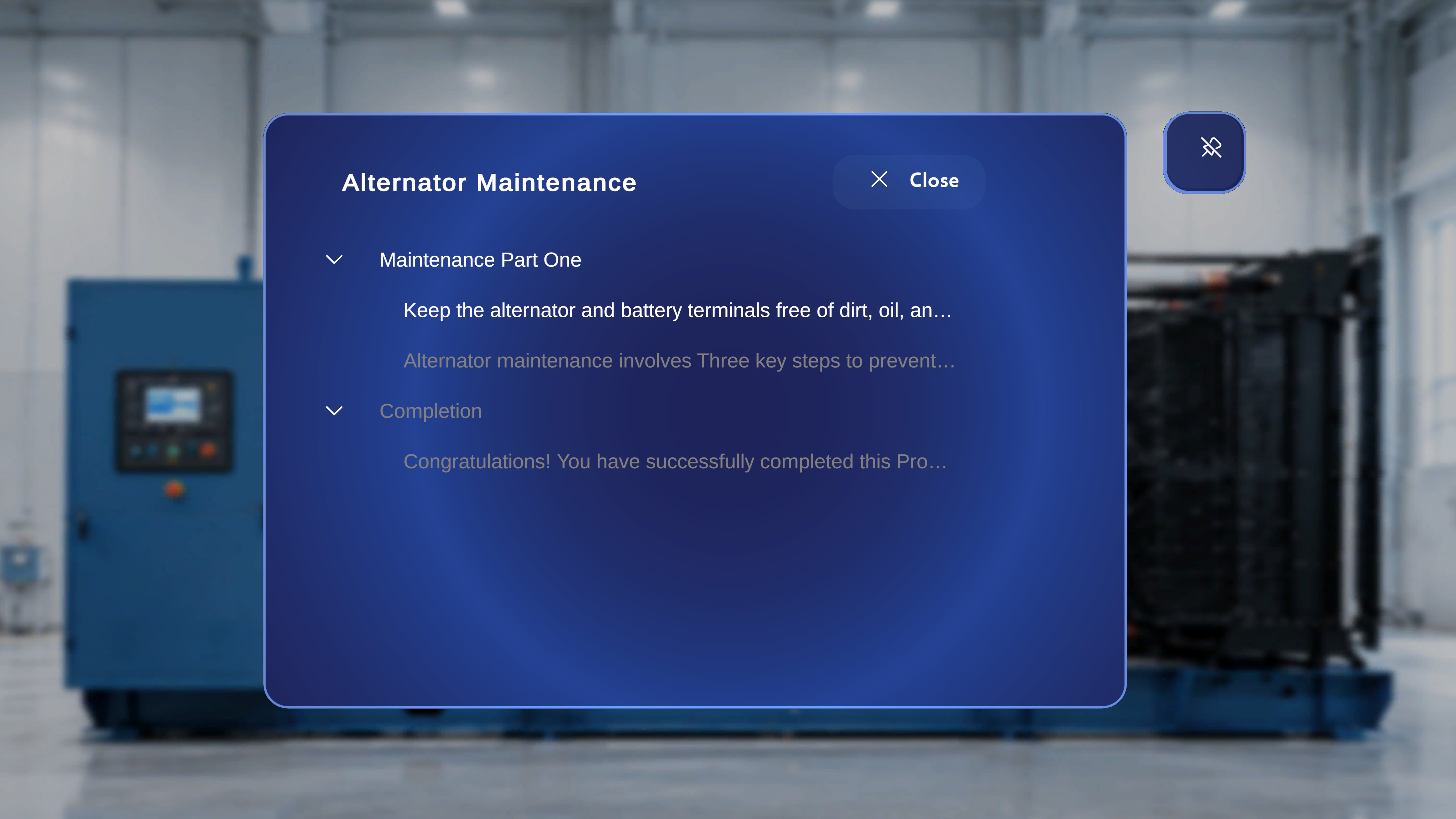
Task / Step List Panel
Other Panels
Some panels intentionally do not show the Follow Me button — typically dialogs, transient popups, media popups, and the QR anchor flow, where a fixed position is essential to the workflow. If you do not see the pin icon, the panel does not support Follow Me by design.Behaviour Notes
- Per-panel state. Follow Me is remembered per panel; enabling it on the main step panel does not automatically enable it elsewhere. The exception is the global side-menu group (Procedures / Remote Expert / Profile), where the state is shared.
- Auto-disable on move. Manually moving a panel is treated as an explicit “park here” gesture and switches Follow Me off for that panel.
- Voice commands. “Follow me” and “Unfollow me” work hands-free — you do not need to look at the panel. Saying the command triggers the supported panel to come to you (or to stop following).
- State on step change. Advancing through steps does not reset Follow Me — if the main step panel is set to follow, it will continue to follow as you progress.