

Overview
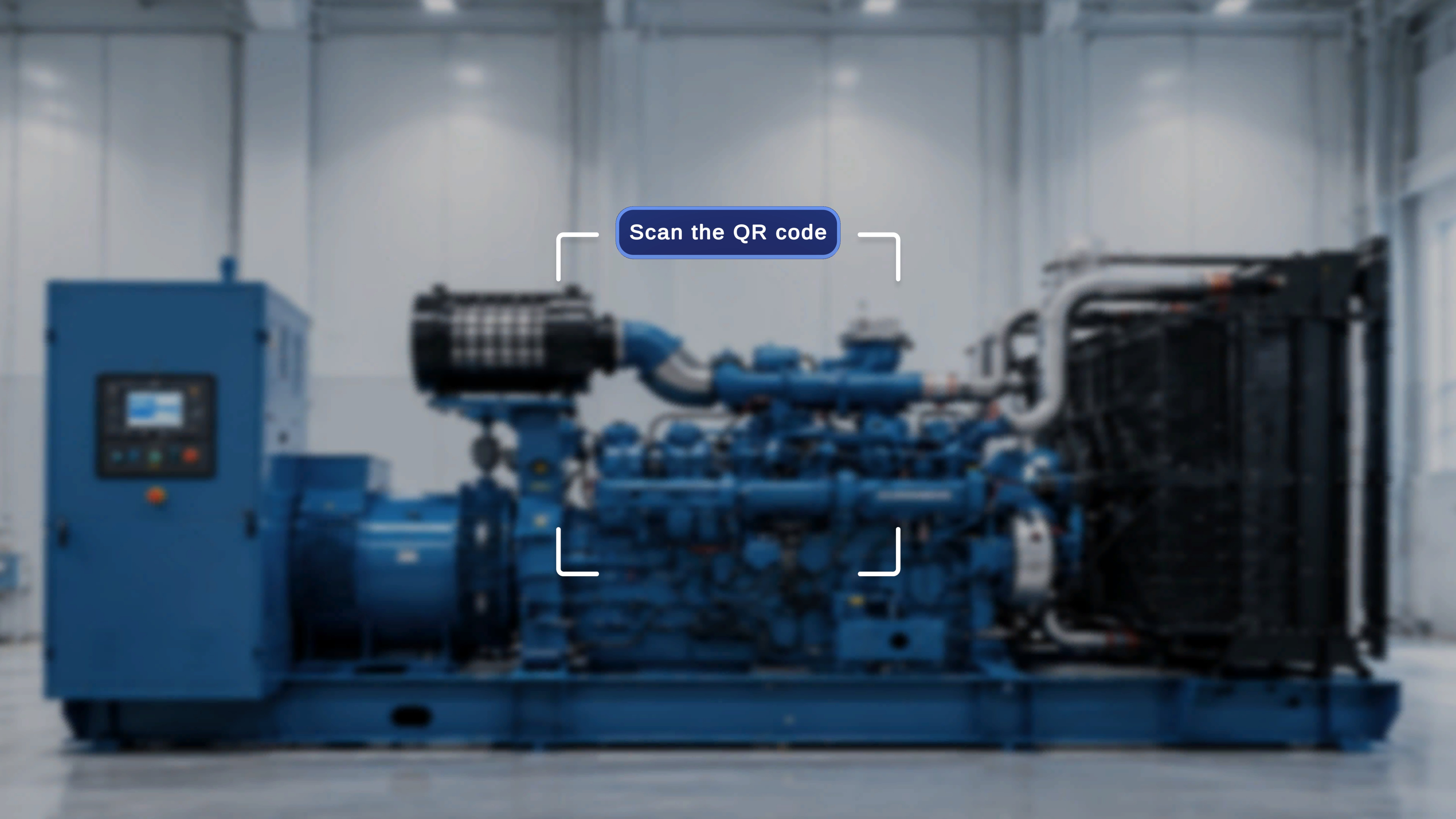
After selecting Operator mode, you must scan a QR code to anchor and enter the procedure. The system first displays a QR scan instruction panel. Once scanning is initiated, the camera interface appears. After a QR code is detected, you must confirm the anchor before proceeding. Access to the procedure is granted only after successful confirmation.When to Use This Feature
You complete QR scanning:- Immediately after selecting Operator
- Before entering the selected procedure
QR Scanning
After selecting a mode, a panel appears with the following: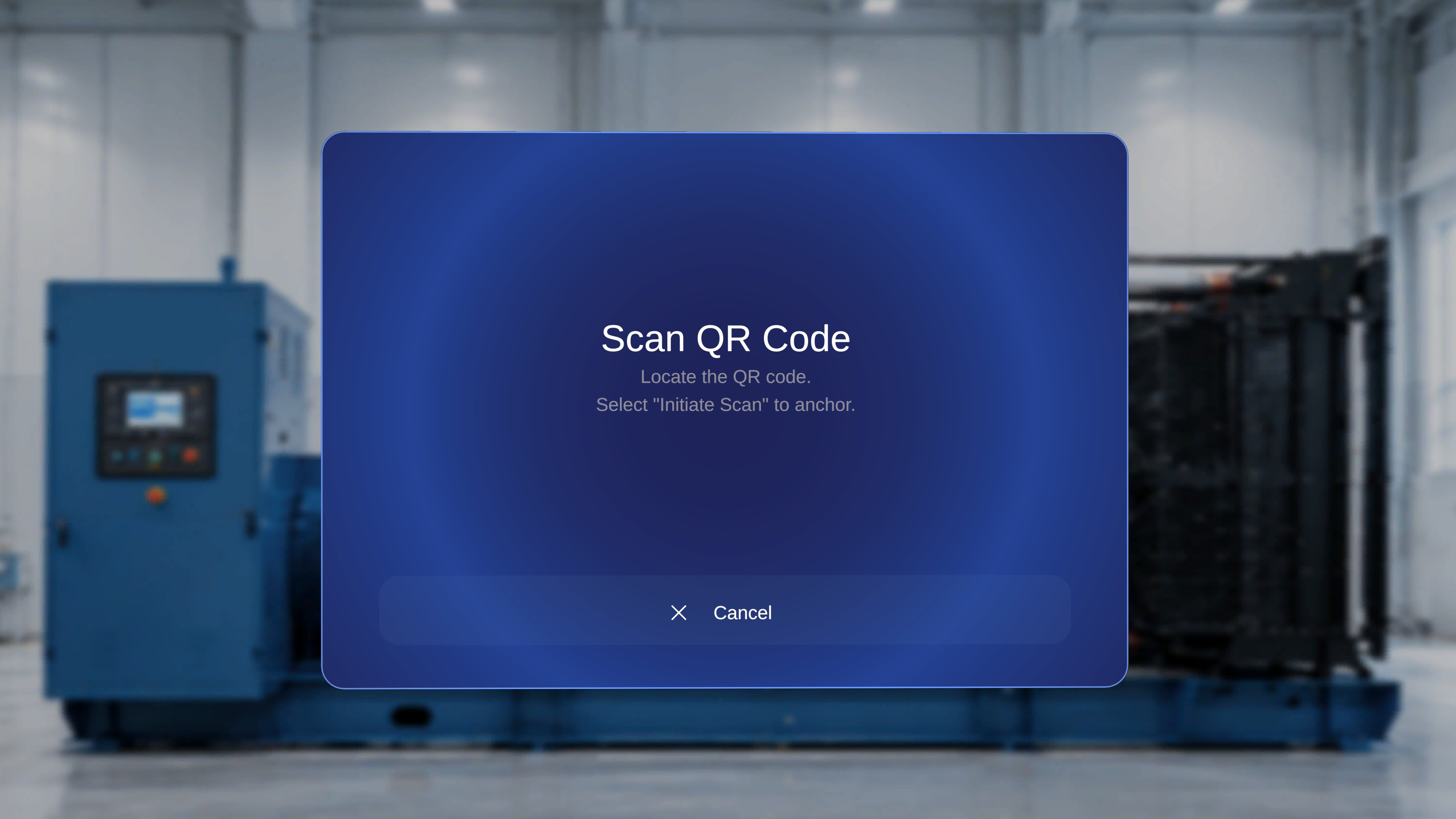
Step-by-Step Instructions
- Locate the physical QR code.
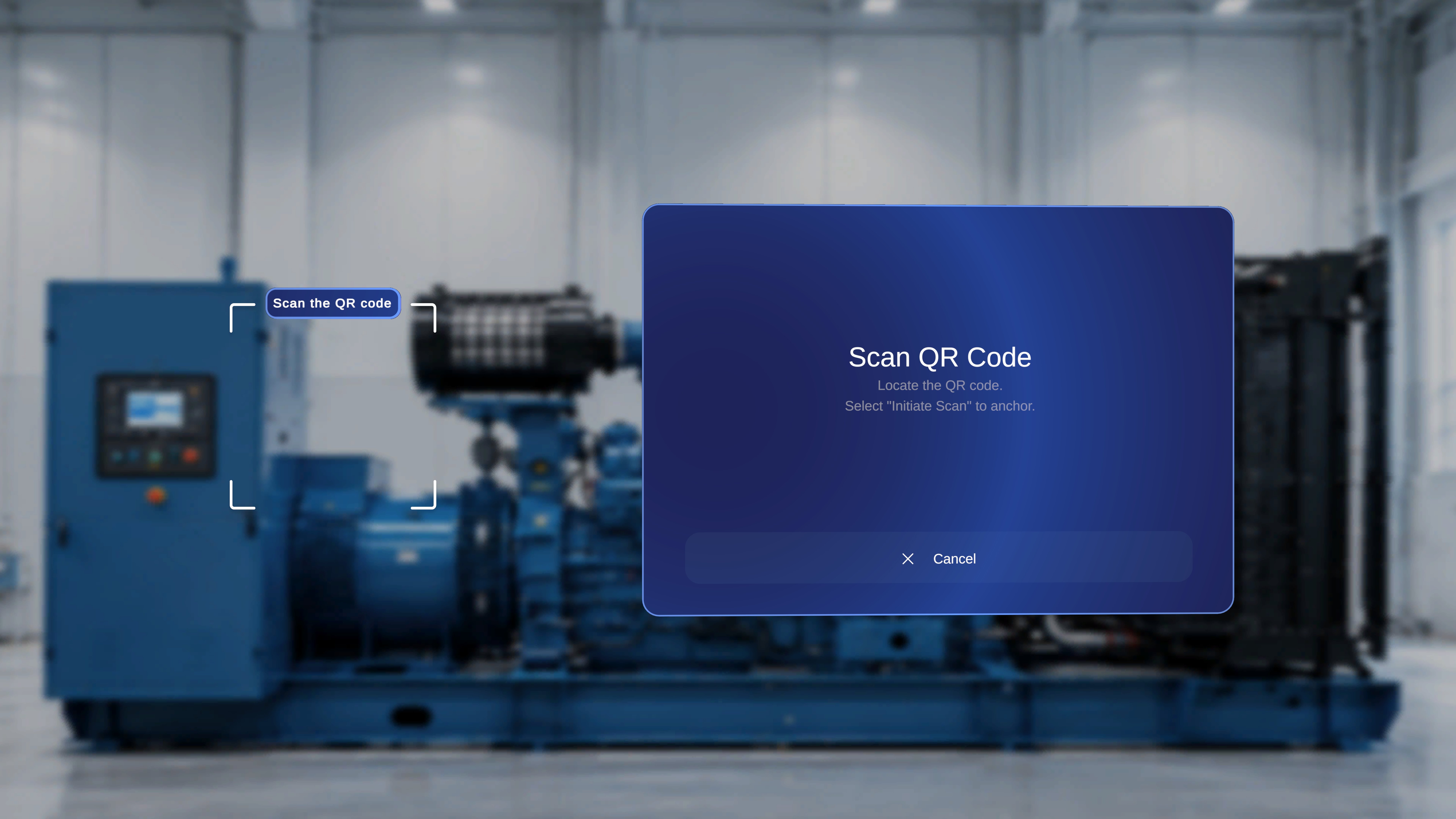
Align and Scan the QR Code
The scanning interface displays a centered frame to guide alignment.Step-by-Step Instructions
- Hold your device so the QR code appears inside the scanning frame.
- Align the QR code within the bracketed area.
- Keep the device steady until the system detects the code.
What Happens Next
Once the QR code is detected, a confirmation panel appears titled: Anchor found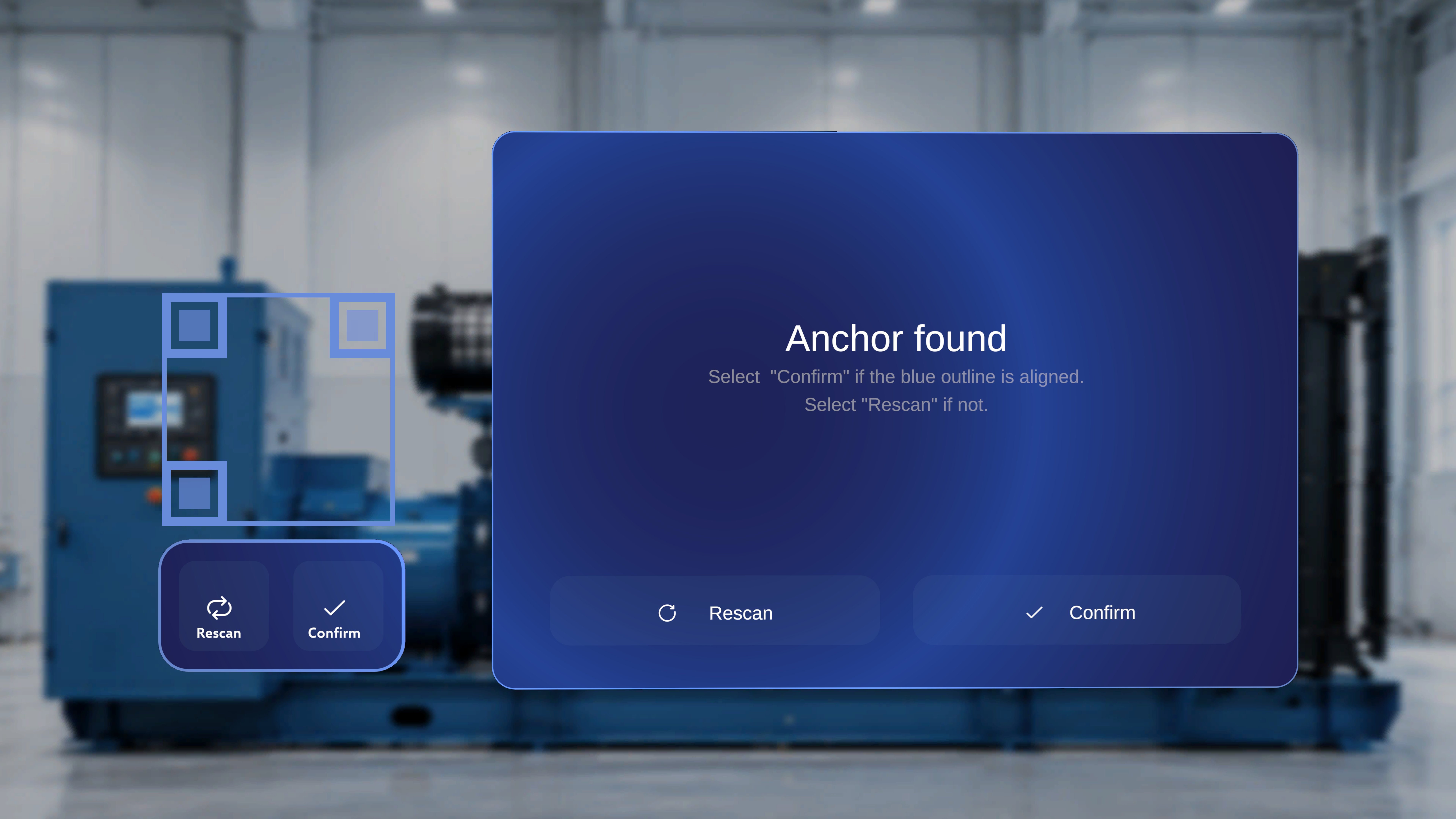
Confirm the Anchor
Step-by-Step Instructions
- Verify that the blue outline is properly aligned.
Option 1: Use the Central Panel
- Click Confirm in the Anchor found panel.
Option 2: Use the Buttons Below the QR Frame
- Click Confirm below the QR scanning area.
What Happens Next
The system anchors to the QR code and opens the selected procedure in Operator Mode. You are taken into the procedure and can begin executing the authored steps in the physical space.Rescan the QR Code
Use this option if the QR outline is not correctly aligned or if the wrong QR code was detected.Option 1: Use the Central Panel
- Click Rescan in the Anchor found panel.
Option 2: Use the Buttons Below the QR Frame
- Click Rescan below the QR scanning area.
What Happens Next
- The current detection is cleared.
- The system returns to active scanning mode.
- You can realign the QR code within the frame.