

This page is for procedure authors on the HoloLens. By the end of it, you will know how Multi-User Authoring works on the HoloLens, which changes it brings in, and what the HoloLens shows while it loads them.
What Multi-User Authoring Does
More than one author can work on the same procedure at the same time: for example, one in the Web Portal, one on the iPad, and you on the HoloLens. You can also edit a procedure in the Web Portal yourself while wearing the HoloLens.
When someone changes the procedure you have open on the HoloLens, from the Web Portal or the iPad, the HoloLens syncs the change in real time. You do not need to exit and reopen the procedure, and you do not need to do anything to get the update. The HoloLens shows a short message while it syncs, and another when the latest version is loaded, so you always know when the procedure has changed.
The iPad shows the same message when another user updates a procedure. See Multi-User Authoring on the iPad.
At a Glance
| Item | Details |
|---|---|
| Available in | Author mode on the HoloLens |
| Where changes come from | The Web Portal and the iPad, for the same procedure |
| What syncs | Any change to the procedure, such as step text, media, and 3D models |
| When it syncs | In real time, while you have the procedure open |
| What you need to do | Nothing. The HoloLens loads the change on its own |
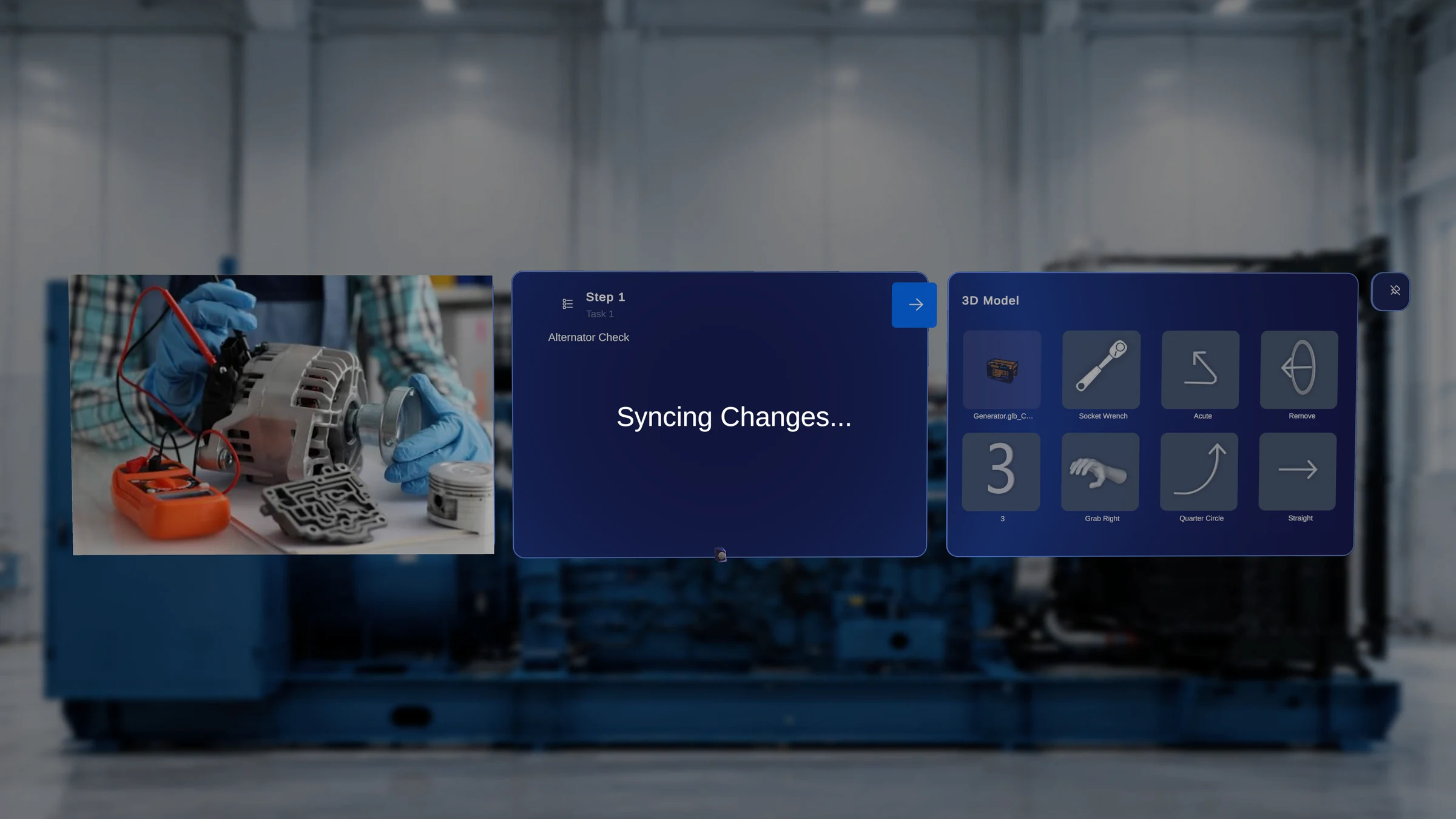
| While it syncs | Syncing Changes... on the step panel |
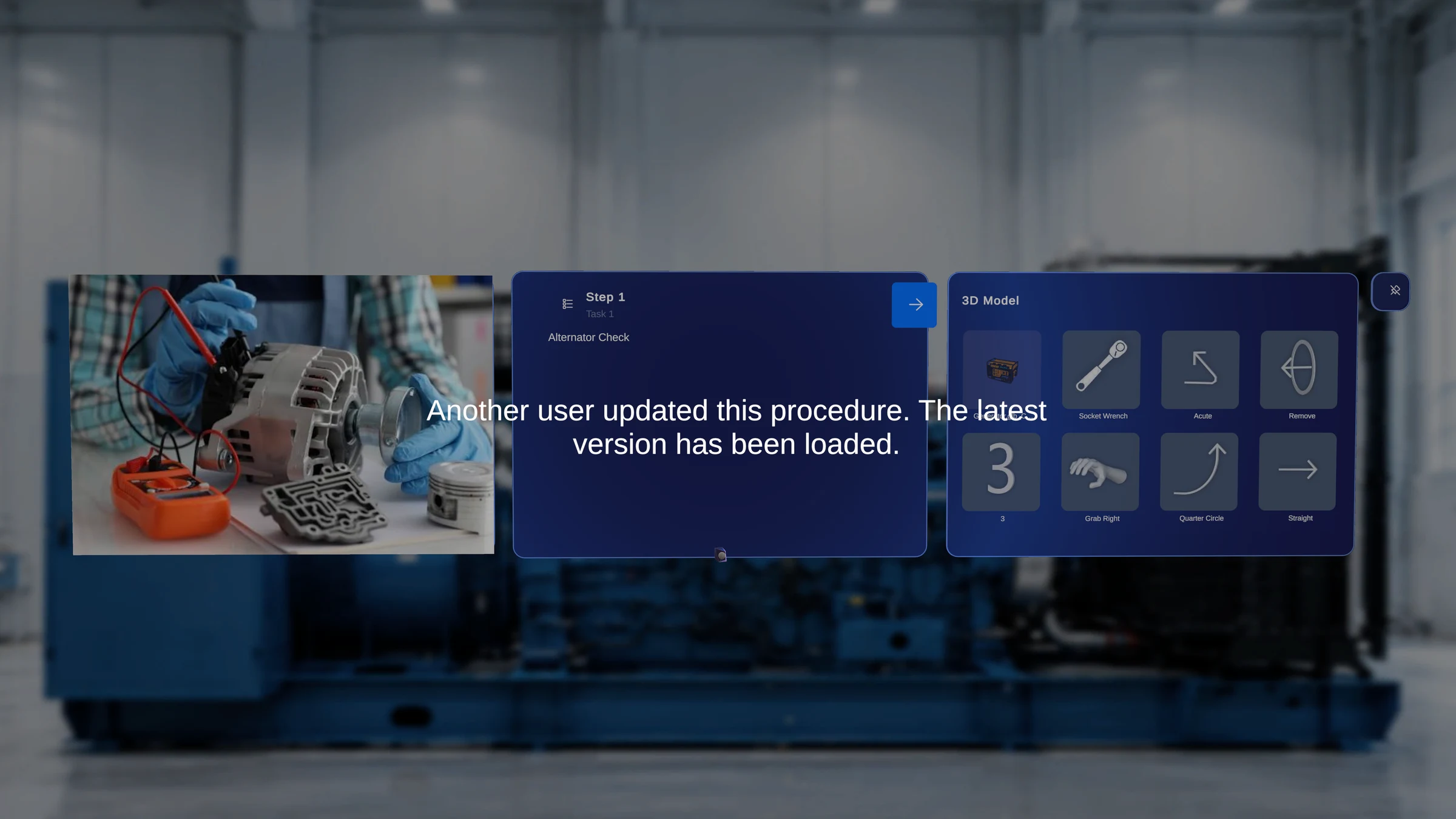
| When it is done | "Another user updated this procedure. The latest version has been loaded." |
| In Operator mode | Changes appear the next time the procedure is opened |
What Gets Synced
Any change made to the procedure in the Web Portal or on the iPad is synced to the HoloLens, including:
- Text, such as step titles and instructions
- Media, such as images and videos
- 3D models
- Any other change to the procedure
What You See When a Change Arrives
Syncing Changes...
When another author changes the procedure, the panels dim and the step panel shows Syncing Changes... while the HoloLens loads the change.
The latest version is loaded
The message changes to "Another user updated this procedure. The latest version has been loaded." The procedure now shows the other author's changes, and you can carry on authoring.
Tips
- Split the work between the Web Portal and the HoloLens. Write step text and add media in the Web Portal, then place and check 3D models on the HoloLens. Each change you make in the Web Portal appears on the HoloLens without reopening the procedure.
- Watch for the message. If you see Syncing Changes..., someone else has changed the procedure. Wait for the latest version to load before you carry on.
- Check the result as an operator. When you have finished authoring, run the procedure the way an operator will see it. See Preview and Publish.