

This page is for procedure authors on the HoloLens. By the end of it, you will know what a model's original position is, how to send a model back to it with Reset Transform, and how Reset Transform differs from the Reset button operators see.
What Reset Transform Does
While you author a step, you move models around to find the right place for them. Sometimes a model ends up somewhere you did not intend: dragged too far, left in the wrong spot, or moved before you were ready to place it.
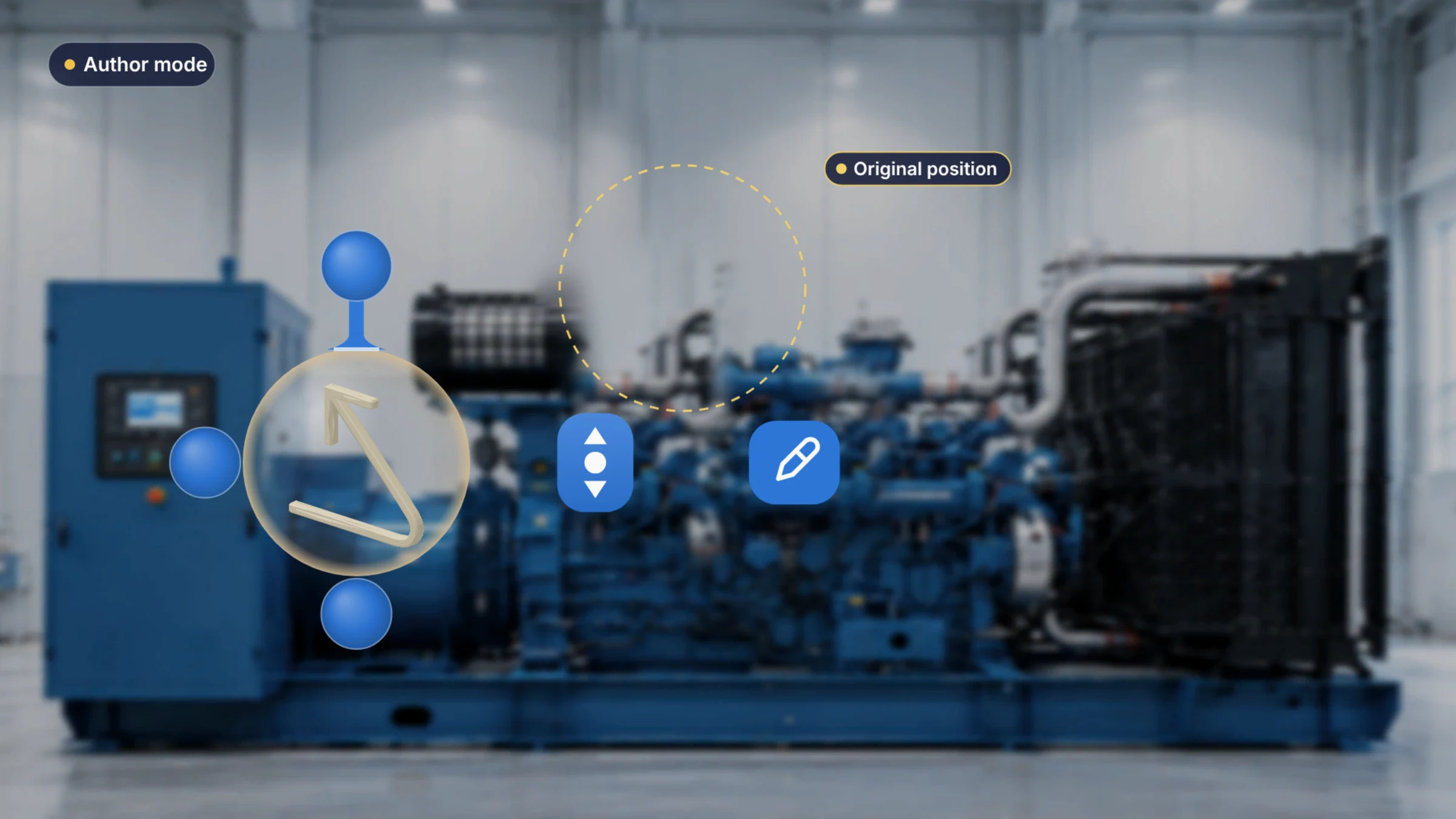
Reset Transform sends the selected model back to its original position: where the model sits relative to the QR anchor when the procedure starts. Nothing else about the model changes.
Watch this short walkthrough to see Reset Transform in use:
At a Glance
| Item | Details |
|---|---|
| Where to find it | Edit menu (pencil button beside a placed model) → Transform Controls → Reset Transform, the third option |
| Available in | Author mode only |
| What it does | Moves the model back to its original position |
| Original position | Where the model sits relative to the QR anchor when the procedure starts |
| What else changes | Nothing. Only the model's position is reset |
| Which models change | Only the model whose Edit menu you opened |
The Original Position
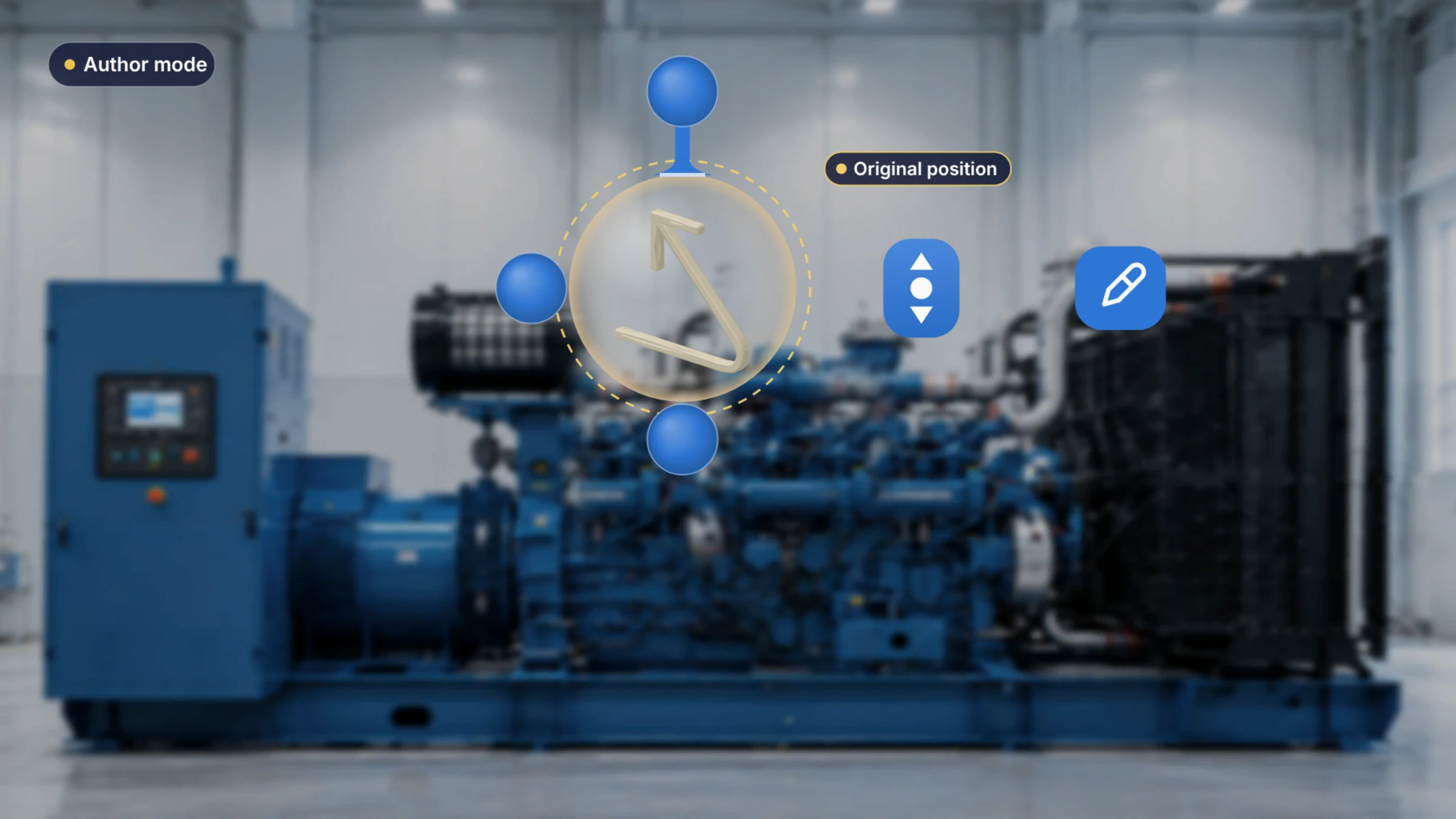
A model's original position is tied to the QR anchor, not to where you are standing. It is where the model sits, relative to the QR code, when the procedure starts. However far you move the model while you author, Reset Transform brings it back to that same spot.
In the screenshots and the video on this page, a dashed circle labeled Original position marks that spot.
Reset a Model
Show the model's controls
If the model's controls are hidden, air-tap the model so its controls and the Edit button (pencil icon) appear. See Model Controls.
Open the Edit menu
Select the Edit button. To select it, air-tap it, touch it directly, or focus it and say "Select" (see Gestures and Interactions). The Edit menu opens beside the model.
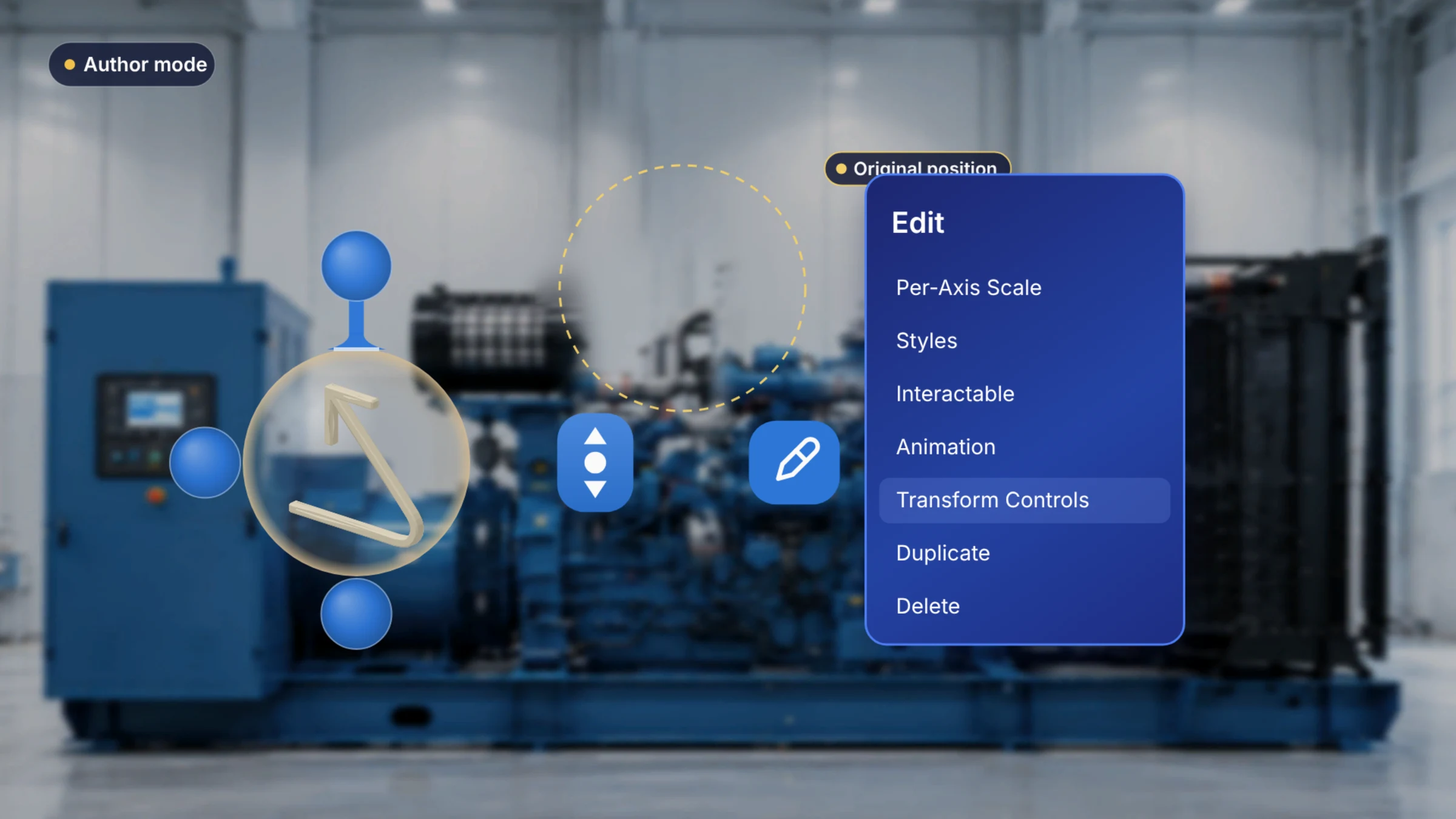
Select Transform Controls
The Transform Controls panel opens, with Copy Position, Paste Position, and Reset Transform, and a back arrow appears where the Edit button was.
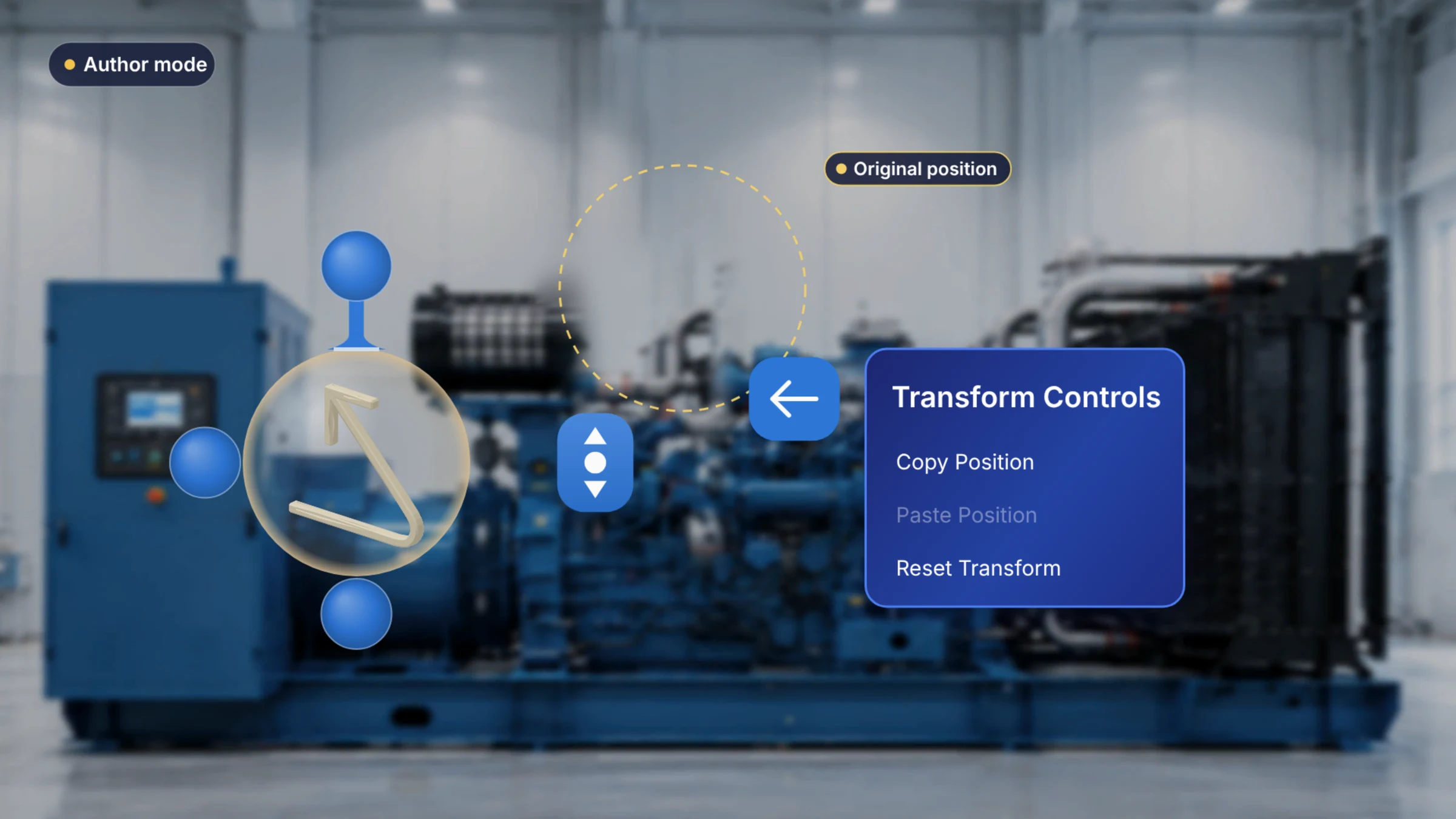
Select Reset Transform
The model moves back to its original position.
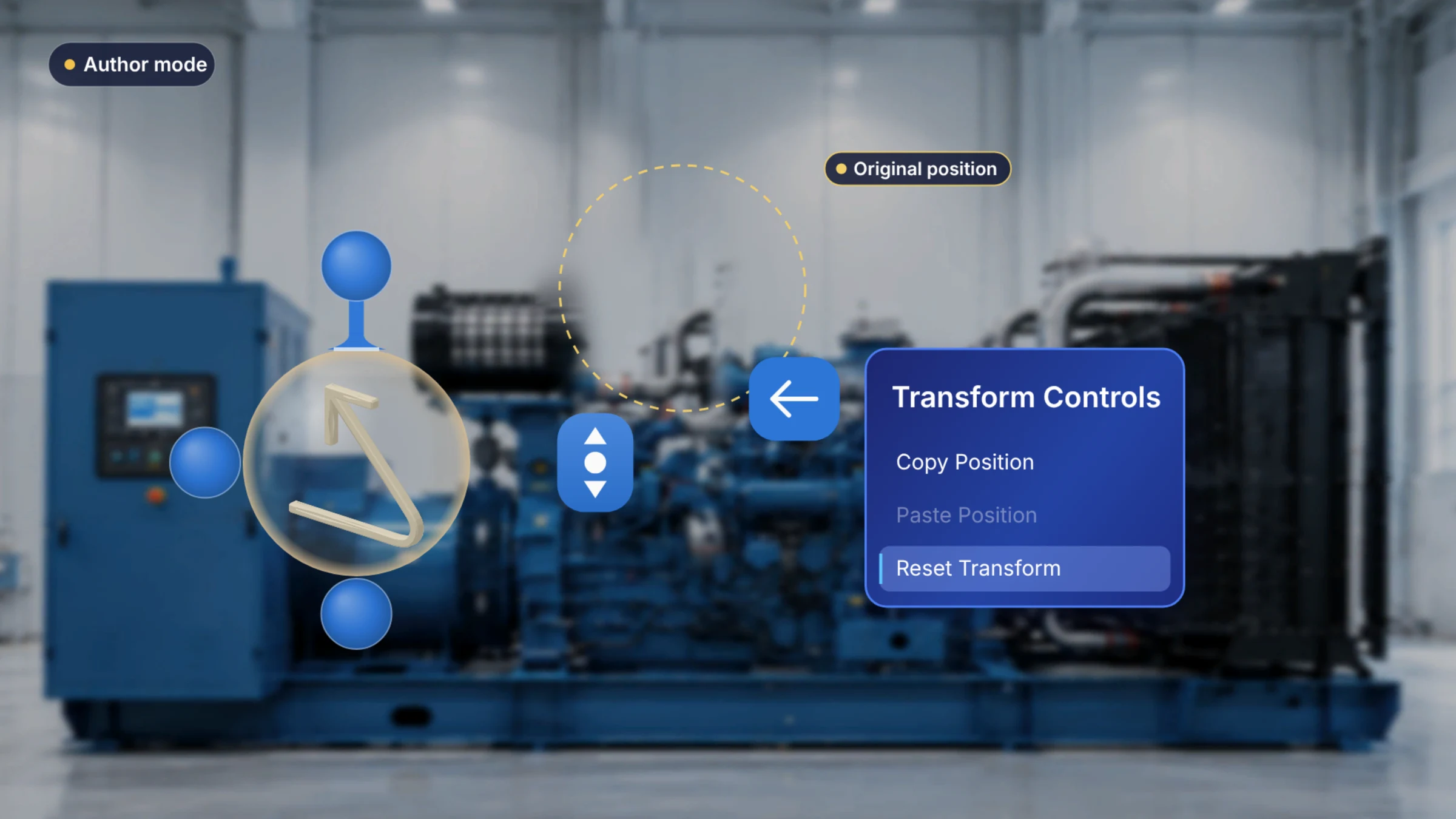
When you are done, select the back arrow beside the panel to return to the Edit menu.
Try Reset Transform
Try Reset Transform here before you use it on the HoloLens. The demo below runs in your browser and shows a cube with the same controls and Edit menu as a placed model. A dashed circle labeled Original position marks where the cube starts, and a hint at the top right of the demo shows the next step.
- Move the cube: drag it away from the dashed circle.
- Show its controls: tap or click the cube. The blue handles, the scale control, and the Edit button (pencil icon) appear. Drag the handles to rotate the cube, or drag the scale control to resize it. Tap the cube again to hide the controls.
- Reset the cube: select the Edit button, then Transform Controls, then Reset Transform. The cube moves back into the dashed circle. If you rotated or resized it, it keeps its new angle and size.
- Start over: select Start over at the bottom left to put the cube back at its original position, angle, and size.
- Use the keyboard: select the demo, then press R to reset the cube's position, the arrow keys to rotate it, + and − to resize it, and 0 to start over.
Reset Transform and the Reset Button
Authors and operators can both send a model back, but in different ways and to different places:
| Reset Transform | Reset button | |
|---|---|---|
| Who uses it | Authors, in Author mode | Operators, in Operator mode |
| Where it is | Edit menu → Transform Controls | On the sphere of an interactable model, once the operator moves, rotates, or scales it |
| Where the model goes | Back to its original position relative to the QR anchor | Back to the position, rotation, and scale the author set |
| Learn more | This page | Work with 3D Models and Media |
When to Use Reset Transform
| Situation | What to do |
|---|---|
| You moved a model to the wrong place and want to start again | Reset it, then place it again from its original position |
| A model has drifted far from the equipment it belongs to | Reset it to bring it back to its original position relative to the QR anchor |
| You want a model in the same place as another model | Use Copy Position and Paste Position instead |
Tips
- Reset first, then fine-tune. If you have lost track of where a model belongs, reset it and adjust it from its original position.
- Find the model first. If you cannot see the model, use the Hierarchy Window to find which way to look, then open its Edit menu to reset it.
- If the original position itself looks wrong, rescan. The original position is relative to the QR anchor. If models sit in the wrong place against the real equipment, use Rescan on the Procedure Side Menu to realign — see Anchor with a QR Code.
Related
Move, rotate, and scale a model with the controls built around it.
Spawn, position, duplicate, and line up models in Author mode.
See every model in the current step and find any of them in your space.
Align procedure content to your workspace and rescan when needed.