

This page is for field workers in a Remote Expert call on the HoloLens. By the end of it, you will know how to tell when the expert has sent you a file, open the Files panel, view shared PDFs and 3D models, move, rotate, and scale a model, and reopen anything you have closed.
How Shared Files Reach You
During a call, the expert can share PDF documents and .glb 3D models from the Altoura Remote Expert app in Microsoft Teams — see Annotate and Share for the expert's side.
Shared files do not open automatically in front of you. Instead, every file the expert sends is collected in the Files panel beside the call panel. You choose when to open each one, and you can close and reopen it as often as you need for the rest of the call.
At a Glance
| Item | Details |
|---|---|
| Files button | Top-right corner of the call panel (list icon) |
| New file indicator | A red dot on the Files button when a file arrives while the panel is closed |
| Files panel | Opens to the right of the call panel; select the Files button again to collapse it |
| File count | Top right of the panel — for example, 3 files |
| Long lists | Up and down scroll buttons appear |
| PDFs | Each opens in its own viewer, at the same starting position beside the Files panel |
| 3D models | Open in front of you, with a sphere to move and rotate them, a scale control, and a Delete button |
| Reopening a file | Select it in the list again — deleting a file from your view does not remove it from the list |
Know When the Expert Has Sent a File

When the expert shares a file while the Files panel is closed, a red dot appears on the Files button in the top-right corner of the call panel. It tells you there is something new to look at. The dot clears when you open the Files panel.
Open the Files Panel
Select the Files button
Select the Files button — the list icon in the top-right corner of the call panel. Air-tap it, touch it directly, or focus it and say "Select" (see Gestures and Interactions).
Review the list
The Files panel opens to the right of the call panel and lists every file the expert has shared. The count at the top right — for example, 3 files — shows how many there are.

Each file is listed by its name, including the extension, so you can tell PDFs (.pdf) from 3D models (.glb) at a glance. Long names are shortened with an ellipsis (…).
To collapse the panel, select the Files button again.
Scroll Through a Long List
When the expert has shared more files than the panel can show at once, up and down scroll buttons appear beside the list. Use them to move through the files.
Open a PDF
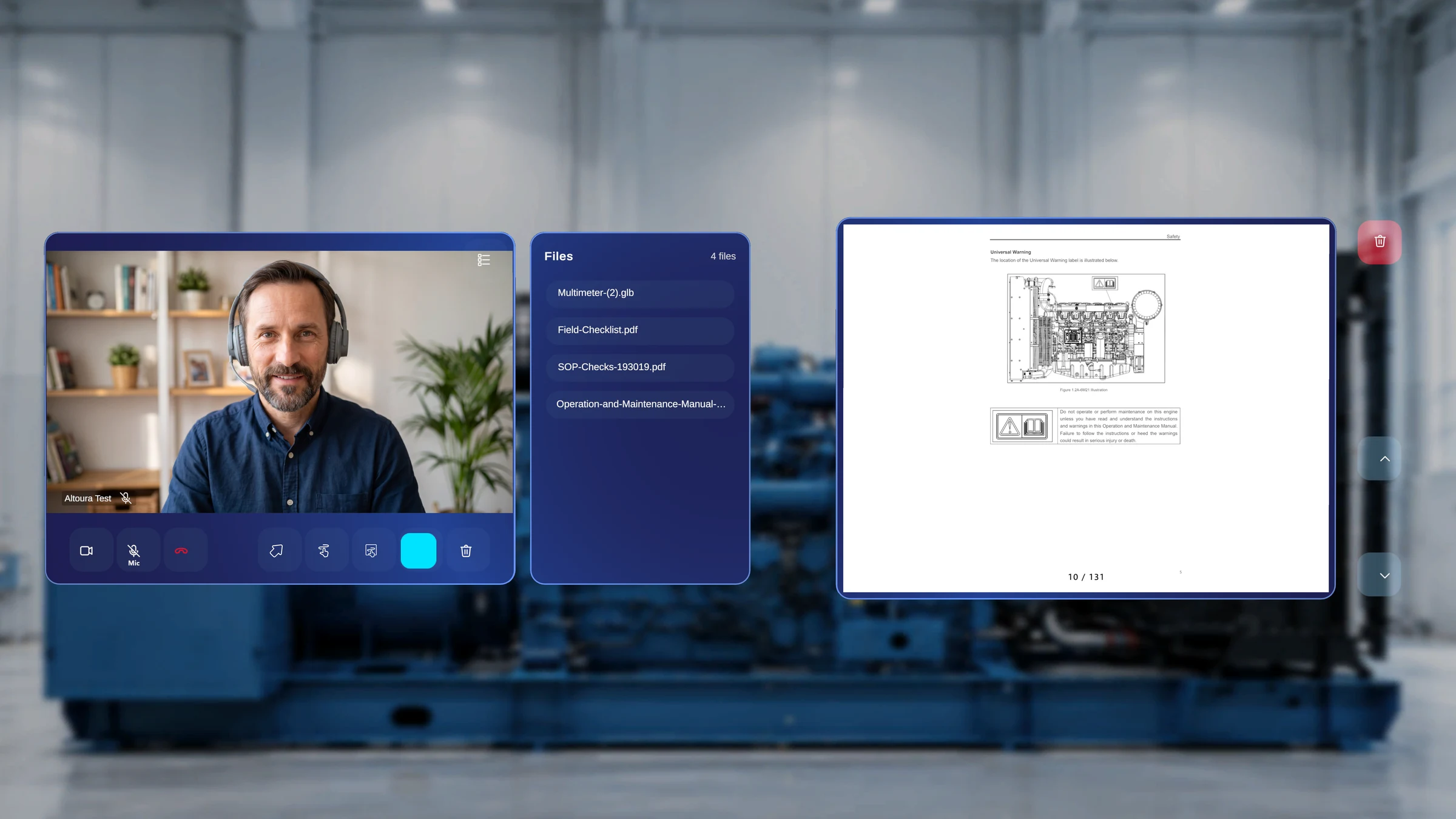
Select a .pdf file in the list. The PDF opens in its own viewer to the right of the Files panel.
Opening another PDF does not replace the one you already have open. Each PDF opens in a new viewer, and every new viewer appears at the same starting position beside the Files panel — however many PDFs you open.
| Control | Where | What it does |
|---|---|---|
| Page counter | Bottom of the page | Shows the current page and the total — for example, 10 / 131 |
| Up / down arrows | Right edge of the viewer | Go to the previous or next page |
| Delete | Red button, top-right corner | Removes the PDF from your view |
Deleting a PDF only removes it from your view. It stays in the Files list, so you can select it again to reopen it at any point in the call.
Open a 3D Model
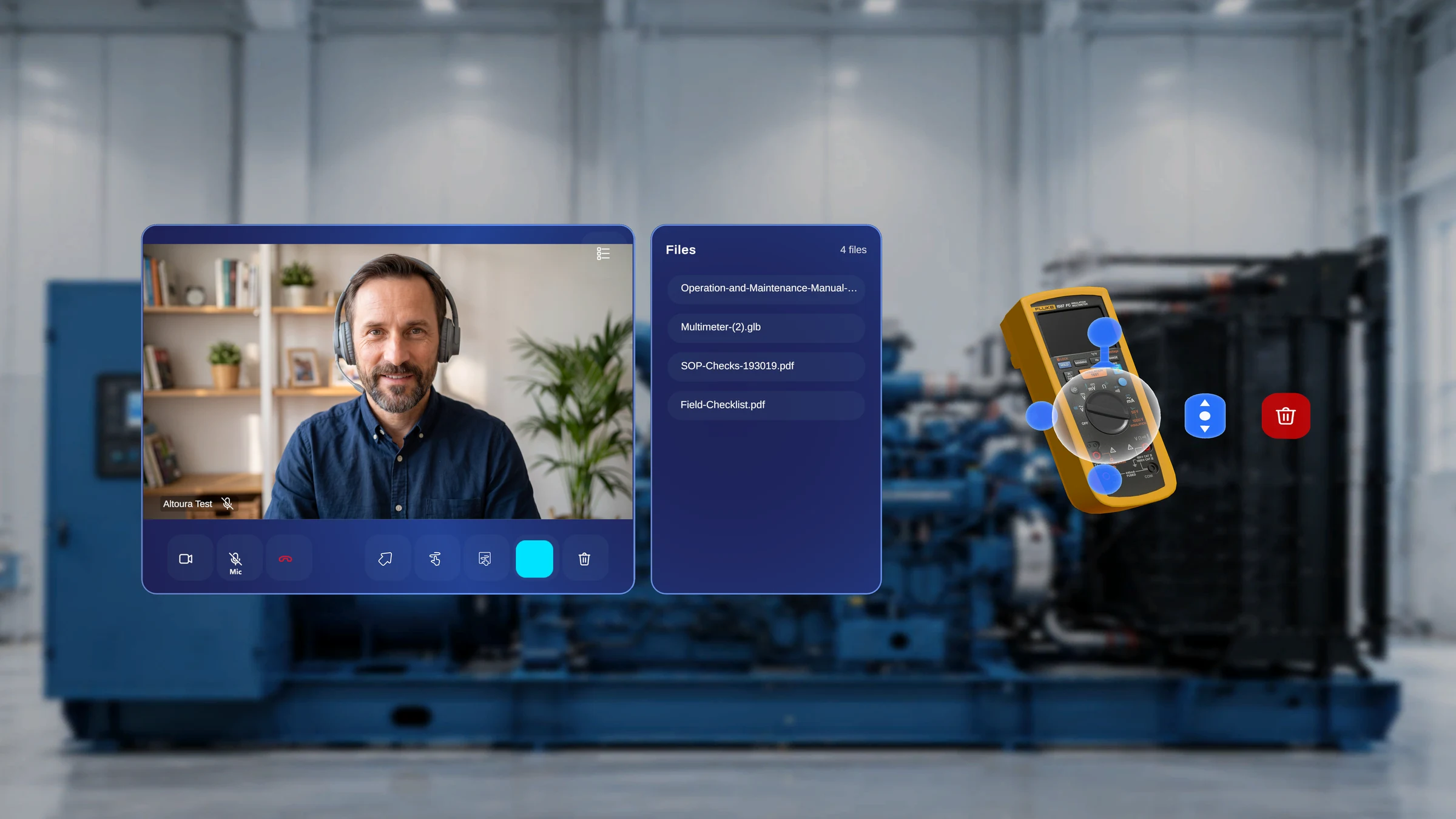
Select a .glb file in the list. The model opens in front of you, with its controls around it.
Move and Rotate the Model
A large transparent sphere sits at the center of the model, with three small blue handles attached.
- To move the model, grab the large sphere and drag it to where you want the model.
- To rotate the model, grab one of the small handles and drag it:
| Handle | Where | Rotates the model |
|---|---|---|
| Top handle | Top of the sphere, on a short stem | Freely, around all axes |
| Left handle | Left side of the sphere | Around the X axis only |
| Bottom handle | Bottom of the sphere | Around the Y axis only |
Scale the Model
The scale control — the handle with up and down arrows to the right of the model — changes the model's size. Drag it up to make the model larger, or down to make it smaller.
Delete and Reopen the Model
Select the red Delete button to remove the model from your space. Like PDFs, the model stays in the Files list — select it again and it opens in front of you once more.
PDFs and 3D Models Compared
3D model (.glb) | ||
|---|---|---|
| Where it opens | In a new viewer beside the Files panel — every PDF at the same starting position | In front of you |
| Controls | Page arrows, page counter, Delete | Sphere to move, handles to rotate, scale control, Delete |
| After you delete it | Stays in the list — select it to reopen | Stays in the list — select it to reopen |
Related
How the expert shares PDFs and 3D models from Microsoft Teams.
Mute, reposition the call panel, toggle the spatial mesh, or end the call.
Start a Remote Expert call from the HoloLens.
Join a scheduled Microsoft Teams meeting from the HoloLens.