

LMS Integration
Altoura supports integration with SCORM-compatible Learning Management Systems (LMS), allowing organizations to deliver Altoura procedures as courses through their existing learning platforms.
This guide uses Altoura TalentLMS as an example to demonstrate how learners can launch a course, pair a device, and complete a procedure.
Watch the Walkthrough
Watch this video to see the complete workflow, from launching the course in the LMS to pairing a device and completing the procedure.
Access the Course
- Sign in to your organization's LMS.
- Open the course containing the Altoura procedure.
- Launch the course unit.
The course page displays the available options for accessing the procedure.
| Option | Description |
|---|---|
| Web browser | Select Start training to open the procedure in a new browser tab. |
| Or use a device | Select Set up & pair on the card for your device to begin setup and pairing. |
Select Your Device
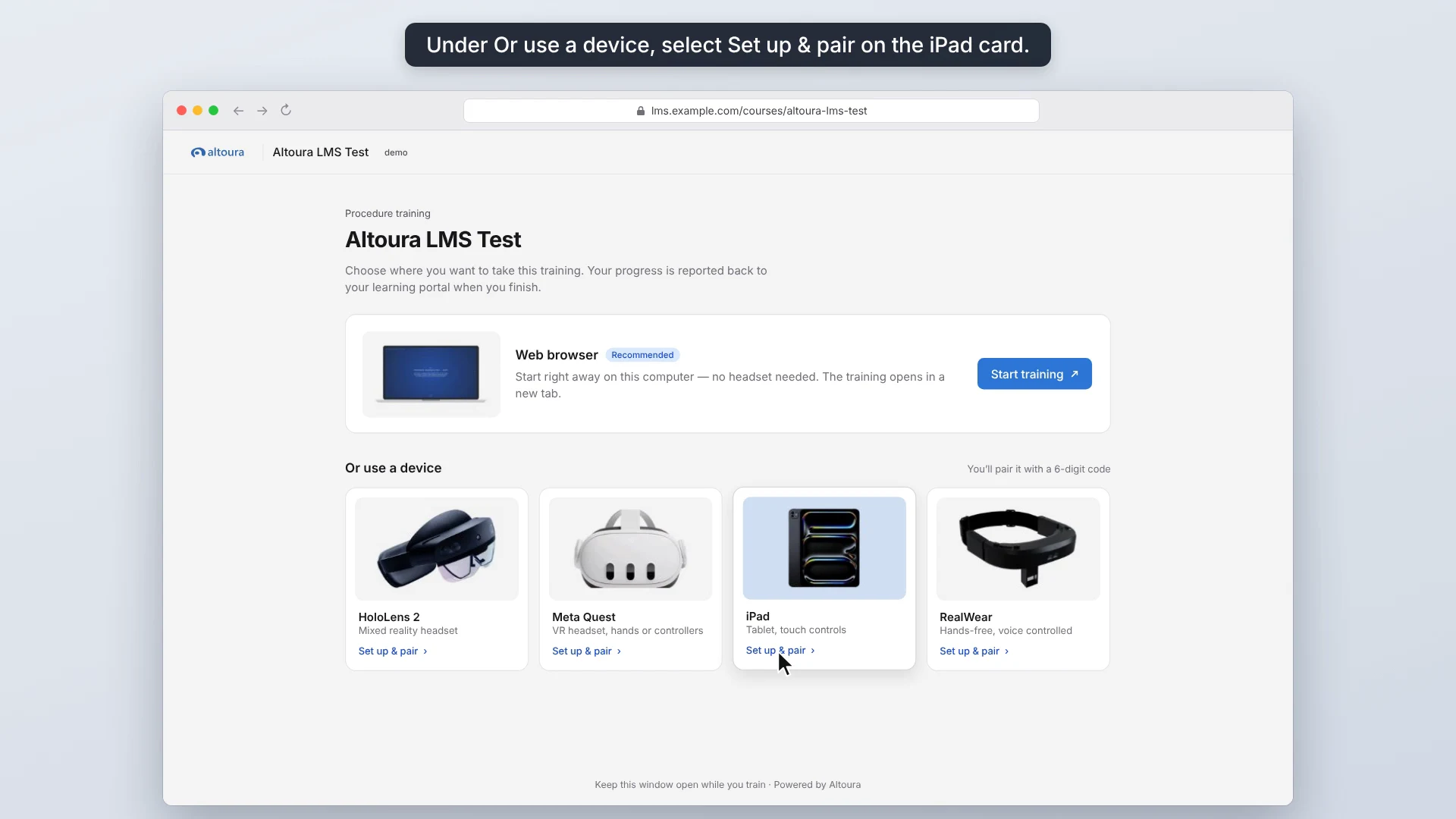
Under Or use a device, select Set up & pair on the card for the device you want to use.
The course page lists the following devices:
- HoloLens 2
- Meta Quest
- iPad
- RealWear
Set Up Your Device
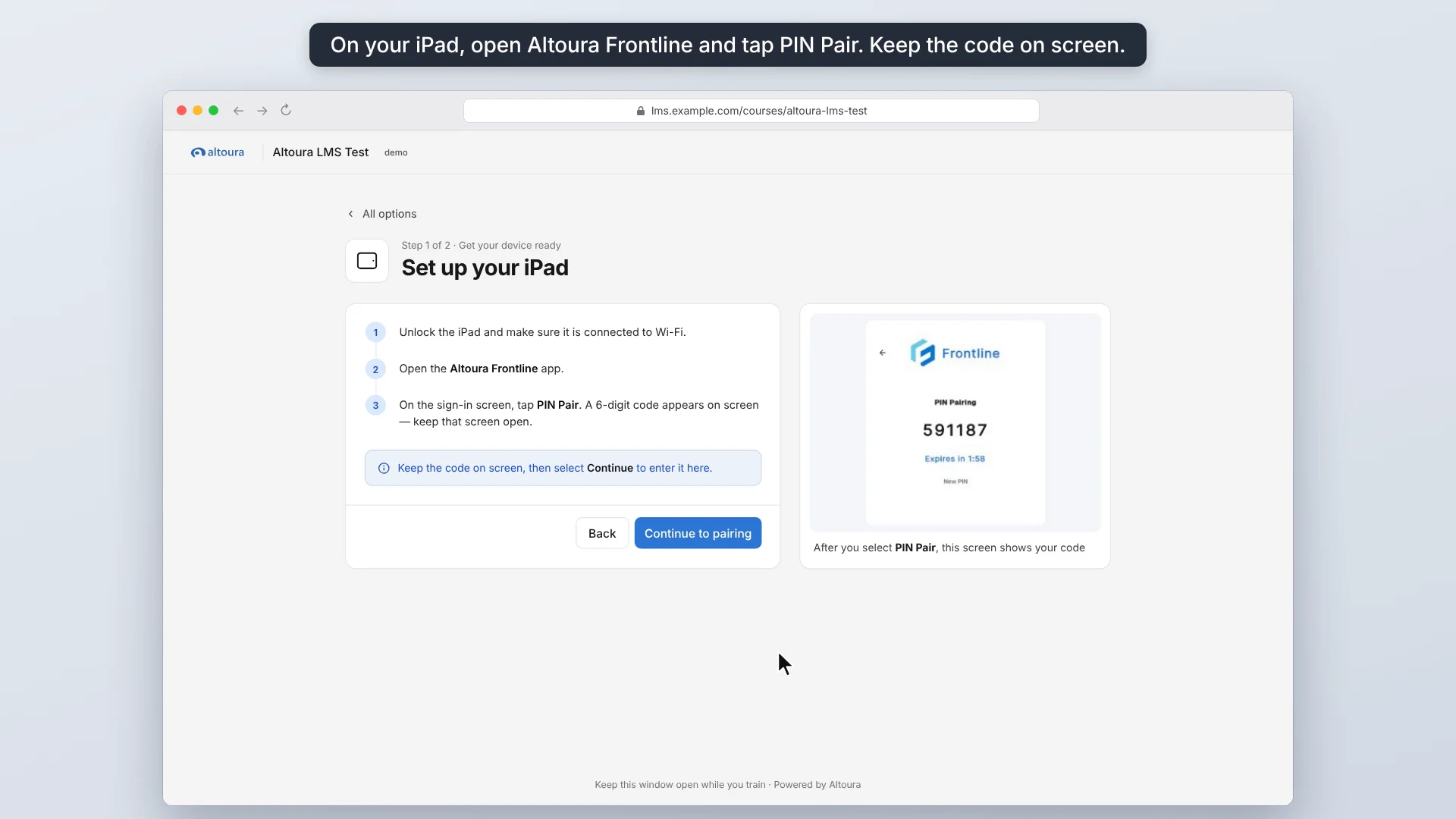
- Turn on your device and make sure it is connected to Wi-Fi.
- Open the Altoura Frontline app.
- On the sign-in screen, select PIN Pair.
- A six-digit pairing code appears. Keep this screen open.
Continue to Pairing
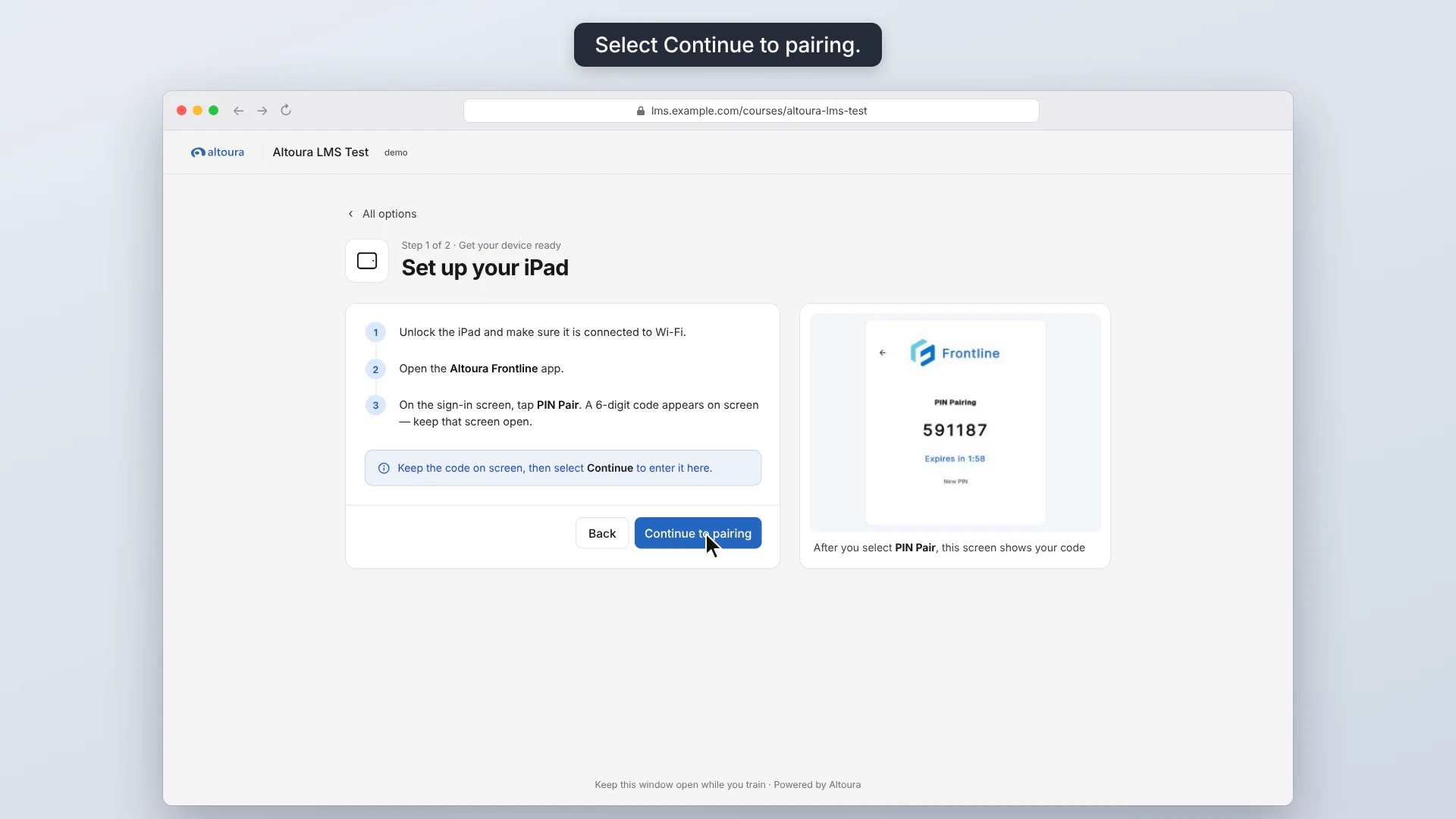
With the pairing code displayed on your device, return to the LMS course page and select Continue to pairing.
Enter Your Pairing Code
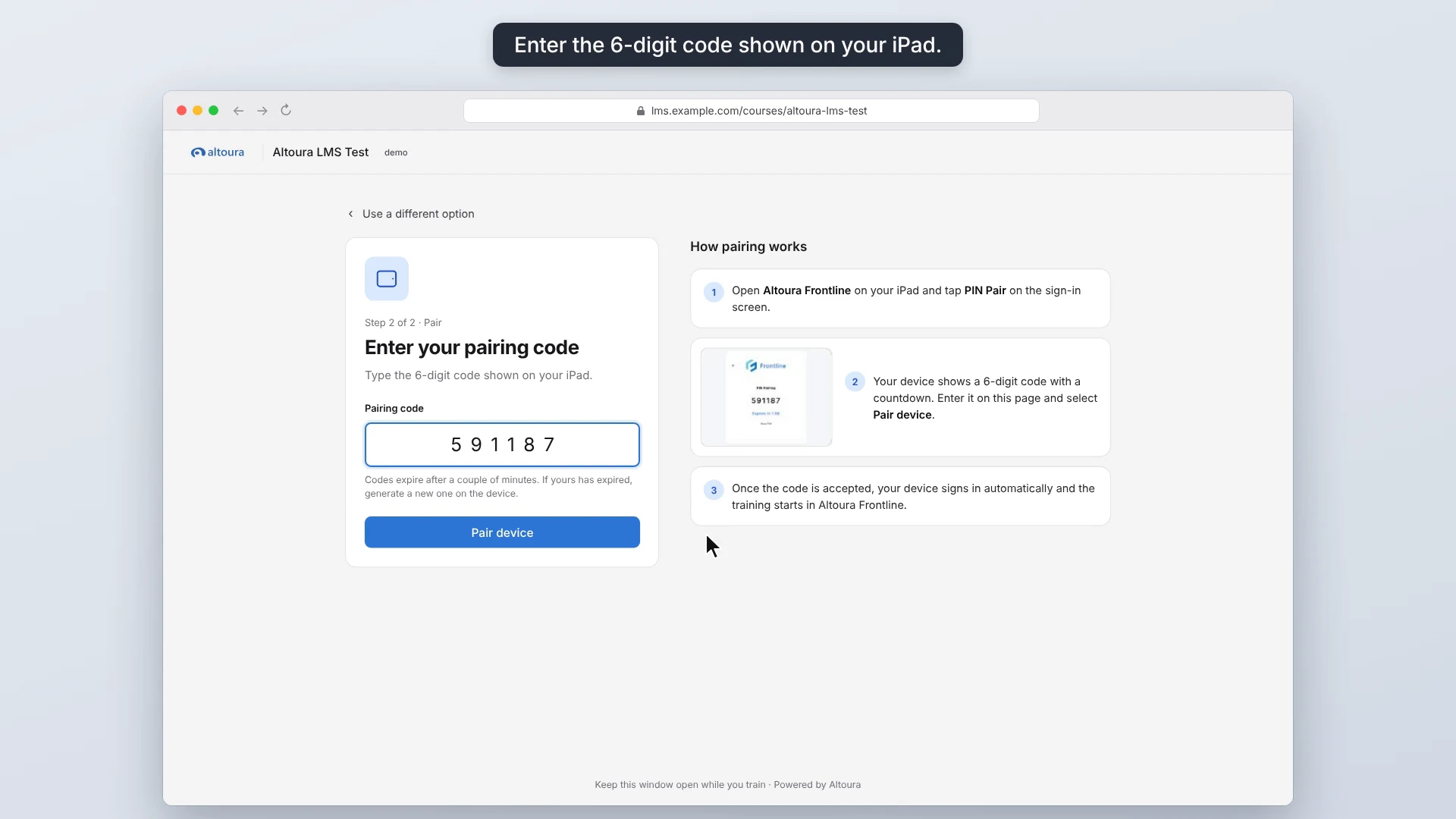
Enter the six-digit code shown on your device in the Pairing code field on the LMS course page.
Pair Your Device
Select Pair device to submit the code.
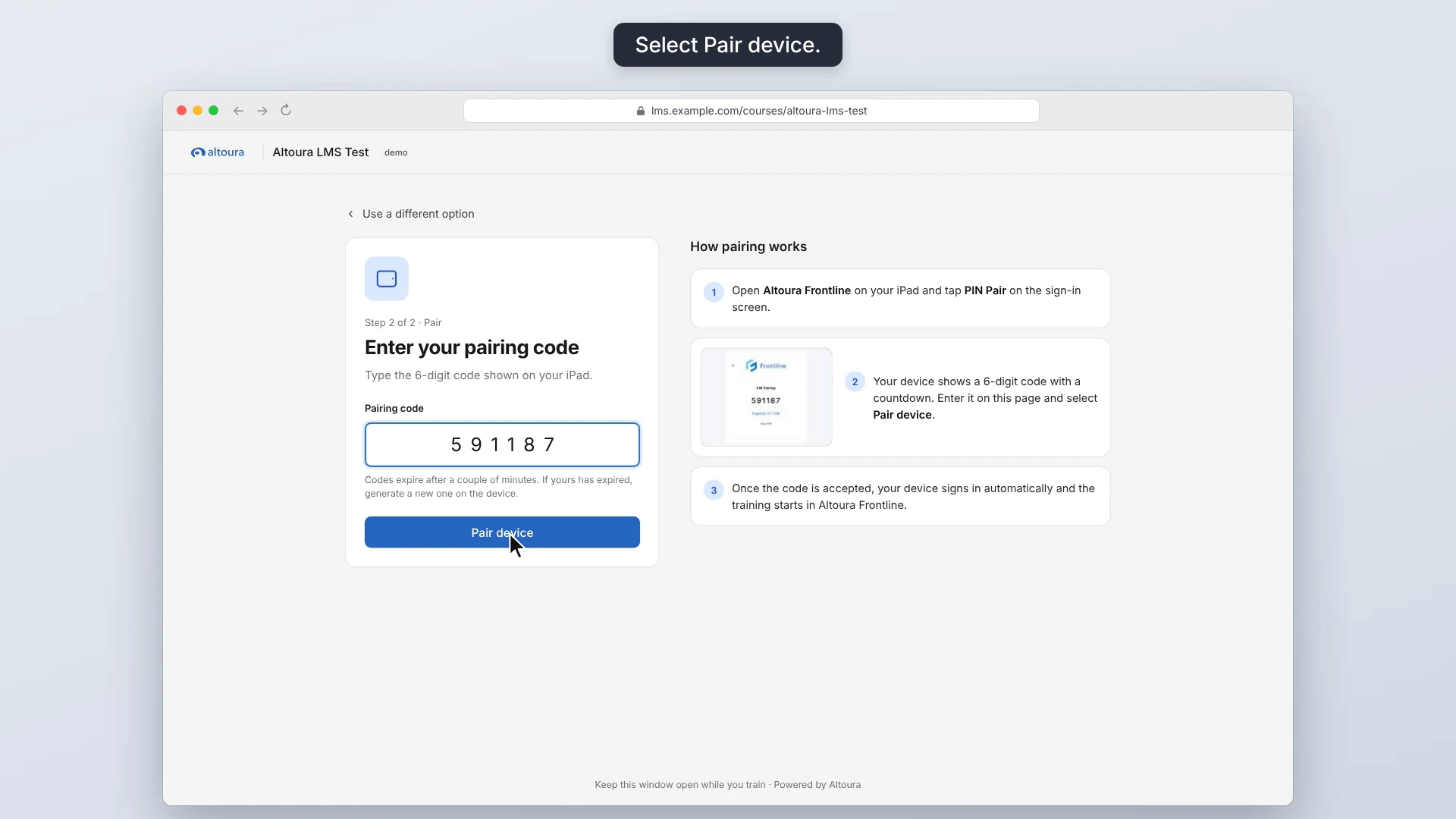
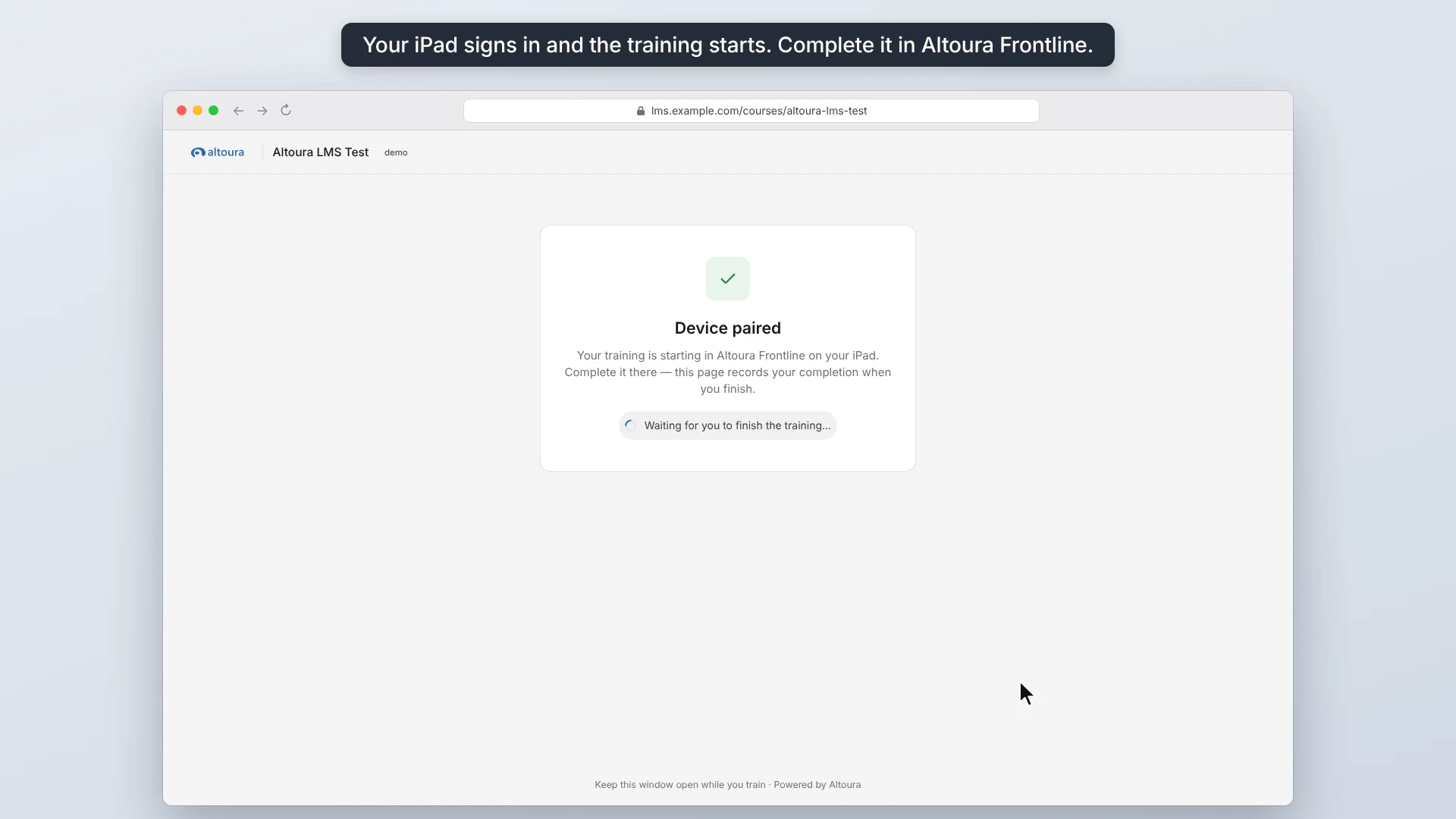
Once the code is accepted, your device signs in automatically and the LMS course page displays Device paired.
Start and Complete the Procedure
- Continue in Altoura Frontline on your device.
- If prompted, scan the QR code provided for the procedure.
- Follow the on-screen instructions and complete all required steps of the procedure.
Course Completion
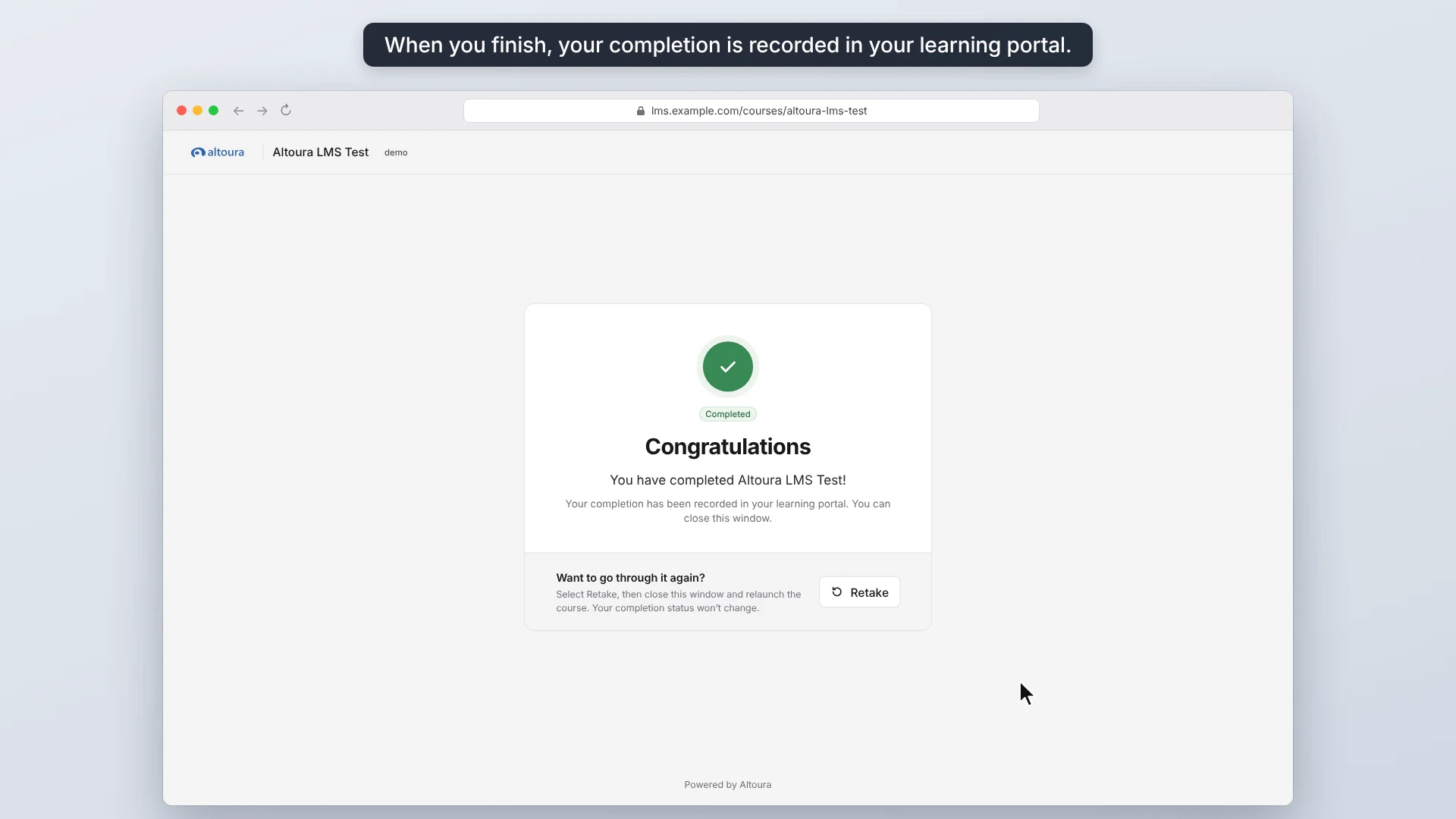
Once all required steps of the procedure are completed, the LMS course page displays a Congratulations message.
The completion screen confirms that your course completion has been recorded in your learning portal. You can then close the course browser window.
Retake the Course
To repeat the course:
- Select Retake on the completion screen.
- Close the course browser window.
- Relaunch the course from the LMS.
Retaking the course does not change your previously recorded completion status, as indicated on the completion screen.
LMS Compatibility
Altoura procedures can be delivered as courses through supported SCORM-compatible Learning Management Systems.
The screenshots in this guide demonstrate the workflow using an iPad. Learners can select any of the other listed devices and follow the setup and pairing process to complete the procedure.