

Who this is for: anyone setting up Altoura Frontline on a Meta Quest for the first time — field workers and authors alike.
What you'll accomplish: by the end of this page, the app is installed on your headset and you are signed in, looking at the Procedures landing page.
Prerequisites
Before installing Altoura Frontline, ensure the following:
| Requirement | Details |
|---|---|
| Device | Meta Quest headset with the latest system update |
| Meta Account | A Meta account signed in on the headset |
| Network | Active Wi-Fi connection with internet access |
| Organization Access | Your IT administrator has enabled access to the Altoura Frontline app for your tenant |
Install from the Meta Horizon Store
Open the Store
Put on your headset and open the universal menu. Select Store to open the Meta Horizon Store.
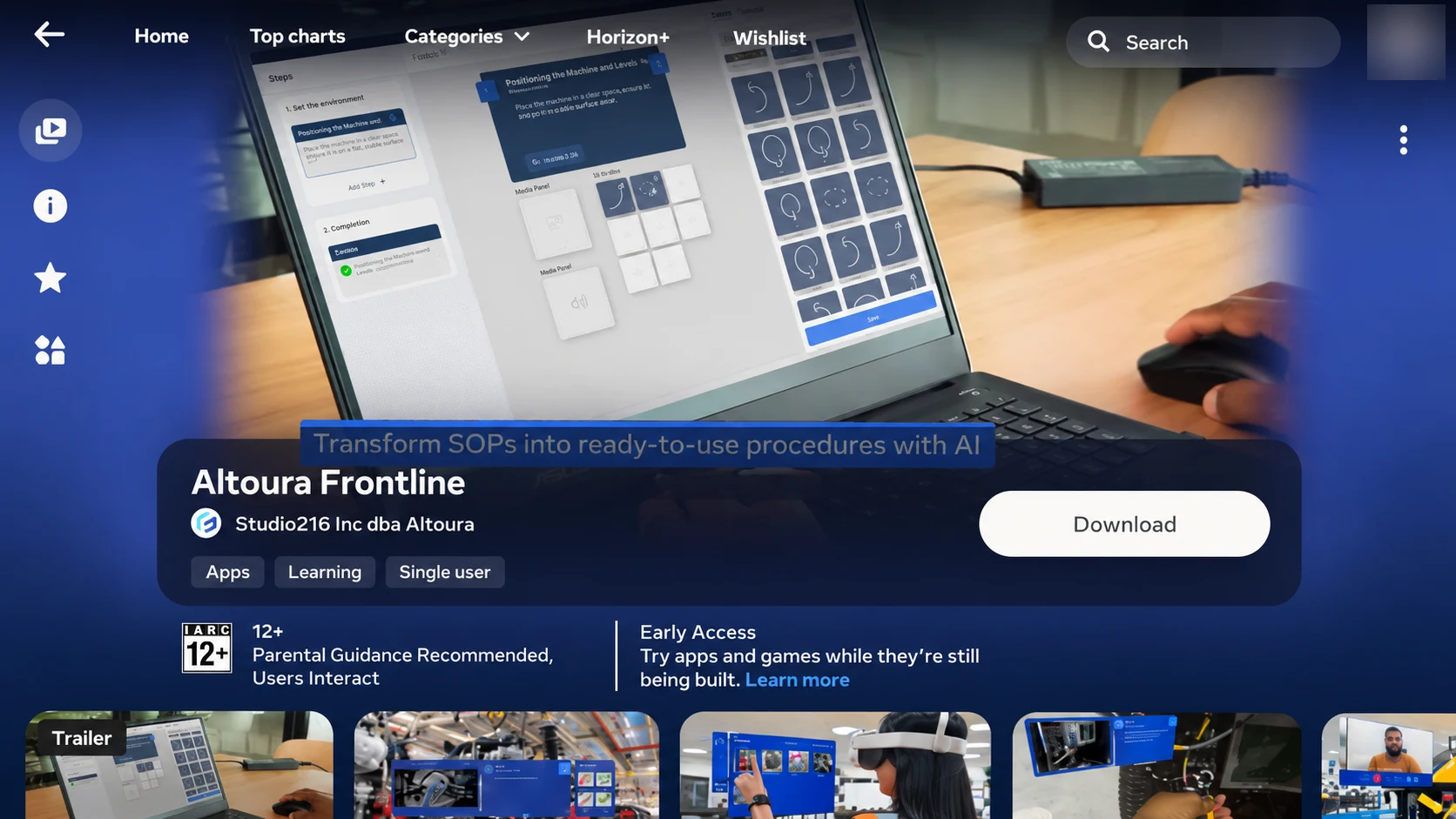
Search for Altoura Frontline
Select the Search field, type Altoura Frontline, and select the app in the search results. The publisher is Studio216 Inc dba Altoura.
Download and install
On the app's Store page, select Download. Wait for the download and installation to complete. Once installed, the app appears in your Library.
Launch the app
Open your Library, then find and select Altoura Frontline. The app opens to the Sign In screen on first launch.
Sign In
The Meta Quest app has the same sign-in screen as HoloLens 2, with three methods: Email & Password, Single Sign-On (SSO), and PIN Pairing. The method available to you depends on your organization's configuration.

| Method | Use it when | Steps |
|---|---|---|
| Email & Password | Your organization uses Altoura-managed credentials | Method 1: Email & Password |
| Single Sign-On (SSO) | Your organization signs in through its own Identity Provider | Method 2: Single Sign-On (SSO) |
| PIN Pairing | Typing on the headset keyboard is impractical, or the headset is shared | Method 3: PIN Pairing |
The steps are the same on both headsets. Whichever method you use, a successful sign-in ends on the Procedures landing page.
Next: learn how to select, grab, and open menus in Controls & Input.